LightBlog

mardi 23 août 2022

Acer announces the sustainability-focused Chromebook Vero 514

Acer has announced the latest member of its sustainability-focused brand, the Chromebook Vero 514, which is also the first Vero-branded Chromebook in the company’s lineup. Acer introduced the first Vero laptop with the Acer Aspire Vero in 2021, and a few more models have been introduced since then, but this is the first one powered by Google’s Chrome OS.

In line with its environmentally-conscious design, the laptop uses 30% post-consumer recycled plastic (PCR) in the chassis, 50% PCR in the keycaps, and 100% ocean-bound plastics for the surface of the touchpad, plus the cardboard packaging uses 90% recycled paper. The exterior of the laptop also uses a paint-free chassis, and the display panel is 99% recyclable, so sustainability is definitely a big focus here.

Two Acer Chromebook Vero 514 laptops back to back, showing both sides as well as the front and back of the laptop

The Acer Chromebook Vero 514 also doesn’t skimp out on specs, though. It’ll be available with up to an Intel Core i7-1255U, so it’s packing the latest and greatest on that front Plus, it has up to 16GB of RAM and a 256GB SSD. The first configuration available in the US isn’t quite that powerful, though. It will be powered by an Intel Core i3-1215U, 8GB of RAM, and a 128GB SSD, which is still a solid combination for a mid-range Chromebook. It also has a 14-inch display with Full HD resolution, and in some markets (not the US), touch support.

It even includes niceties like a fingerprint reader for biometric authentication, as well as a Full HD webcam for video calls. Plus, the chassis still meets MIL-STD-810H military standards for durability, so there aren’t a ton of compromises being made here.

The US configuration of the Acer Chromebook Vero 514 will be available starting in mid-October at Best Buy, and it will cost $499.99, which is frankly not a terrible price for a laptop with these specs. You’re not paying a huge premium for the sustainable design, which makes this device all the more interesting.

The post Acer announces the sustainability-focused Chromebook Vero 514 appeared first on XDA.


from XDA https://ift.tt/2emiVGc
via IFTTT

How many software updates will the Samsung Galaxy Z Fold 4 get?

Samsung has consistently proved that it’s the best in the business when it comes to delivering software updates to its devices. A lot of the Samsung flagships, as you probably already know, are eligible for four major Android updates and up to five years of security updates. Well, you can now add the company’s new foldable devices to this list as well. That’s right, the new Samsung Galaxy Z Fold 4 will get four years of Android OS updates.

The Samsung Galaxy Z Fold 4, in case you’re wondering, ships with Android 12L out of the box. It’s the first Samsung phone to launch with Android 12L, making it that much better than the Galaxy Z Flip 4 in terms of productivity and handling other day-to-day tasks. The fact that it comes with Android 12L out of the box means it will support all the way up to Android 16 or whatever Google decides to call its software release in 2026. This is subject to change based on how Google approaches its Android update rollouts in the future, but we’ll update this space later if/when that happens.

In addition to four major Android OS updates, the Galaxy Z Fold 4 will also receive security updates for the next five years, meaning it’s covered till the year 2027. The frequency of these security updates is, of course, bound to reduce towards the end of this tenure, but you can expect the device to be supported for at least five years. This makes the Galaxy Z Fold 4 — and even the Galaxy Z Flip 4 for that matter — very easy for us to recommend.

    Exclusive deal on the Samsung Galaxy Z Fold 4
    Just like the Galaxy Z Flip 4, the Galaxy Z Fold 4 is also eligible to receive up to four major Android OS updates and up to five years of security updates.

If you’re interested in buying the Galaxy Z Fold 4, then be sure to click the button in the box above to find the best price for it online right now. Alternatively, we’ve also rounded up some of the best Galaxy Z Fold 4 deals with which you can save some money on your purchase and spend on one of the best cases or the best chargers for it.

The post How many software updates will the Samsung Galaxy Z Fold 4 get? appeared first on XDA.


from XDA https://ift.tt/Qt0AUhK
via IFTTT

Sony unveils DualSense Edge wireless controller for the PlayStation 5

During the Gamescom Opening Night Live event, Sony unveiled a new controller for the PlayStation 5 dubbed the DualSense Edge wireless controller. While it was a long time coming, Sony has finally created its own “pro” model controller for the PS5. As you might expect, it features the ability to customize the experience through hardware and software modifications.

DualSense Edge wireless controller for PlayStation 5

Software

The DualSense Edge wireless controller can remap or deactivate specific buttons on the controller. The stick sensitivity can also be adjusted, and dead zones can be dialed in. Furthermore, the triggers are also adjustable, with users having the option to adjust travel distance and dead zones. Players can also save customized control settings and create profiles, making it easier to adjust the controller on the fly when hopping from game to game. A dedicated function (Fn) button also allows quick access to settings like controller profiles, game volume, chat, and more.

DualSense Edge wireless controller for PlayStation 5

Hardware

It wouldn’t be a pro controller without the ability to modify the hardware. The DualSense Edge wireless controller has three different types of swappable caps for the left and right sticks. It will also have replaceable options for the back buttons. It takes things further with replaceable stick modules. Sony didn’t provide details but stated that they would be sold separately. It will also come with a braided USB Type-C cable that can lock into the controller, preventing it from coming loose during intense gameplay.

The DualSense Edge wireless controller will retain the standard DualSense controller’s native features like haptic feedback, adaptive triggers, built-in microphone, motion controls, and more. It will come with a carrying case to keep everything together in one nice package. It can even be charged through USB while stored in the case. Sony did not announce a launch date or a price but stated that it would have more to share in the coming months.


Source: PlayStation Blog

The post Sony unveils DualSense Edge wireless controller for the PlayStation 5 appeared first on XDA.


from XDA https://ift.tt/wWDQJpf
via IFTTT

Can the Samsung Galaxy Watch 5 series detect a fall?

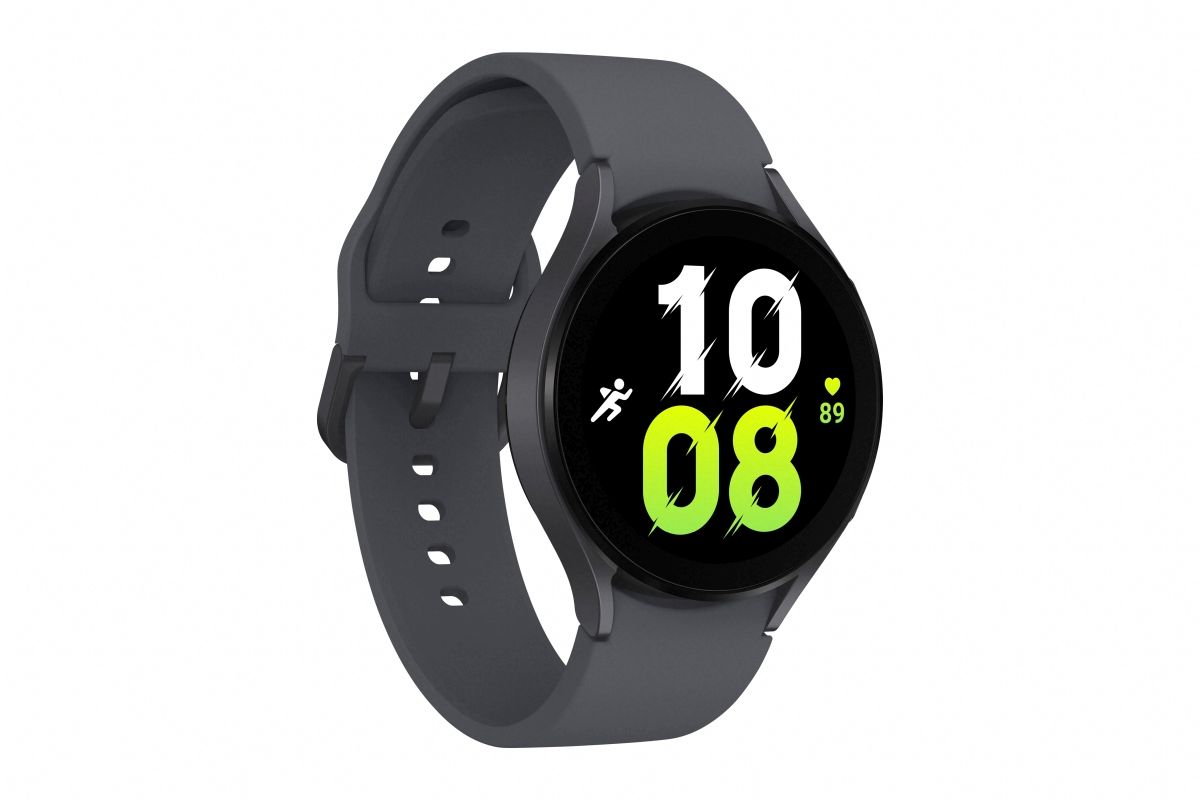
Following the solid success of the Galaxy Watch 4 series, Samsung is back again with a pair of new smartwatches: the Galaxy Watch 5 and Galaxy Watch 5 Pro. Instead of reinventing the wheel, the new Galaxy Watch 5 series keeps the best features of the last lineup while bringing some much-needed improvements such as a bigger battery and a stronger design. Just like its predecessor, the new smartwatches offer a plethora of health and wellness features, allowing you to monitor your sleep, heart rate, stress level, post-workout recovery, and even your body temperature. What’s more, your Galaxy Watch 5 can also detect falls and provide emergency assistance.

Fall Detection on the Galaxy Watch 5 and Galaxy Watch 5 Pro

The Galaxy Watch 5 series offers a feature called Hard fall detection, which can be a lifesaver in emergencies. Once enabled, the Galaxy Watch 5 can detect hard falls and alert you if emergency assistance is needed. When a fall is detected, the Galaxy Watch 5 will display an alert for 60 seconds with a popup, sound, and vibration. If you fail to respond within the timeframe, the watch will automatically send out an SOS to the authorities and your emergency contacts.

    Samsung Galaxy Watch 5
    The Galaxy Watch 5 offers a plethora of health and safety features including sleep tracking, heart rate monitoring, and fall detection

How to set up the Fall Detection feature

Fall Detection is turned off by default. To set it up, open the Samsung Wearable app on your phone and navigate to Watch settings > Advanced features > SOS > When hard fall detected. Turn on the toggle to set up the feature. The Samsung Wearable app will need the Location, SMS, and Phone permissions. After that, choose which people from your phonebook you want to set as your emergency contacts.

Hard fall detection settings in Samsung Wearable app

    Samsung Galaxy Watch 5 Pro
    The Galaxy Watch 5 Pro offers the largest battery in a Galaxy Watch, advanced sleep tracking, and fall detection

The Fall Detection feature itself isn’t new. It was first introduced on the Galaxy Watch 3 and is also available on the Galaxy Watch 4 series. In particular, it can be of great help to the elderly and to those who regularly engage in dangerous outdoor activities such as mountain climbing and bungee jumping.

The Galaxy Watch 5 series was unveiled alongside the Galaxy Z Fold 4 and Galaxy Z Flip 4. It’s now available for pre-order in multiple markets.

The post Can the Samsung Galaxy Watch 5 series detect a fall? appeared first on XDA.


from XDA https://ift.tt/lDHjKSL
via IFTTT

Nothing Phone 1 Android 13 update slated for 2023

It’s tough launching a new smartphone company in 2022. The competition is fierce, and the stakes are high. While we don’t know the financials behind the business, from the outside looking in, Nothing has done an excellent job so far. The phone has been released, it’s getting into the hands of buyers, and the company has been releasing software updates at a feverish pace. But, it looks like one software update for the phone won’t be landing until much later, slated to arrive sometime in the first half of 2023.

The folks at Android Authority got word from Nothing’s PR team, explaining that Android 13 wouldn’t be ready until next year. This interaction was perhaps prompted by the fact that last week, Nothing CEO Carl Pei sidestepped the Android 13 question when asked about it through Twitter. Now, if you’re a Phone 1 owner, you might be asking yourself why it will take anywhere from four to ten months for the update to arrive. The company stated that it wanted to “fine tune the software upgrade with Nothing’s hardware.”


Currently, Android 13 is only available for Pixel devices. While it isn’t a significant update like Android 12, the refinements and minor enhancements are welcome. Some will also welcome the improved stability over Android 12. This year’s update comes sooner than anticipated, dropping much earlier than the release of the upcoming Google Pixel 7 and Pixel 7 Pro. Last year, Android 12 was released just a few weeks before the Pixel 6 and Pixel 6 Pro releases.

Recently, Nothing delivered Nothing OS version 1.1.3. The update offered several improvements, most dedicated to the camera. The update also added support for Google’s Adaptive Battery, which should help further optimize battery life on the phone. If you are interested in the update, check your system update menu, as it is currently being rolled out over the air. You can download the image and sideload it if it hasn’t arrived. If that sounds intimidating, don’t worry, we have a guide just for beginners.


Source: Android Authority

The post Nothing Phone 1 Android 13 update slated for 2023 appeared first on XDA.


from XDA https://ift.tt/cWZ4iOl
via IFTTT

How to insert a SIM card in your Android phone

After unboxing your brand new Android smartphone, the first thing you would want to do is insert a SIM card. That way, you’ll be ready to start making calls and have a working data connection once you complete the initial setup. And if you don’t have a WiFi connection, you’d also need a SIM card and a data connection to help complete the initial setup process. Back in the day, inserting a SIM card required removing the back panel as the slot was located under the battery. Unless you have an older smartphone, you don’t usually need to do that anymore.

Almost all new smartphones nowadays come with a small dedicated SIM tray that’s placed on the side, top, or bottom of the phone. Inserting a SIM card into a smartphone is a very straightforward process, but it may feel a bit confusing to some as there are different SIM cards, and the process varies across Android OEMs. Follow these steps to properly insert a SIM into your Android smartphone. If you have an iPhone then refer to this guide on how to insert a SIM into your iPhone.

  • Switch off your smartphone.
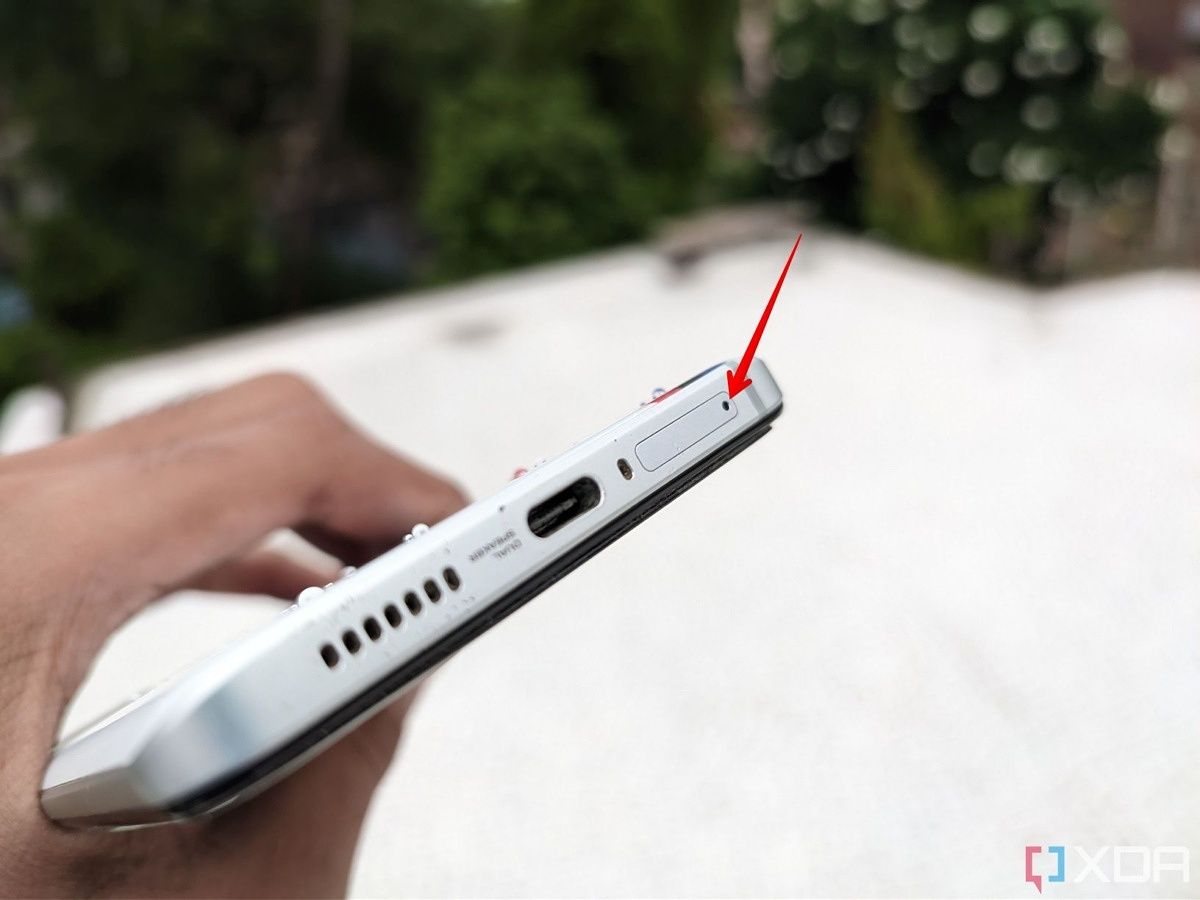
  • The next step is to locate the SIM tray. If your phone has a case, make sure it’s removed. Depending on your smartphone, it may be found on the side, at the top, or at the bottom.  You’ll see a tiny hole next to the tray, as shown in the image below.
  • Note: Most phones also have microphone holes close to the SIM tray, so ensure you aren’t misidentifying the two. If the two holes are close by, the SIM tray hole will be part of the SIM tray design.
The SIM tray on the left side of the smartphone The bottom side of the phone with the SIM tray
  • You’ll need the SIM ejection tool to open the tray. You can find the tool inside the smartphone box. If you don’t have it, you can use a paper clip or pin.

SIM ejection tool

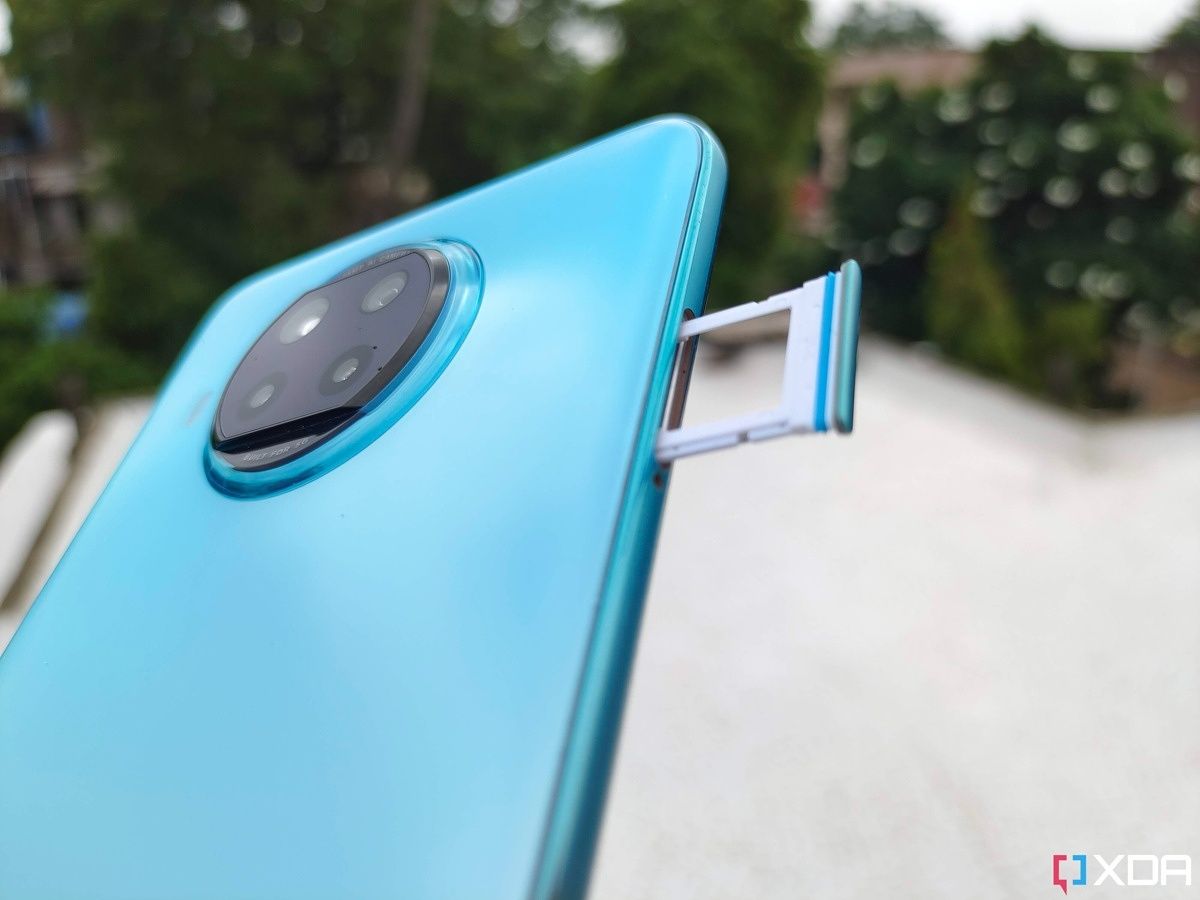
  • Insert the SIM tool or paperclip inside the hole next to the tray and press it with your index finger to pop the tray out. Don’t apply too much force. The tray should pop out easily.
SIM tray popping out of a smartphone SIM tray popped out of a smartphone
  • Pull out the SIM tray from the smartphone and place it on a clean, solid surface. Also, note down the position of the tray. This will make it easier to reinsert it.

SIM tray laying on smartphone's back

  • Depending on your phone, you may need a Nano or micro SIM. Almost all modern Android smartphones use Nano SIM.
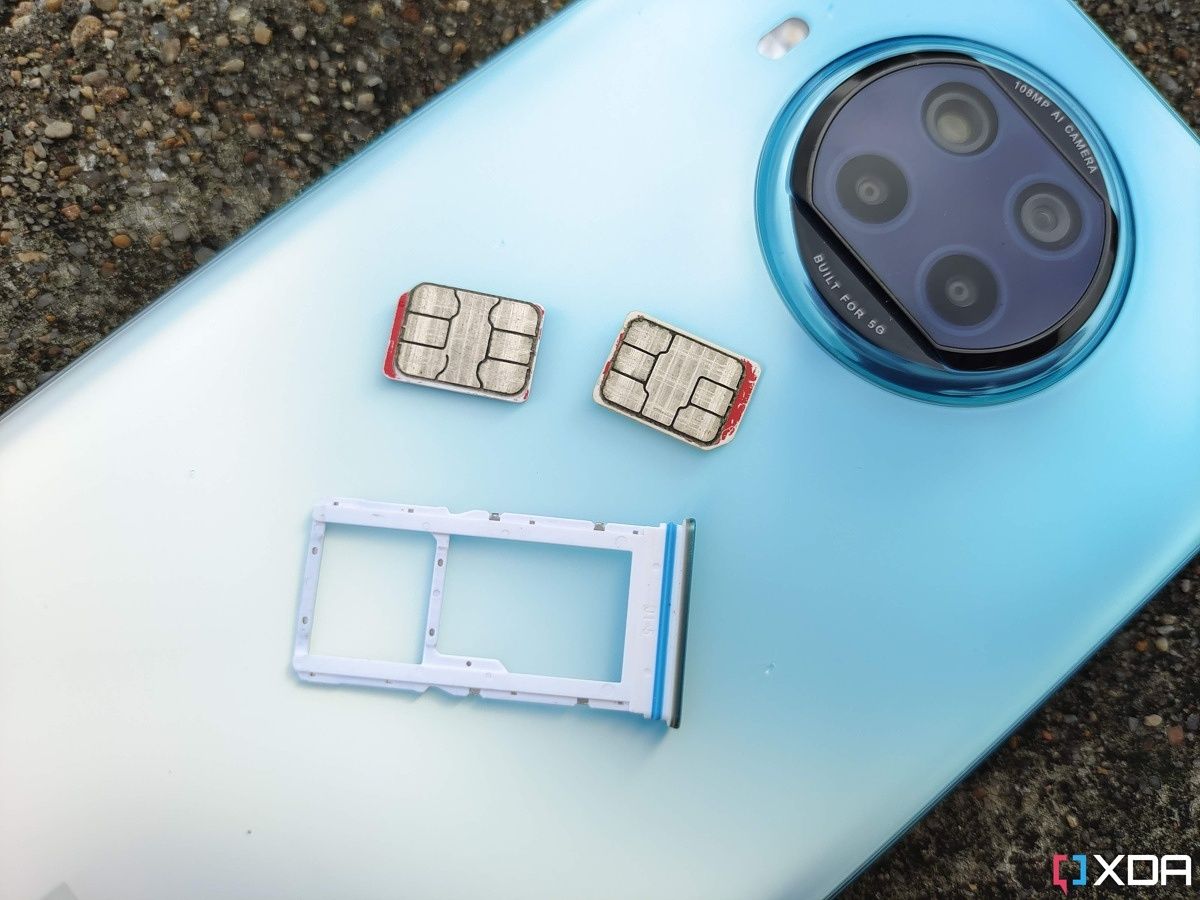
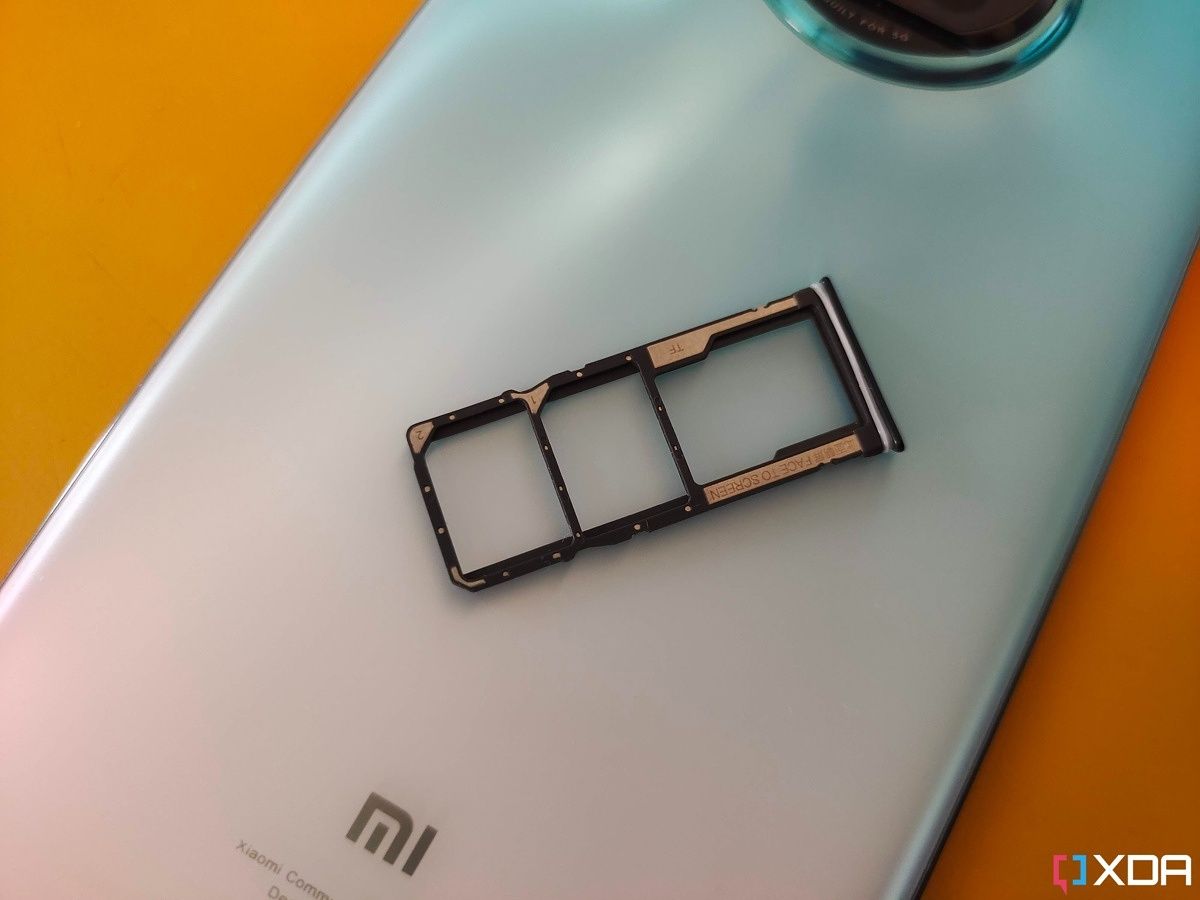
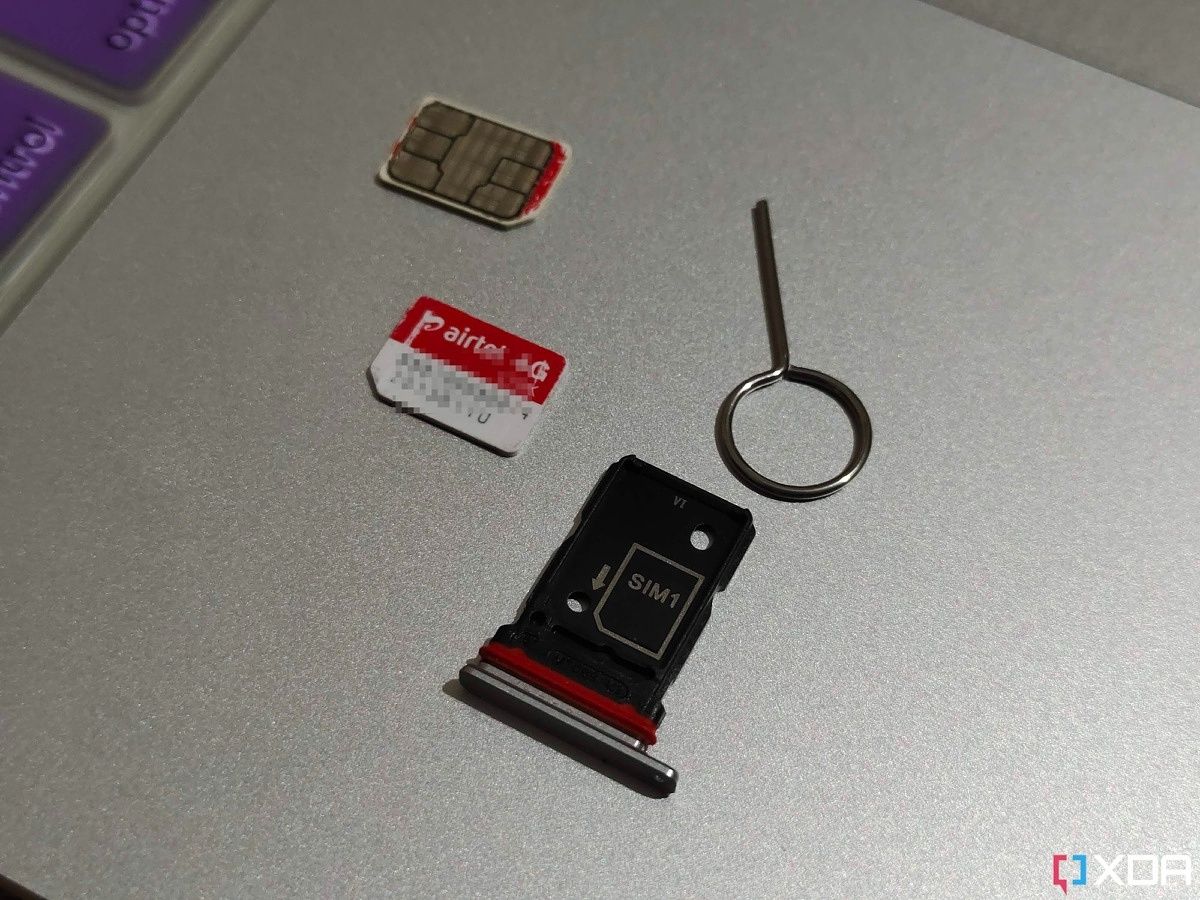
  • If your phone is dual-SIM, the SIM tray will have two slots. Some Android phones also have a hybrid SIM tray (see the first picture below), which can accommodate two SIM cards or a single SIM and a microSD card.
SIM card tray with a dedicated microSD slot laying on a phone's back Nano SIM tray sitting next to two SIM cards and a ejection tool
  • Place the SIM card in slot 1 with the logo up and gold/bronze chip side facing down. Some Android phones use a SIM tray that can hold two SIMs back to back (see the image below). In that case, place the SIM card with the gold/bronze chip side facing up and the logo down. Note that the card will only fit one way.
A streched out palm displaying a SIM tray with two cards loaded A SIM tray laying on the back on the a smartphone with two SIM cards loaded
  • Now, gently push the SIM tray back into the smartphone. The tray should slide in easily without any resistance. Don’t apply force. If it’s not going in or stuck, it’s either that you’re pushing the tray in the wrong direction or you haven’t placed the SIMs correctly. In that case, gently pull the tray out. Ensure the SIM cards are properly fit and flat to the tray.

A SIM tray popping out of a smartphone

  • After reinserting the SIM tray, power on the smartphone.

If you followed the above steps correctly, you should see the carrier information and signal bars appear on the screen. That’s it. You’re now ready to start making calls and using mobile data. Many Android smartphones nowadays come with an eSIM or embedded SIM. In that case, no physical swapping of SIM cards is required.

The post How to insert a SIM card in your Android phone appeared first on XDA.


from XDA https://ift.tt/SA7ECDm
via IFTTT

These are the Best Charger Alternatives for the Apple Watch Series 7

The Apple Watch is an unrivaled wearable for those looking for a fitness companion and non-health-related features. If you buy an Apple Watch Series 7, you’re both investing in your health and making your life easier. This tiny device has a lot to offer — from ECG readings, to heart rate monitoring, blood oxygen measurements, Apple Pay, etc. Though, notably, you can’t charge this smartwatch with regular Qi wireless pads. Apple resorts to its own proprietary puck. If you’ve lost or broken your original Apple Watch Series 7 charger — or maybe just looking for a spare unit — we’ve compiled for you a list of the best alternative chargers available. Each of the listed chargers has its own specifications that make it stand out, when compared to the other ones.

    Apple Watch Magnetic Fast Charger

    Official — USB-C

    This official USB Type-C charger supports 33% faster charging on the Apple Watch Series 7, when compared to the USB Type-A one.
    Apple Watch Magnetic Charging Cable

    Official — USB-A

    This 1-meter USB Type-A charger is also official but lacks fast charging capabilities. It's ideal for those with a USB Type-A charging brick.
    Belkin MagSafe 3-in-1 Wireless Charger

    Station

    This charging station has a MagSafe pad for your compatible iPhone, a Qi pad for your AirPods case, and an Apple Watch puck for your Series 7.
    Apple Watch Magnetic Charging Dock

    Dock

    This dock from Apple is ideal for those who want to use their watches as an alarm clock, thanks to Nightstand mode in watchOS.
    Belkin Travel Stand Charger for Apple Watch

    Stand

    This Belkin stand is similar to the previous one from Apple. It's perfect for those looking for a black color option, instead of white.
    Apple MagSafe Duo Charger

    Dual

    The MagSafe Duo is a dual charger for your Apple Watch and iPhone or AirPods case. It's great for those who dislike having many cables on their desktops. Though, it's available in white only.

Personally, I love Belkin’s MagSafe 3-in-1 wireless charger because it simultaneously charges my iPhone, AirPods Pro, and Apple Watch. Instead of having several cables and chargers on your desk, you can use this minimalistic charging station instead. It works reliably and, in my opinion, it’s worth every penny. That’s not to mention the visual indicator which confirms that your devices are indeed charging. It also alerts you when something stops them from charging. It truly is one of the best chargers for the Apple Watch.

The Apple Watch might seem like a useless accessory to many people. Though, once you actually get accustomed to it, it becomes an irreplaceable part of your life. It effortlessly unlocks your Mac, lets you control iPhone music playback on the go, and much more. Usually, an Apple Watch Series 7 can last a full day on a single charge — so you don’t need to leave chargers everywhere. Nonetheless, it’s not a bad idea to keep one at your office as a just in case accessory.

    Apple Watch Series 7
    The Apple Watch Series 7 is the company's latest and greatest wearable. It has a larger screen and supports fast charging.

Which of these Apple Watch Series 7 charger will you buy, and why? Let us know in the comments section below.

The post These are the Best Charger Alternatives for the Apple Watch Series 7 appeared first on XDA.


from XDA https://ift.tt/aYvnqEJ
via IFTTT