LightBlog

dimanche 24 juillet 2022

Xiaomi 12S Ultra vs Apple iPhone 13 Pro Max Camera Shootout and Comparison: A back and forth battle

The iPhone is the most mainstream phone, which makes it almost seen as the “default smartphone.” This means anytime a major Android smartphone arrives, it should be compared against the iPhone, even if they don’t appeal to the same market. That’s the case here, as the Xiaomi 12S Ultra has been grabbing a lot of attention for its 1-inch camera sensor with Leica optics, even though the phone is selling only in China for now. This means this comparison is more for enthusiasts and those curious about smartphones than an actual buying guide. It’s also worth mentioning that the smaller iPhone 13 Pro has the exact same camera hardware as the iPhone 13 Pro Max, so all camera results here apply to that phone as well.

Xiaomi 12S Ultra and iPhone 13 Pro Max

Apple iPhone 13 Pro Max vs Xiaomi 12S Ultra: Specifications

Specifications Apple iPhone 13 Pro Max Xiaomi 12S Ultra
Build
  • Stainless steel mid-frame
  • Glass back
  • Ceramic Shield glass front
  • Aluminum mid-frame
  • Faux-leather back
  • Gorilla Glass Victus front
Dimensions & Weight
  • 160.8mm x 78.1mm x 7.65mm
  • 240g
  • 163.17 x 74.92 x 9.06mm
  • 225g
Display
  • 6.7-inch Super Retina XDR OLED
  • ProMotion refresh rate between 10Hz and 120Hz
  • 6.73-inch Samsung E5 AMOLED
  • Dolby Vision TrueColor Display
  • 3200 x 1440 resolution, 522PPI
  • 1-120Hz adaptive refresh rate
  • 1,500nits peak brightness
  • 360-degree ambient light sensor
  • Native 10-bit color depth
SoC
  • Apple A15 Bionic
Qualcomm Snapdragon 8 Gen 1
RAM & Storage
  • 6GB
  • 128GB/256GB/512GB/1TB
  • 8GB/12GB RAM
  • 256GB/512GB
Battery & Charging
  • 4,373mAh
  • 20W wired fast charging
  • 7.5W wireless charging
  • 15W MagSafe wireless charging
  • No charger in box in most regions
  • 4,860mAh
  • 67W wired fast charging support
  • 50W wireless fast charging support
  • 10W reverse wireless charging support
  • Xiaomi Surge P1 charging chip
  • Xiaomi Surge G1 battery management chip
Security Face ID Optical in-Display fingerprint scanner
Rear Camera(s)
  • Primary: 12MP wide, f/1.5 aperture, 1.9μm
  • Secondary: 12MP ultra-wide, f/1.8 aperture
  • Tertiary: 12MP telephoto, 3x optical zoom, f/2.8
  • Quarternary: LIDAR camera
  • Primary: 50.3MP IMX989, f/1.9, 8P aspherical lens, octa-PD auto-focus
  • Ultra-wide: 48MP IMX586, f/2.2, Leica Summicron 1:1.9-4.1 / 13-120 aspherical lens, dual-PD auto-focus, macro mode support
  • Telephoto: 48MP IMX586, f/4.1, 120x periscope zoom, HyperOIS
  • Leica Authentic Look and Leica Vibrant look photographic styles
Front Camera(s) 12MP 32MP
Port(s) Lightning USB-C
Audio Stereo speakers
  • Symmetrical stereo speakers
  • Tuned by Harman Kardon
  • Dolby Atmos certification
Connectivity
  • 5G (mmWave)
  • Wi-Fi 6 (802.11ax) with 2×2 MIMO
  • Bluetooth 5.0
  • NFC
  • 5G (mmWave)
  • Wi-Fi 6E (802.11ax)
  • Bluetooth 5.1
  • NFC
Software iOS 15 MIUI 13 over Android 12
Other Features Dual physical SIM or eSIM support Dual physical SIM
    Apple iPhone 13 Pro Max
    The iPhone 13 Pro Max is the biggest and best phone Apple has to offer right now
    Xiaomi 12S Ultra
    Xiaomi's 12S Ultra has a whopping 1-inch sensor with Leica optics -- and it lives up to the hype.

About this comparison: This camera versus was done after months and weeks of testing an Apple iPhone 13 Pro Max and Xiaomi 12S Ultra respectively. Each phone was provided by the company for review purposes, but neither Apple nor Xiaomi had any input in this article.


Camera Hardware Overview

iPhone 13 Pro Max and Xioami 12S Ultra in the hand

Apple, like Google, had traditionally not cared too much about chasing camera hardware the way Asian phone brands do, instead relying on software improvements and optimizations. But with the iPhone 13 series, especially the Pro models, Apple made a point of really marketing camera improvements made, which included a larger main camera sensor, faster aperture for the ultra-wide, and longer 3X telephoto zoom. The larger main camera sensor, which teardowns have shown to be 1/1.66-inch, gives the iPhone 13 Pro Max a pixel size of 1.9µm.

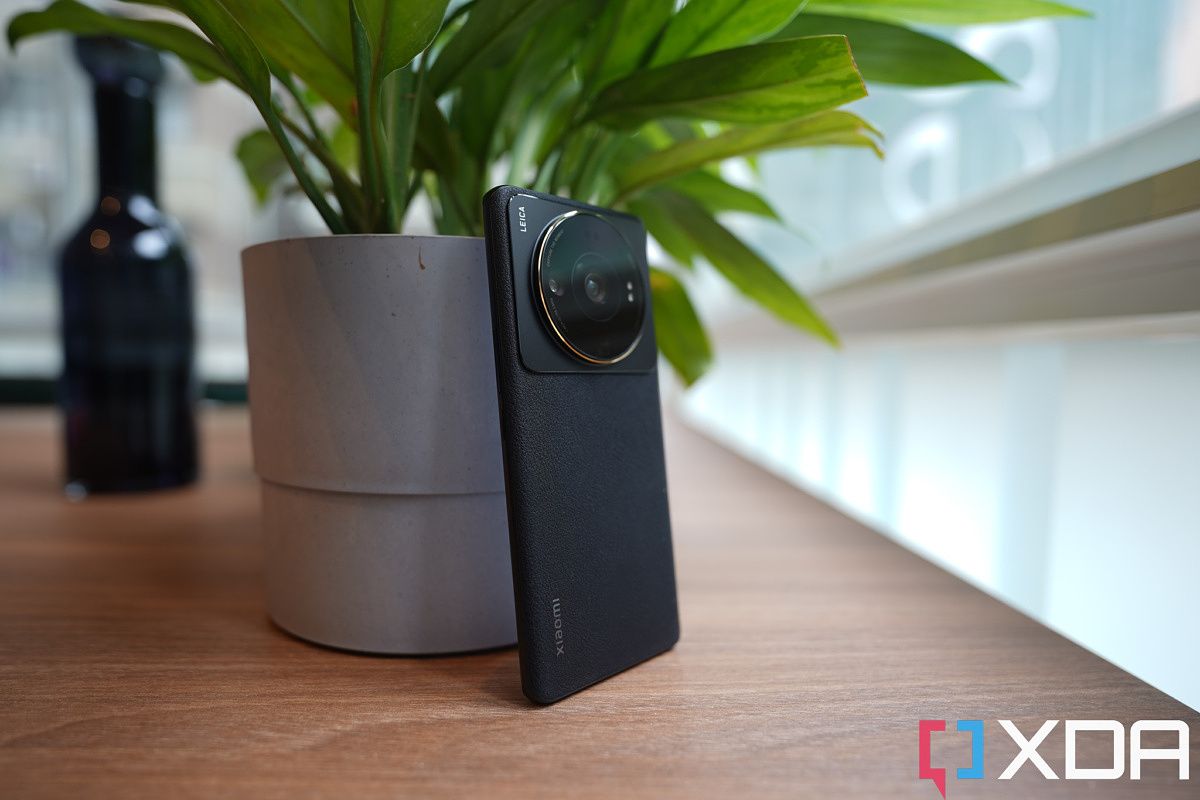
These numbers, however, still pale in comparison to the Xiaomi 12S Ultra’s, which boasts a 50MP main camera with a 1-inch sensor, which, after pixel-binning, results in a 3.2µm pixel size. In fact, looking at the physical difference between the 1-inch Sony IMX989 sensor in the Xiaomi 12S Ultra to the iPhone 13 Pro Max’s sensor is jarring to see.

image sensor size

The 12S Ultra’s ultra-wide camera is a 48MP camera, f/2.2 shooter, and rounding out the triple lens system is a 48MP 5X Periscope zoom lens offering 5X optical zoom.

The iPhone 13 Pro Max features an additional LIDAR (light detection and ranging) scanner while the Xiaomi phone has a 3D ToF (time-of-flight) sensor. Both do similar things, but the LIDAR is a bit more advanced from previous experiences. For selfies, the Xiaomi 12S Ultra uses a 32MP f/2.4 camera to the iPhone 13 Pro Max’s 12MP f/2.2 shooter.

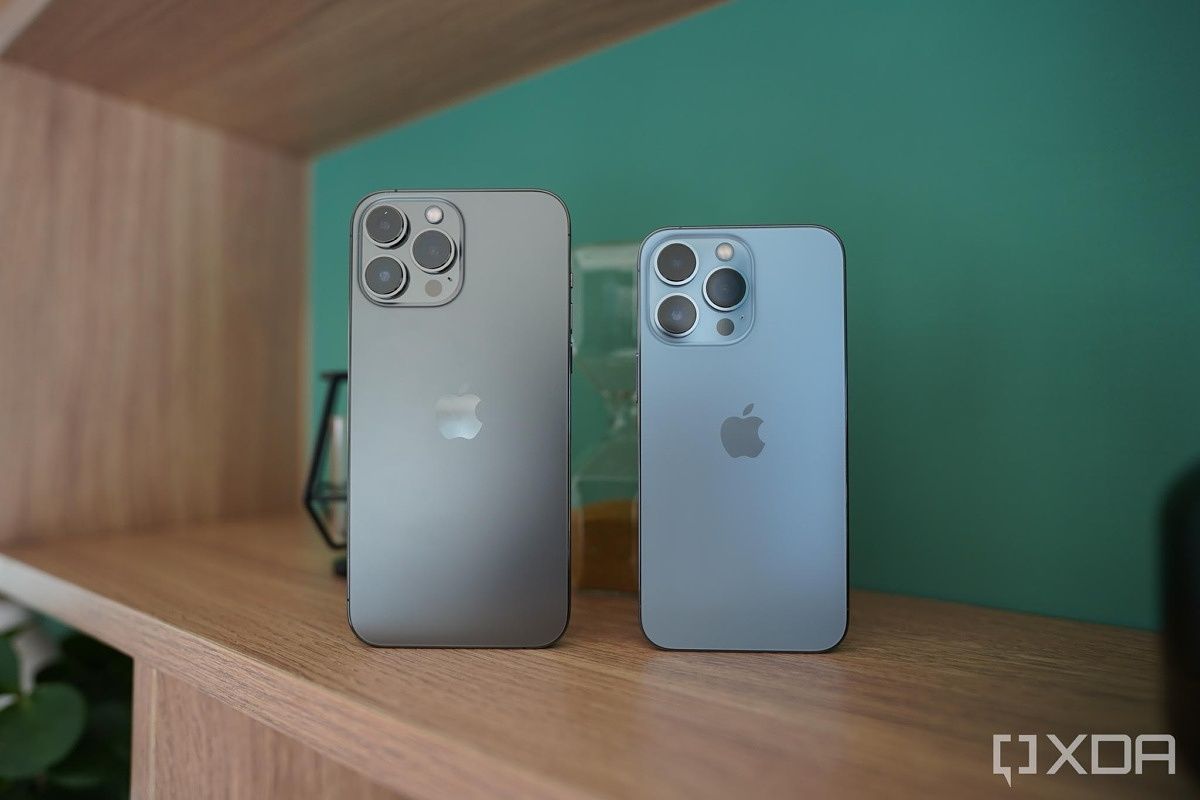
Xiaomi 12S Ultra camera module with gold ring iPhone 13 Pro Max (left) and iPhone 13 Pro (right).

As I said, there’s no denying that the Xiaomi 12S Ultra has gaudier camera hardware numbers, but as Google has proven in the past, the camera software is equally important, so these numbers won’t mean a thing if Xiaomi’s image processing is significantly weaker than Apple’s Let’s find out.


Apple iPhone 13 Pro Max vs Xiaomi 12S Ultra: Main Camera

The first thing to note is that the Xiaomi 12S Ultra has two camera color profiles: “Leica Authentic” or “Leica Vibrant,” while the iPhone 13 Pro Max has three color profiles: “Vibrant Cool,” “Warm,” and “Cool.”
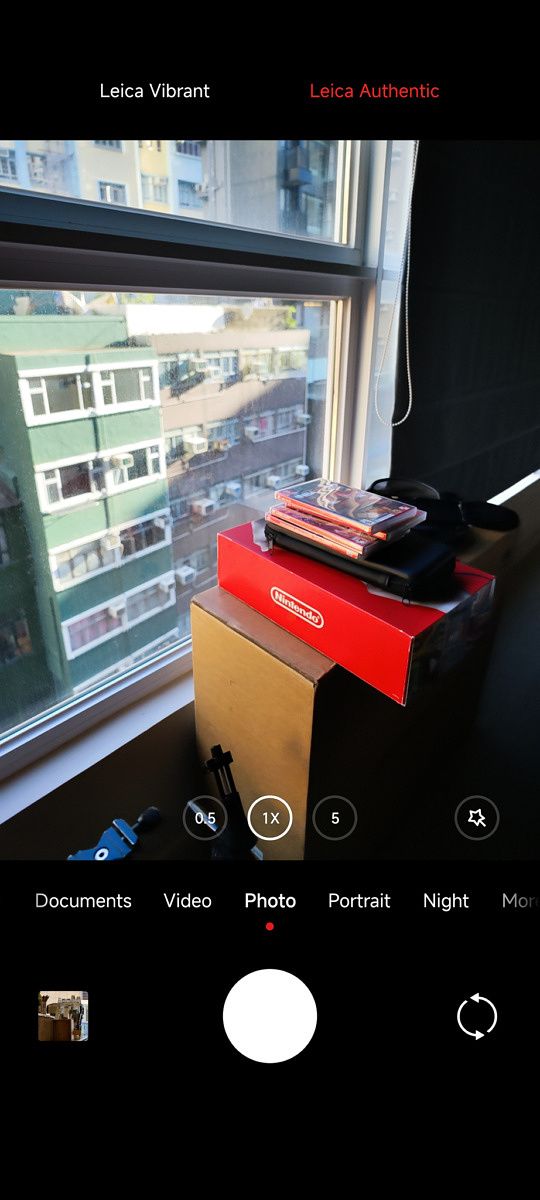
They do the exact things the name implies, though the difference is quite minimal by default. I shot mostly in the color profiles I prefer, which is the authentic mode for 12S Ultra, and vibrant cool for iPhone 13 Pro Max. We can see that the iPhone 13 Pro Max’s images are actually a bit punchier — reds are brighter, the neon-light drenched sky is more purple, heavy shadows are darker, etc. I’d say the real-life scene was somewhere in the middle. Apple has definitely begun playing with colors a bit more in post-shot processing starting with the 13 series, and Xiaomi’s “Leica Authentic” perhaps goes a bit too natural. But nonetheless, all of these shots are excellent, particularly when viewed on a phone screen or in photo gallery form on a website (which is what you’d be seeing if you’re reading this on a computer).


But the significantly larger image sensor of the 12S Ultra’s camera just flat out wins as soon as you zoom in to the actual size and pixel peep. A larger image sensor pulls in light information, resulting in greater dynamic range and details. Below are 100% crops of shots, notice the iPhone 13 Pro Max image is noisier, softer on details, and in the latter two shots, exhibit major digital oversharpening.
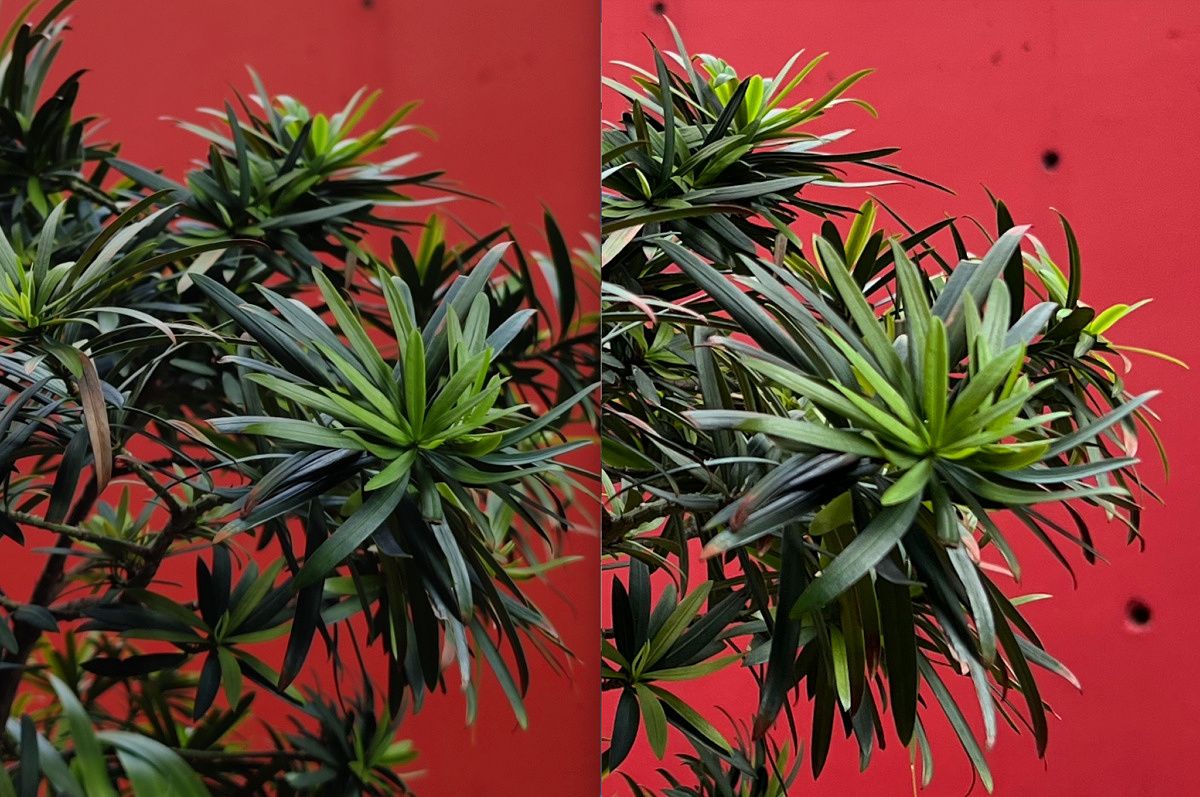

100% crops, Xiaomi (left), Apple (right) 100% crops, Xiaomi (left), Apple (right) 100% crops, Xiaomi (left), Apple (right)

If you want to pixel peep yourself, I have placed some full-sized photo samples in this Flickr gallery here.

Xiaomi 12S Ultra vs iPhone 13 Pro Max

For typical shots with the subject at a normal distance and some distance away from background, the iPhone 13 Pro Max's images look flat compared to the Xiaomi 12S Ultra's shots

Another trait of the larger image sensor is it shoots with a much shallower focus plane. If there is distance between the subject and background, you can see the depth a lot more clearly in Xiaomi’s images thanks to the noticeable bokeh. A shallow focus pane isn’t always better, as it makes close-up shots trickier, but for typical photos in which the subject is a normal distance away, it usually looks better. All the iPhone 13 Pro Max’s images look flat compared to the Xiaomi 12S Ultra’s shots.

 

One of the recent major breakthroughs in nighttime smartphone photography has been “night mode,” the multi-stack HDR trick that simulates the effects of shooting a long exposure shot with a real camera. Huawei and Google pioneered this around 2018, and every brand has followed suit in recent years. The iPhone 13 Pro Max’s night is one of the best, for it turns on automatically and seamlessly, and doesn’t require the user to hold still for too long — usually a second and a half (unlike the Pixel 6 Pro, which will often take an absurd four seconds to grab a night mode shot).

But Xiaomi had other ideas with the 12S Ultra. Because that larger sensor is so light-sensitive, the 12S Ultra doesn’t really turn on night mode until it’s in a near pitch-black scene. And as a result, the 12S Ultra’s night shots will often be “not as bright” as rivals, because it’s shooting normal shots while others are using night mode. This is noticeable in both samples, below, particularly the second set, of the graffiti taken in a dark alley.

I think for the first set, the Xiaomi 12S Ultra shot is more aesthetically pleasing, as the iPhone 13 Pro Max’s night mode did too much and made all the lights a bit too bright, but in the second set, the iPhone image really shows off the vibrancy of the graffiti’s colors.

But that’s viewing these images in smaller form. Again, if we pixel peep, Xiaomi shots are noticeably less noisy, and appear more natural, without the overprocessing that is a side effect of night mode.

100% crops, Xiaomi (left), Apple (right) 100% crops, Xiaomi (left), Apple (right)

I must also mention that not needing night mode is in itself an advantage because the camera can snap the shot faster. Night mode photos generally don’t work well when shooting moving subjects because the shot takes one or two seconds (or in Pixel’s case, four to five seconds).

Some readers may be in disbelief that the iPhone is losing this category in most areas so far but worry not, the iPhone 13 Pro Max will pick up wins in other categories later. But if we are just talking about the main camera, the drastic difference in camera sensor size is just too much.


Ultra-wide

Both phones’ ultra-wide cameras are very good during the day, the iPhone’s ultra-wide is a tad wider, and often exposes tough high contrast scenes a bit better than Xiaomi’s ultra-wide. In the first two samples in the below set, the iPhone colors and overall exposure are more aesthetically pleasing. The first shot, in particular, was tough, as I shot against very harsh sunlight. I couldn’t even keep my eyes fully open when I looked up. We often say smartphones have gotten boring, but there’s been a lot of subtle improvements in recent years. If we go back just a couple of years, the ultra-wides of the iPhone 11 and Xiaomi Mi 10 Pro would have completely butchered this shot.

There isn’t much point in pixel-peeping ultra-wide shots, but we’ll do it for the sake of this exercise. Once again, the iPhone 13 Pro’s shot, if we examine it at 100% scale, exhibits a lot of oversharpening, look at rocks in the second set in particular. But again, this doesn’t matter nearly as much as main camera shots, because ultra-wide photos are meant to be examined in all their sweeping glory, not crop in and nitpick. I’ll take more consistent exposure over minor sharpness improvement in ultra-wides any day.

If we move to low-light scenes though, then it gets interesting. Here, Xiaomi will turn on night mode (so, too, does Apple), but because the 12S Ultra’s ultra-wide also uses pixel binning technology with a slightly larger sensor, its night shots are better illuminated. This isn’t always good, I think the iPhone’s ultra-wide keeping shadows so dark makes for a moodier, more atmospheric shot, but the iPhone’s images are noticeably softer on details and noisier than Xiaomi’s in all three sets below.

Ultra-wide is a close one. I’d give the clear win to iPhone during the day, and a slight win to Xiaomi at night, which gives the overall win to Apple.


Zoom

This one shouldn’t be a surprise, the Periscope zoom lens technology that Xiaomi uses to achieve 5X optical zoom is just superior to the telephoto setup Apple uses for 3X shots. The Periscope zoom lens is a complicated technology that sees a camera lens placed sideways in the phone’s body, and utilizes many more layers of lenses to help magnify the image before it reaches the ISP. Not only is Xiaomi’s 10X shot clearly sharper and cleaner than Apple’s 10X zoom, but even the 12S Ultra’s 5X zoom is also more detailed than the iPhone’s 3X zoom if we scale them to the same size.


I will say, however, that the colors in the iPhone 13 Pro Max’s zoom shots are more aesthetically pleasing, they pop a bit more.


Apple iPhone 13 Pro Max vs Xiaomi 12S Ultra: Portraits

Since the iPhone 13 Pro Max has a 3X telephoto lens, it is used for portrait shots by default, as 3X zoom is a good focal range for portraits. But you can swap out to use the main camera for portraits. Xiaomi 12S Ultra, on the other hand, will only use the main camera for portraits, but Xiaomi applies a digital crop to make the framing a bit tighter, closer to 35mm.

You know how earlier, Xiaomi’s main camera shots all looked like they had more depth and bokeh than the iPhone’s main camera shots? Well, that’s all hardware sensor differences. Now that we move to portrait mode photos, which are software-driven, the script is flipped. Here, the iPhone 13 Pro Max’s portraits exhibit stronger and more realistic-looking bokeh.

Xiaomi loses the last two sets particularly badly. In the set with the lion statue, the iPhone 13 Pro correctly identified the leaf in the foreground, and the second lion in the background, and applied artificial bokeh accordingly. Xiaomi’s image tried to keep the second lion statue in focus too, messing it up in the process because it shouldn’t be — that statue is further back in the focus plane. In the last portrait set of me, I think my skin tone, clothing texture, and general color, look more realistic in the iPhone shot. Xiaomi’s image looks like I was cut out from another photo and pasted onto this background.

This is clearly due to Apple’s superior portrait mode processing, but also perhaps the iPhone 13 Pro Max’s superior LIDAR scanner, which allows the iPhone to pull off accurate 3D mapping of scenes, while the ToF sensor in the Xiaomi 12S Ultra is likely nothing too special.


Apple iPhone 13 Pro Max vs Xiaomi 12S Ultra: Video

The iPhone has long been the video camera king and although 2022 Android flagships have closed the gap, the iPhone 13 Pro Max keeps the title. We can see here the iPhone 13 Pro Max’s colors and exposure are better from the start, and when I begin jogging, stabilizes better too. Xiaomi’s footage is a bit blown out here, likely due to the sensor size taking in so much light. Xiaomi’s image processing accounts for this and fixes matters, but it seems to not be doing as well as a job in video.

Xiaomi’s mics are also way too sensitive to wind noise. This is just a clear win for Apple on every front.


Macro photography and other trick shots

Both phones’ ultra-wide sensors can double as a macro lens, but the iPhone 13 Pro Max’s is much better. Not only does it turn on automatically (Xiaomi’s requires two taps to turn on), but the iPhone 13 Pro Max’s macro can get so much closer. Xiaomi’s shots by comparison almost can’t even count as macro photography.

However, Xiaomi’s camera software has several more trick photography shots up its sleeve, including a very fun clone video and photo mode, which lets 12S Ultra and other recent Xiaomi phones quickly stitch together two instances of the same person into a still image or video. Yes, there are third-party software apps that can do this, but the 12S Ultra can do this within the default camera app and in only a few seconds.

A clone photo snapped by the 12S Ultra.


Apple iPhone 13 Pro Max vs Xiaomi 12S Ultra: Which camera is better?

The answer to this question comes down to which camera you value more. The Xiaomi 12S Ultra’s main camera snaps clearly superior photos than the iPhone 13 Pro Max’s. More detailed, less noise, superior dynamic range, and bokeh. But the iPhone 13 Pro Max’s main cameras record better videos. More stable, better audio, better exposure.

iPhone 13 Pro Max Xiaomi 12S Ultra

I think Apple has to increase its image sensor size to keep up with Android hardware, while Android brands should focus more on consistency across all cameras

The ultra-wide camera is mostly a tie, with a slight edge to the iPhone 13 Pro Max in my opinion, and the Xiaomi 12S Ultra wins in zoom prowess. But Apple comes back and takes the macro and portrait shots category by a landslide.

Which of these categories matters more to you? Only you can answer this. I do think Apple has to continue to increase its image sensor size to keep up with Android hardware, while Android brands should focus more on consistency across all cameras instead of seemingly putting the bulk of the attention on the main shooter and calling it a day.

    Apple iPhone 13 Pro Max
    The iPhone 13 Pro Max is the biggest and best phone Apple has to offer right now
    Xiaomi 12S Ultra
    Xiaomi's 12S Ultra has a whopping 1-inch sensor with Leica optics -- and it lives up to the hype.

The post Xiaomi 12S Ultra vs Apple iPhone 13 Pro Max Camera Shootout and Comparison: A back and forth battle appeared first on XDA.


from XDA https://ift.tt/FqAWNgO
via IFTTT

How to turn off manufacturer watermarks in the camera app, or remove them later

A lot of smartphones these days notoriously add a “Shot on” watermark on all the photos you capture using their camera. For those who don’t know, this isn’t necessarily a new feature we just started seeing on phones. If I recall correctly, the Huawei P9 was one of the first phones that felt the need to slap a “Huawei P9 – Leica Dual Camera” watermark on all the photos I captured. It’s not necessarily a deal-breaker for me but I see how it can be not very pleasant for many who want their images to come out unscathed. Luckily, you can turn off these manufacturer watermarks, and here’s a simple guide to teach you how to do it. You can also navigate this article using the index below to see how to remove those watermarks from the images after the fact.

Navigate this article:

How to turn off manufacturer watermarks in the camera app

The steps involved in disabling the manufacturer’s watermark are almost identical in the case of all Android phones that add it in the first place. You’ll find the watermark option on the settings page within the camera app. The camera settings option is usually seen as a cog icon on the viewfinder screen. It usually hides behind a three-dot or the Hamburger menu icon. I happen to have a OnePlus 10 Pro and a Vivo X60 Pro Plus with me while writing this article, so here are a couple of screenshots below that should give you an idea of where to find this watermark option within the camera app:

OnePlus phones

  • Open the camera app and tap on the three-dot icon on the top right corner of the screen to find the camera settings icons.
  • Tap on it to open the camera settings page.
  • You notice that Watermark is the first option on the settings page, and you can toggle it on or off with just a tap of a button.

How to remove watermark from OnePlus phones

Vivo phones

  • Open the camera app and tap on the hamburger menu on the top right corner of the screen to reveal the settings cog.
  • Tap on it to open the Settings page and scroll down until you find the watermark option.
  • Inside, you’ll see three options that let you enable the Time, Model, or a custom watermark to your images.

How to remove watermark from a Vivo phone

You should be able to find this option rather easily on other phones too. That’s how easy it is to turn off the manufacturer’s watermarks in the camera app. If you don’t like seeing these watermarks on your images, then be sure to turn it off by heading over the camera settings while setting up your new phone.


How to remove manufacturer watermarks in the post

If you forgot to disable the watermark before capturing an image but you don’t want to share it with a “Shot on XYZ” label, then you can do a couple of things to get rid of it after the fact. Here’s how:

Crop the image

While not ideal, cropping is perhaps one of the easiest ways to get rid of these manufacturer watermarks from your shots. The watermarks are often added towards the bottom left corner of an image, which you can easily chop off before sharing. Cropping an image takes little to no effort, and it can be done even with the photo editor inside the default gallery app.

How to remove watermark by cropping an image

But if you want to preserve the aspect ratio of an image or if you don’t want to crop the image to avoid cutting off an important part of it, then this may not work for you. That’s when you can take advantage of an advanced photo editor to remove only the watermark from an image.

Best online tool to remove watermark

A lot of advanced photo editing software such as Adobe Photoshop and GIMP have a content-aware healing tool to mask a particular spot on an image. You can use those to easily remove the watermark from an image. But if you don’t want to go through the hassle of downloading one of those photo editing software, then I suggest using ZMO’s online tool. This particular tool uses AI to automatically remove watermarks from your images. I stumbled upon this excellent tool on Product Hunt the other day and it’s one of the best options out there.

Here’s an example to show you the kind of results you can expect to see using this software:

How to remove manufacturer watermark from images

  • To use ZMO’s watermark removal tool, simply head over to its Remover tool and upload your image.
  • Once done, simply resize the brush and highlight the watermark to see the AI work its magic.

How to remove watermark using online photo editor

This particular tool seems to work flawlessly to preserve the details behind the watermark. Here’s another example to show you how it works:

How to remove watermark from images 1


Closing Thoughts

Like it or not, the manufacturer’s watermarks are here to stay. It’s an easy way to promote their phone’s camera system for brands, and a lot of users don’t know or don’t bother turning it off by heading over the camera settings. That’s why you may have seen hundreds, if not thousands of such images on social media. One way to make it less annoying for users who don’t want this feature would be to not enable the watermark by default. That sounds like a distant dream, so we hope you found this guide useful. In case you think we missed some other way to remove watermarks, then be sure to let us know by dropping a line below.

The post How to turn off manufacturer watermarks in the camera app, or remove them later appeared first on XDA.


from XDA https://ift.tt/PvIaSTq
via IFTTT

How to turn off manufacturer watermarks in the camera app, or remove them later

A lot of smartphones these days notoriously add a “Shot on” watermark on all the photos you capture using their camera. For those who don’t know, this isn’t necessarily a new feature we just started seeing on phones. If I recall correctly, the Huawei P9 was one of the first phones that felt the need to slap a “Huawei P9 – Leica Dual Camera” watermark on all the photos I captured. It’s not necessarily a deal-breaker for me but I see how it can be not very pleasant for many who want their images to come out unscathed. Luckily, you can turn off these manufacturer watermarks, and here’s a simple guide to teach you how to do it. You can also navigate this article using the index below to see how to remove those watermarks from the images after the fact.

Navigate this article:

How to turn off manufacturer watermarks in the camera app

The steps involved in disabling the manufacturer’s watermark are almost identical in the case of all Android phones that add it in the first place. You’ll find the watermark option on the settings page within the camera app. The camera settings option is usually seen as a cog icon on the viewfinder screen. It usually hides behind a three-dot or the Hamburger menu icon. I happen to have a OnePlus 10 Pro and a Vivo X60 Pro Plus with me while writing this article, so here are a couple of screenshots below that should give you an idea of where to find this watermark option within the camera app:

OnePlus phones

  • Open the camera app and tap on the three-dot icon on the top right corner of the screen to find the camera settings icons.
  • Tap on it to open the camera settings page.
  • You notice that Watermark is the first option on the settings page, and you can toggle it on or off with just a tap of a button.

How to remove watermark from OnePlus phones

Vivo phones

  • Open the camera app and tap on the hamburger menu on the top right corner of the screen to reveal the settings cog.
  • Tap on it to open the Settings page and scroll down until you find the watermark option.
  • Inside, you’ll see three options that let you enable the Time, Model, or a custom watermark to your images.

How to remove watermark from a Vivo phone

You should be able to find this option rather easily on other phones too. That’s how easy it is to turn off the manufacturer’s watermarks in the camera app. If you don’t like seeing these watermarks on your images, then be sure to turn it off by heading over the camera settings while setting up your new phone.


How to remove manufacturer watermarks in the post

If you forgot to disable the watermark before capturing an image but you don’t want to share it with a “Shot on XYZ” label, then you can do a couple of things to get rid of it after the fact. Here’s how:

Crop the image

While not ideal, cropping is perhaps one of the easiest ways to get rid of these manufacturer watermarks from your shots. The watermarks are often added towards the bottom left corner of an image, which you can easily chop off before sharing. Cropping an image takes little to no effort, and it can be done even with the photo editor inside the default gallery app.

How to remove watermark by cropping an image

But if you want to preserve the aspect ratio of an image or if you don’t want to crop the image to avoid cutting off an important part of it, then this may not work for you. That’s when you can take advantage of an advanced photo editor to remove only the watermark from an image.

Best online tool to remove watermark

A lot of advanced photo editing software such as Adobe Photoshop and GIMP have a content-aware healing tool to mask a particular spot on an image. You can use those to easily remove the watermark from an image. But if you don’t want to go through the hassle of downloading one of those photo editing software, then I suggest using ZMO’s online tool. This particular tool uses AI to automatically remove watermarks from your images. I stumbled upon this excellent tool on Product Hunt the other day and it’s one of the best options out there.

Here’s an example to show you the kind of results you can expect to see using this software:

How to remove manufacturer watermark from images

  • To use ZMO’s watermark removal tool, simply head over to its Remover tool and upload your image.
  • Once done, simply resize the brush and highlight the watermark to see the AI work its magic.

How to remove watermark using online photo editor

This particular tool seems to work flawlessly to preserve the details behind the watermark. Here’s another example to show you how it works:

How to remove watermark from images 1


Closing Thoughts

Like it or not, the manufacturer’s watermarks are here to stay. It’s an easy way to promote their phone’s camera system for brands, and a lot of users don’t know or don’t bother turning it off by heading over the camera settings. That’s why you may have seen hundreds, if not thousands of such images on social media. One way to make it less annoying for users who don’t want this feature would be to not enable the watermark by default. That sounds like a distant dream, so we hope you found this guide useful. In case you think we missed some other way to remove watermarks, then be sure to let us know by dropping a line below.

The post How to turn off manufacturer watermarks in the camera app, or remove them later appeared first on XDA.


from XDA https://ift.tt/t08fiVX
via IFTTT

samedi 23 juillet 2022

Huawei MateBook 16s review: Huawei is really strengthening its ecosystem

Huawei makes good laptops, and the MateBook 16s is no different. You could buy it for just that, but the real value proposition is the Huawei ecosystem. Indeed, whether you’re using a Huawei phone, smartwatch, earbuds, PC, monitor, and so on, these things are all designed to work seamlessly together. With Huawei’s Super Device feature, the idea is that it doesn’t matter what screen you’re using; it’s all the same device.

My biggest issue with the MateBook 16s is that it doesn’t have dedicated graphics. If that’s going to be the case, I’d rather see this laptop have a P-series processor. There are little things as well, such as only one of the USB Type-C ports supporting Thunderbolt.

But as usual, the MateBook 16s is a win. It’s a great all-around laptop, and if you’re already in the Huawei ecosystem, it’s even better.

    Huawei MateBook 16s
    The Huawei MateBook 16s is a 16-inch laptop that's made to be integrated with other Huawei products, and doesn't fail to deliver.

      Features:

      Pros:

      Cons:

Navigate this review:

Huawei MateBook 16s pricing and availability

  • The MateBook 16s Core i7 model is available now from the Huawei Store, and the Core i9 model is coming later from Huawei, Amazon, and more
  • Huawei is offering a free monitor if you order now

Huawei announced the MateBook 16s in June, and the product was made available on July 13. The Core i7 model is £1,299.99, and it ships now from the Huawei Store. However, if you order prior to August 23, it actually comes with a free MateView GT 27 monitor.

The Core i9 model is £1,499.99, and that comes from Huawei, Amazon, AO, Argos, and Currys, and that will be available on August 10. If you pre-order that before July 26, and from the Huawei Store, you’ll get a free Huawei MateView monitor.

Huawei MateBook 16s: Specs

Processor 12th Gen Intel Core i7-12700H processor
Graphics Intel Iris Xᵉ Graphics
Body 351×254.9×17.8mm, 1.99kg
Display 16 inches, IPS, 90% screen-to-body ratio, 3:2 aspect ratio, 2,520×1,680, 189ppi, 300 nits, 100% sRGB, △E<1, 1,500:1 contrast ratio, 178-degree viewing angle, 10-point multitouch
Memory 16GB LPDDR5
Storage 1TB NVMe PCIe SSD
Ports USB-A 3.2 Gen 1 × 2
USB-C × 1 (support data, charging and DisplayPort)
USB-C × 1 (Thunderbolt 4, support data, charging and DisplayPort)
HDMI × 1
3.5 mm headset and microphone 2-in-1 jack × 1
Battery 84 Wh (rated capacity) lithium polymer
Webcam 1080P FHD camera
Audio Microphone × 2
Speaker × 2
Connectivity WLAN
IEEE 802.11a/b/g/n/ac/ax
2.4 GHz, 5 GHz and 6 GHz
2 × 2 MIMO
WPA/WPA2/WPA3Bluetooth:
Bluetooth 5.2
In the box HUAWEI MateBook 16s
90 W/135 W USB-C Power Adapter
USB-C Charger Cable
Quick Start Guide
Warranty Card
Material Aluminum
Color Space Gray
OS Windows 11 Home
Price £1,299.99

Design, display, and keyboard: It has a 1080p webcam!

  • Huawei is finally using a good webcam
  • The screen is good, but not great

Huawei has been pretty consistent with its design choices since it entered the Windows laptop space in 2017 (it entered the Windows space in 2016 with a tablet). The MateBook 16s is made out of aluminum, feels like it has a premium build quality, and comes in Space Gray. Huawei has used other colors over the years, but this one seems to be the one common to almost all of its laptops.

Top down view of Huawei MateBook 16s

The lid is stamped with Huawei text, unlike earlier years when it used the Petal logo. It feels like a 16-inch laptop should feel, weighing in at 4.38 pounds without dedicated graphics. For something with a nice and large screen, it’s light enough to carry.

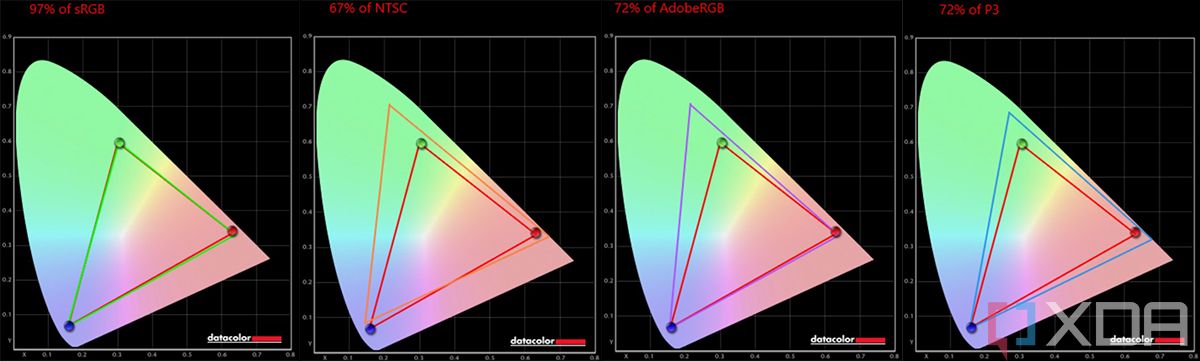
Huawei MateBook 16s display test

Speaking of the 2,520×1,680 display, it supports 97% sRGB, 67% NTSC, 72% Adobe RGB, and 72% P3, which is slightly below average. If you need color accuracy in your work flow, this probably won’t cut it for you. It maxes out at 320.3 nits brightness, exceeding the promised 300 nits, and contrast ratio maxed out at 1,210:1.

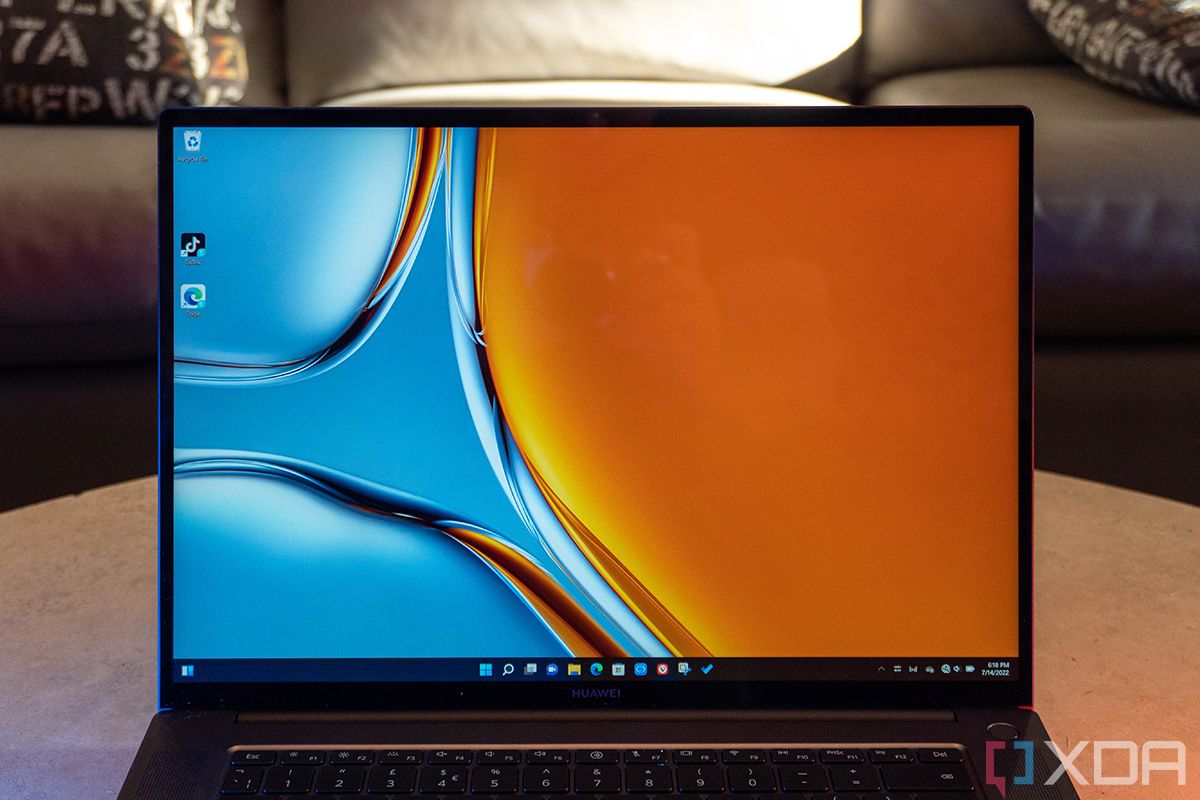
While the color gamut leaves a bit to be desired, it feels like a premium display, with a 178-degree viewing angle. That means that there won’t be any visible color distortions if you view it from the side.

Closeuyp of MateBook 16s screen

The 90% screen-to-body ratio means that it has narrow bezels on all sides, but the webcam is in the top bezel, and it’s a good one. You might recall that in previous MateBook products, Huawei actually put the webcam in the keyboard, billing it as a security feature, forcing the user to pop the webcam up to use it. It was a horrible experience.

The webcam is Full HD, and it's fantastic.

Huawei actually can’t be blamed for how bad that was though. Before March 2020, no one cared about webcam quality. Now with the work-from-home boom, it’s an important feature, and unfortunately, it takes 12 to 18 months for design changes in PCs to come to market, so here we are.

But yes, the webcam is Full HD, it’s placed properly, and it’s fantastic.

Angled view of MateBook ports

Going back to the design, you’ll notice two USB Type-C ports on the left side. Unfortunately, only one of them is Thunderbolt, you you’ll have to keep in mind which one if you’re using a Thunderbolt dock or an external GPU. Normally, I speak in hypotheticals when I talk about connecting dual 4K monitors or an external GPU, but this is a laptop with an H-series processor and integrated graphics. You might want that proper graphics power to do some creative work.

Top-down view of Huawei MateBook 16s keyboard

The keyboard has the standard 1.5mm key travel that you’ll find on most Huawei laptops, and it feels great to type on.  It’s also got a big old touchpad underneath it, which is always great to see.

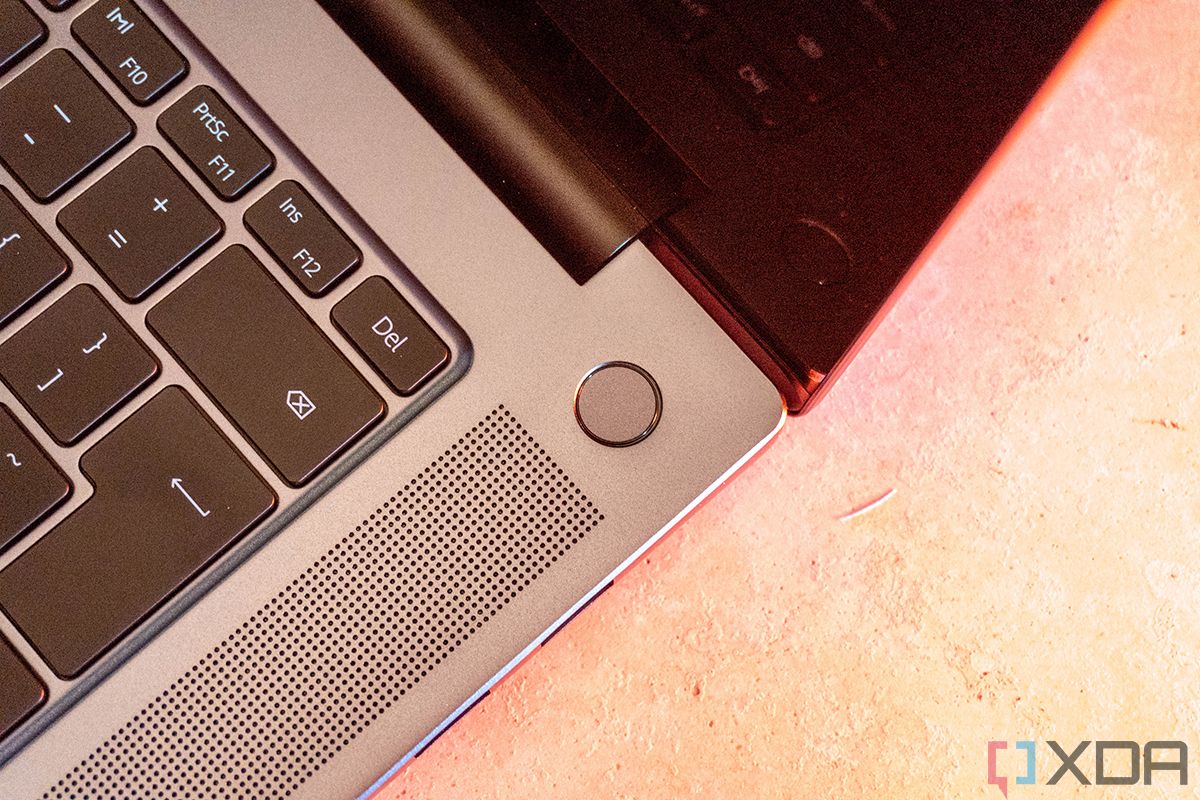
Close up of power button on laptop

Naturally, the fingerprint sensor is a staple of a good Huawei laptop. They’re some of the best you’ll find on any device, both fast and accurate. When you press the button to power on the laptop, it scans your fingerprint, so you don’t have to scan it again after it boots up. It just seamlessly logs you in.

Huawei isn’t the only one that does this. What I will say is that out of all of the laptops I’ve tested that have the fingerprint sensor in the power button, Huawei’s are the least likely to fail. With many fingerprint sensors, it will say that it can’t recognize my fingerprint, and that’s jut not the case with Huawei.

Performance: There’s a 45W processor and no dedicated graphics

  • Huawei has finally made the move to Intel 12th-gen, but without dedicated graphics, a 45W CPU offers more power than you need, at a cost to battery life

The model that Huawei sent me includes a Core i7-12700H CPU, a 45W processor with six performance cores (P-cores) and eight efficiency cores (E-cores), for a total of 20 threads. Intel’s new 12th-gen processors have a hybrid architecture for better power management, something that it was able to borrow from the Arm side of things. However, AMD has yet to emulate it.

The Core i7-12700H is a good CPU, and Huawei also offers this laptop with either a Core i5-12500H or a Core i9-12900H. The real problem is that there are no dedicated graphics. This feels like something that’s more common with this generation of laptops, and indeed, Intel has boosted the Iris Xe graphics on the H-series to match what’s on the more efficient SKUs.

Typically, we see U-series processors in productivity laptops, and then in more powerful laptops, we see H-series processors paired with dedicated graphics. Intel also now has the 28W P-series to bridge the gap between the two. I’m really not sure where H-series without dedicated graphics fits in. You wouldn’t use this for gaming or video editing.

You could use it for photo editing in Lightroom and Photoshop, and of course, it’s great for productivity. Still, I can’t help but think that a more efficient chipset with the same graphics would have more sustained performance while still being easier on battery life.

Huawei MateBook 16s
Core i7-12700H
Lenovo Yoga 9i
Core i7-1260P
Surface Laptop Studio
Core i7-11370H, RTX A2000
PCMark 10 5,501 5,616 5,573
3DMark: Time Spy 1,957 1,678 5,075
Geekbench 5 1,779 / 9,789 1,736 / 9,525 1,546 / 5,826
Cinebench R23 1,815 / 10,615 1,638 / 7,757 1,504 / 6,283
CrossMark 1,720 / 1,576 / 1,917 / 1,619

Battery life comes in well above the competition.

As you can see from how 3DMark compares to the Surface Laptop Studio, dedicated graphics makes a big difference to the creative work flow. I also added a P-series machine to demonstrate that at least in benchmarking, I don’t always see an improvement when moving to the H-series. Sometimes there’s a short performance boost that isn’t sustained, and I don’t love the experience.

Battery life is actually really good, I’m happy to report. There was not a single instance that I got under five hours, and on average, I got just under six hours. This is while working in the browser and doing my regular thing. The power slider was on balanced and the screen brightness was on medium. There was one instance where I got a little over eight hours, and I was unable to replicate it. Still, when it comes to a Windows laptop, anything over four hours is good. Anything over five hours is really good.

Huawei has some unique advantages over competitors

  • Huawei is one of few PC OEMs, along with Apple and Samsung, that’s building an ecosystem around its PCs
  • Super Device lets you use all of your devices seamlessly together
  • Huawei even built its own Android subsystem to run AppGallery

At Mobile World Congress this year, while all of its competitors in the space had been announcing 12th-gen Intel and AMD Ryzen 6000 PCs since CES the month before, Huawei introduced a range of computers that still had 11th-gen Intel or AMD Ryzen 5000 processors. Moreover, products like the MateStation X all-in-one was set to come without any kind of dedicated graphics.

In a Q&A session with press, the company confirmed that it’s basically last on the list to receive new things. As we all know by now, U.S. companies have to jump through hoops just to do business with Huawei, and that’s also why its phones no longer come with Google services.

Being that it was being handicapped in traditional avenues, Huawei took a different direction. It focused on its own strengths, and things that it could control. It started building out its own ecosystem, rather than depending on Google, or even Microsoft, despite the fact that the Redmond firm doesn’t have the same issues with Huawei.

Huawei focuses on its strengths, building out its own ecosystem, and it nails it.

Because of this strategy and despite still using third-party operating systems, Huawei has put together one of the most seamless ecosystems around. Currently, the only ones even attempting this are Apple and Samsung, although I wouldn’t sleep on Lenovo/Motorola. Apple’s solution is to do everything in-house, while Samsung has opted for tight partnerships with Microsoft, Google, Qualcomm, and more. Huawei’s answer is a bit in-house, while also still using third-party solutions.

Super Device

When I first heard the term Super Device, I was really confused. When something has the word “Device” in it, you expect it to be hardware, but it’s not. Super Device is the term for the experience you get throughout the ecosystem, in a sense. It’s the idea that no matter what interface you’re using, you’re essentially using the same device.

I used it with a Huawei MateView monitor and a Huawei P40 Pro Plus, and everything just kind of works seamlessly. Moreover, they work wirelessly. You just click to connect to the thing you want to, and it works.

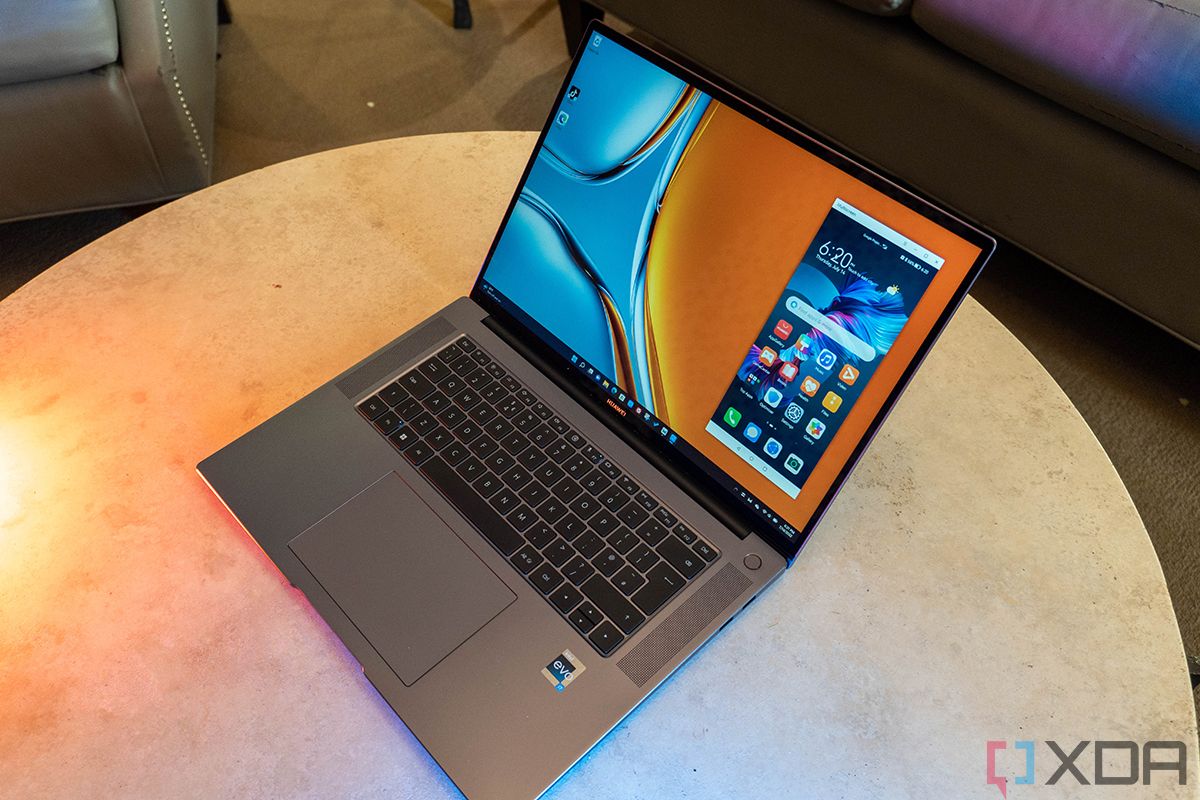
Huawei laptop woith phone mirroring

The key experience that Huawei is going for is seamlessness. If you’re signed into a Huawei account, it shouldn’t matter what screen you’re looking at. Also, peripherals will work as well, whether they’re from the FreeBuds line or some portable speaker. I don’t have those, but assuming they’re like all other Huawei devices, you should just be able to bring them near the device and they’ll work.

AppGallery

This isn’t the last you’ll hear from me about AppGallery, because I find this really interesting. With Windows 11, Microsoft introduced the Windows Subsystem for Android, where Android apps would be distributed through the Microsoft Store, powered by the Amazon Appstore. Like I said above though, Huawei seems to have learned its lesson in relying on American companies, so it built its own.

I have to admit, part of my didn’t believe the Huawei reps back in February when they told me that this wouldn’t be powered by WSA, but it’s not. Huawei is running Android apps on Windows. Also, you don’t actually need a new MateBook for this to work. It works on MateBooks going back to 2020, even if they have Windows 10 on them.

Screenshot of Huawei AppGallery

But enough of me gushing about how Huawei seems to have made its own Android subsystem. You start by installing AppGallery, which comes from Huawei’s website (you might find a link in PC Manager). AppGallery should actually work on any MateBook, but if it’s not qualified, it just won’t give you Android apps. It will let you install an app on your Huawei phone, and the company is also working on building out a selection of PC apps, although I didn’t see many.

When you go to install your first mobile app, you’ll be instructed to install Huawei MobileApp Engine. Once that’s done, you can install all of the Android apps that you want, as long as they come from AppGallery.

Here’s the bad news. You do seem to be limited to what comes from AppGallery. I haven’t figured out how to side-load anything, and even Huawei’s own Petal Search doesn’t work. You can download Petal Search – Huawei’s way to solve its app gap by searching third-party APK providers – and run it, but when you try to install an app, it won’t work.

Seeing AppGallery on PC is pretty neat though, and it’s one more way to bring the ecosystem closer together.

Should you buy the Huawei MateBook 16s?

While the Huawei MateBook 16s is a great laptop with lots of advantages, it’s definitely not for everyone.

You should buy the Huawei MateBook 16s if:

  • You’re investing in the Huawei ecosystem
  • You want a big laptop with overall great build quality and solid performance

You should not buy the Huawei MateBook 16s if:

  • You live in the United States
  • You don’t use other Huawei devices
  • Your work load includes editing video or something else that would benefit from dedicated graphics

While the Huawei MateBook 16s is a great laptop on its own, the key thing that puts it above and beyond competitors is all of the work that the company has put into software. It’s designed to work seamlessly with the rest of the Huawei ecosystem.

The post Huawei MateBook 16s review: Huawei is really strengthening its ecosystem appeared first on XDA.


from XDA https://ift.tt/AnhNpkE
via IFTTT