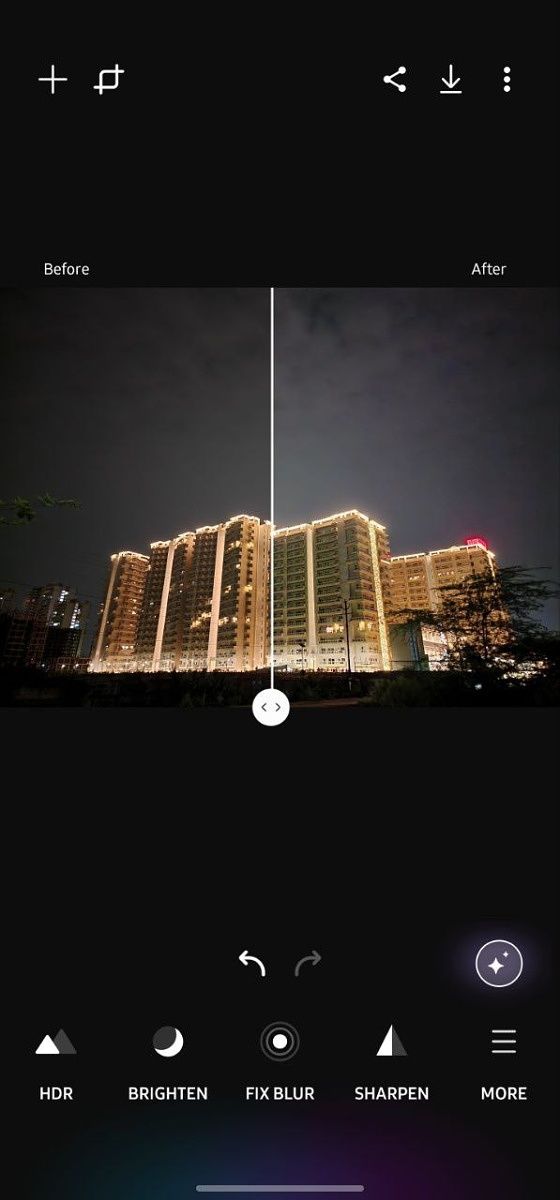
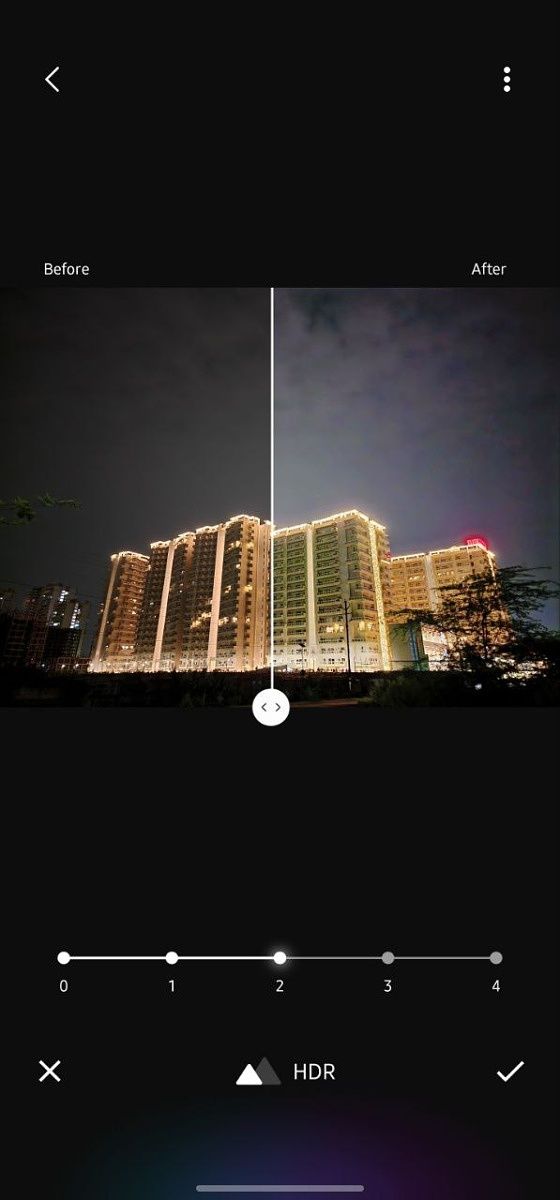
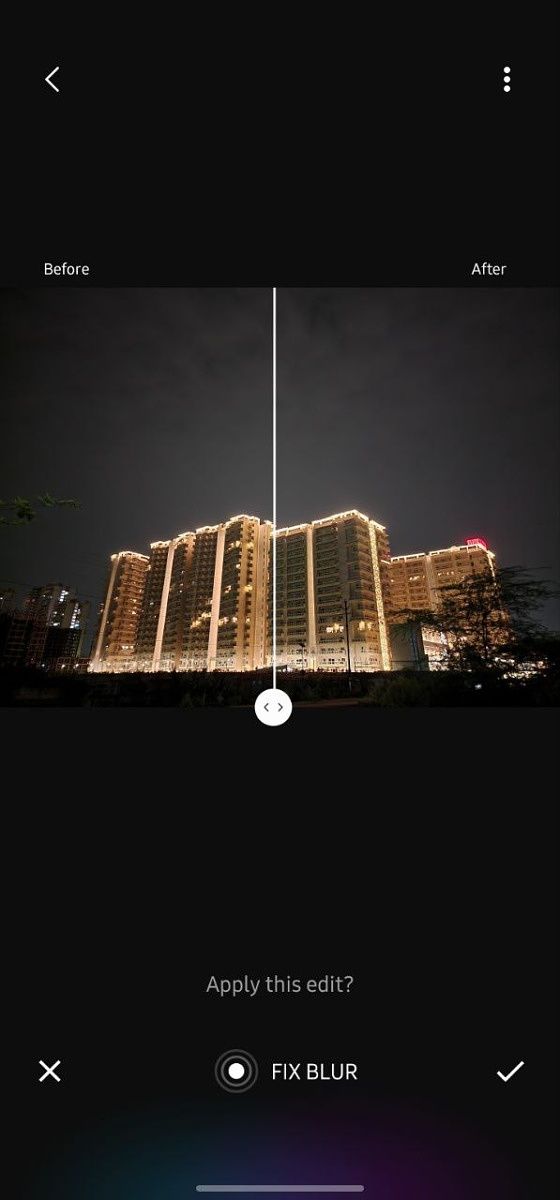
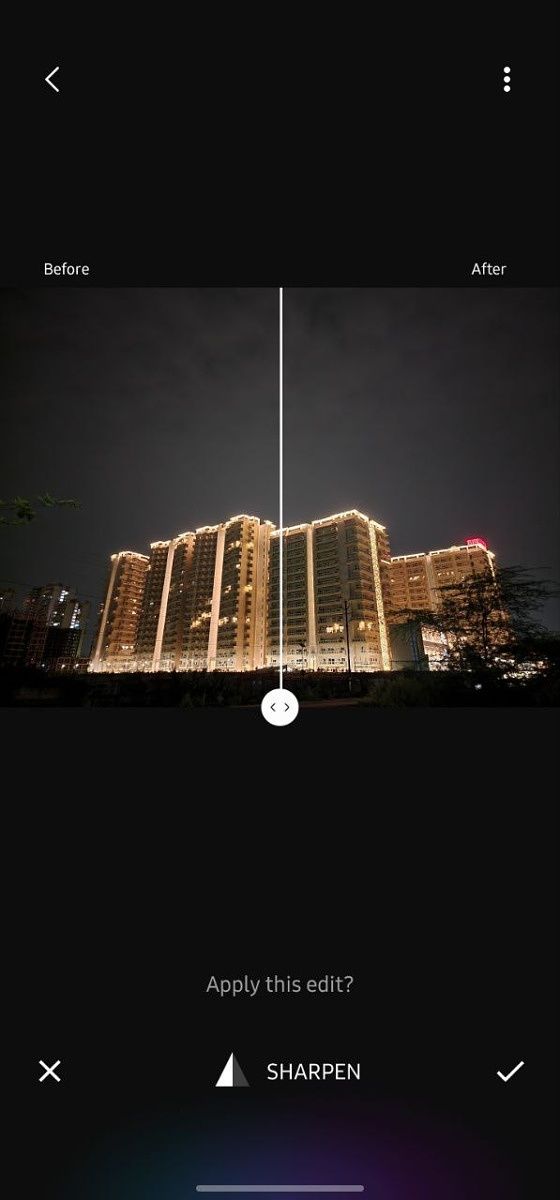
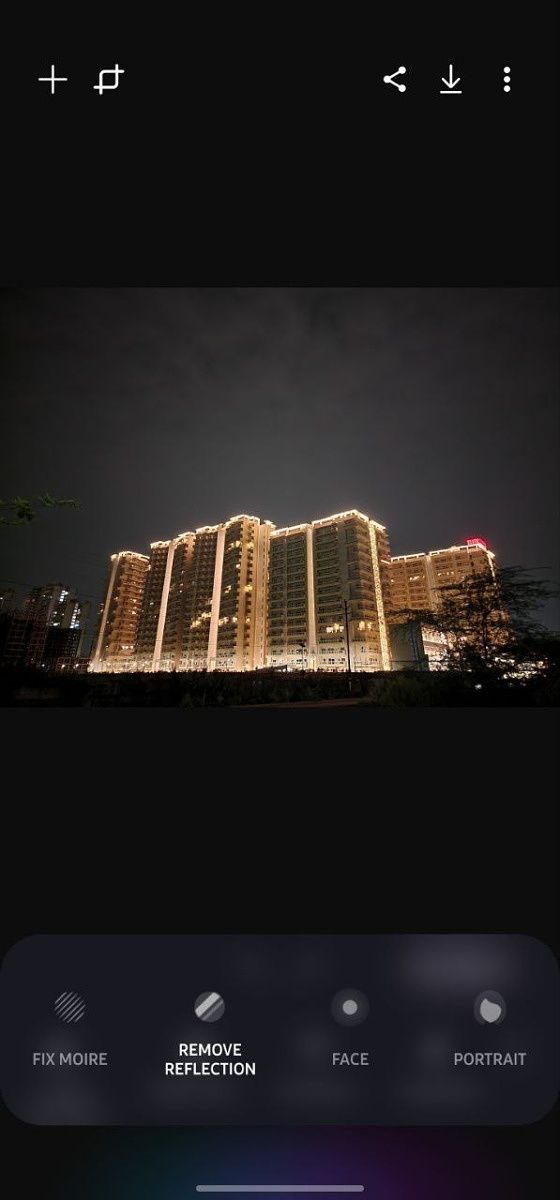
It’s easy to slap a filter on your photos before sharing them on social media. But making advanced edits using image editing apps like Snapseed or Lightroom isn’t everyone’s cup of tea. These apps offer a wide range of tools that can be overwhelming for the average user, and making edits like brightening and sharpening images or fixing blur aren’t as simple as you might think. That’s where Samsung’s new Galaxy Enhance-X app comes in.
The Galaxy Enhance-X app is a powerful image upscaler and editor that utilizes artificial intelligence-based techniques to enhance your images. You can use it to edit your photos and improve dynamic range, brightness, and sharpness with just a tap. In addition, the app also lets you fix blurred objects in your image, remove reflections, and fix moire.
Furthermore, Galaxy Enhance-X uses AI to detect faces in images and lets you adjust smoothness, tone, jawline shape, and eyes. For portrait shots, you can use the app to change the blur style and adjust blur intensity. Lastly, the app has a one-tap edit button that can apply all the appropriate edits to your photos.
The best part about Enhance-X is that all of these edits take a few seconds, and it offers a neat before/after comparison preview that lets you compare the differences.
As with most AI-based photo editing apps, images edited using Galaxy Enhance-X might not turn out as impressive as ones edited in Snapseed or Lightroom. But that’s a trade-off you’ll have to make if you want your photos edited in seconds. If you’re game, you can try out Galaxy Enhance-X by downloading it from the Galaxy Store on your device. Alternatively, you can download the APK from the link provided below.
Note that the app doesn’t seem to work on non-Samsung devices at the moment. Although you can install and open it successfully, it shows an error when you try to open photos to edit. We’re not sure if this is intentional.
Nova Launcher has long been one of the best launcher apps for Android devices. Even though it has been around for over a decade, its developers have done a fantastic job keeping it up to date with the latest features. For this reason, it still is the go-to launcher app for millions of Android users. In September last year, the launcher received a major update with a visual overhaul, enhanced search, and new gestures. Now, it has received another significant update on the beta channel, bringing Material You theming support, a redesigned settings menu, even more gestures, and several other changes.
The latest Nova Launcher beta (v8.0) is rebased on Launcher3 from Android 12L. As mentioned earlier, it brings support for Material You dynamic theming. The feature automatically themes UI elements based on a color scheme extracted from your current wallpaper.
Nova Launcher 8.0 BETA
• Material You – Custom color schemes based on wallpaper colors
• Redesigned Nova Settings
• New swipe left/right desktop gestures
• Align Bottom immersive folders
• Rebased on Launcher3 Android 12L
• Android 13 fixes pic.twitter.com/WTGEOVtY5W
In addition, the update introduces an overhauled Nova settings menu that’s easier to navigate compared to the older layout. Furthermore, the beta update includes new swipe left/right desktop gestures, an Align Bottom immersive folders option, and fixes for Android 13. Check out the full Nova Launcher 8.0 beta changelog below:
Material You – Custom color schemes based on wallpaper colors
Redesigned Nova Settings
New swipe left/right desktop gestures
Align Bottom immersive folders
Rebased on Launcher3 Android 12L
Android 13 fixes
Nova Launcher 8.0 beta is available for download on the Nova Launcher Discord, and you can try it out by following the link provided below. Note that the developers have already released a subsequent beta release (v8.0.1) with a host of bug fixes. Here’s the changelog for Nova Launcher 8.0.1 beta:
Fixes FCs on Android 8 and 9
Fix widgets on Samsung
Fix disabling dock
Fix various crashes
Fix max grid size in settings UI
Fix left/right gestures on single home screen
Fix left/right gesture settings appearing twice
Fix backing out of gesture action selection screen causing selection of None
Nova Launcher has long been one of the best launcher apps for Android devices. Even though it has been around for over a decade, its developers have done a fantastic job keeping it up to date with the latest features. For this reason, it still is the go-to launcher app for millions of Android users. In September last year, the launcher received a major update with a visual overhaul, enhanced search, and new gestures. Now, it has received another significant update on the beta channel, bringing Material You theming support, a redesigned settings menu, even more gestures, and several other changes.
The latest Nova Launcher beta (v8.0) is rebased on Launcher3 from Android 12L. As mentioned earlier, it brings support for Material You dynamic theming. The feature automatically themes UI elements based on a color scheme extracted from your current wallpaper.
Nova Launcher 8.0 BETA
• Material You – Custom color schemes based on wallpaper colors
• Redesigned Nova Settings
• New swipe left/right desktop gestures
• Align Bottom immersive folders
• Rebased on Launcher3 Android 12L
• Android 13 fixes pic.twitter.com/WTGEOVtY5W
In addition, the update introduces an overhauled Nova settings menu that’s easier to navigate compared to the older layout. Furthermore, the beta update includes new swipe left/right desktop gestures, an Align Bottom immersive folders option, and fixes for Android 13. Check out the full Nova Launcher 8.0 beta changelog below:
Material You – Custom color schemes based on wallpaper colors
Redesigned Nova Settings
New swipe left/right desktop gestures
Align Bottom immersive folders
Rebased on Launcher3 Android 12L
Android 13 fixes
Nova Launcher 8.0 beta is available for download on the Nova Launcher Discord, and you can try it out by following the link provided below. Note that the developers have already released a subsequent beta release (v8.0.1) with a host of bug fixes. Here’s the changelog for Nova Launcher 8.0.1 beta:
Fixes FCs on Android 8 and 9
Fix widgets on Samsung
Fix disabling dock
Fix various crashes
Fix max grid size in settings UI
Fix left/right gestures on single home screen
Fix left/right gesture settings appearing twice
Fix backing out of gesture action selection screen causing selection of None
Until recently, I had never used a docking station before, but when Plugable reached out to me to offer the USB-C Triple 4K Display Docking Station (UD-ULTC4K for short) for review, I was intrigued. This is a revised version of the previous dock with the same name, but it’s no minor refresh. This new model comes with some big improvements both inside and out.
The big selling point of the Plugable UD-ULTC4K is the ability to drive three 4K displays at 60Hz at the same time. Not only that, it can do it without using a Thunderbolt connection. But what you might find even more impressive is the triple 4K displays are supported even on the M1 and M2-based MacBook Air and 13-inch MacBook Pro. Plus, it has USB Type-A ports, it can charge your laptop and your phone, and more. It’s a very versatile dock, and it’s still cheaper than most Thunderbolt-based offerings.
Plugable USB-C Triple 4K Docking Station: Pricing and availability
The Plugable UD-ULTC4K is available on Amazon and various other retailers
The MSRP is $279.99, which is significant for a non-Thunderbolt dock
Plugable launched the refreshed Triple 4K Display Docking Station in the second half of June 2022, and it’s available at Amazon and a variety of retailers. The MSRP is still $279.99, despite increasing manufacturing costs.
That price tag still puts it in the range of some Thunderbolt docks, though it’s still a little cheaper. That may seem like a little too much, but the capabilities offered by this dock aren’t that far off from many Thunderbolt solutions, and it has the benefit of working with AMD-powered laptops or Apple Silicon Macs just as well as with Intel-based PCs.
Plugable USB-C Triple 4K Display Docking Station (UD-ULTC4K): Specs
Size (WxDxH)
With vertical stand: 73 x 200 x 136 mm (2.87 x 7.87 x 5.35 in)
Without stand: 35 x 195 x 95 mm (1.38 x 7.68 x 3.74 in)
Weight
1.38 lbs (626 grams)
Connection to host
USB Type-C – 10 Gbps, 100W Power Delivery (96W certified)
Ports
Front
1 x USB Type-C (10Gbps) with 20W Power Deliver
1 x Full-size SD card reader
1 x 3.5.. Audio In
1 x 3.5mm Audio Out
Rear
4 x USB Type-A (5Gbps)
2 x HDMI 2.0 / DisplayPort++ 1.2 (DisplayLink)
1 x HDMI 2.0 / DisplayPort++ 1.2 (DP Alt Mode)
10/100/1000 Gbps Ethernet
USB-C host connection
AC in
Display resolutions
3 x 4K (3840 x 2160) @ 60Hz
Power adapter
135W (20V 6.75A) power supply
What’s in the box
Plugable UD-ULTC4K Docking Station
135W power supply
USB-C to USB-C host connection cable
Price
$279.99
Display outputs: Three 4K displays on almost any PC
The refreshed Plugable Triple 4K Display Docking Station comes with some big improvements over the previous generation, and the big focus is the displays. The previous version also had three display outputs, but they were two DisplayPort Ports and one HDMI port. This meant you might need adapters depending on your setup. Now, Plugable has done the best possible thing, and you get three HDMI ports and three DisplayPort ports.
The HDMI and DisplayPort outputs are paired up, so you get a total of three displays, but you can freely choose what cable to use for each and every one of them. That gives you fantastic flexibility right out of the box, and no matter what monitor or TV you have, you can connect it to this dock. I’ve always used HDMI (just because that’s what my first monitor had), and most of the cables I have in my home are HDMI, so having the ability to go that route is great, but I know many others will prefer DisplayPort.
If you have a MacBook Air or 13-inch MacBook Pro with an Apple M1 or M2 chip, you can have a total of three external displays connected at the same time.
Now, one of these pairs of ports is powered by a DisplayPort Alt Mode signal, as is the case with most docks like this. However, the other two use DisplayLink, a technology that allows display outputs using conventional USB connections. This requires you to install special DisplayLink drivers (Windows PCs should grab them from Windows Update automatically, but macOS requires manual installation from Synaptics’ website), but once that’s done, you get a total of three display outputs, all supporting 4K video at 60Hz at the same time. I don’t actually have that many 4K displays, so I couldn’t try it out, but I could use a 4K display alongside two Full HD ones. I had to move my entire setup next to my living room TV just to test it, but you can see it below.
And the best part about it is that you don’t need Thunderbolt for this, nor do you need specific hardware features like Thunderbolt on your PC. What that means is that if you have a MacBook Air or 13-inch MacBook Pro with an Apple M1 or M2 chip, you can have a total of three external displays connected at the same time, instead of being limited to just one. The same goes for AMD-powered laptops, most of which still don’t have Thunderbolt or USB4. You do need a USB-C port capable of DisplayPort Alt Mode for the third display, but most modern laptops support that already.
One thing I want to mention, even though it might be basic knowledge for some, is that docks like this aren’t designed for high-refresh-rate displays. Because there are a lot of signal conversions from your GPU to the display outputs on the dock, latency starts adding up, and the signal can become too unstable for high refresh rates. I feel like I need to mention this because my primary monitor has a 144Hz refresh rate, and it would always appear black despite being detected by my laptop. I managed to get it working at 100Hz, but officially, only 60Hz monitors are supported. Above that, your mileage will vary.
Design and ports: Faster charging and other upgrades
The display outputs aren’t the only thing Plugable upgraded with this new model of the Triple 4K Display Docking Station. There are also some big changes to the rest of the ports, starting with the host connection. The previous model provided 60W of power delivery to your laptop, but now, it’s been bumped up to 100W (certified for 96W). Docking stations can’t actually negotiate power at 100W due to potential spikes in power going above that, so the dock is certified for 96W.
And speaking of charging, the USB Type-C port on the front has also been upgraded, and now it has 20W Power Delivery and faster 10Gbps speeds instead of 5Gbps. That gives you a way to charge your phone, too, and it’s a decently fast charger at that. To accommodate these new charging capabilities, the dock now ships with a 135W power adapter.
The host connection has 10Gbps bandwidth in total.
The dock has also been made slimmer and taller, so the four USB 3,1 Gen 1 Type-A ports are now all on the back, which may not always be the most convenient, but you’ll probably have your peripherals connected all the time anyway. In its place, there’s now an SD card reader on the front, another brand-new addition with this model. You also still get Gigabit Ethernet and separate 3.5mm audio jacks for audio in and out. All in all, there’s a slew of upgrades here that make this a much more versatile docking station.
It’s not a Thunderbolt dock, though, so you don’t have 40Gbps of bandwidth, and you won’t be able to use all of these ports at full speed at the same time. The host connection has 10Gbps bandwidth in total, and if you connect a lot of high-speed peripherals, you’re going to hit that barrier quickly.
The Plugable USB-C Triple 4K Display Docking Station is mostly made of plastic, so that’s one potential downside. It doesn’t really feel all that premium, but that doesn’t bother me all that much for a device I don’t handle that often. It sits there and does its job, which is all I really need. A more serious downside is that it’s not really designed to be used horizontally. You can technically remove the vertical stand, but the cooling vents are on the sides, so if you use it horizontally, there’s a higher risk of overheating. Also it doesn’t look that great when it’s on its side.
Should you buy the Plugable USB-C Triple 4K Docking Station?
I’m pretty confident in recommending the Plugable USB-C Triple 4K Docking Station for people who want to have multiple displays connected to their laptops, as long as they’re not gaming monitors. It’s especially great for AMD laptops and Apple M1 or M2 Macs, since this is the only way you can connect three 4K displays at once. And it is cheaper than most Thunderbolt docks, so even if you have a Thunderbolt-enabled laptop, this may be a solid alternative.
You should buy the Plugable Triple 4K Display Docking Station if:
You have multiple 4K monitors you want to connect to your laptop
You have an Apple M1 or M2-powered Mac and more than one external display
You want to connect multiple peripherals and charge your laptop and phone all with one device
Thunderbolt docks are a little too expensive or your laptop doesn’t support them
You shouldn’t buy the Plugable Triple 4K Display Docking Station if:
You want the full bandwidth of Thunderbolt 4 for fast storage and other peripherals
You’re looking for a premium design or you want to use it horizontally
The only major downside here is that you don’t get Thunderbolt 4 bandwidth, so you can’t connect as many high-speed peripherals, and the dock isn’t really meant to be used horizontally. But if you want a lot of ports, especially display outputs, and you don’t need those high speeds, this is a great docking station.
The Asus ROG Phone 6 Pro launched recently, and it’s one of the best phones that I’ve ever used. It has pretty much everything and the kitchen sink thrown into a single device, and it launched alongside a set of pretty incredible peripherals. One such peripheral is the Asus AeroActive Cooler 6, which cools the phone via a built-in fan. In the most extreme conditions when externally powered, Asus says that the phone can be cooled by up to 25°C, though most users won’t need anywhere near that kind of cooling capability.
But what’s the point of the AeroActive Cooler 6? For long gaming sessions, its purpose is two-fold. First, it cools down your phone to prevent it from thermal throttling, extending your game session for as long as you need it. The second reason is that it makes the phone more comfortable to hold for longer periods of time, as there won’t be as much heat to transfer to the edges of the phone. It has buttons on the back too that you can bind to touch inputs in your games if you want to use it, so it’s not just a cooler attachment.
If you have the Asus ROG Phone 6 Pro and are looking for a peripheral for it, then the AeroActive Cooler 6 is probably one of the first you should go for. It, sadly, doesn’t come in the box, despite how essential we’d deem it for mobile gaming. It keeps the phone cool and prevents it from throttling while playing your favorite games for long periods of time, and what’s more, pairs nicely with the Asus Kunai 3 Gamepad, too. It also comes with its own compatible case in the box, though you can use it with and without that case.
The Asus AeroActive Cooler 6 is probably the first peripheral you should pick up if you have the Asus ROG Phone 6 Pro. It keeps your phone cool while adding additional buttons and powers itself from the side USB-C port.
About this review: I received the Asus ROG Phone 6 Pro from Asus on the 17th of June, 2022 alongside the AeroActive Cooler 6. My colleague, Aamir Siddiqui, also received the device from Asus, along with the cooler. While the company provided us with review units, it did not have any input into the contents of this review.
Features and Cooling Capabilities
The Asus AeroActive Cooler 6 has a few features up its sleeves that make it unique. For starters, there are four cooling modes, though the last one is inaccessible unless the phone is charging. The reason for this is that each cooling mode uses more energy, so while you’re cooling your phone you’re draining your phone faster. The side USB-C port isn’t able to provide enough power to support the “frozen” cooling mode, so the phone needs to be plugged in at the same time. This plugging in needs to happen through the cooler’s port, since the phone won’t let you switch to “frozen” if you connect the cooler on the side port and then charge through the ROG Phone 6’s bottom port.
As well, the cooler has a little stand built at the charging port that can be flipped open to let the phone stand up. It is a bit flimsy — I’ve had it come off a couple of times and had to click it back in. Despite all of that, the Asus AeroActive Cooler 6’s obvious primary job is to keep the phone cool and prevent thermal throttling, so how does it fare? As it turns out, quite well from our testing.
What’s more, the cooler even has RGB lights built-in too that can be configured from the phone’s Armoury Crate app. You can make it match the Asus ROG Phone 6 Pro wallpapers if you’d like, or just tune it whatever other way you want.
Gaming
First and foremost, this cooler is obviously primarily aimed at gamers. Between its aesthetic (alongside the overall ROG aesthetic) and the trigger buttons on the back that can be mapped to touch inputs, it’s clear what Asus was going for here. We tested it both in Genshin Impact and when emulating The Simpsons: Hit & Run via AetherSX2, and received phenomenal results.
With the cooler enabled, we were able to consistently play Genshin Impact for over half an hour at basically 60 FPS, something that this phone barely struggled to achieve without the cooler. Without the cooler, the temperature measured around the phone was around 37° C towards the sides where your fingers rest, while the SoC was hitting more towards 45°C.
As for The Simpson’s Hit & Run, we tested both with and without the cooler. Without the cooler, the phone reached 43°C after half an hour. This temperature is still fine, but the phone is hot to the touch and might be uncomfortable over longer periods of time. Attaching the cooler and using it in “frosty” mode (the second-highest mode, and the highest you can use it at when not connected to power), we found the temperature fluctuated around 36°C/37°C at its peak. Finally, when connected to power with bypass charging mode enabled and the cooler in “frozen” mode, the phone would move up and down between 31°C and 35°C.
The Asus AeroActive Cooler 6 gives pretty impressive results for intensive gaming sessions.
No matter what, these are pretty impressive results for intensive gaming sessions. Even using it in its second-highest mode, it’ll keep your phone much cooler than it otherwise would have been without the cooler, protecting your phone’s internals from overheating and ensuring that the chipset can consistently maintain high clock speeds.
CPU Throttling Test
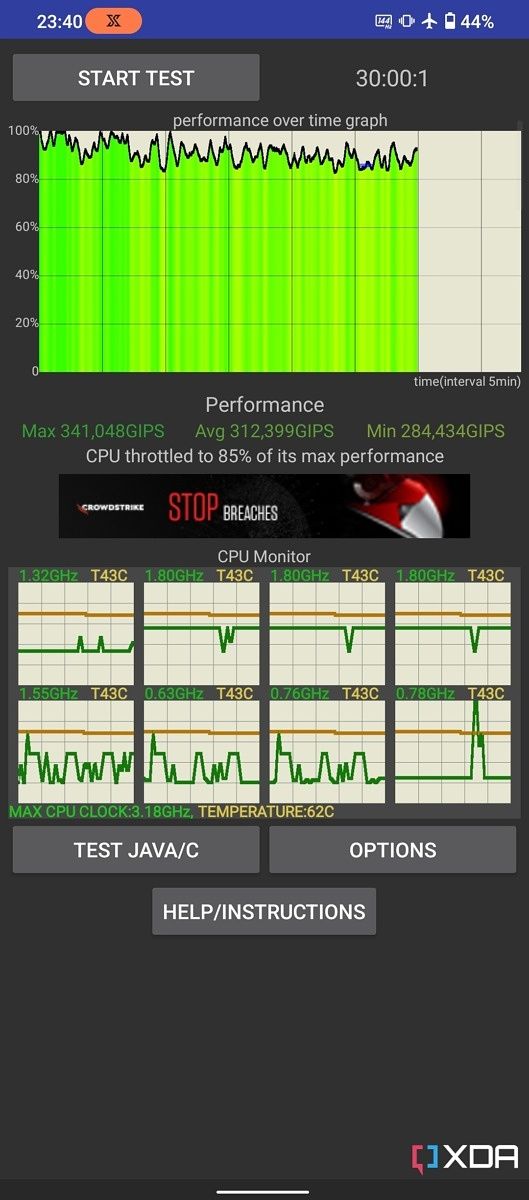
CPU Throttling Test is a freely available app on the Google Play Store, and it repeats a simple multithreaded test in C for as short as 15 minutes. We increased the length of time to 30 minutes. The app charts the score over time so you can see when the phone starts throttling. The score is measured in GIPS — or billion operations per second. It’s essentially a test that can measure the sustained performance of a chipset. While the phone does heat up, it’s not unbearably hot and is perfectly usable even at the hottest that it achieved.
With the AeroActive Cooler attached, I noticed as well that the Asus ROG Phone 6 Pro did perform better than you would expect. It achieved a maximum of 377 GIPs, whereas, without the cooler, the maximum it achieved was 341 GIPS. That’s nearly a 10% increase in maximum performance, and the average was also similarly higher with the cooler attached. It’s not a necessity, but it’s clear you’ll definitely have some benefits when using the cooler on your phone.
The AeroActive Cooler 6 isn’t for everyone
It’s not all good for the Asus AeroActive Cooler 6 though, and there are a few things that I wish it had. For starters, it would make total sense to both extend the length of the cooler just a little bit, and to exhaust air out the top and bottom instead of at the sides. The buttons on the back can be harder to reach when playing games since the ROG Phone 6 is a long phone, and hot air being expelled over your fingers is an uncomfortable experience during longer sessions.
Again, too, there’s the issue of the stand. It’s a flimsy stand that only allows for one viewing angle, and it’s just a little bit wider than 90° on a table. It’s pretty impractical. It might have made more sense to have a stiffer hinge but located on the opposite side to the hinge’s current position at the bottom, and get more movement in there.
Finally, while I understand it’s an Asus peripheral, I would absolutely love it if it were more “universal”. Many people could get use out of something like this, though to even make proper contact with the phone it needs to be shaped to it. There are some competitors (like the Razer Phone Cooler Chroma or the GameSir X3), but the first is just a cooler, and the second is a full-fledged controller. Both of those also need external power, whereas this cooler can be powered by your phone. I understand the logistical difficulty in making a one-size fits all solution, but it’s such a good peripheral that I feel like I can be picky a bit and hope for it to come to other devices, too!
Should you buy the Asus AeroActive Cooler 6?
This is the first peripheral you should pick up for the Asus ROG Phone 6 Pro
If you have the Asus ROG Phone 6 Pro and are looking for your first gaming-related peripheral to pick up, then make this the first. Between the buttons on the back and the extended cooling capabilities of this fan, it’s hard not to recommend it. It makes games so much more playable over a longer period of time, and you really notice the long-term improvement in performance when playing intensive games on your phone.
Asus also plans to launch one of these coolers for the Asus ROG Phone 5 and 5s, so if you have one of those devices and really want a cooler for your phone, then you can hold off and wait. It’ll make use of the pogo pins on the back of the phone, though the company hasn’t said when it intends on launching it just yet.
If you’re looking to cool your ROG Phone 6 on the go for long gaming sessions, then you can’t go wrong with the Asus AeroActive Cooler 6. I love it, and it’s been a fantastic addition so that I can play games without worrying about burning my hands off or damaging my phone from the heat while ensuring that performance stays at full pelt. It’ll come to the U.S. market at a later date, but you’ll soon be able to purchase it in Europe for €89.99.
The Asus AeroActive Cooler 6 is probably the first peripheral you should pick up if you have the Asus ROG Phone 6 Pro. It keeps your phone cool while adding additional buttons and powers itself from the side USB-C port.
The Asus ROG Phone 6 Pro launched recently, and it’s one of the best phones that I’ve ever used. It has pretty much everything and the kitchen sink thrown into a single device, and it launched alongside a set of pretty incredible peripherals. One such peripheral is the Asus AeroActive Cooler 6, which cools the phone via a built-in fan. In the most extreme conditions when externally powered, Asus says that the phone can be cooled by up to 25°C, though most users won’t need anywhere near that kind of cooling capability.
But what’s the point of the AeroActive Cooler 6? For long gaming sessions, its purpose is two-fold. First, it cools down your phone to prevent it from thermal throttling, extending your game session for as long as you need it. The second reason is that it makes the phone more comfortable to hold for longer periods of time, as there won’t be as much heat to transfer to the edges of the phone. It has buttons on the back too that you can bind to touch inputs in your games if you want to use it, so it’s not just a cooler attachment.
If you have the Asus ROG Phone 6 Pro and are looking for a peripheral for it, then the AeroActive Cooler 6 is probably one of the first you should go for. It, sadly, doesn’t come in the box, despite how essential we’d deem it for mobile gaming. It keeps the phone cool and prevents it from throttling while playing your favorite games for long periods of time, and what’s more, pairs nicely with the Asus Kunai 3 Gamepad, too. It also comes with its own compatible case in the box, though you can use it with and without that case.
The Asus AeroActive Cooler 6 is probably the first peripheral you should pick up if you have the Asus ROG Phone 6 Pro. It keeps your phone cool while adding additional buttons and powers itself from the side USB-C port.
About this review: I received the Asus ROG Phone 6 Pro from Asus on the 17th of June, 2022 alongside the AeroActive Cooler 6. My colleague, Aamir Siddiqui, also received the device from Asus, along with the cooler. While the company provided us with review units, it did not have any input into the contents of this review.
Features and Cooling Capabilities
The Asus AeroActive Cooler 6 has a few features up its sleeves that make it unique. For starters, there are four cooling modes, though the last one is inaccessible unless the phone is charging. The reason for this is that each cooling mode uses more energy, so while you’re cooling your phone you’re draining your phone faster. The side USB-C port isn’t able to provide enough power to support the “frozen” cooling mode, so the phone needs to be plugged in at the same time. This plugging in needs to happen through the cooler’s port, since the phone won’t let you switch to “frozen” if you connect the cooler on the side port and then charge through the ROG Phone 6’s bottom port.
As well, the cooler has a little stand built at the charging port that can be flipped open to let the phone stand up. It is a bit flimsy — I’ve had it come off a couple of times and had to click it back in. Despite all of that, the Asus AeroActive Cooler 6’s obvious primary job is to keep the phone cool and prevent thermal throttling, so how does it fare? As it turns out, quite well from our testing.
What’s more, the cooler even has RGB lights built-in too that can be configured from the phone’s Armoury Crate app. You can make it match the Asus ROG Phone 6 Pro wallpapers if you’d like, or just tune it whatever other way you want.
Gaming
First and foremost, this cooler is obviously primarily aimed at gamers. Between its aesthetic (alongside the overall ROG aesthetic) and the trigger buttons on the back that can be mapped to touch inputs, it’s clear what Asus was going for here. We tested it both in Genshin Impact and when emulating The Simpsons: Hit & Run via AetherSX2, and received phenomenal results.
With the cooler enabled, we were able to consistently play Genshin Impact for over half an hour at basically 60 FPS, something that this phone barely struggled to achieve without the cooler. Without the cooler, the temperature measured around the phone was around 37° C towards the sides where your fingers rest, while the SoC was hitting more towards 45°C.
As for The Simpson’s Hit & Run, we tested both with and without the cooler. Without the cooler, the phone reached 43°C after half an hour. This temperature is still fine, but the phone is hot to the touch and might be uncomfortable over longer periods of time. Attaching the cooler and using it in “frosty” mode (the second-highest mode, and the highest you can use it at when not connected to power), we found the temperature fluctuated around 36°C/37°C at its peak. Finally, when connected to power with bypass charging mode enabled and the cooler in “frozen” mode, the phone would move up and down between 31°C and 35°C.
The Asus AeroActive Cooler 6 gives pretty impressive results for intensive gaming sessions.
No matter what, these are pretty impressive results for intensive gaming sessions. Even using it in its second-highest mode, it’ll keep your phone much cooler than it otherwise would have been without the cooler, protecting your phone’s internals from overheating and ensuring that the chipset can consistently maintain high clock speeds.
CPU Throttling Test
CPU Throttling Test is a freely available app on the Google Play Store, and it repeats a simple multithreaded test in C for as short as 15 minutes. We increased the length of time to 30 minutes. The app charts the score over time so you can see when the phone starts throttling. The score is measured in GIPS — or billion operations per second. It’s essentially a test that can measure the sustained performance of a chipset. While the phone does heat up, it’s not unbearably hot and is perfectly usable even at the hottest that it achieved.
With the AeroActive Cooler attached, I noticed as well that the Asus ROG Phone 6 Pro did perform better than you would expect. It achieved a maximum of 377 GIPs, whereas, without the cooler, the maximum it achieved was 341 GIPS. That’s nearly a 10% increase in maximum performance, and the average was also similarly higher with the cooler attached. It’s not a necessity, but it’s clear you’ll definitely have some benefits when using the cooler on your phone.
The AeroActive Cooler 6 isn’t for everyone
It’s not all good for the Asus AeroActive Cooler 6 though, and there are a few things that I wish it had. For starters, it would make total sense to both extend the length of the cooler just a little bit, and to exhaust air out the top and bottom instead of at the sides. The buttons on the back can be harder to reach when playing games since the ROG Phone 6 is a long phone, and hot air being expelled over your fingers is an uncomfortable experience during longer sessions.
Again, too, there’s the issue of the stand. It’s a flimsy stand that only allows for one viewing angle, and it’s just a little bit wider than 90° on a table. It’s pretty impractical. It might have made more sense to have a stiffer hinge but located on the opposite side to the hinge’s current position at the bottom, and get more movement in there.
Finally, while I understand it’s an Asus peripheral, I would absolutely love it if it were more “universal”. Many people could get use out of something like this, though to even make proper contact with the phone it needs to be shaped to it. There are some competitors (like the Razer Phone Cooler Chroma or the GameSir X3), but the first is just a cooler, and the second is a full-fledged controller. Both of those also need external power, whereas this cooler can be powered by your phone. I understand the logistical difficulty in making a one-size fits all solution, but it’s such a good peripheral that I feel like I can be picky a bit and hope for it to come to other devices, too!
Should you buy the Asus AeroActive Cooler 6?
This is the first peripheral you should pick up for the Asus ROG Phone 6 Pro
If you have the Asus ROG Phone 6 Pro and are looking for your first gaming-related peripheral to pick up, then make this the first. Between the buttons on the back and the extended cooling capabilities of this fan, it’s hard not to recommend it. It makes games so much more playable over a longer period of time, and you really notice the long-term improvement in performance when playing intensive games on your phone.
Asus also plans to launch one of these coolers for the Asus ROG Phone 5 and 5s, so if you have one of those devices and really want a cooler for your phone, then you can hold off and wait. It’ll make use of the pogo pins on the back of the phone, though the company hasn’t said when it intends on launching it just yet.
If you’re looking to cool your ROG Phone 6 on the go for long gaming sessions, then you can’t go wrong with the Asus AeroActive Cooler 6. I love it, and it’s been a fantastic addition so that I can play games without worrying about burning my hands off or damaging my phone from the heat while ensuring that performance stays at full pelt. It’ll come to the U.S. market at a later date, but you’ll soon be able to purchase it in Europe for €89.99.
The Asus AeroActive Cooler 6 is probably the first peripheral you should pick up if you have the Asus ROG Phone 6 Pro. It keeps your phone cool while adding additional buttons and powers itself from the side USB-C port.
Huawei’s FreeBuds Pro were some of the best earphones that I’ve ever reviewed — and for a couple of different reasons. They sounded good, their active noise canceling was powerful, and they even had a somewhat unique design (nearly as unique as earphones can get, anyway). Now the company is back with the second iteration after announcing them at its launch event in Berlin, and they’re every bit as good as their predecessors. These earphones are co-engineered with French audio company Devialet, which you may remember as having co-engineered the Huawei Sound, as well.
On the technical side, there are a couple of unique things that the Huawei FreeBuds Pro 2 pulls off that you won’t really find anywhere else. The biggest is that this debuts a feature that the company dubs the “Ultra-hearing True Sound Dual Driver”. This combines two drivers; a planar diaphragm for treble and overtones, and a quad-magnet dynamic driver for medium and lower frequencies. They have a wide sound range, from as low as 14Hz to as high as 48kHz. Huawei’s “True Adaptive EQ” technology can automatically tune the Huwaei FreeBuds Pro 2 to your ear canal structure, wearing posture, and volume level.
Of course, there’s also some pretty impressive active noise canceling too, that aims to tune itself based on your surroundings. You can hear the difference too when walking between different settings, and the company says these can cancel out up to 47 dB of noise. In essence, these earphones pack a lot of punch in the specification table, and they manage to keep their word on a lot of the greatness that they promise.
The Huawei FreeBuds Pro 2 are an excellent pair of noise canceling earphones with amazing sound quality and a lot of audio customization features. They stand out from the crowd too thanks to their unique and shiny colors, though iOS users beware; there's no app for you.
About this review: Huawei sent me the Huawei FreeBuds Pro 2 on the 28th June, 2022 for review. The company also flew me out to Berlin for its launch event, paying for my flights and accommodation as it did for other media persons. However, it did not have any input into the contents of this review.
Huawei FreeBuds Pro 2: Design
The Huawei FreeBuds Pro 2 feature the same design as their predecessor, with a “typical” earbuds design and squared-off stems. That aside, the design is functional and they’re comfortable to use for long stretches of listening. I will say that while these are called the “Silver Blue” colorway, they look more like lavender or violet. They do not look blue in person whatsoever, so bare that in mind if you want a “blue” pair of earphones.
They have the same squared-off stems too, and they can be controlled with squeezes. Volume can also be controlled with a swipe up or swipe down of the front of the earphone, though it can be a bit finicky to get working and you may find yourself pushing them out of your ears a bit. Squeezes work very well, though!
Huawei FreeBuds Pro 2 are comfortable to use for long stretches of listening
Touch controls aside, the design is functional and they’re comfortable to use for long stretches of listening. I had to downsize the silicone tips to the smaller ones included in the box, though there is a larger set too if you need them. It may not necessarily be a “one size fits all” solution, but that’s why there are options included in the box for you, too. It’s not a big deal, anyway, just that I found the regular ones would often get pushed out of my ears over time.
Huawei FreeBuds Pro 2: Audio, Battery, and Software
Everything else when it comes to a pair of earphones is irrelevant if they don’t sound good, and I’ll always forgive a pair of earphones for lacking in features if they have good sound. After all, that’s what people are actually buying them for. Given Huawei’s previous proficiency in audio (between the Huawei Sound and the Huawei FreeBuds Pro), I expected to be impressed by these earphones, and impressed I indeed was.
The Huawei FreeBuds Pro 2 served as an excellent travel partner
These earphones sound incredible and are comfortable to use for long periods of time. I’ve already killed them twice from listening constantly, something I typically don’t end up doing with earphones as I generally take them out as they get uncomfortable over a few hours. I was listening with active noise canceling while traveling, and they served as an excellent travel partner in keeping me entertained and watching TV shows, movies, and listening to music.
If you want to check out the playlist I’ve been primarily listening to with these earphones, you can check that out here on Spotify. Songs like Car Seat Headrest‘s Famous Prophets (Stars) sound amazing at the minimal bass guitar-focused bridge, with a clear and distinct difference between the lows and the highs. Modest Mouse‘s Float On is done an excellent service in its recreation of the plucky chorus guitar, and the cacophony of instruments in the second chorus of No Halo by Sorority Noise comes through clearly, something that poorly tuned earphones and headphones may struggle with.
I only have a couple of criticisms of these earphones, and they’re fairly minor. The first is that the mids on these earphones with the default tuning sound a little bit quieter than I would like, and the low-end is tuned a little bit high. Otherwise, I think that Huawei and Devialet did an excellent job in tuning the audio of these earphones. The lows don’t overpower the mix, which is the only time that it would really be a problem. The audio quality is superb too, thanks to LDAC audio support.
Audio quality is superb on the FreeBuds Pro 2
When it comes to active noise canceling, the Huawei FreeBuds Pro 2 does a great job. There’s supposed to be a specific noise cancelation curve that works on airplanes, though I didn’t notice much of a difference when I was on a plane versus normal noise-canceling earphones. That’s not to say they did a bad job, I just didn’t notice anything in particular that “wow”ed me in that instance. They successfully block out audio from around me pretty well and have served me well on other modes of public transport too like the bus and the train.
One thing that I’ve noticed is interesting is that the AI detection for different settings of applying ANC does actually work. I walked into a shop with the earphones in (and no music playing) and could hear the shift in noise cancelation versus what had been in my ears when outside. It didn’t really change anything in terms of how loud I was perceiving my surroundings to be, but it was doing something.
I am impressed by the microphones
The company also has been touting its microphone abilities with these earphones, and I must admit that I am impressed. I was on a Discord call with some friends on my earphones, and when I stepped outside they noticed that my audio quality had dropped significantly. They asked me what was wrong with my microphone, and we were having a full conversation about how I was using a pair of Bluetooth earphones and not my normal phone microphone. That’s when we realized it was cutting out frequencies around my voice to make it clearer against all of the background noise around me. It didn’t sound good, but I could be heard and understood while on a busy street surrounded by cars, motorbikes, and people, and that’s all that mattered.
If you want to modify settings on these earphones, you’ll need the Huawei AI Life app. You can update your earphones, change gestures, run a “fit test” (though these don’t tend to be great, either), or change the noise-canceling mode. There’s no iOS app though, so Apple users beware. It’s on Huawei’s AppGallery too, so you’ll need to download the APK externally.
In terms of battery life, these have been pretty good, though I’ve run them dead once already. They last four and a half hours on a single charge, but so long as you’re frequently docking them in the charging case then you should be completely fine. I only need to charge up the case every few days, anyway.
Are the Huawei FreeBuds Pro 2 worth your money?
If you need a pair of earphones, the Huawei FreeBuds Pro 2 are some of the best wireless earphones you can get. They cost £169 in the U.K. (and €199 in the rest of Europe), making them a little bit pricey, but in line with similar competition. These are a premium set of earphones that you can’t go wrong with if you pick them up, and the host of customization options mixed with a useful app makes these an excellent pick-up if you need new earphones. Even if you don’t like how they’re tuned out of the box, Huawei offers an equalizer in the AI Life app so you can make them sound exactly how you want them to.
As a result, I don’t have any real complaints about these earphones. They sound great out of the box, are comfortable to wear, and the active noise canceling does a wonderful job at blocking out sounds around me. Sure, claims of specific noise cancelation curves for airplanes and the like seem gimmicky, but the point still stands that they do the job excellently. Throw all the marketing terms you want at it — if it works, it works, and most consumers don’t care nor need to know about the technology that powers it.
The Huawei FreeBuds Pro 2 are an excellent pair of noise-canceling earphones with amazing sound quality and a lot of audio customization features. They stand out from the crowd too thanks to their unique and shiny colors, though iOS users beware; there's no app for you.
In short, I love the Huawei FreeBuds Pro 2 for their sound quality and their comfort, and the pinch gestures are a lot more comfortable to use than touch controls. These are very much a pair of earphones that everyone can find love for, and they’re one of the best pairs of wireless earphones I’ve used in recent years. Sound quality is what matters most, and Huawei nails not only that but all of the additional extras as well. I’m excited to see what the company can pull off with its partnership with Devialet.