LightBlog

dimanche 17 juillet 2022

Huawei FreeBuds Pro 2 Review: Feature-filled audio brilliance

Huawei’s FreeBuds Pro were some of the best earphones that I’ve ever reviewed — and for a couple of different reasons. They sounded good, their active noise canceling was powerful, and they even had a somewhat unique design (nearly as unique as earphones can get, anyway). Now the company is back with the second iteration after announcing them at its launch event in Berlin, and they’re every bit as good as their predecessors. These earphones are co-engineered with French audio company Devialet, which you may remember as having co-engineered the Huawei Sound, as well.

On the technical side, there are a couple of unique things that the Huawei FreeBuds Pro 2 pulls off that you won’t really find anywhere else. The biggest is that this debuts a feature that the company dubs the “Ultra-hearing True Sound Dual Driver”. This combines two drivers; a planar diaphragm for treble and overtones, and a quad-magnet dynamic driver for medium and lower frequencies. They have a wide sound range, from as low as 14Hz to as high as 48kHz. Huawei’s “True Adaptive EQ” technology can automatically tune the Huwaei FreeBuds Pro 2 to your ear canal structure, wearing posture, and volume level.

Of course, there’s also some pretty impressive active noise canceling too, that aims to tune itself based on your surroundings. You can hear the difference too when walking between different settings, and the company says these can cancel out up to 47 dB of noise. In essence, these earphones pack a lot of punch in the specification table, and they manage to keep their word on a lot of the greatness that they promise.

    Huawei FreeBuds Pro 2
    The Huawei FreeBuds Pro 2 are an excellent pair of noise canceling earphones with amazing sound quality and a lot of audio customization features. They stand out from the crowd too thanks to their unique and shiny colors, though iOS users beware; there's no app for you.

      Features:

      Pros:

      Cons:

Honor FreeBuds Pro 2: Specifications

Specification Honor FreeBuds Pro 2
Build N/A
Dimensions & Weight Per earbud:
  • Length: 29.1 mm
  • Width: 21.8 mm
  • Height: 23.7 mm
  • Weight: About 6.1 g ± 0.2 g

Charging case:

  • Length: 67.9 mm
  • Width: 24.5 mm
  • Height: 47.5 mm
  • Weight: About 52 g ± 1 g
Speaker drivers 11 mm dynamic driver + planar diaphragm driver
Microphone(s) 4 microphone array
Connectivity Bluetooth 5.2
Battery & Charging
  • Earbuds only:
    • ANC on: Up to 4 hours
    • ANC off: Up to 6.5 hours
  • Earbuds + Case:
    • ANC on: Up to 18 hours
    • ANC off: Up to 30 hours

Both wired and wireless charging

Other Features
  • Active noise cancellation support (47dB peak)
  • USB Type-C port for charging
  • Touch controls
Colors
  • Silver Blue
  • Silver Frost
  • Ceramic White

About this review: Huawei sent me the Huawei FreeBuds Pro 2 on the 28th June, 2022 for review. The company also flew me out to Berlin for its launch event, paying for my flights and accommodation as it did for other media persons. However, it did not have any input into the contents of this review.


Huawei FreeBuds Pro 2: Design

huawei freebuds pro 2

The Huawei FreeBuds Pro 2 feature the same design as their predecessor, with a “typical” earbuds design and squared-off stems. That aside, the design is functional and they’re comfortable to use for long stretches of listening. I will say that while these are called the “Silver Blue” colorway, they look more like lavender or violet. They do not look blue in person whatsoever, so bare that in mind if you want a “blue” pair of earphones.

huawei freebuds pro 2 with squared off stems

They have the same squared-off stems too, and they can be controlled with squeezes. Volume can also be controlled with a swipe up or swipe down of the front of the earphone, though it can be a bit finicky to get working and you may find yourself pushing them out of your ears a bit. Squeezes work very well, though!

Huawei FreeBuds Pro 2 are comfortable to use for long stretches of listening

Touch controls aside, the design is functional and they’re comfortable to use for long stretches of listening. I had to downsize the silicone tips to the smaller ones included in the box, though there is a larger set too if you need them. It may not necessarily be a “one size fits all” solution, but that’s why there are options included in the box for you, too. It’s not a big deal, anyway, just that I found the regular ones would often get pushed out of my ears over time.


Huawei FreeBuds Pro 2: Audio, Battery, and Software

Everything else when it comes to a pair of earphones is irrelevant if they don’t sound good, and  I’ll always forgive a pair of earphones for lacking in features if they have good sound. After all, that’s what people are actually buying them for. Given Huawei’s previous proficiency in audio (between the Huawei Sound and the Huawei FreeBuds Pro), I expected to be impressed by these earphones, and impressed I indeed was.

The Huawei FreeBuds Pro 2 served as an excellent travel partner

These earphones sound incredible and are comfortable to use for long periods of time. I’ve already killed them twice from listening constantly, something I typically don’t end up doing with earphones as I generally take them out as they get uncomfortable over a few hours. I was listening with active noise canceling while traveling, and they served as an excellent travel partner in keeping me entertained and watching TV shows, movies, and listening to music.

If you want to check out the playlist I’ve been primarily listening to with these earphones, you can check that out here on Spotify. Songs like Car Seat Headrest‘s Famous Prophets (Stars) sound amazing at the minimal bass guitar-focused bridge, with a clear and distinct difference between the lows and the highs. Modest Mouse‘s Float On is done an excellent service in its recreation of the plucky chorus guitar, and the cacophony of instruments in the second chorus of No Halo by Sorority Noise comes through clearly, something that poorly tuned earphones and headphones may struggle with.

I only have a couple of criticisms of these earphones, and they’re fairly minor. The first is that the mids on these earphones with the default tuning sound a little bit quieter than I would like, and the low-end is tuned a little bit high. Otherwise, I think that Huawei and Devialet did an excellent job in tuning the audio of these earphones. The lows don’t overpower the mix, which is the only time that it would really be a problem. The audio quality is superb too, thanks to LDAC audio support.

Audio quality is superb on the FreeBuds Pro 2

When it comes to active noise canceling, the Huawei FreeBuds Pro 2 does a great job. There’s supposed to be a specific noise cancelation curve that works on airplanes, though I didn’t notice much of a difference when I was on a plane versus normal noise-canceling earphones. That’s not to say they did a bad job, I just didn’t notice anything in particular that “wow”ed me in that instance. They successfully block out audio from around me pretty well and have served me well on other modes of public transport too like the bus and the train.

One thing that I’ve noticed is interesting is that the AI detection for different settings of applying ANC does actually work. I walked into a shop with the earphones in (and no music playing) and could hear the shift in noise cancelation versus what had been in my ears when outside. It didn’t really change anything in terms of how loud I was perceiving my surroundings to be, but it was doing something.

I am impressed by the microphones

The company also has been touting its microphone abilities with these earphones, and I must admit that I am impressed. I was on a Discord call with some friends on my earphones, and when I stepped outside they noticed that my audio quality had dropped significantly. They asked me what was wrong with my microphone, and we were having a full conversation about how I was using a pair of Bluetooth earphones and not my normal phone microphone. That’s when we realized it was cutting out frequencies around my voice to make it clearer against all of the background noise around me. It didn’t sound good, but I could be heard and understood while on a busy street surrounded by cars, motorbikes, and people, and that’s all that mattered.

If you want to modify settings on these earphones, you’ll need the Huawei AI Life app. You can update your earphones, change gestures, run a “fit test” (though these don’t tend to be great, either), or change the noise-canceling mode. There’s no iOS app though, so Apple users beware. It’s on Huawei’s AppGallery too, so you’ll need to download the APK externally.

In terms of battery life, these have been pretty good, though I’ve run them dead once already. They last four and a half hours on a single charge, but so long as you’re frequently docking them in the charging case then you should be completely fine. I only need to charge up the case every few days, anyway.

Are the Huawei FreeBuds Pro 2 worth your money?

XDA Best Award
If you need a pair of earphones, the Huawei FreeBuds Pro 2 are some of the best wireless earphones you can get. They cost £169 in the U.K. (and €199 in the rest of Europe), making them a little bit pricey, but in line with similar competition. These are a premium set of earphones that you can’t go wrong with if you pick them up, and the host of customization options mixed with a useful app makes these an excellent pick-up if you need new earphones. Even if you don’t like how they’re tuned out of the box, Huawei offers an equalizer in the AI Life app so you can make them sound exactly how you want them to.

As a result, I don’t have any real complaints about these earphones. They sound great out of the box, are comfortable to wear, and the active noise canceling does a wonderful job at blocking out sounds around me. Sure, claims of specific noise cancelation curves for airplanes and the like seem gimmicky, but the point still stands that they do the job excellently. Throw all the marketing terms you want at it — if it works, it works, and most consumers don’t care nor need to know about the technology that powers it.

    Huawei FreeBuds Pro 2
    The Huawei FreeBuds Pro 2 are an excellent pair of noise-canceling earphones with amazing sound quality and a lot of audio customization features. They stand out from the crowd too thanks to their unique and shiny colors, though iOS users beware; there's no app for you.

In short, I love the Huawei FreeBuds Pro 2 for their sound quality and their comfort, and the pinch gestures are a lot more comfortable to use than touch controls. These are very much a pair of earphones that everyone can find love for, and they’re one of the best pairs of wireless earphones I’ve used in recent years. Sound quality is what matters most, and Huawei nails not only that but all of the additional extras as well. I’m excited to see what the company can pull off with its partnership with Devialet.

The post Huawei FreeBuds Pro 2 Review: Feature-filled audio brilliance appeared first on XDA.


from XDA https://ift.tt/XoACYrP
via IFTTT

Pixel Experience 12 Hands-On: This is what you get with the official builds

For many smartphone enthusiasts, the software on the Google Pixel devices is the epitome of the vanilla Android experience. Compared to a barebone AOSP build, it has a number of innovative features that are hard to port to other devices. This is where the Pixel Experience custom ROM comes in.

Originally started as an experimental project by XDA Recognized Developer jhenrique09 back in 2017, the custom ROM has grown in popularity quite exponentially, thanks to the desire of users to mimic the software experience of the Google Pixel lineup. jhenrique09 decided to open-source the codebase so that other developers could contribute and port Pixel Experience (often stylized as “PixelExperience” and “PE”) to more devices. Now, the project strives to be a custom ROM on the level of an OEM ROM, providing reliability, stability, and improving on existing features on a device with polish and care.

For this hands-on, we tried out Pixel Experience 12 based on Android 12L primarily on the Redmi Note 7 Pro, a device that stopped receiving updates with Android 10. This shows how an aftermarket ROM can easily extend the lifespan of a device, which is long abandoned by its maker.

Pixel Experience: Installation

The Pixel Experience project offers device-specific installation packages in the form of ROM ZIP files, which can be sideloaded using a custom recovery like TWRP after unlocking the bootloader of the target device.

In case you don’t want to use TWRP, or there’s no official TWRP build available for your device yet, you can also opt for the Pixel Experience recovery image. It’s not as feature-rich as TWRP, but it’s enough to get the job done. The PE recovery is specifically useful for installing Android 12(L)-based OTAs, as TWRP has yet to support Android’s new encryption scheme.

Pixel Experience Recovery 1 Pixel Experience Recovery 2

Unlike most other custom ROM distributions, Pixel Experience comes with the essential set of Google apps and services preinstalled. As a result, you don’t need to flash a GApps package separately.

Pixel Experience: First boot and setup wizard

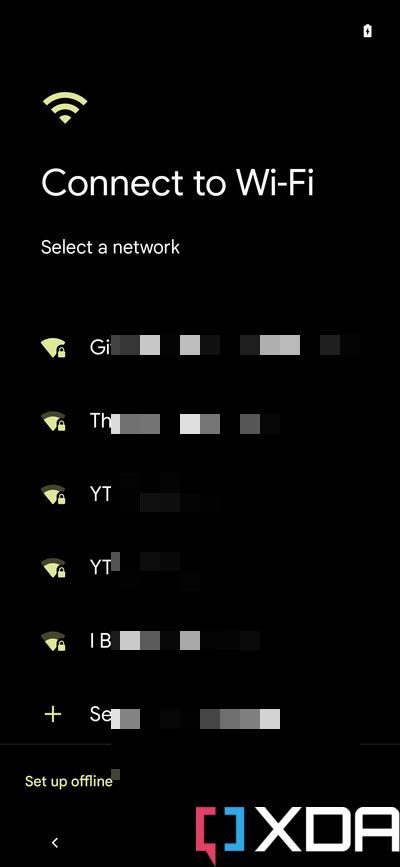
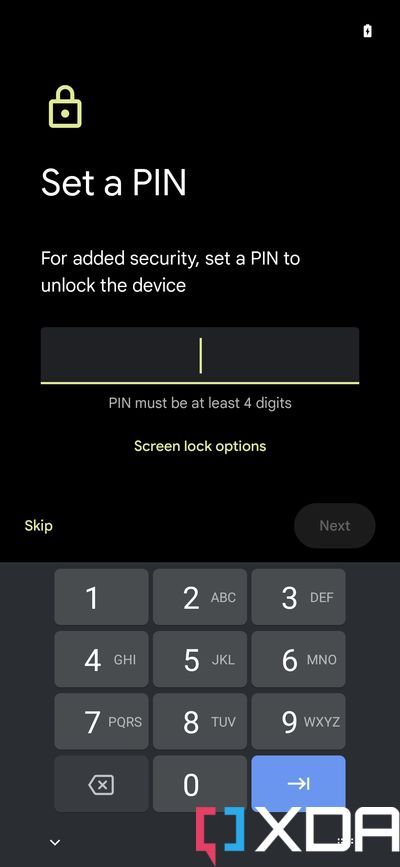
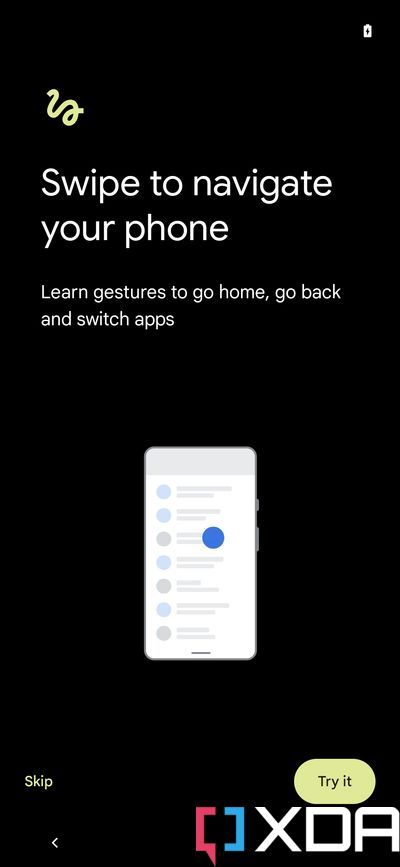
After a successful installation, you should be greeted with the Pixel-styled boot animation as soon as you reboot your phone. The setup wizard on the first run is Pixel-themed as well, and it guides you through selecting your preferred UI language, the time zone, and configuring security settings (e.g. enrolling your fingerprint). Since the Google Play Services are available out of the box, you will also go through the setup process of restoring your Google account and your apps.

Pixel Experience Setup 1 Pixel Experience Setup 2 Pixel Experience Setup 3 wifi Pixel Experience Setup 4 Pixel Experience Setup 5 Pixel Experience Setup 6 Pixel Experience Setup 7 Pixel Experience setup complete

Pixel Experience: Launcher and preinstalled apps

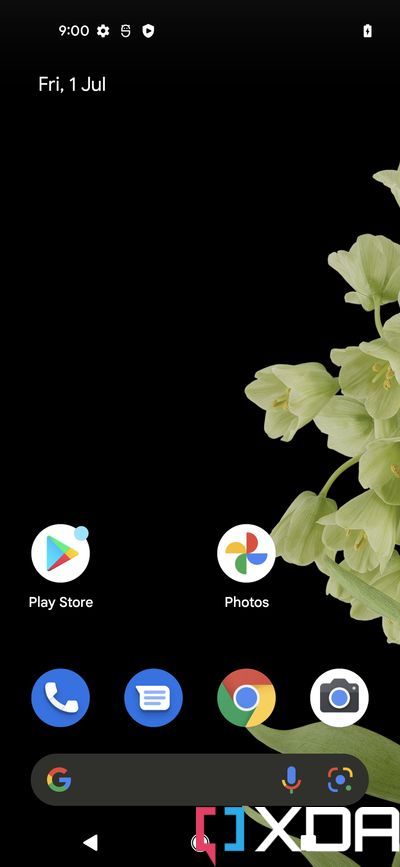
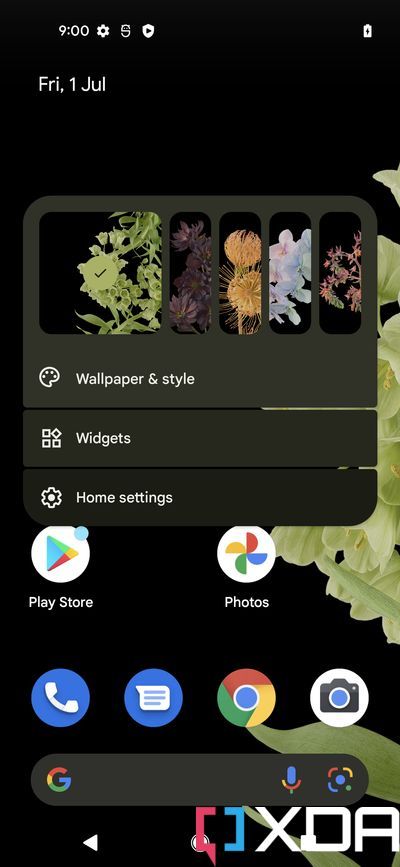
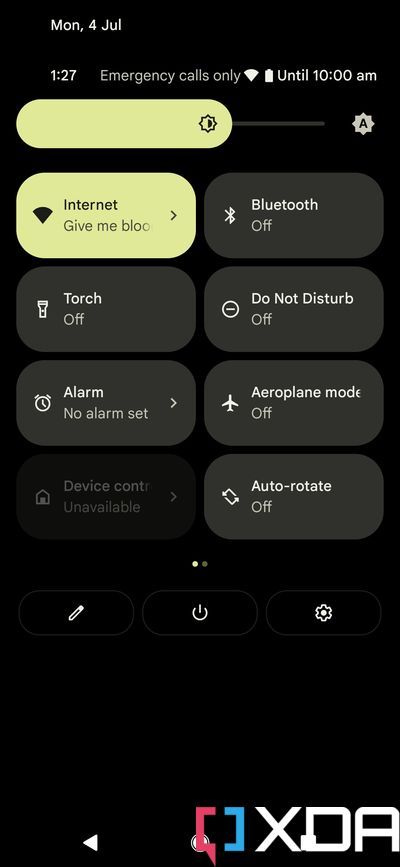
The first thing you notice after booting up the ROM is the launcher app. For Pixel Experience, it’s the vanilla Pixel Launcher app right from Google. Not only the launcher, but the wallpapers, icons, font, and many other Pixel goodies are also preinstalled. For a veteran Android modder, it might not be the most customizable experience, but for the vast majority of users, it’s likely more than fine.

Talking about preinstalled apps, you won’t find many. Pixel Experience developers don’t ship any in-house apps for basic productivity tasks, as Google’s offerings will eventually make them redundant. Apart from an actual Pixel’s standard suite of apps, you will find very few third-party apps. The official maintainers’ code of conduct provides strict guidelines in this regard.

Pixel Experience homescreen Pixel Experience Wallpaper and Styles Pixel Experience Launcher apps Pixel Experience quick settings Pixel Experience settings Pixel Experience settings 2

For the camera app, though, some device maintainers include a known Google Camera port in their releases. This is because the untouched Google Camera APK is very likely incompatible with the camera sensors found on the particular non-Pixel smartphone. If a suitable stock camera port exists for a particular OEM, you may find it inside as the default camera app on the Pixel Experience ROM for your device as well.

The ROM supports OTA updates. The built-in updater periodically queries the PE download servers and notifies you after finding a newer build than the installed one. As mentioned earlier, if you have the PE recovery installed, then you can install the OTAs just like a regular Pixel smartphone.

Pixel Experience OTA

Pixel Experience: Plus variant

The original goal of Pixel Experience was to offer a custom ROM that was stable while also including the features that are available on Pixel devices. However, some modding community members have avoided it due to it not having some core custom ROM features that people have grown to expect. This led to the creation of Pixel Experience Plus — an official variant that features some additional functionalities.

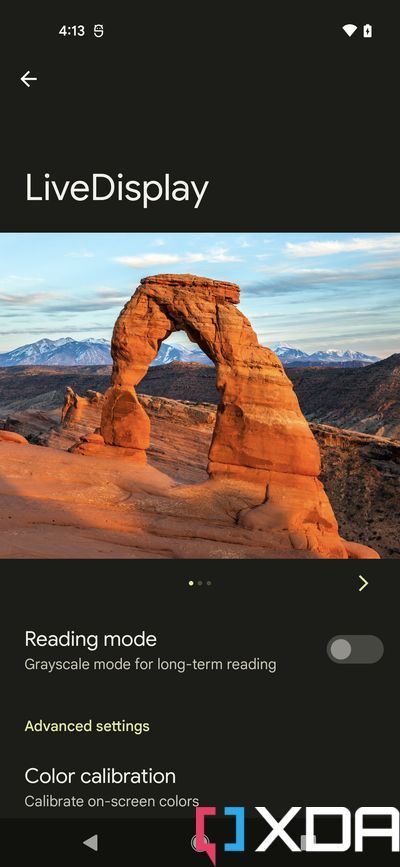
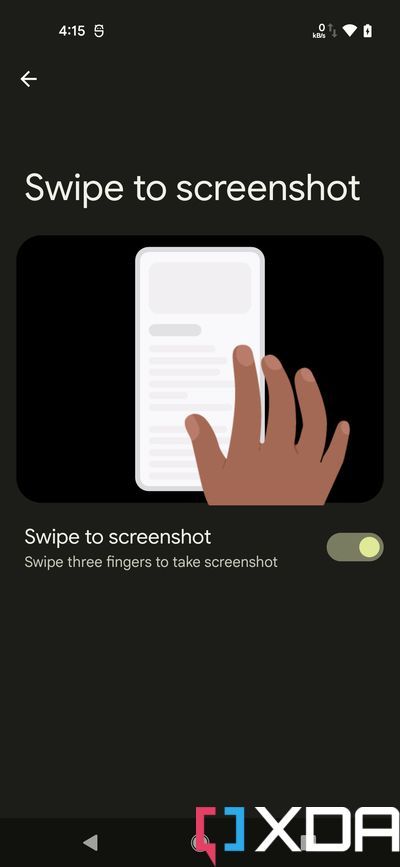
The “Plus” edition offers per-app volume settings, network traffic monitor, notch hiding support, and several other UI enhancements. You can use additional gestures like three fingers swipe for taking a screenshot. There is a dedicated LiveDisplay panel too, for tweaking color profile, display mode, reading mode, and color calibration.

Pixel Experience Plus LiveDisplay Pixel Experience Plus Network Traffic Pixel Experience Plus screenshot

In terms of granular customizability, Pixel Experience Plus is way ahead of the vanilla variant. For example, you can easily modify the status bar icons without the help of an additional SystemUI tuner app. The volume and power button actions are customizable as well, thanks to a number of built-in templates. You can also tweak various aspects of the lock screen, e.g. toggle media cover art, music visualizer, device controls, and a plethora of other details.

Pixel Experience Plus Status bar icons Pixel Experience Plus button actions Pixel Experience Plus rotation mode

Pixel Experience: SafetyNet

The Device Requirements charter for the Pixel Experience project prohibits official maintainers to spoof the device fingerprint. As a result, you won’t find a custom Pixel-derived fingerprint on non-Pixel hardware.

Although the ROM doesn’t ship any su binary, there are plenty of factors (stock firmware cross-flashing, the unlocked bootloader state on modern devices etc.) that can lead to SafetyNet failure. With that said, an untouched instance of this custom ROM should pass SafetyNet out of the box on officially supported phones.

Pixel Experience SafetyNet check

A Google Pixel 4a running official Pixel Experience ROM passes SafetyNet

Pixel Experience: Download

If you’d like to try Pixel Experience (or its Plus variant) on your device, you can download the ROM from the project’s official download portal linked below. There are more than a hundred entries in the current roster — each having its own wiki page detailing flashing prerequisites and installation instructions.

Pixel Experience Download Portal

Just because your device isn’t listed there does not mean that you can’t get to enjoy Pixel Experience by now. Because of its open-source nature, there are a number of unofficial builds for many devices on our forums, many of which will eventually end up becoming official builds as development progresses. Most of them are, by now, perfectly stable as daily drivers, with the occasional minor quirk.

Last but not least, XDA Recognized Developer ponces maintains an unofficial GSI port of Pixel Experience. In case you have a Project Treble-compliant device, which has yet to receive official PE support, you can give the GSI a try.

Support Pixel Experience

When building a custom ROM, it’s very tempting to include a truckload of features in it. The problem is, that can often affect the stability of the ROM. Pixel Experience strikes the right balance between user experience and reliability without compromising the overall speed and stability of the phone, which makes it a popular choice among custom ROM enthusiasts.

The project is and has always been a community effort, riding on the back of volunteers dedicating their own resources for the general good of the community. If you want to help the team translate the custom ROM into your language, you can do so by following the instructions here. You can also contribute towards infrastructural costs by donating to them.

The post Pixel Experience 12 Hands-On: This is what you get with the official builds appeared first on XDA.


from XDA https://ift.tt/t4RlPMQ
via IFTTT

Pixel Experience 12 Hands-On: This is what you get with the official builds

For many smartphone enthusiasts, the software on the Google Pixel devices is the epitome of the vanilla Android experience. Compared to a barebone AOSP build, it has a number of innovative features that are hard to port to other devices. This is where the Pixel Experience custom ROM comes in.

Originally started as an experimental project by XDA Recognized Developer jhenrique09 back in 2017, the custom ROM has grown in popularity quite exponentially, thanks to the desire of users to mimic the software experience of the Google Pixel lineup. jhenrique09 decided to open-source the codebase so that other developers could contribute and port Pixel Experience (often stylized as “PixelExperience” and “PE”) to more devices. Now, the project strives to be a custom ROM on the level of an OEM ROM, providing reliability, stability, and improving on existing features on a device with polish and care.

For this hands-on, we tried out Pixel Experience 12 based on Android 12L primarily on the Redmi Note 7 Pro, a device that stopped receiving updates with Android 10. This shows how an aftermarket ROM can easily extend the lifespan of a device, which is long abandoned by its maker.

Pixel Experience: Installation

The Pixel Experience project offers device-specific installation packages in the form of ROM ZIP files, which can be sideloaded using a custom recovery like TWRP after unlocking the bootloader of the target device.

In case you don’t want to use TWRP, or there’s no official TWRP build available for your device yet, you can also opt for the Pixel Experience recovery image. It’s not as feature-rich as TWRP, but it’s enough to get the job done. The PE recovery is specifically useful for installing Android 12(L)-based OTAs, as TWRP has yet to support Android’s new encryption scheme.

Pixel Experience Recovery 1 Pixel Experience Recovery 2

Unlike most other custom ROM distributions, Pixel Experience comes with the essential set of Google apps and services preinstalled. As a result, you don’t need to flash a GApps package separately.

Pixel Experience: First boot and setup wizard

After a successful installation, you should be greeted with the Pixel-styled boot animation as soon as you reboot your phone. The setup wizard on the first run is Pixel-themed as well, and it guides you through selecting your preferred UI language, the time zone, and configuring security settings (e.g. enrolling your fingerprint). Since the Google Play Services are available out of the box, you will also go through the setup process of restoring your Google account and your apps.

Pixel Experience Setup 1 Pixel Experience Setup 2 Pixel Experience Setup 3 wifi Pixel Experience Setup 4 Pixel Experience Setup 5 Pixel Experience Setup 6 Pixel Experience Setup 7 Pixel Experience setup complete

Pixel Experience: Launcher and preinstalled apps

The first thing you notice after booting up the ROM is the launcher app. For Pixel Experience, it’s the vanilla Pixel Launcher app right from Google. Not only the launcher, but the wallpapers, icons, font, and many other Pixel goodies are also preinstalled. For a veteran Android modder, it might not be the most customizable experience, but for the vast majority of users, it’s likely more than fine.

Talking about preinstalled apps, you won’t find many. Pixel Experience developers don’t ship any in-house apps for basic productivity tasks, as Google’s offerings will eventually make them redundant. Apart from an actual Pixel’s standard suite of apps, you will find very few third-party apps. The official maintainers’ code of conduct provides strict guidelines in this regard.

Pixel Experience homescreen Pixel Experience Wallpaper and Styles Pixel Experience Launcher apps Pixel Experience quick settings Pixel Experience settings Pixel Experience settings 2

For the camera app, though, some device maintainers include a known Google Camera port in their releases. This is because the untouched Google Camera APK is very likely incompatible with the camera sensors found on the particular non-Pixel smartphone. If a suitable stock camera port exists for a particular OEM, you may find it inside as the default camera app on the Pixel Experience ROM for your device as well.

The ROM supports OTA updates. The built-in updater periodically queries the PE download servers and notifies you after finding a newer build than the installed one. As mentioned earlier, if you have the PE recovery installed, then you can install the OTAs just like a regular Pixel smartphone.

Pixel Experience OTA

Pixel Experience: Plus variant

The original goal of Pixel Experience was to offer a custom ROM that was stable while also including the features that are available on Pixel devices. However, some modding community members have avoided it due to it not having some core custom ROM features that people have grown to expect. This led to the creation of Pixel Experience Plus — an official variant that features some additional functionalities.

The “Plus” edition offers per-app volume settings, network traffic monitor, notch hiding support, and several other UI enhancements. You can use additional gestures like three fingers swipe for taking a screenshot. There is a dedicated LiveDisplay panel too, for tweaking color profile, display mode, reading mode, and color calibration.

Pixel Experience Plus LiveDisplay Pixel Experience Plus Network Traffic Pixel Experience Plus screenshot

In terms of granular customizability, Pixel Experience Plus is way ahead of the vanilla variant. For example, you can easily modify the status bar icons without the help of an additional SystemUI tuner app. The volume and power button actions are customizable as well, thanks to a number of built-in templates. You can also tweak various aspects of the lock screen, e.g. toggle media cover art, music visualizer, device controls, and a plethora of other details.

Pixel Experience Plus Status bar icons Pixel Experience Plus button actions Pixel Experience Plus rotation mode

Pixel Experience: SafetyNet

The Device Requirements charter for the Pixel Experience project prohibits official maintainers to spoof the device fingerprint. As a result, you won’t find a custom Pixel-derived fingerprint on non-Pixel hardware.

Although the ROM doesn’t ship any su binary, there are plenty of factors (stock firmware cross-flashing, the unlocked bootloader state on modern devices etc.) that can lead to SafetyNet failure. With that said, an untouched instance of this custom ROM should pass SafetyNet out of the box on officially supported phones.

Pixel Experience SafetyNet check

A Google Pixel 4a running official Pixel Experience ROM passes SafetyNet

Pixel Experience: Download

If you’d like to try Pixel Experience (or its Plus variant) on your device, you can download the ROM from the project’s official download portal linked below. There are more than a hundred entries in the current roster — each having its own wiki page detailing flashing prerequisites and installation instructions.

Pixel Experience Download Portal

Just because your device isn’t listed there does not mean that you can’t get to enjoy Pixel Experience by now. Because of its open-source nature, there are a number of unofficial builds for many devices on our forums, many of which will eventually end up becoming official builds as development progresses. Most of them are, by now, perfectly stable as daily drivers, with the occasional minor quirk.

Last but not least, XDA Recognized Developer ponces maintains an unofficial GSI port of Pixel Experience. In case you have a Project Treble-compliant device, which has yet to receive official PE support, you can give the GSI a try.

Support Pixel Experience

When building a custom ROM, it’s very tempting to include a truckload of features in it. The problem is, that can often affect the stability of the ROM. Pixel Experience strikes the right balance between user experience and reliability without compromising the overall speed and stability of the phone, which makes it a popular choice among custom ROM enthusiasts.

The project is and has always been a community effort, riding on the back of volunteers dedicating their own resources for the general good of the community. If you want to help the team translate the custom ROM into your language, you can do so by following the instructions here. You can also contribute towards infrastructural costs by donating to them.

The post Pixel Experience 12 Hands-On: This is what you get with the official builds appeared first on XDA.


from XDA https://ift.tt/bBcrnzY
via IFTTT