LightBlog

dimanche 19 décembre 2021

How to delete voice history from Amazon Alexa, Google Assistant, and Apple’s Siri

Over the past few years, voice assistants have become quite common in households. Of course, all modern phones come with one in-built, plus smart speakers too have gained popularity. A Nest speaker, an Amazon Echo, or an Apple Homepod can be found in quite a lot of households these days. While it’s extremely convenient to use your voice to perform tasks, one of the biggest concerns with an always-on mic is privacy. These assistants listen to you and store your queries to improve accuracy and while that may sound beneficial, you may not want certain sensitive data to be saved. This is why deleting your assistant’s voice history from time to time is a good idea. Here’s how you can delete your voice history from Alexa, Google Assistant, and Siri using a few simple steps.

Note that the steps vary depending on the voice assistant you use. Some devices will let you erase your voice history via the speaker itself, while some may require you to do it via the app on your smartphone. We will mention all possible ways so you can follow the one that’s convenient to you.

Navigate this article:

How to Delete Voice History from Amazon Alexa

Amazon Echo Dot 3rd Gen

Amazon’s voice assistant — Alexa — is quite popular and can be very helpful too if you own an Echo speaker or device. It even comes pre-installed on Amazon’s Fire TV sticks. When you use Alexa on your Echo device or even on your smartphone, it stores your search queries and then uses it to learn and improve the way it responds to you. If you want to delete your voice history on Alexa, this is what you need to do.

Delete Alexa Voice History from your Smartphone

  • Open the Alexa app on your smartphone. These steps are valid on both Android and iOS devices.
  • Select the More tab at the bottom of the screen and then go to Settings.
Alexa app homescreen Alexa app Settings
  • Now, tap on the Alexa Privacy option.

Alexa Privacy

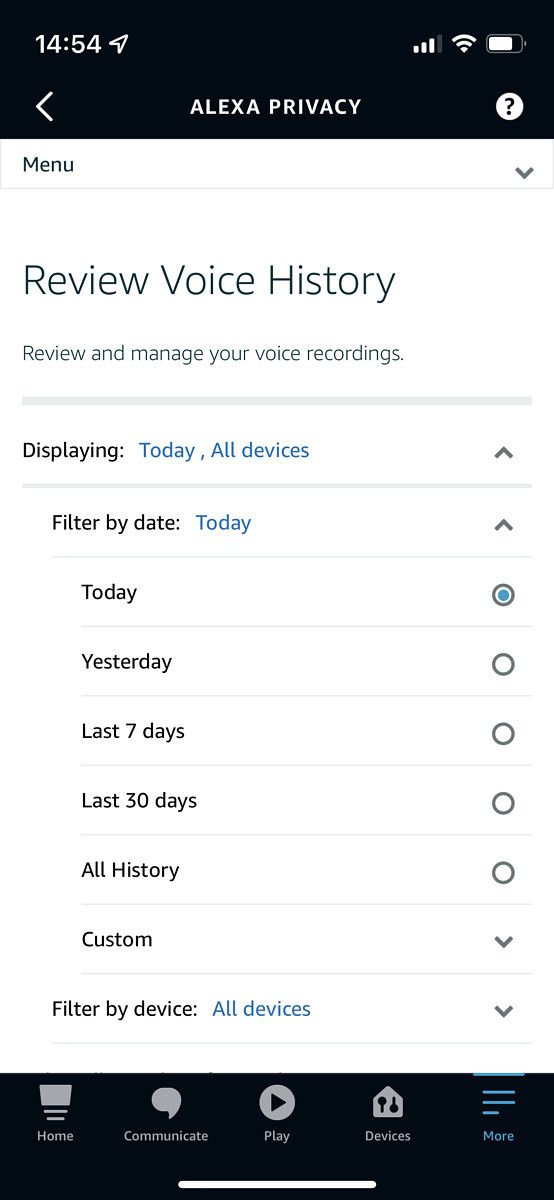
  • Choose the Review Voice History tab. Here, you can filter your voice history based on the date range.
Alexa Privacy settings Alexa history date range
  • Once you’ve selected your preferred date range, you can view your Alexa history.
  • You can manually delete selected recordings from this screen by tapping on the small arrow and selecting Delete Recording.

Delete voice history on Alexa app

  • If you wish to delete the entire history, select the Delete all of my recordings option.

Delete Alexa Voice History from an Echo Speaker/device

Before you can delete your Alexa voice history directly from the speaker, you will have to enable the option for the first time.

  • Open the Alexa app on your smartphone. These steps are valid on both Android and iOS devices.
  • Select the More tab at the bottom of the screen and then go to Settings.
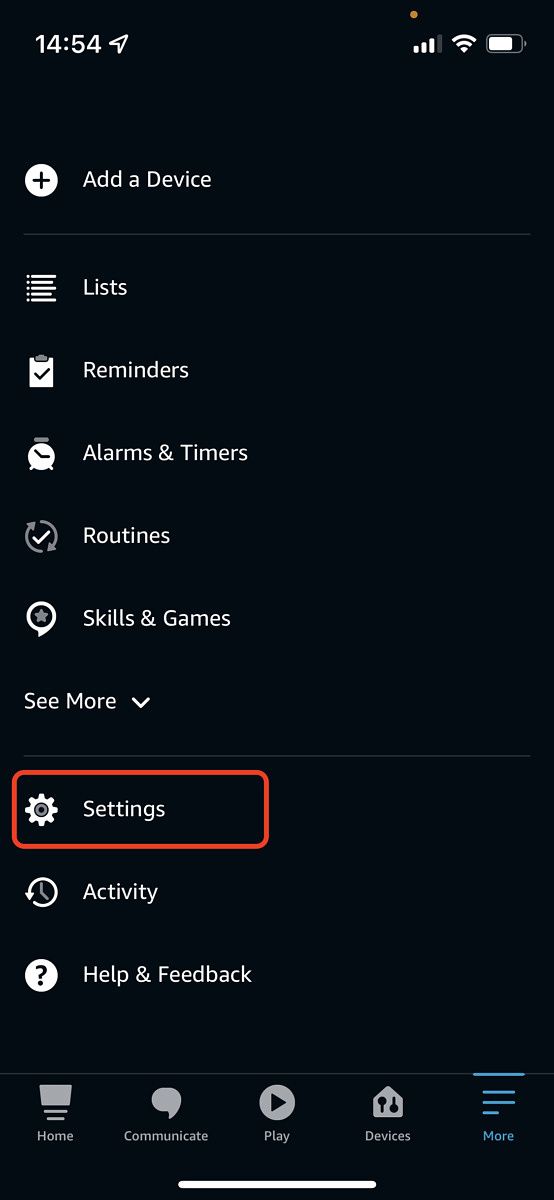
Alexa app homescreen Alexa app Settings
  • Now, tap on the Alexa Privacy option.

Alexa Privacy

  • Choose the Manage Your Alexa Data tab.

Alexa manage your data

  • Here, toggle the Enable deletion by voice option on and hit Confirm.

Enable voice deletion option

  • Once you’ve enabled this, you can ask Alexa via your voice to delete your history.
  • You can say commands like:
    • “Alexa, Delete what I just said.”
    • “Alexa, Delete everything I said today.”
    • “Delete my entire voice history.”

Set Alexa Voice History to Auto-delete

If you wish for your Alexa voice history to be automatically deleted once every few months or you don’t want it to be saved at all, you can also do that from the Alexa app.

  • Open the Alexa app on your smartphone. These steps are valid on both Android and iOS devices.
  • Select the More tab at the bottom of the screen and then go to Settings.
Alexa app homescreen Alexa app Settings
  • Now, tap on the Alexa Privacy option.

Alexa Privacy

  • Choose the Manage Your Alexa Data tab.

Alexa manage your data

  • Select the Choose how long to save recordings option.

Auto-deletion of history

  • Here, you can select the desired duration for auto-deletion or select Do not save recordings if that’s what you want.

How to Delete Voice History from Google Assistant

Google Nest Audio

Google Assistant is undoubtedly one of the most common voice assistants out there for the simple fact that it comes pre-installed on all Android devices. Nest speakers and devices are also quite common and are often considered better than Echo devices in terms of the tasks they can perform. Regardless of whether you use Google Assistant on your smartphone, TV, or a Nest speaker, here’s how you can delete your voice history.

Delete Google Assistant Voice History from your Smartphone

Google Assistant history page

  • Here, you will be able to see your Google Assistant queries that you can sort by date.

Delete voice history

  • You can either delete each entry individually or select the Delete option below the search bar to delete your entire history.

Date range selection

  • Select the date range for which you wish to delete your search history and you’re done.

Delete Google Assistant Voice History with your Voice

You can directly use your voice to give certain commands and delete voice history on any device that has the Google Assistant including your smartphone or a Nest speaker. The commands can be as follows:

  • “Hey Google, delete my last conversation.”
  • “Hey Google, delete today’s activity.”
  • “Hey Google, delete this week’s activity.”
  • “Hey Google, that wasn’t for you” to delete the last thing you said.

Set Google Assistant Voice History to Auto-delete

Google Assistant history page

  • Select the Delete option below the search bar.

Delete voice history

  • Now, select the Set up automatic deletions option.

Date range selection

  • You will then be asked to select the duration for which you want to enable auto-deletion. You can choose from 3 months, 18 months, or 36 months.

Months for Google assistant voice history deletion

  • Choose the relevant option and select Next. You’ll be asked to confirm the deletion and you’re done.

How to Delete Voice History from Siri

HomePod Mini in five different colors

If you use any of Apple’s products, Siri comes integrated into the OS. This includes the iPhone, iPad, iPod, Mac, and even the Apple Watch. If you wish to delete your Siri voice history, there’s just one way to do it and that’s via the Siri settings on your device. You cannot use your voice to delete your Siri voice history via a HomePod.

Delete Siri Voice History from your iPhone or iPad

  • Go to the Settings app on your iPhone or iPad and scroll down to find Siri & Search.

Siri and Search on iPhone

  • Under this setting, you’ll find the Siri & Dictation History option.

Siri and Dictation voice history

  • Tap on it and you will find an option to Delete Siri & Dictation History.

Delete Siri voice history

  • Select the option and you will be asked to confirm the process. That’s pretty much it.

Delete Siri Voice History from your Mac

  • Click on the Apple logo on the top left corner of your Mac and select System Preferences.
  • Now, click on Siri which will lead you to Siri settings.

System Preferences Siri settings

  • Select the Delete Siri & Dictation History option next to Siri History.

Delete Siri voice history

  • You will be asked for confirmation. Select Delete and you’re done.

Delete Siri Voice History on a HomePod

As mentioned earlier, you cannot delete your Siri voice history directly from a HomePod. You will have to do it via the Home app on your iPhone.

  • Open the Home app on your iPhone.
  • Press and hold the HomePod icon to bring up its settings.
  • You’ll find the Siri History option.
  • Select Delete Siri History and you’re good to go.

Unlike the other two assistants, you cannot set Siri voice data to auto-delete after a certain time interval. You will have to delete the data manually from time to time.


As you can see, deleting your assistant’s voice history is quite straightforward and only involves a few easy steps. It’s a good idea to delete your history from time to time for privacy concerns or just to make sure there’s no sensitive data that’s being sent to the company’s servers.

If you’re concerned about your online privacy, you might want to consider taking additional steps like turning on auto-delete for your Google data or deleting your Facebook account. Some browser extensions can also snoop on your data so it’s wise to delete the extensions you don’t use.

The post How to delete voice history from Amazon Alexa, Google Assistant, and Apple’s Siri appeared first on xda-developers.


from xda-developers https://ift.tt/3emKr2d
via IFTTT

samedi 18 décembre 2021

OnePlus Buds Z2 Review: Purposefully mid-range with good ANC

OnePlus has been in the audio game for quite a long time now, and we’ve seen big hitters from the company in the form of the OnePlus Buds and the OnePlus Buds Pro. The company also launched the decidedly mid-range OnePlus Buds Z last year, which were genuinely well-received at a lower price. Now the company has unveiled the OnePlus Buds Z2 in Europe after a Chinese launch in October.

The OnePlus Buds Z2 feature some noteworthy improvements over the original OnePlus Buds Z. These earbuds feature larger 11mm dynamic drivers, active noise cancellation (ANC) support, and better battery life. While OnePlus hasn’t changed the design all that much, the earbuds do come in a new Obsidian Black colorway. They also offer Bluetooth 5.2 support, a triple microphone array, and an IP55 rating for water resistance. The earbuds are rated for 5 hours of continuous playback with ANC turned on and up to 7 hours with ANC off. With the charging case, the earbuds can last up to 27 hours on a single charge with ANC on and up to 38 hours with ANC off.

The OnePlus Buds Z2 have a lot of premium features for a set of mid-range earphones, and there’s not a lot to actually complain about. After spending just over a week with these earphones, my biggest complaint is the price.

OnePlus Buds Z2 in the case

About this review: I received the OnePlus Buds Z2 from OnePlus on the 4th of December, 2021 in Obsidian Black. OnePlus has had no input on the content of this review.

OnePlus Buds Z2 Specifications

Specification OnePlus Buds Z2
Build N/A
Dimensions & Weight N/A
Speaker drivers
  • 11mm dynamic drivers
  • Tuned for bass reproduction
Microphone(s) Triple microphone array
Connectivity Bluetooth 5.2
Battery & Charging
  • Earbuds only:
    • ANC on: Up to 5 hours
    • ANC off: Up to 7 hours
  • Earbuds+Case:
    • ANC on: Up to 27 hours
    • ANC off: Up to 38 hours
  • Fast charging support
    • 10-minute charge adds 5 hours of combined playback time
Other Features
  • IP55 certification (earbuds only)
  • Dolby Atmos
  • Dirac Audio Tuner
  • Active noise cancellation support (40dB peak)
  • USB Type-C port for charging
Colors
  • Obsidian Black
  • Pearl White

OnePlus Buds Z2 Design

OnePlus Buds Z2 out of the case

The OnePlus Buds Z2 adopts more or less the exact same design as the OnePlus Buds Z, right down to the feel in-ear. They have the same gel tips, the same circular touch-sensitive surface for gesture controls, and the same short stem design. They’re just as comfortable too and can sit in my ears for long periods of time without discomfort — much better than the OnePlus Buds Pro.

The case itself is small and unassuming, just like with the original OnePlus Buds Z. It’s a small pill-shaped plastic clamshell that feels cheap but is also light and comfortable to hold, and sits nicely in my pocket alongside my phone or my wallet. It sticks out a little bit from my pocket thanks to its thickness — I would have preferred it be wider like the OnePlus Buds Pro case, though it’s not a big deal either.

OnePlus Buds Z2 pill-shaped case

As for the color, this is generally a personal preference, but I am a huge fan of darker colored earphones over brighter, white earphones. Darker earphones blend in better with my clothing choices, and they’re often harder to see as well. White earphones stick out like a sore thumb more often than not.

There’s no wireless charging here, though there is quick charging, and the pairing button is on the back of the earphones, below the hinge. Once entered into pairing mode, the front light will pulse a white color. You can’t put them in pairing mode without both earphones being inside the case. Once the OnePlus Buds Z2 are paired to your devices, they’re smart enough to switch to whatever is attempting to connect to them.

I have no problems with gestures being missed thanks to the flat touch area, but it's frustrating that it's so easy to accidentally trigger.

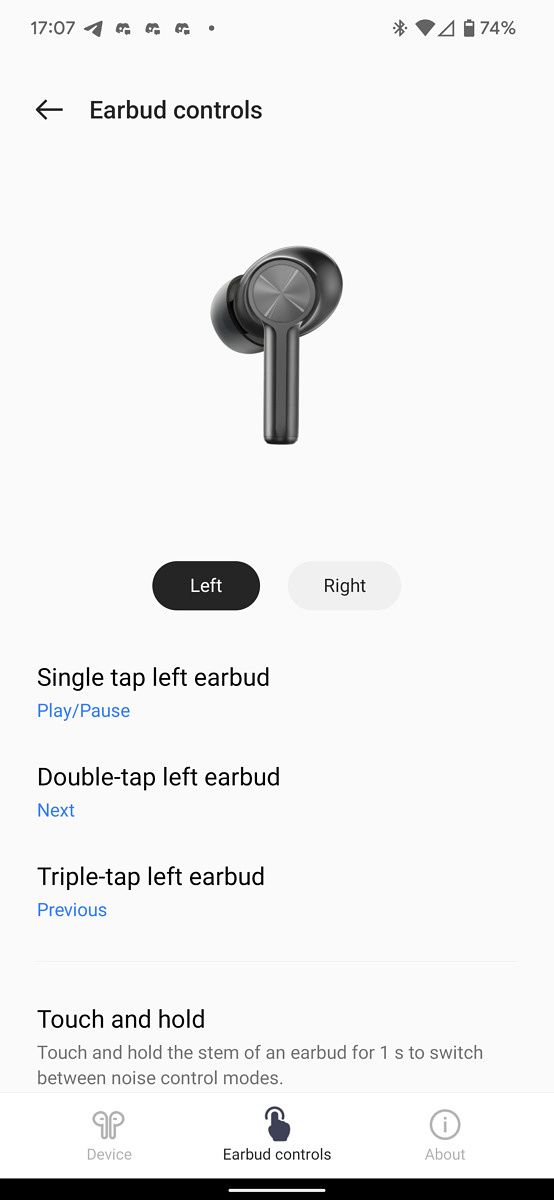
As for gestures, by default, a single tap pauses/plays music, two taps skips to the next track, and three taps go to the previous track. Holding down for one-second switches between ANC and Transparency Mode, and holding down for three seconds switches between the two most recently paired devices. There’s no gesture to control volume, and the singular tap is too easy to trigger in my opinion, and is annoying to deal with. I have no problems with gestures being missed thanks to the flat touch area, but it’s frustrating that it’s so easy to accidentally trigger.

These earphones have Google Fast Pair support, and I’ve said previously that more Bluetooth devices need to make use of it. For the uninitiated, Google’s Fast Pair is a proprietary system that is part of Google Play Services and, therefore, is on pretty much every Android smartphone. It uses Bluetooth Low Energy to detect nearby Bluetooth accessories that are looking to pair and will pop up a photo of the accessory and a connect button if they’re discovered nearby on your Android smartphone. Fast Pair-enabled peripherals are registered to your Google account and work with Google’s Find My Device if you lose them by displaying their last registered location. You can also see battery info for your Bluetooth earphones on any device that they’ve been previously paired to. It makes the pairing process a breeze.

The OnePlus Buds Z2 earbuds are IP55 certified for dust and water resistance (low-pressure but sustained water jet). What this means is that you don’t have to worry about sweat or rain damaging your earphones, though keep in mind that water damage is still not covered under warranty.

Audio, Software, and Battery Life

They're very bass-heavy uncomfortably so

When it comes to earphones, generally the most important part of the experience is the actual sound quality. I can happily forgive a pair of earphones for lacking in features if they have good audio quality, and the OnePlus Buds Z2 are decidedly middle of the road. They’re very bass-heavy — uncomfortably so — and there’s no built-in EQ like on the OnePlus Buds Pro. As a result, I’ve resorted to using Wavelet in order to remove some of the low-end. While some users like heavy bass, this feels overpowering to me.

If you want to check out the playlist that I primarily tested the OnePlus Buds on, you can check that out here on Spotify. A lot of songs, such as Danger‘s 1:42 sound overwhelming focused on the low-end, and the closing of Daft Punk‘s Touch sounds muddy. The sound quality is fine, and if you don’t mind powerful bass (which seems to be a selling point for a lot of other brands) then you won’t mind these earphones, either. I’m just disappointed, as I expected better from OnePlus given the sound quality in the OnePlus Buds and the OnePlus Buds Pro. Even more peculiar is that OnePlus says these earphones have the same 11mm drivers as the OnePlus Buds Pro, but I’m definitely not hearing it.

At the very least, the design of these earphones with their silicone tips isolates a lot of noise on their own, and enabling the ANC does a great job at cutting out additional outside noises. There’s also a transparency mode, though I’m not a fan of the implementation of transparency mode on any earphones that I’ve used.

Enabling the ANC does a great job at cutting out additional outside noises.

To modify the settings on these earphones, you’ll need to either download the HeyMelody app or use a OnePlus phone and modify them from your phone’s Bluetooth settings. Both work and present the same options, including the ability to update the firmware. As an aside, the lack of any OPPO or OnePlus branding on the HeyMelody app (the developer is listed as “HeyTap”) might confuse a few people.

HeyMelody OnePlus Buds Z2 control app HeyMelody OnePlus Buds Z2 control app

HeyMelody (Free, Google Play) →

When it comes to ANC, the OnePlus Buds Z2 has a few options. You can either choose to turn it on, turn it on to max ANC, turn it off, or choose transparency mode. The ANC on these earphones is noticeably a little bit weaker than on the OnePlus Buds, but not by much. If ANC is the most important feature to you, though, just get the Sony WF-1000XM4. There’s no smart noise cancellation like on the OnePlus Buds Pro, nor is there Zen Mode Air.

As for the ANC, I’ve found that it’s pretty decent at cutting out surrounding noise, such as when in a car or on a train. They’re not quite as good as the OnePlus Buds Pro, but they get the job done well.

When you remove one earphone from your ears, the music will stop, though will continue playing again if you put it back in within 3 minutes. I enjoy this feature for the most part, but I wish that this was also customizable.  The OnePlus Buds Z2 can also work independently so that you can just listen with one earphone in and have the same gestures and automatic pause/play. For phone calls, you can answer or hang up a call with a double-tap of the touch area, and you can reject a call with a long press of the touch area for 5 seconds.

I’ve had no problem with battery life on the OnePlus Buds Z2, and they charge back up quickly enough in the case, too. From my own experience, you’re looking at getting roughly four to five hours of playtime with ANC on, and up to seven with ANC off.

Conclusion

You can buy the OnePlus Buds Pro for just that little bit extra.

The OnePlus Buds Z2 aren’t my first OnePlus earphones, but this is certainly the most disappointed I’ve been with a pair of them, especially for the price. Coming in at €99, these are pricey, and I find it hard to justify them when you can buy the OnePlus Buds Pro (even with all their flaws) for just that little bit extra. If you like bass, then maybe you won’t have a problem, but the sound signature of these earphones is not to my taste whatsoever. There are no additional features either, and the likes of Zen Mode Air, OnePlus Audio ID, and more are completely amiss.
    OnePlus Buds Z2
    The OnePlus Buds Z2 are a pair of mid-range earphones with a lot of baseline features. These miss out on some of OnePlus exclusive features like Audio ID, but still integrate nicely with a OnePlus phone.

      Features:

      Pros:

      Cons:

The software experience also leaves a lot to be desired, especially as the HeyMelody app is still required. If you have a OnePlus phone already, then these will integrate nicely, but otherwise, it’s important to know that you’ll need the HeyMelody app to control your earphones. It only mentions OnePlus or OPPO in passing and isn’t immediately clear that it’s the app that you need. The HeyMeldoy app is also mentioned at the back of the quick start guide that you get in the box (do people read those thoroughly?) and there’s no QR code or anything to easily get to the Play Store link.

With all of that said, the sound quality is passable, and the ANC is decent. These are a pair of earphones that you could definitely consider when comparing to others on the market, but honestly, if you’re going to get a pair of OnePlus earphones, upgrade and get the OnePlus Buds Pro. Otherwise, I’d take a look at our list of best wireless earbuds to see if anything else catches your eye.

The post OnePlus Buds Z2 Review: Purposefully mid-range with good ANC appeared first on xda-developers.


from xda-developers https://ift.tt/3p7i0ez
via IFTTT

OnePlus Buds Z2 Review: Purposefully mid-range with good ANC

OnePlus has been in the audio game for quite a long time now, and we’ve seen big hitters from the company in the form of the OnePlus Buds and the OnePlus Buds Pro. The company also launched the decidedly mid-range OnePlus Buds Z last year, which were genuinely well-received at a lower price. Now the company has unveiled the OnePlus Buds Z2 in Europe after a Chinese launch in October.

The OnePlus Buds Z2 feature some noteworthy improvements over the original OnePlus Buds Z. These earbuds feature larger 11mm dynamic drivers, active noise cancellation (ANC) support, and better battery life. While OnePlus hasn’t changed the design all that much, the earbuds do come in a new Obsidian Black colorway. They also offer Bluetooth 5.2 support, a triple microphone array, and an IP55 rating for water resistance. The earbuds are rated for 5 hours of continuous playback with ANC turned on and up to 7 hours with ANC off. With the charging case, the earbuds can last up to 27 hours on a single charge with ANC on and up to 38 hours with ANC off.

The OnePlus Buds Z2 have a lot of premium features for a set of mid-range earphones, and there’s not a lot to actually complain about. After spending just over a week with these earphones, my biggest complaint is the price.

OnePlus Buds Z2 in the case

About this review: I received the OnePlus Buds Z2 from OnePlus on the 4th of December, 2021 in Obsidian Black. OnePlus has had no input on the content of this review.

OnePlus Buds Z2 Specifications

Specification OnePlus Buds Z2
Build N/A
Dimensions & Weight N/A
Speaker drivers
  • 11mm dynamic drivers
  • Tuned for bass reproduction
Microphone(s) Triple microphone array
Connectivity Bluetooth 5.2
Battery & Charging
  • Earbuds only:
    • ANC on: Up to 5 hours
    • ANC off: Up to 7 hours
  • Earbuds+Case:
    • ANC on: Up to 27 hours
    • ANC off: Up to 38 hours
  • Fast charging support
    • 10-minute charge adds 5 hours of combined playback time
Other Features
  • IP55 certification (earbuds only)
  • Dolby Atmos
  • Dirac Audio Tuner
  • Active noise cancellation support (40dB peak)
  • USB Type-C port for charging
Colors
  • Obsidian Black
  • Pearl White

OnePlus Buds Z2 Design

OnePlus Buds Z2 out of the case

The OnePlus Buds Z2 adopts more or less the exact same design as the OnePlus Buds Z, right down to the feel in-ear. They have the same gel tips, the same circular touch-sensitive surface for gesture controls, and the same short stem design. They’re just as comfortable too and can sit in my ears for long periods of time without discomfort — much better than the OnePlus Buds Pro.

The case itself is small and unassuming, just like with the original OnePlus Buds Z. It’s a small pill-shaped plastic clamshell that feels cheap but is also light and comfortable to hold, and sits nicely in my pocket alongside my phone or my wallet. It sticks out a little bit from my pocket thanks to its thickness — I would have preferred it be wider like the OnePlus Buds Pro case, though it’s not a big deal either.

OnePlus Buds Z2 pill-shaped case

As for the color, this is generally a personal preference, but I am a huge fan of darker colored earphones over brighter, white earphones. Darker earphones blend in better with my clothing choices, and they’re often harder to see as well. White earphones stick out like a sore thumb more often than not.

There’s no wireless charging here, though there is quick charging, and the pairing button is on the back of the earphones, below the hinge. Once entered into pairing mode, the front light will pulse a white color. You can’t put them in pairing mode without both earphones being inside the case. Once the OnePlus Buds Z2 are paired to your devices, they’re smart enough to switch to whatever is attempting to connect to them.

I have no problems with gestures being missed thanks to the flat touch area, but it's frustrating that it's so easy to accidentally trigger.

As for gestures, by default, a single tap pauses/plays music, two taps skips to the next track, and three taps go to the previous track. Holding down for one-second switches between ANC and Transparency Mode, and holding down for three seconds switches between the two most recently paired devices. There’s no gesture to control volume, and the singular tap is too easy to trigger in my opinion, and is annoying to deal with. I have no problems with gestures being missed thanks to the flat touch area, but it’s frustrating that it’s so easy to accidentally trigger.

These earphones have Google Fast Pair support, and I’ve said previously that more Bluetooth devices need to make use of it. For the uninitiated, Google’s Fast Pair is a proprietary system that is part of Google Play Services and, therefore, is on pretty much every Android smartphone. It uses Bluetooth Low Energy to detect nearby Bluetooth accessories that are looking to pair and will pop up a photo of the accessory and a connect button if they’re discovered nearby on your Android smartphone. Fast Pair-enabled peripherals are registered to your Google account and work with Google’s Find My Device if you lose them by displaying their last registered location. You can also see battery info for your Bluetooth earphones on any device that they’ve been previously paired to. It makes the pairing process a breeze.

The OnePlus Buds Z2 earbuds are IP55 certified for dust and water resistance (low-pressure but sustained water jet). What this means is that you don’t have to worry about sweat or rain damaging your earphones, though keep in mind that water damage is still not covered under warranty.

Audio, Software, and Battery Life

They're very bass-heavy uncomfortably so

When it comes to earphones, generally the most important part of the experience is the actual sound quality. I can happily forgive a pair of earphones for lacking in features if they have good audio quality, and the OnePlus Buds Z2 are decidedly middle of the road. They’re very bass-heavy — uncomfortably so — and there’s no built-in EQ like on the OnePlus Buds Pro. As a result, I’ve resorted to using Wavelet in order to remove some of the low-end. While some users like heavy bass, this feels overpowering to me.

If you want to check out the playlist that I primarily tested the OnePlus Buds on, you can check that out here on Spotify. A lot of songs, such as Danger‘s 1:42 sound overwhelming focused on the low-end, and the closing of Daft Punk‘s Touch sounds muddy. The sound quality is fine, and if you don’t mind powerful bass (which seems to be a selling point for a lot of other brands) then you won’t mind these earphones, either. I’m just disappointed, as I expected better from OnePlus given the sound quality in the OnePlus Buds and the OnePlus Buds Pro. Even more peculiar is that OnePlus says these earphones have the same 11mm drivers as the OnePlus Buds Pro, but I’m definitely not hearing it.

At the very least, the design of these earphones with their silicone tips isolates a lot of noise on their own, and enabling the ANC does a great job at cutting out additional outside noises. There’s also a transparency mode, though I’m not a fan of the implementation of transparency mode on any earphones that I’ve used.

Enabling the ANC does a great job at cutting out additional outside noises.

To modify the settings on these earphones, you’ll need to either download the HeyMelody app or use a OnePlus phone and modify them from your phone’s Bluetooth settings. Both work and present the same options, including the ability to update the firmware. As an aside, the lack of any OPPO or OnePlus branding on the HeyMelody app (the developer is listed as “HeyTap”) might confuse a few people.

HeyMelody OnePlus Buds Z2 control app HeyMelody OnePlus Buds Z2 control app

HeyMelody (Free, Google Play) →

When it comes to ANC, the OnePlus Buds Z2 has a few options. You can either choose to turn it on, turn it on to max ANC, turn it off, or choose transparency mode. The ANC on these earphones is noticeably a little bit weaker than on the OnePlus Buds, but not by much. If ANC is the most important feature to you, though, just get the Sony WF-1000XM4. There’s no smart noise cancellation like on the OnePlus Buds Pro, nor is there Zen Mode Air.

As for the ANC, I’ve found that it’s pretty decent at cutting out surrounding noise, such as when in a car or on a train. They’re not quite as good as the OnePlus Buds Pro, but they get the job done well.

When you remove one earphone from your ears, the music will stop, though will continue playing again if you put it back in within 3 minutes. I enjoy this feature for the most part, but I wish that this was also customizable.  The OnePlus Buds Z2 can also work independently so that you can just listen with one earphone in and have the same gestures and automatic pause/play. For phone calls, you can answer or hang up a call with a double-tap of the touch area, and you can reject a call with a long press of the touch area for 5 seconds.

I’ve had no problem with battery life on the OnePlus Buds Z2, and they charge back up quickly enough in the case, too. From my own experience, you’re looking at getting roughly four to five hours of playtime with ANC on, and up to seven with ANC off.

Conclusion

You can buy the OnePlus Buds Pro for just that little bit extra.

The OnePlus Buds Z2 aren’t my first OnePlus earphones, but this is certainly the most disappointed I’ve been with a pair of them, especially for the price. Coming in at €99, these are pricey, and I find it hard to justify them when you can buy the OnePlus Buds Pro (even with all their flaws) for just that little bit extra. If you like bass, then maybe you won’t have a problem, but the sound signature of these earphones is not to my taste whatsoever. There are no additional features either, and the likes of Zen Mode Air, OnePlus Audio ID, and more are completely amiss.
    OnePlus Buds Z2
    The OnePlus Buds Z2 are a pair of mid-range earphones with a lot of baseline features. These miss out on some of OnePlus exclusive features like Audio ID, but still integrate nicely with a OnePlus phone.

      Features:

      Pros:

      Cons:

The software experience also leaves a lot to be desired, especially as the HeyMelody app is still required. If you have a OnePlus phone already, then these will integrate nicely, but otherwise, it’s important to know that you’ll need the HeyMelody app to control your earphones. It only mentions OnePlus or OPPO in passing and isn’t immediately clear that it’s the app that you need. The HeyMeldoy app is also mentioned at the back of the quick start guide that you get in the box (do people read those thoroughly?) and there’s no QR code or anything to easily get to the Play Store link.

With all of that said, the sound quality is passable, and the ANC is decent. These are a pair of earphones that you could definitely consider when comparing to others on the market, but honestly, if you’re going to get a pair of OnePlus earphones, upgrade and get the OnePlus Buds Pro. Otherwise, I’d take a look at our list of best wireless earbuds to see if anything else catches your eye.

The post OnePlus Buds Z2 Review: Purposefully mid-range with good ANC appeared first on xda-developers.


from xda-developers https://ift.tt/3p7i0ez
via IFTTT

This website helps you quickly find and install FOSS alternatives to Google apps

If you’ve flashed a new ROM on your device, I’m sure you follow it up by flashing Google apps or a GApps package. That’s mainly because a Custom ROM can be barebones without your usual set of apps that are required to use your phone. However, what if you don’t like Google’s set of apps? Or you just don’t want to be stuck into the Google app ecosystem and want to break out of it? That’s where FOSS apps come into the picture. FOSS stands for Free and Open Source and is essentially a set of apps that are free to use as well as open-source. These can be used as replacements to your usual set of apps like Google dialer, Google messages, YouTube, etc. If this sounds interesting to you, there’s a new website that lets you find and install FOSS alternatives to Google apps in a quick and easy manner.

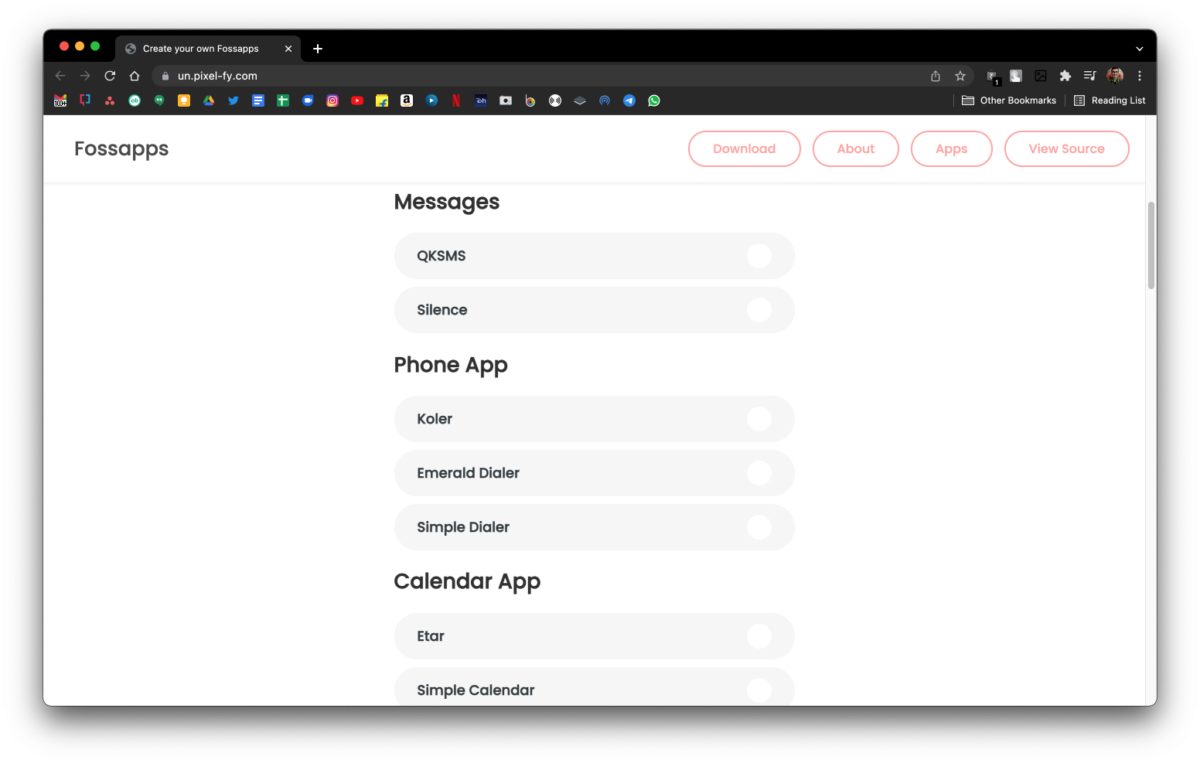
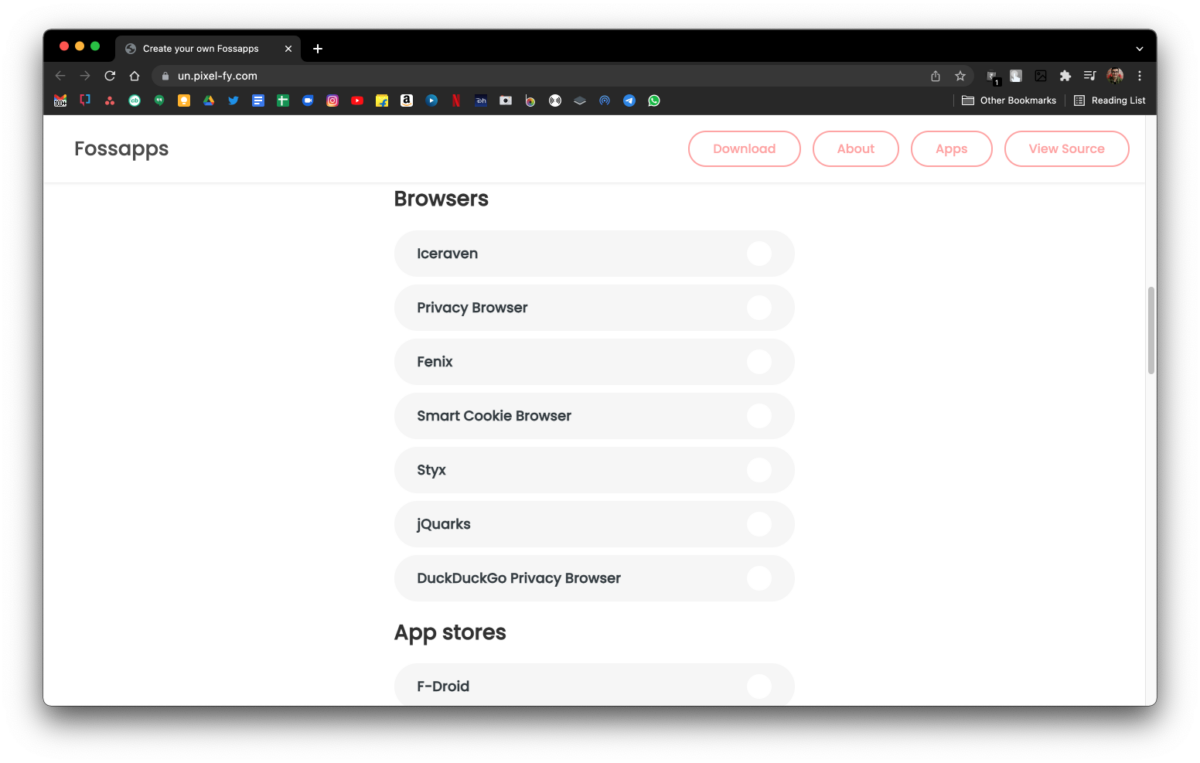
Un.pixel-fy (also known as Fossapps) is a website created by XDA user wacko1805 that lets you pick and choose what FOSS apps you want to install on your phone and creates a flashable ZIP file that you can install via Magisk. It works on Android 8 and higher and requires you to be running Magisk 20 or higher. If these requirements are satisfied, all you have to do is head over to the website and go through the list of apps under each category. Select the apps you want to install in each category and once done, you just have to click on the Create and Download button. Download the file, copy it to your smartphone, and install it to enjoy using all the FOSS apps you selected!

Foss apps Fosapps

There are various categories on the website and multiple options under each category to choose from. You can pick from Koler, Emerald Dialer, and Simple Dialer for the phone app, Fenix, Styx, and DuckDuckGo for the browser, F-Droid and Aurora for the app store, NewPipe and Vanced for YouTube, etc. It’s basically a great tool to find free and open source alternatives to Google apps in the fastest way possible!

If you want to break out of the Google ecosystem or your phone doesn’t have support for Google’s GMS core, you can try Fossapps and let us know your experience in the comments below!

The post This website helps you quickly find and install FOSS alternatives to Google apps appeared first on xda-developers.


from xda-developers https://ift.tt/30DWeWx
via IFTTT

vendredi 17 décembre 2021

XDA Basics: How to mute voice feedback during Apple Watch workouts

The Apple Watch is a great device for plenty of reasons, including fitness. However, a recent watchOS software update added a feature that has been annoying some users. During a workout, Siri would interrupt the music or podcast you’re listening to and announce your latest milestones. For example, if you’re walking or running, it will notify you every time you cross a kilometer mark. This change is welcome to those who want to monitor their progress without looking at the screen. However, plenty of us — including me — are fine with just looking at their wrists for that information. I’d rather not have my music interrupted during workouts — by people and smartwatches alike. So here’s how to mute voice feedback during Apple Watch workouts.

How to mute voice feedback during Apple Watch workouts

Using iPhone

This method allows you to toggle this feature using your iPhone since it’s easier on the big screen. If your iPhone isn’t around, you can still toggle it using Apple Watch only.

  • Bring your Apple Watch close to your paired iPhone.
  • Make sure Bluetooth and WiFi are enabled on both devices.
  • Ensure that they’re running the latest versions of watchOS and iOS respectively.

How to mute voice feedback during Apple Watch workouts

  • Launch the Watch app on your iPhone.

How to mute voice feedback during Apple Watch workouts

  • In the main My Watch tab, scroll down until you spot Workout.

How to mute voice feedback during Apple Watch workouts

  • Enter that section and scroll down until you spot Voice Feedback.
  • Turn it off.
  • Voila! Siri will no longer announce the milestones during your Apple Watch workouts.

Using Apple Watch only

If your iPhone isn’t around, you can toggle this feature on the tiny watch screen.

  • Make sure your Apple Watch is running the latest version of watchOS.

How to mute voice feedback during Apple Watch workouts

  • Launch the Settings app on your watch.

How to mute voice feedback during Apple Watch workouts

  • Scroll down until your spot Workout and click on it.

How to mute voice feedback during Apple Watch workouts

  • Go through the list until you find Voice Feedback.
  • Turn it off.
  • That’s it! Siri won’t interrupt your music to announce workout alerts.

Personally, I keep Voice Feedback turned off at all times because I can’t stand having anything interrupting my music. Whenever I want to check my progress, I just glance at my watch’s screen. I can see how it’s a helpful feature for certain people, though — it’s just not for me.

Do you have Voice Feedback for workouts enabled on your Apple Watch? Let us know in the comments section below.

The post XDA Basics: How to mute voice feedback during Apple Watch workouts appeared first on xda-developers.


from xda-developers https://ift.tt/3F1onpk
via IFTTT

Google is making it easier to shop on Chrome with new Price Drop Alerts

It’s the holiday season in the US, which means it’s time for everyone celebrating to shop for Christmas. But shopping online for multiple gifts across various categories can prove to be a hassle. While you can use some handy Chrome extensions to find the best deals, Google Chrome is making it easier than ever to shop for gifts with several new features. The most useful one out of the lot brings up a prompt that tells you if there’s a price drop on a product you’re eyeing.

Price drop alerts on Chrome for Android

Google has introduced a few new features to Google Chrome that will enhance user experience while shopping online. As mentioned earlier, the most useful new feature helps you keep track of price drops on certain products. If you’ve been eyeing a product for a while, but are waiting for a good deal on it, Chrome on Android will now automatically check for the updated price of a product in an open tab and display it in the corner. This way, you won’t have to open the product page repeatedly to check for a price drop.

Chrome price drop alert

Make sure you keep the product page open in a tab on Chrome and you will be able to see a smaller banner displayed on top of the tab with the current price. Note that this feature is currently only available on Chrome for Android, so if you’re on iOS, you will have to wait a little longer. It’s also limited to the US only, for now.

Other features for a better shopping experience

Other than price drop alerts, Google has highlighted a few other features in a recent blog post that will further improve your shopping experience. These include:

  • Image search via the address bar: The address bar on Chrome has Google Lens integration which means if something catches your eye, and you want to shop for it online, you just have to click a picture by tapping on the address bar. This will soon be available on Chrome for desktop too.
  • New Your Carts section: Google has added a new Your Carts section on Chrome for Windows and Mac in the US, which will essentially show you all the products you’ve added to your cart across various websites — all in one place. As a result, you won’t have to visit every individual website.
  • Saved passwords and addresses: Chrome has had the ability to save your addresses and passwords for a while now, which you can make use of for faster checkout while shopping.

These are some ways in which Google is trying to improve your shopping experience on Chrome. If you don’t see these new additions yet, make sure you update the Chrome app to the latest version.

The post Google is making it easier to shop on Chrome with new Price Drop Alerts appeared first on xda-developers.


from xda-developers https://ift.tt/3s8YTCW
via IFTTT