LightBlog

samedi 4 décembre 2021

The Apple Watch is praised for fitness, but it can do a lot more than that

When someone says Apple Watch, the first thing that comes to the minds of a lot of people is fitness. And this makes total sense, considering Apple mostly markets the health features of the watch. However, there’s a lot more to this smartwatch than just tracking your activity, workouts, and the data revolving around them. I used to despise having anything on my wrists. I couldn’t tolerate bracelets, let alone a computing device that I have to be extra careful with. However, after using an Apple Watch for over a year in total, it has become an essential companion, rather than a meh accessory. And fitness tracking isn’t particularly what makes the Apple Watch special to me. There’s a lot more that the Apple Watch can do, and a fair few spots where it misses too.

Navigate this article:

Story Time

Back in December 2018, I won an Apple Watch Series 4 Nike Edition (GPS, 40mm) in a Christmas giveaway. It was the latest model at the time and I was hyped to get my hands on it. Setting it up was as straightforward as you’d expect Apple products to be, and I was ready to try its features within minutes. It was both intriguing and exciting because it was a device I couldn’t justify buying as a student — who dislikes wrist accessories and is on a limited budget. But it was there, right in front of me, a device that I wasn’t sure I could tolerate for more than one day. Spoiler alert — it grew on me and turned into a companion I keep on my wrist at all times, except when charging.

A month after using the Series 4, I had to sell it because I was short on money. It was the most valuable item of mine that I could live without at the time, so I had to bid the little fella farewell. However, deep down inside, I knew it wasn’t a final goodbye. I was certain that life would eventually reunite us — and it did. Two years later, in December 2020, I decided to buy myself an Apple Watch SE (GPS, 40mm) as a graduation gift. I had been contemplating the matter for a while, and Apple releasing an affordable model that year made me jump on the purchase. I’ve been using the SE for 11 months now. That’s a full year of Apple Watch usage, when combined with the month I spent with the Series 4.

So what makes this accessory companion special to me? And what are the annoyances associated with it?

The Yays

There are many features — both basic and advanced ones — that make the Apple Watch a reliable and helpful companion.

Fitness tracker

Activity rings on Apple Watch

When I was working part-time, I used to close my three activity rings every single day. My streak for closing all three daily was around 9(!) months in a row. However, when I started working full-time, I could no longer do that. Fitness tracking was one of the reasons I bought an Apple Watch again last year. I knew that if something is pushing me to move, I’d listen to it. But eventually, I had to disable these activity notifications because I was working harder and no longer had the time or energy for them. That’s how and when I discovered that fitness tracking isn’t necessarily what makes the Apple Watch special.

I was afraid that by not closing my rings or caring about them, it’d turn into a useless watch. The truth — in my opinion — is that the Apple Watch is much, much more than that. It’s not a device solely made for health tracking, like those slim fitness bands produced by some rivals. It’s a personal and an iPhone companion that is capable of doing a lot. The features may sound gimmicky separately, but when combined and integrated into a person’s workflow, they become time and effort savers that make an actual difference.

Health-related features are what makes the Apple Watch special — generally speaking. However, that doesn’t apply to all of us. If I upgrade to a newer model in the future, it’s for the tight integrations with my other Apple devices and the aspects that aren’t fitness-related. This watch brings the best of two worlds together, and, as a result, it appeals to a bigger, more diverse audience.

A key to your Mac (and heart)

unlock mac with apple watch

One thing I miss when my watch is charging during my work hours is the ability to unlock my Mac without entering my password or Touch ID. For those unfamiliar with this feature, macOS allows you to unlock your Mac through your Apple Watch. The process is instant, and you don’t have to click any buttons. You just wake your Mac as you would usually do, and you’re in! Of course, there are certain conditions for this feature to work, such as having an unlocked, password-protected Apple Watch on your wrist. So now whenever my SE is on its charger, I open my MacBook’s lid and wait for it to unlock automatically, only to recall that my watch isn’t around. The feature feels so natural and is instant, you forget it exists. It becomes a transparent part of your workflow. You only miss it when you’re not wearing that handy buddy.

Face ID white hat hacker

Unlock Face ID iPhone with apple watch

Despite its compact and cute design, the Apple Watch is actually a lil hacker that can bypass Face ID on your iPhone. Now, before you freak out, only you can enable it to do so. Apple released the iPhone X with Face ID before the COVID19 pandemic started. After it spread globally, unlocking Face ID iPhones when masked started to become a big annoyance to everyone around the world. Lowering your mask every time you want to check something on your phone is most definitely not a safe option, and inputting in a 6 digit pin every single time is not convenient either. And don’t get me started on typing a longer password instead. As a redemption, Apple eventually implemented a feature that allows users to use their watches as an alternative to Face ID when masked.

The feature is similar to that of unlocking your Mac. The watch has to be on your wrist, unlocked, password-protected, and close to your device. Once Face ID detects your mask, your watch will vibrate — as a security notification — and unlock your iPhone instantly. If that was someone next to you holding your phone, you can lock the iPhone again through the security alert on your watch. This feature makes life so much easier, and I only realize how much I depend on it when I go out and leave my watch behind on its charger.

Your own special DJ — Lil Heart Beat

now playing app on apple watch

One of the features I depend on almost daily is music control. When you’re playing music on your iPhone, your Apple Watch’s Now Playing app will get triggered. This allows you to control the volume, adjust the queue, pause/play, and change the output device. It spares me the hassle of taking my phone out, unlocking it in some cases, and entering the music app to select a different playlist. It also makes me feel safer knowing that no one will snatch my phone in public, considering that’s relatively common where I live. My phone sits securely in my front pocket, as I add songs to the queue.

Strong, independent device that needs no iPhone

apple music on apple watch with airpods 3

While the Apple Watch requires an iPhone to set up, it still is very capable on its own. The cellular model provides even more independence, like calling and sending SMS through a carrier and using 4G on the go. However, as a WiFi-only model user, the watch still can do a lot when your iPhone is dead or not around.

For example, you can download songs to it for offline listening, leave your phone behind, and connect Bluetooth earbuds to it. This allows you to go on a jog while leaving your phone at home — without missing out on the music. Other features you can take advantage of when your phone isn’t around are FaceTime and iMessage, assuming you’re connected to WiFi. You can communicate with your loved ones through Apple’s services even if your phone is off.

Walking proof that you’re vaccinated

Worn Apple Watch displaying vaccination QR code

These watches support Apple Wallet — meaning you get to store QR codes in there and view them with a double side click. Some regions support adding vaccination certificates through their official apps. However, plenty of countries have no official way to do so. For this reason, we’ve prepared a guide for you on how to manually add your vaccination certificate to Apple Wallet for easy access.

I use this feature at least once a week. Whenever I’m entering a pub, shopping center, or certain restaurants, I just flip my wrist, double click, scan, and get going. It’s so convenient, and it spares me the hassle of taking my phone out and digging through my files to find and display it. It’s particularly helpful when I’m carrying plenty of bags and can’t really reach for my phone.

Eyesight preserver

Focus on Apple Watch

Enabling Focus until the following morning from the watch’s Control Center

One of the underrated features of the Apple Watch is its tiny display. How is this a feature? Well, at night, when I’m about to go to sleep, I sometimes remember not enabling Focus (also known as Do Not Disturb or DND). I don’t use the automatic Focus schedule because my sleeping cycles are random and always changing. As a result, I enable it manually every night, set it to turn off on its own in the morning, and that automatically syncs across all of my Apple devices. The small display of the watch doesn’t blind my sensitive eyes when I’m toggling it, compared to using my phone’s larger screen for that. It’s also easier than reaching my bed stand to grab my phone.

Other instances of the watch coming in handy at night are when I randomly wake up during late (early?) hours. I just check my wrist for an idea of the time and to see if there are any important notifications. I can get back to sleep directly after because the display is too small and dim. When I used to check the time on my iPhone, it would usually make it harder for me to fall asleep again, even with Night Shift enabled.

A gentle alarm that attracts sweet dreams

alarm on apple watch

Audible alarms are the worst — to me at least. I would much rather have gentle haptic feedback on my wrist than hear my phone screaming right next to my ear. It’s literal nightmare fuel, no matter how “soothing” the tone actually is. If you’re unsure how to do it, here’s a guide on how to set a silent but vibrating alarm on your Apple Watch. It seriously makes a big difference!

On-time notifier

No notifications on Apple Watch 1

I might belong to the “weirdos” category here, but I’m sure there are plenty of other people who are the same. This one’s for you, fellows! Some people — including me — prefer leaving their iPhones on silent mode at all times. Vibrations are enough, and I dislike the endless notification and other system sounds. Apple Watch ensures I don’t miss any notifications because it’s perpetually on my wrist. This way if my phone is charging in the other room, silent, or I’m showering, I’ll away get to glance at my notifications.

The ultimate dating utility

WhatsApp notification on Apple Watch

When I’m on a date or meeting with a friend, I keep my phone in my pocket at all times — unless they’re checking theirs. I dislike placing it on the table where we’re sitting for plenty of irrelevant reasons. Apple Watch allows me to stealthily take a look at a notification without taking my phone out. I can just check its screen in under a second — with my wrist below the table’s surface to be out of the other person’s sight — just to make sure it’s not an emergency. This way I don’t disrespect my company by taking my phone out, and I get the peace of my mind that whoever is notifying me doesn’t need something urgently.

A solo influencer’s wireless selfie stick

Camera app on Apple Watch 1

The Camera app on Apple Watch — which acts as a remote and preview screen

Are you exploring some abandoned place with no people around? Do you want to have a photo taken of you for those sweet, sweet likes, views, and clicks? The Apple Watch is a great fit for that role!  You can place your iPhone anywhere and use your watch as a remote for the camera. It’s infinitely better than timers because you can take your time with finding the right spot and check a live preview of the photo on your wrist before taking it.

Tip calculator

Tip feature on Apple Watch Calculator Tip feature on Apple Watch Calculator

Not sure how much to tip the waiting staff? Type the total on your Apple Watch’s Calculator app and hit the Tip button. You’ll get to choose the percentage of the bill you want to tip, and it’ll display both how much you’d have to tip and the new total. You can also select the number of people paying for a bill to find out how much each has to contribute. It’s a handy feature that is missing from the Calculator app on iOS — for some reason.

The guide to wherever you’re going

Apple Maps navigation on Apple Watch

Are you walking around in the city? When navigating through Apple Maps, the watch automatically loads the Maps app and guides you. This way you don’t need to check your phone every time you have to make a turn. In fact, the watch will even vibrate on your wrist to alert you about upcoming turns.

iPhone locator

iPhone locator in Control Center on Apple Watch

Not sure where you’ve placed your iPhone in a messy room? You can make it scream for help or flash its LED right from the Apple Watch’s Control Center. Never lose your phone in untidy environments again!

Info at a glance

Random complications on Apple Watch face

Do certain stocks mean something to you? Care about the weather conditions? The state of the Earth or phase of the Moon? Sunrise and sunset times? The next alarm or calendar event? Apple Watch offers dozens of complications to choose from. You can view the information you care about at a glance, right from the watch face, without needing to launch any apps or take your phone out.

Shopping buddy

Reminders shopping list on Apple Watch

One of the watch apps I frequently use is Reminders. Whenever I’m shopping in person (rather than online), I check my list of needed items on my watch. That’s because carrying your phone while holding shopping bags or baskets isn’t exactly the easiest.


The Nays

Despite its premium build and features that make life easier, the Apple Watch isn’t perfect. And Apple sometimes intentionally excludes features on certain models that can handle them just fine.

Can’t view iPhone’s battery level

battery widget on iOS

One of the annoyances of watchOS is not being able to view your iPhone’s battery percentage. This makes absolutely no sense to me, considering you can check the watch’s battery level on iOS. Sometimes my phone is a few meters away on its charger, and I wonder if it’s fully charged or not, as I work on my Mac. It would’ve been more practical being able to check that on my wrist, rather than having to get up and walk towards the actual phone. A very welcome addition would be a battery widget that works across iOS, iPadOS, and macOS that shows the battery levels of all connected devices. You can already get an estimation through the Find My app,  and there’s nothing stopping Apple from taking this feature to the next level.

No multi-platform support

This isn’t something that bothers me personally, but a lot of my friends using Android wish they could pair an Apple Watch to their phones. While I wouldn’t expect all features and integrations to work on that OS, there are plenty of handy ones that Apple could implement. Android lacks a real, truly excellent smartwatch experience the way Apple has curated for iPhone with the Apple Watch; and while simply bringing the Apple Watch experience over will most likely not be an equivalent match, it will certainly spur more innovation on the Android side of smartwatches as Apple will enter as a big name competitor. And there is incentive for Apple to do so too — Android remains a dominant mobile ecosystem, and Apple can monetize experiences like Apple Fitness Plus to a wider audience. The Apple Watch is a great health device that doesn’t rely on a connected smartphone for capturing its data, so the software ecosystem lock feels rather unfair.

Fitness Health Watch app on iOS

It would also be cool if Apple added the Watch, Health, and Fitness apps on macOS and iPadOS. This way health data can be viewed on any Apple device — thanks to iCloud sync — and watch settings can be adjusted. This would also act as an Android support alternative, considering plenty of Android users own iPads or Macs but not iPhones. I could understand why Apple wouldn’t want to bring watch support to Android. However, bringing it to other Apple operating systems isn’t as much of a challenge. A very welcome addition would be mirroring notifications from Macs and iPads, too — not just the paired iPhone.

Lack of Qi wireless charging

How does the Apple Watch charge? Wirelessly. So if I place it on my phone’s Qi wireless charger, it’ll charge just fine, right? Erm, about that…

The lack of Qi wireless charging makes absolutely no sense to me. I don’t personally use a wireless charger for my iPhone and AirPods Pro. However, had I used one, I would’ve been pissed off at the fact that the Apple Watch uses a different wireless charging technology. Just use Qi already.

Same design over the years

Three Apple Watch variants on pink background

We’re bored, Apple. You have enough resources to work on the insides as you tweaks the chassis. Slightly larger screens and smaller bezels aren’t exactly what we’re looking for. The watch has looked almost the same since it was first released. A major redesign is long overdue — in my opinion.

Not completely independent

Set up Apple Watch for family member

While the Apple Watch is very capable on its own, it still isn’t completely independent. Yes, you can download apps and software updates while listening to music without an iPhone. But — at the end of the day — it’s still a limited device that can’t be depended on at all times. Taking watchOS to the next level by making it fully self-reliant would solve the issue of lacking multi-platform support.

Just like some Android users get to use iPads or Macs without owning iPhones, the watch could become a similar device that anyone can buy. Apple has made it easier by allowing families to pair watches from other members’ iPhones, but this requires a cellular model of the watch. The ideal solution would be an independent setup process with an optional button to use an iPhone for data transfer and a faster setup.

Doesn’t get plenty of new software features

watchOS 8.3 up to date

This smartwatch is a powerful and feature-rich device — don’t get me wrong — but watchOS updates have been very dull lately. I feel like iOS gets the most of Apple’s attention every year at WWDC. It makes sense, considering the iPhone is their most popular product. However, it would be refreshing to see groundbreaking changes come to the smol OS, rather than a new watch face and two gimmicky additions with every “major” annual release.


The Apple Watch has grown on me and become a device I miss when I’m not wearing it. I always find myself looking at my bare wrist when it’s charging, only to realize there’s no screen there to check the time or notifications. Had I not won in that giveaway two years ago, I probably wouldn’t have bought one anytime soon. It’s one of those devices I wasn’t particularly interested in before trying them. But once I tried using it for a while, I fell in love with what it has to offer, and indeed it has turned from a meh accessory to an essential companion that I depend on in so many ways — that aren’t necessarily fitness-related.

What are your favorite Apple Watch features? Let us know in the comments section below.

The post The Apple Watch is praised for fitness, but it can do a lot more than that appeared first on xda-developers.


from xda-developers https://ift.tt/3GaY408
via IFTTT

vendredi 3 décembre 2021

Chromebooks, Windows and how MediaTek plans to win computing

Last week was MediaTek’s Executive Summit in Laguna Beach, and the company sponsored a group of journalists and influencers to head out there and hear what the firm had to say. While there were no new announcements related to the company’s Chromebook efforts, I got to sit down with Victor Tyan, who leads MediaTek’s compute efforts in the Americas and in Europe.

About this article: While MediaTek sponsored travel and accommodations for this trip, no coverage was expected, and none of our coverage was sponsored by MediaTek.

One of the things that struck me about the conference as a whole is just how you can just feel the momentum when talking to people from this company. I can’t say this strongly enough: do not sleep on MediaTek.

So, being that the firm has already been doing well in entry-level Chromebooks, it’s shifting to the mid-tier, it already has announcements for premium, and it had already talked about ambitions to move into Windows laptops, I was excited to sit down and talk to Victor.

Sitting at a table on the balcony at a five-star hotel, overlooking palm trees and the Pacific Ocean, I started out by asking why someone should buy a MediaTek Chromebook, as opposed to Intel or even a different ARM option like Qualcomm.


Rich: First of all, I want to know why someone should buy a MediaTek Chromebook. Because obviously, every company that makes any kind of CPU has its own value proposition. I know you had slides today comparing the Kompanio 820 to a Celeron N4500. You didn’t talk much about the 828, and I’m going to ask you about that too. But you also might compare that to a Snapdragon 7c, so why MediaTek over Qualcomm, because I already understand some of the benefits over Intel. So, why MediaTek?

Victor: That’s a good question. I didn’t talk about the 828 too much mostly because of the timing. We think that goes up against the Celeron N5100, which is the quad-core version from Intel. We have benchmarks against that, and maybe we can set up a session to talk more about that.

Against Intel, on the single-core performance, I think it’s close, within 10%. Maybe we’re a bit ahead. On the multi-core, that’s where we just overtake them, big time. We have eight cores, they have two cores on the N4500. Or we have eight, and they have four on the N5100. And then on the GPU side, the Mali GPU that’s in the 820 and 828 just does so much better in the Manhattan benchmarks vs the Intel graphics engine. If you look at the 820 and 828 vs Intel, your value prop is going to be when you start running multiple tasks.

With the benchmarks I showed today, where I’m adding more functionality – I’m doing a screen-share, then I’m doing a virtual background – when we go back to just one task, they’re about the same. The gap starts to widen as you add more tasks. That is an interesting behavior that most people don’t realize.

Lenovo Chromebook Duet in tablet mode on wooden tabke

Lenovo Chromebook Duet

Rich: What about when compared to Qualcomm, because they do have eight cores?

Victor: Qualcomm right now, with the Snapdragon 7c Gen 2, they do have eight cores, but they’re running a 2 + 6 configuration. Two big A76, and six small. We’re running four big and four small. So when we do single-core benchmarks, we’re about the same with the 7c. When we do multi-core, we beat them because we have two more bigger cores. And when we do GPU, we actually do better than the 7c Adreno.

Rich: Are we talking about Kompanio 820 or 828?

Victor: Both. They have the same architecture, but the 828 is clocked at 2.6GHz.

Rich: So it’s just a clock speed difference between the two?

Victor: It’s a clock speed difference. To your question about how we compete with Qualcomm in general, that’s a very valid question because we have a lot of similarities. We have 5G, they have 5G. We have connectivity, they have connectivity.


Looking for MediaTek-powered cellular Chromebooks? You’ll have to wait

Another thing I wanted to ask was about cellular connectivity in Chromebooks. We don’t see it as much from MediaTek, while Qualcomm has been pushing it as a value proposition for its platforms. It seems to be that MediaTek is simply pushing a different strategy, as you’ll notice that the focus is more on performance.

I’ve heard this from OEMs too. Outside of the business use case, there’s not much priority on cellular connectivity. In fact, even Qualcomm’s Windows on ARM laptops are all starting to come with Wi-Fi-only base models.

Rich: I wanted to ask you about that too, because I see these MediaTek Chromebooks and I don’t see so much cellular connectivity.

Victor: I was surprised that question didn’t come up today.

Rich: Oh I was saving my questions for this.

Victor: With cellular connectivity, if you think about it technology-wise, we have all of the pieces. The natural question is, why don’t you have it? It’s a timing issue. If you look at cellular today on Chromebooks, it’s coming in pockets. One pocket, which I would say is sizable, is the digital divide. In the U.S., there are about 17 million students and seven million households that don’t have access to broadband. That came about in the pandemic because they had to do their schoolwork but they can’t connect. It’s being addressed right now with Mi-Fi cellular routers. If that could be integrated into a $250 device with an integrated modem, that would have done really well.

We were counting on a more natural progression. Another pocket is enterprise. If your company is paying for you to be always-connected, wouldn’t that be nice? You’d be getting emails on your laptop any time. You’d get more work done, so there’s some motivation there.

The third is super-rich people who just want to always be connected and they’re willing to pay data rates. Those are the three buckets we see today. None of them are really large enough and have created enough momentum to warrant having cellular connectivity. What it really means for us is that it’s a timing issue. It will come.

MediaTek Kompanio chip on green background

Rich: But don’t you think it’s a chicken or egg situation, where the devices don’t exist so the model doesn’t exist from carriers to make it feasible? And then devices aren’t being made for the same reason.

Victor: There’s some aspect of chicken and egg but there’s also a need, like who has that need and are they willing to pay for it? I think that’s the element that makes us need to get the timing right. We’ll have a solution, for sure. Right now there are solutions through external modules, but we will bring it in when we think it’s good timing for the market. I can’t share any timing but I think it’s close on the horizon.

Rich: I’m impressed that you talk about performance when you talk about a value proposition over Intel. It’s a bit easier with Chromebooks than with Windows, but Qualcomm talks a lot about connectivity and battery life, but not so much about performance over Intel.

Victor: And to your question about value prop, there is that multitasking aspect, and then versus x86 you have that battery life story. You saw the metrics I was showing today. It’s a really strong battery life story, because it’s tied into the form factor and the weight. There is a dependency there. We’re able to achieve that amazing long life with a 33% smaller battery.

Side view of Lenovo Chromebook Duet

Lenovo Chromebook Duet

Rich: I’ve noticed that with ARM devices that I’ve used. Sometimes battery life will be roughly the same, but the device is that much thinner and lighter.

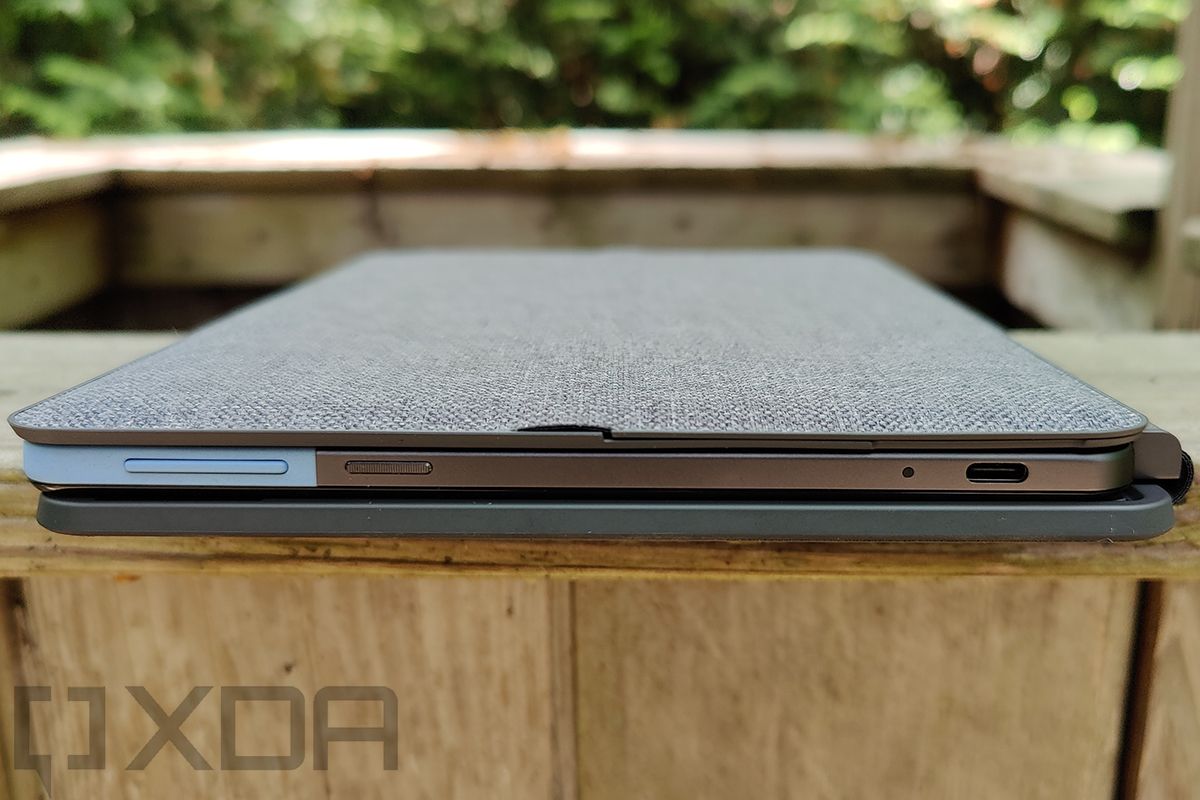
Victor: If you think about the Lenovo Duet, if you were designing that with an Intel chipset, it would be pretty challenging. You’d have to use a small battery to make it fit, and your battery life would probably drop below the Google standard. Google requires at least 10 hours for Chromebooks. That’s why if you look at the detachables, nearly all of them are using ARM-based processors, either MediaTek or Qualcomm.

Look at the Lenovo Duet, look at the ASUS CM3000, look at the Lenovo Duet 5, and look at the HP Chromebook x2 11. They’re all using ARM because you cannot use an Intel processor and get the battery life.


The push toward premium MediaTek-powered Chromebooks

I also asked about the Kompanio 1200, the chipset that’s going to be aimed at premium Chromebooks. It was announced over a year ago and teased again at MediaTek Summit, but it still hasn’t shown up in devices. It’s pretty exciting to watch MediaTek push toward the premium segment of the market.

There’s another tier coming soon too, as the company differentiates between premium and flagship (often jokingly referred to as the F-word).

Rich: I wanted to ask about the Kompanio 1200 as well. You announced that about a year ago, very high-level specs were mentioned. You didn’t say much, but it’s 6nm Cortex-A78, the most powerful ARM-based chipset for Chromebooks, which is cool…

Victor: We expect it to be. We don’t know what our competitors will launch. But I think by the time it launches in the market, it will have the highest performance. And today we have the highest performance with the 820 and 828.

Rich: So, what happened? When it was announced, I thought it was for 2021?

Victor: I don’t think it was, or maybe it was late 2021, but we haven’t had any surprises. OEMs are very interested in that platform. And I’d say the top OEMs.

Rich: Who are the top OEMs? Not necessarily for this in general, but the top ones that MediaTek works with on Chromebooks.

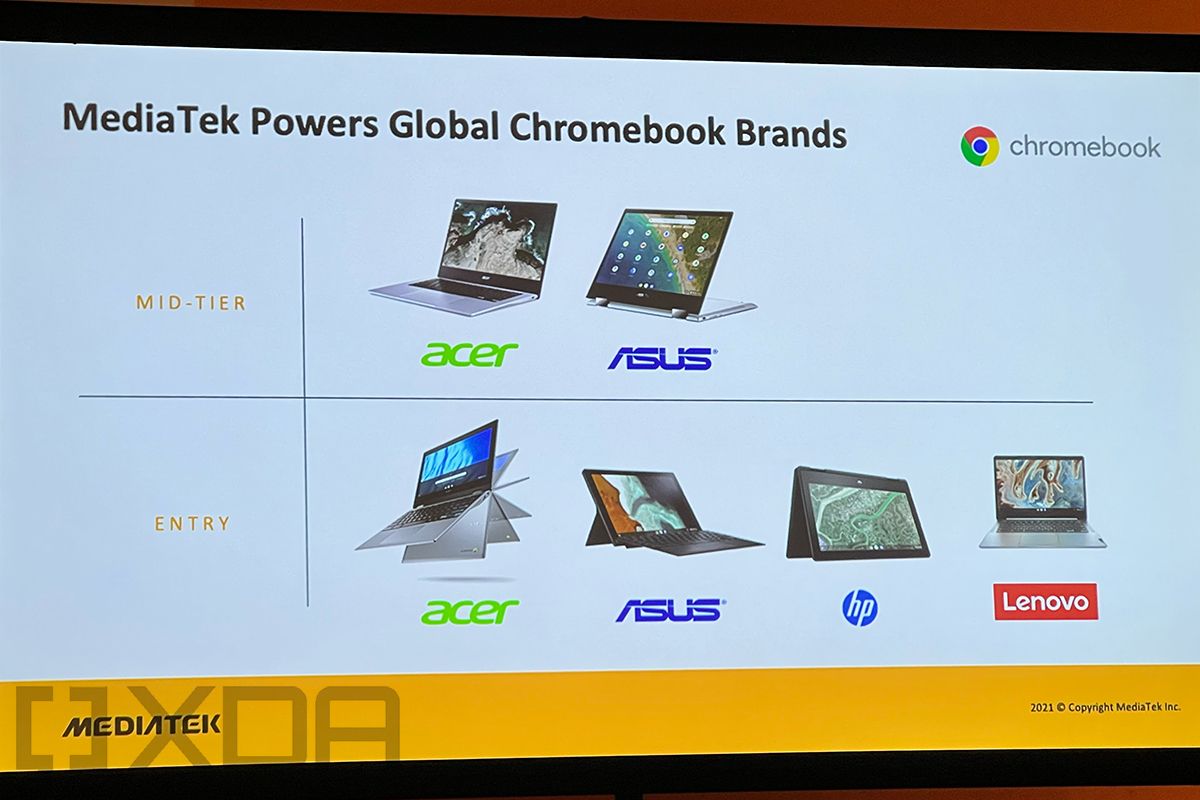
Victor: We’re with HP, Acer, ASUS, Lenovo. Those are the four. Dell is very Intel-focused so it’s going to be tough to convert them.

Rich: They’re finally selling AMD machines so they’re getting there.

Victor: So, the OEMs are showing a lot of interest in it. It’s going to be a game-changer, I think. This is the first platform that’s going to enable you to do a lot of things, like heavy multitasking, 4K dual displays, gaming, content creation. This will be a really beefy device that you can do a lot of stuff with, unless you’re doing something that requires something like a Core i9.

Rich: This is a Chrome OS-specific chip, right?

Victor: It is. The Kompanio 1200 is for Chromebooks. I think you’ll start hearing more about it soon, potentially at CES. We may have some OEMs make some announcements at CES, so that will give you a lot more insight into devices and the specs, so stand by for that one.

Rich: You had said premium devices, meaning $400 and above, right? That’s an impressive definition of premium.

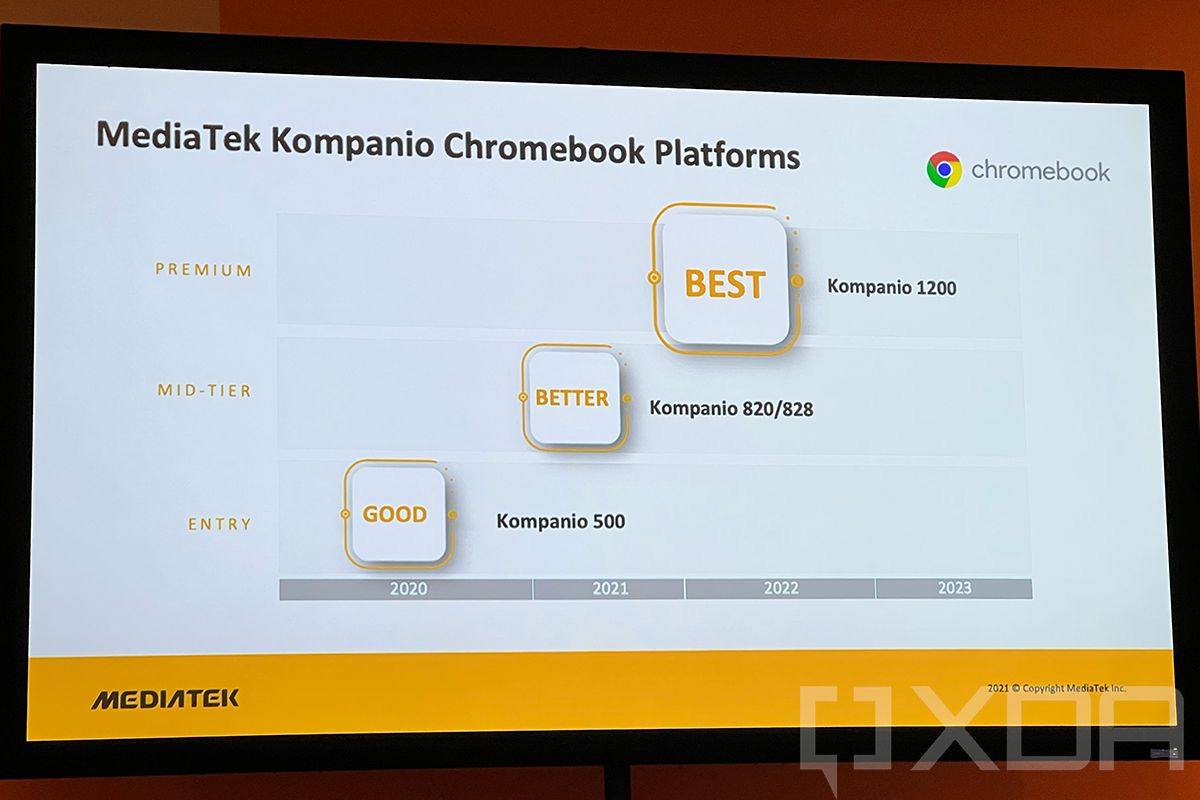
Victor: Today, the 820 and 828 are going to come in in the high 300s, maybe in the $399 range, so you can imagine that the 1200 would be in the segment above that.

Kompanio 1200

Rich: What’s the price range for Kompanio 500?

Victor: Typically sub-$300, but it depends on the form factor.

Rich: Was that what was in the Lenovo Duet?

Victor: Yes, and when you think of how good that was, think of how good the 1200 will be. From 500 to 820, it’s 2.6x performance. And then 820 to 1200 is another 70-80% bump. That’s why that 1200 chipset is going to be very usable for many, many people. There will be some people that need more, but in general, it will hit a wide range of use cases.

Rich: Speaking of people that need more, you did say that there’s more coming. I noticed that there’s no Kompanio 9000, like how we just got the Dimensity 9000 for mobile. When are we going to hear the F-word (flagship) for compute?

Victor: Well you saw the segmentation that Ken presented, right? We have 500, 800, 1000 is premium, and then 2000 for the F-word. We upgrade our premium tier more regularly than we upgrade our entry tier. If you look at the refresh rates for each of the segments, generally it’s faster on the higher tiers. The lower tiers, since they’re more cost optimized, take a longer cycle. Think of it as maybe one or two years from when you see a 1200.

Rich: But a 2000 wouldn’t be a refresh of the 1200, right? They’d live side by side, right?

Victor: Right, but those higher tiers get refreshed sooner. I can’t share a date on that, but it’ll happen.

Rich: I see these types of things as disruptive, because Intel is obviously the incumbent in all things laptop and computing. Obviously ARM can provide value in ways that Intel can’t do, so one of the things I always find myself asking is when you’re going to hit those other tiers that are still just owned by Intel, because there are high-end Chromebooks that have a Core i7 and 16GB RAM. What I’m learning this week is that you guys might be the ones in a position to disrupt that.

Victor: Yea, but first, we’re going to focus on the $300 to $500 range, because that’s also what Google needs to break through. Before they can go into the $600 or $700 range, they have to break into that $300 to $500 range.

Rich: So you’re working your way up.

Victor: Yes, we’re going to work our way up, exactly. And we’re going to stay aligned with Google because that’s where they’re going to invest and double down, and we’re going to be there with them.


WOK (Windows on Kompanio)

Next up was Windows on ARM. The company had already talked about it in various sessions and private conversations. We know it’s happening, and when the space opens up, MediaTek will be there. I tried to dig into what those plans might be a bit more.

Rich: What about Windows?

Victor: The interest is there. If you’re in compute, you have to have that interest, right? Definitely the intention is there, but a few things have to line up.

Rich: What has to line up?

Victor: Firstly, the ecosystem has to open up, like if you think about it from a Microsoft perspective, they need to get certain things done before they can open it up. If you were running that program, you might pilot with one SoC vendor, and then once it’s mature, open it up to the rest. That’s a natural way to run a program because they want to make it right. They don’t want to open it up too early.

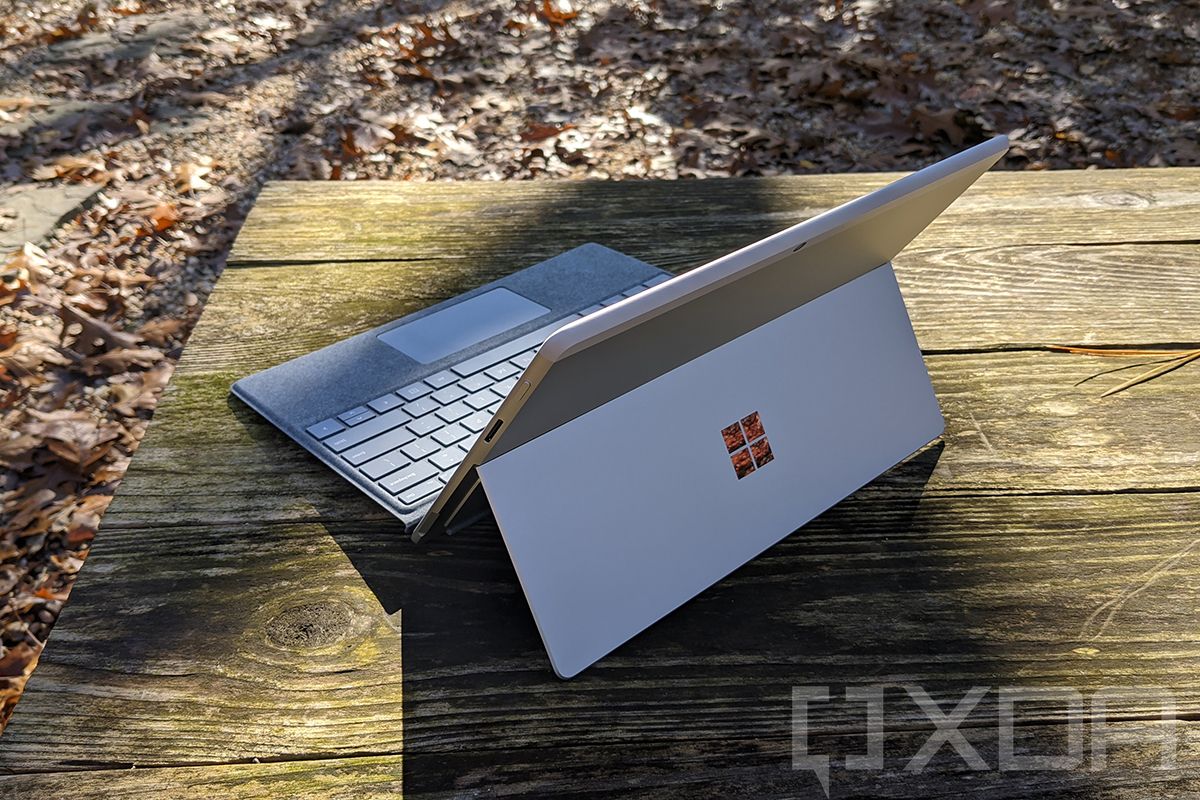
Rear angled view of Surface Pro X in Platinum

Microsoft Surface Pro X

Rich: Well they’ve always told me that this wasn’t exclusive to Qualcomm. They’ve always said that if anyone wanted to do this, they could.

Victor: Well, the interest is there, so if they can get us in tomorrow, that’s great for us. Like I said, it’s a huge opportunity.

Rich: It’s a big opportunity for MediaTek, so what value do you think MediaTek could bring to Windows laptops?

Victor: A lot of them are what we’re seeing in those lower segments in Chomebooks. It will be lightweight and thin, so if you look at the thickness of the device, it’s sub-16mm thickness. You’ll see all-day battery life. These are the things we’ve been kind of deprived of.

Rich: Do you think you’d come in at a lower price point than Qualcomm?

Victor: Many people think that our differentiation is that we’re lower-priced than Qualcomm.

Rich: That wasn’t what I was trying to imply.

Victor: I know, but that’s not always the case. There are some situations where we will apply that strategy, there are others where if we have a premium or a value add that they don’t have, we will command that premium.

Rich: One place where I watch you and Qualcomm is in the Chromebook space, and I see something like the Lenovo Duet and the thing costs under $300, comes with a keyboard, and it’s an amazing value. And I don’t see Qualcomm competing on that level of value. That’s why I ask.

Victor: Qualcomm entered the space with the Snapdragon 7c, which is more of a mid-tier. That’s why we see it fall in with the Kompanio 820, not really comparing with the 8183 (Kompanio 500), so that’s the segment they decided to enter. That’s where they are, but in the future, but I’m sure they’ll cover other segments.


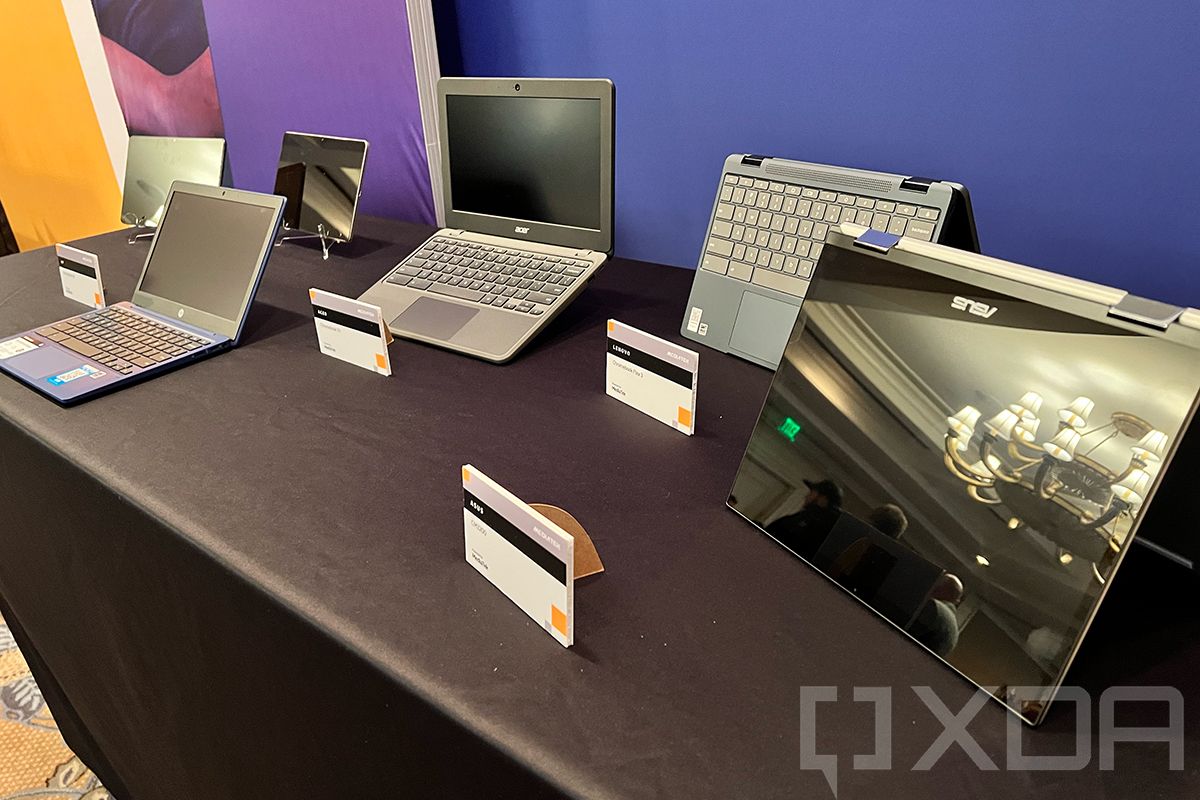
Collection of MediaTek-powered Chromebooks

Like I said earlier, don’t sleep on MediaTek. This is a company that has experienced tremendous growth over the last couple of years and seems confident in its ability to take on whatever it decides it wants to.

That includes computing. I remember when I reviewed the Lenovo Chromebook Duet, and what really impressed me was just how great it seemed for its sub-$300 price. Seeing MediaTek poised to take on the premium segment, the flagship segment beyond that, and even Windows laptops, makes me excited to watch this company’s journey unfold.

The post Chromebooks, Windows and how MediaTek plans to win computing appeared first on xda-developers.


from xda-developers https://ift.tt/3IeTxvx
via IFTTT

Galaxy S10 owners can now try out One UI 4.0 based on Android 12

While the Galaxy S21 series owners are already enjoying the goodness of One UI 4.0 and Android 12, many Galaxy phones are waiting for their turn to experience the new software. Samsung opened up the One UI 4.0 beta program for the Galaxy S20 and Galaxy Note 20 lineups last month, and now the South Korean giant is expanding the beta program to one more legacy flagship series: the Galaxy S10.

One UI 4 Beta Overview: Hands-on with every feature in Samsung’s Android 12 update!

Samsung has kicked off the One UI 4.0 beta program for the Galaxy S10, Galaxy S10 Plus, and Galaxy S10e, allowing interested users to try out an early version of Android 12 before the public release. The program is currently limited to South Korea, but we expect the company to expand it to global models soon. If you’re a Galaxy S10 owner residing in South Korea and want to try out Android 12, you can sign up for the beta program using the Samsung Members app.

Samsung hasn’t shared any details about when it plans to roll out the stable update for the Galaxy S10 series. In any case, we’re not holding our breath for a final release to come out before 2022.

One UI 4.0 is a substantial upgrade over One UI 3.0/3.1 and brings along many new features and visual changes. The main highlights of the update include a redesigned Quick Settings panel, improved dark mode, additional charging effects, redesigned home screen widgets, improved multitasking experience, and more. You can learn more about the new latest software in our full review of One UI 4.0.

Besides the Galaxy S10 series, Samsung is also beta testing One UI 4.0 update for the Galaxy S20 and Galaxy Note 20 series. In fact, both lineups received the second One UI 4.0 beta update earlier today, bringing multiple bug fixes, December 2021 security patches, and stability improvements.

The post Galaxy S10 owners can now try out One UI 4.0 based on Android 12 appeared first on xda-developers.


from xda-developers https://ift.tt/2ZOFJGy
via IFTTT

Windows 11 will let you change your default browser more easily again

Microsoft is reverting a change in Windows 11 that made it much harder to change your default browser through the system settings. With Windows 11 build 22509, which was released earlier this week, Microsoft has added a button to the Settings app that allows you to quickly change your default browser to whatever you prefer, as discovered by Twitter user Rafael Rivera (via The Verge).

As seen in an image shared by Rivera, when you head into the file associations page for a browser like Chrome, you’ll now see a button at the top that lets you make it your default browser. This is also the page you’re taken to when a browser asks you if you want to set it as the default, so it’s now much easier to change your default browser with a couple of clicks. Microsoft has confirmed this change is intentional, though it didn’t say whether we’ll need to wait for a full feature update next fall or if it will be delivered through a cumulative update to the current version of Windows 11.

This change is an important one because this was one of the most controversial moves Microsoft made in its attempt to force users to use the Edge browser. When you attempt to open a link outside a browser in Windows 11 and you have multiple browsers installed, you’re asked to choose a browser. But unless you specifically choose a different browser from Edge and mark the checkbox to make that browser your default, Edge will be the default from there on out. To add insult to injury, the Windows 11 Settings page no longer lets you choose a default browser app in general; instead, you have to change the associations for the HTTP protocol, HTML files, and so on individually, which made it much more tedious to change your default browser. This prompted Mozilla to develop a hack that allowed Firefox to circumvent all of this and make itself the default browser.

It gets worse, however, as Microsoft has taken other steps that go against user choice. The company recently blocked Edge Deflector, an app that redirected native Windows 11 links from Edge to the user’s default browser. Just yesterday, it was discovered that the company is also showing discouraging prompts in the Edge browser if users tried to download Google Chrome. Hopefully, we’ll see more consumer-friendly changes that make it easier for users to choose their own browser.

Aside from this change, Windows 11 build 22509 included a few more tweaks for Windows 11, namely giving users more new customization options for the Start menu, allowing them to either see more pinned items or more items from the Recommended list at the bottom. It also brought more settings from the Control Panel into the Windows 11 Settings app, part of Microsoft’s process to unify all its settings under one interface, which has been going for a few years now.

The post Windows 11 will let you change your default browser more easily again appeared first on xda-developers.


from xda-developers https://ift.tt/3ojhrOs
via IFTTT

Windows 11 will let you change your default browser more easily again

Microsoft is reverting a change in Windows 11 that made it much harder to change your default browser through the system settings. With Windows 11 build 22509, which was released earlier this week, Microsoft has added a button to the Settings app that allows you to quickly change your default browser to whatever you prefer, as discovered by Twitter user Rafael Rivera (via The Verge).

As seen in an image shared by Rivera, when you head into the file associations page for a browser like Chrome, you’ll now see a button at the top that lets you make it your default browser. This is also the page you’re taken to when a browser asks you if you want to set it as the default, so it’s now much easier to change your default browser with a couple of clicks. Microsoft has confirmed this change is intentional, though it didn’t say whether we’ll need to wait for a full feature update next fall or if it will be delivered through a cumulative update to the current version of Windows 11.

This change is an important one because this was one of the most controversial moves Microsoft made in its attempt to force users to use the Edge browser. When you attempt to open a link outside a browser in Windows 11 and you have multiple browsers installed, you’re asked to choose a browser. But unless you specifically choose a different browser from Edge and mark the checkbox to make that browser your default, Edge will be the default from there on out. To add insult to injury, the Windows 11 Settings page no longer lets you choose a default browser app in general; instead, you have to change the associations for the HTTP protocol, HTML files, and so on individually, which made it much more tedious to change your default browser. This prompted Mozilla to develop a hack that allowed Firefox to circumvent all of this and make itself the default browser.

It gets worse, however, as Microsoft has taken other steps that go against user choice. The company recently blocked Edge Deflector, an app that redirected native Windows 11 links from Edge to the user’s default browser. Just yesterday, it was discovered that the company is also showing discouraging prompts in the Edge browser if users tried to download Google Chrome. Hopefully, we’ll see more consumer-friendly changes that make it easier for users to choose their own browser.

Aside from this change, Windows 11 build 22509 included a few more tweaks for Windows 11, namely giving users more new customization options for the Start menu, allowing them to either see more pinned items or more items from the Recommended list at the bottom. It also brought more settings from the Control Panel into the Windows 11 Settings app, part of Microsoft’s process to unify all its settings under one interface, which has been going for a few years now.

The post Windows 11 will let you change your default browser more easily again appeared first on xda-developers.


from xda-developers https://ift.tt/3ojhrOs
via IFTTT

A day with the future of connected PCs

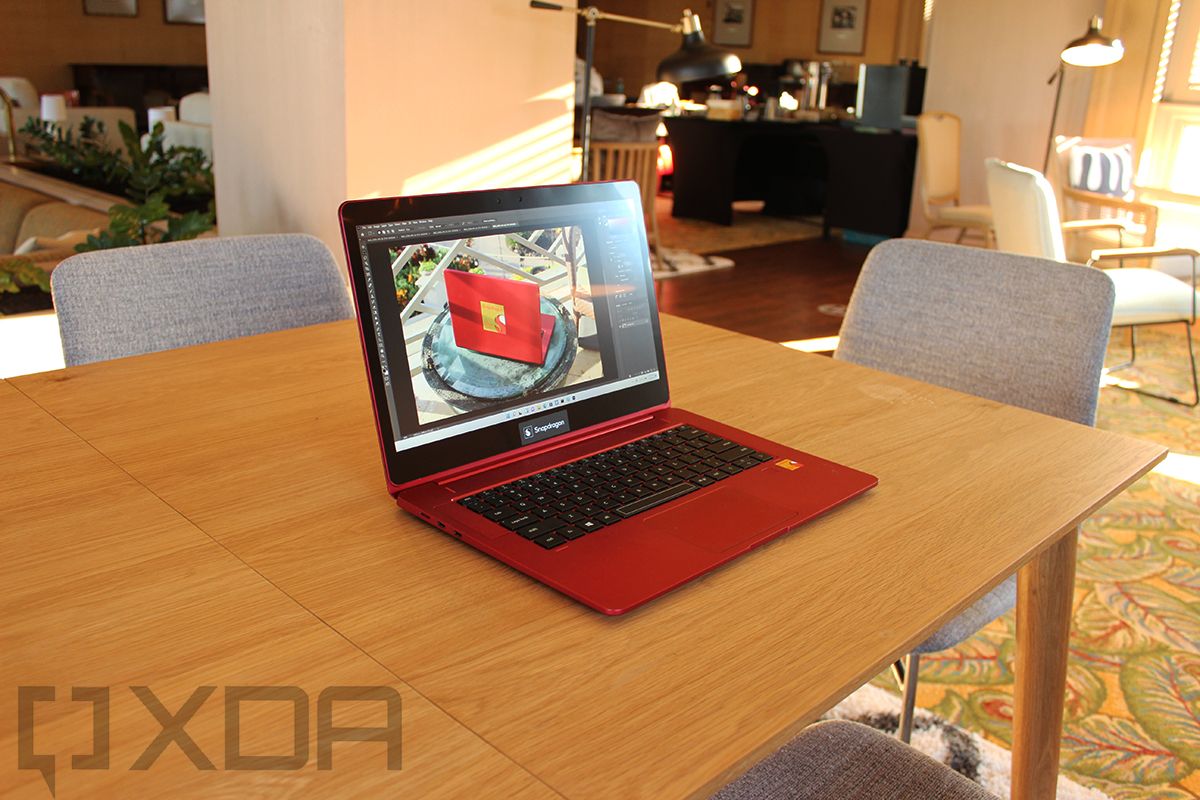
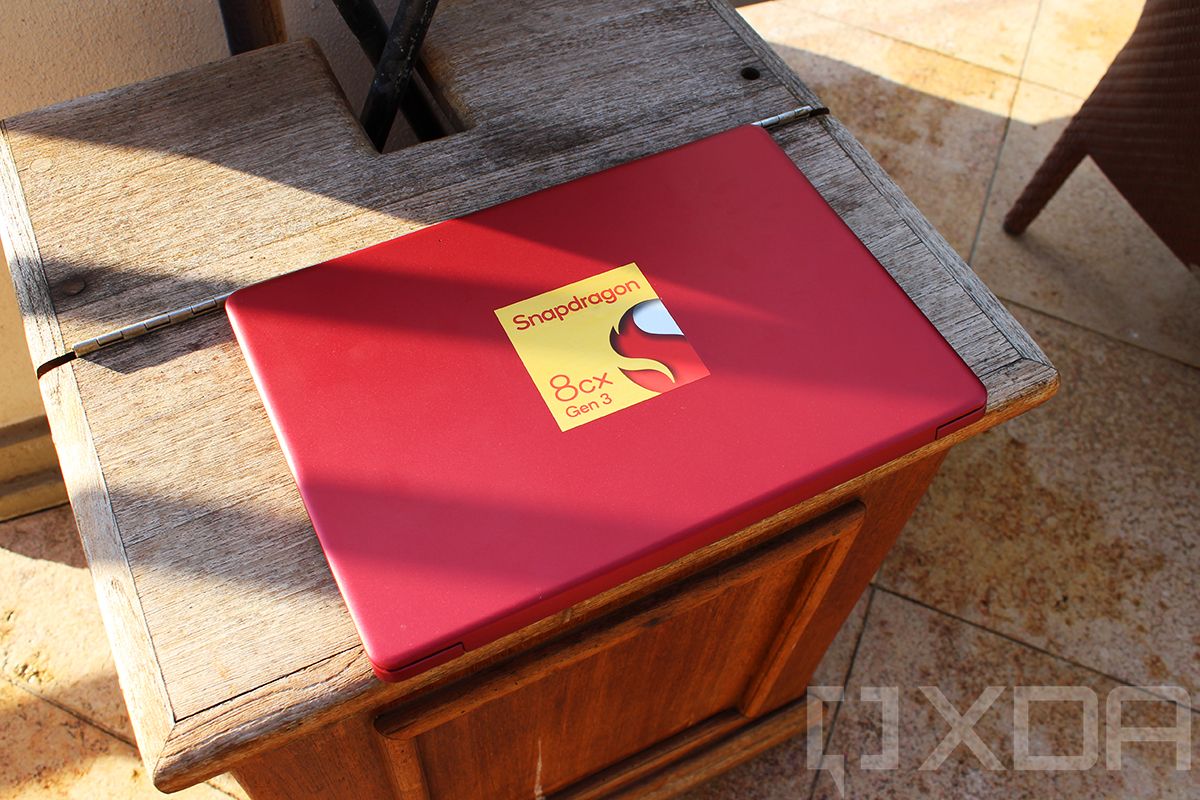
For over a day now, the only laptop that I’ve been using is Qualcomm’s Snapdragon 8cx Gen 3 Reference Design. The only rule is that I can’t run benchmarks, so if that’s what you’re here to see, you won’t find them. I was OK with that though, because I’m really more interested in the experience.

Being someone that genuinely cares about Windows on ARM, I would normally bring an ARM laptop to an event like this. This year, I couldn’t bring myself to do it because everything that exists feels so dated. It was at Snapdragon Summit in 2018 when the Snapdragon 8cx was first announced, and while it did take another year to ship, the products show their age. I wanted to bring one laptop to this event, and an ARM one wasn’t going to be it.

If I had this laptop, I’d have been more than happy with it being my only one, and that’s saying a lot. But also, there are two aspects of what I want to talk about. One is general usage while the other is demos that were set up by Qualcomm.

Disclaimer: Qualcomm sponsored my trip to Kona, Hawaii, to attend the Snapdragon Tech Summit. The company paid for my flight and hotel. However, they did not have any input regarding the content of this article.

Snapdragon 8cx Gen 3 Reference Design Specs

I don’t have full specs for the device, such as dimensions or weight, but here’s what you need to know:

  • Snapdragon 8cx Gen 3 CPU
  • Adreno graphics
  • 14-inch FHD display
  • 256GB storage
  • 32GB RAM
  • Two USB Type-C ports
  • MicroSD
  • 3.5mm audio jack
  • Nano-SIM slot, supporting mmWave 5G
  • 49WHr battery
  • Windows 11

Qualcomm demos

Like any time it has new wares, Qualcomm had various demo stations set up to show off what the Snapdragon 8cx Gen 3 can do. Some of them were really interesting, so we’re going to do a bit of a rundown.

Noise canceling

Most of the features focused on in demos aren’t actually new. We’ve seen background noise canceling in some Intel-powered laptops, but the theme here is going to be better, faster, and more efficient. I’ve used those noise-canceling features on some business laptops from HP, but this is next-level.

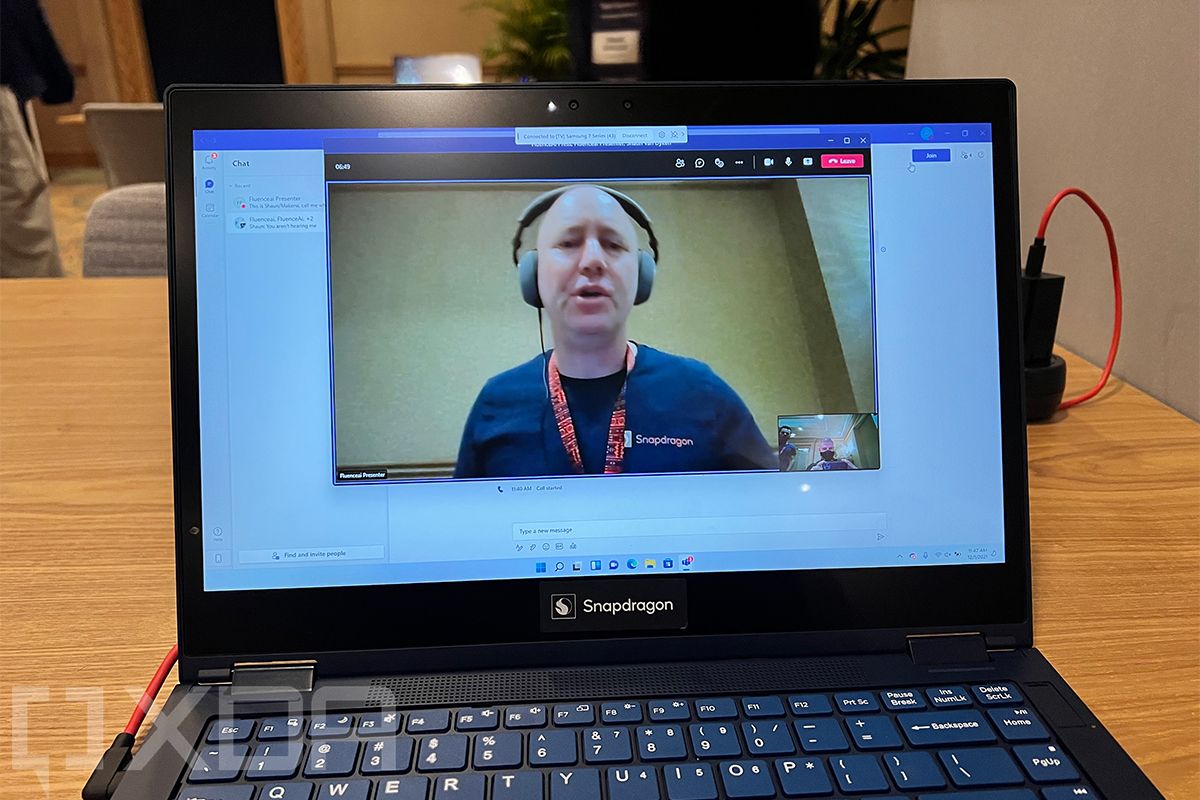
In fact, this was the last stop on my demo tour, but it’s the first thing I want to talk about. At first, I was shown recordings, but then I got on a Teams call and the presenter just kept hitting keyboards and playing with bags of chips, and I could not hear any of it. It is insanely good.

What’s even cooler is that this won’t require app developers. OEMs can implement it and then it’ll just work. The fun thing about AI performance, which is an area that Qualcomm excels at, is that it’s a horizontal feature, meaning that it elevates everything else.

Virtual monitors

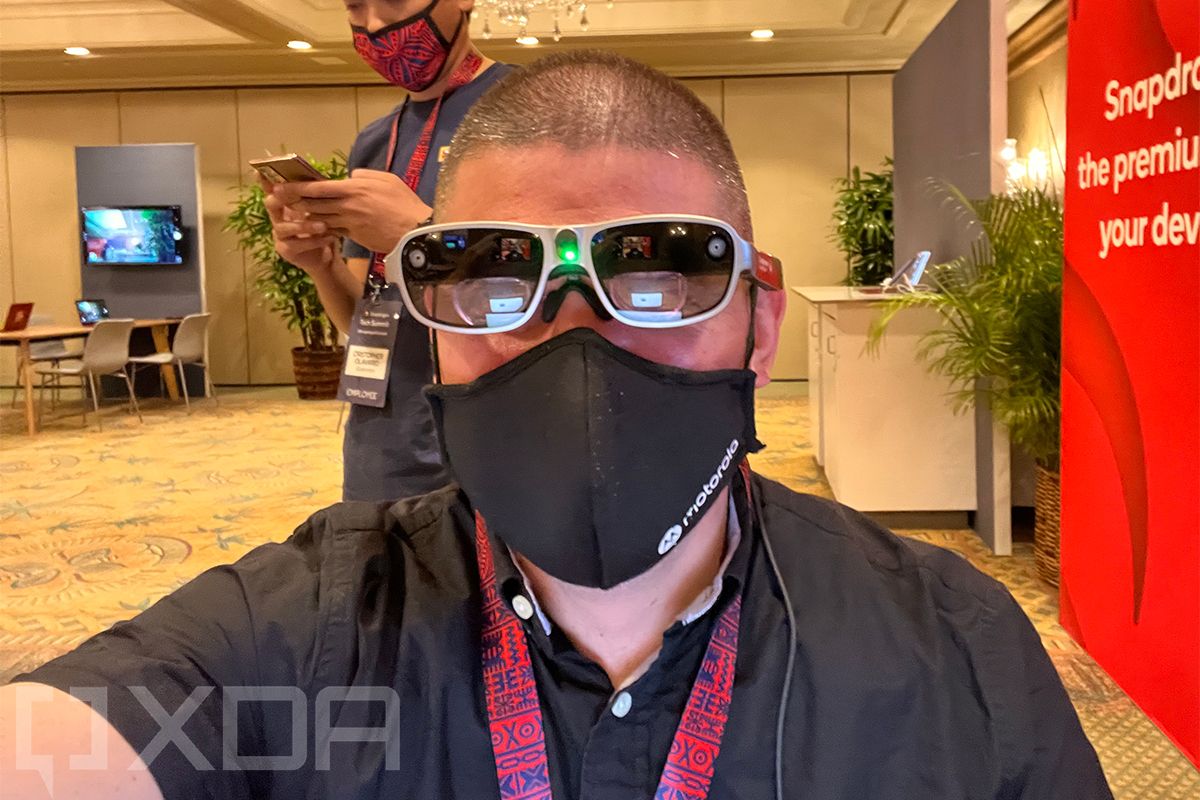
Yes, that’s me wearing a pair of augmented reality glasses called the XR1 AR Smart Viewer. What I’m about to describe is similar to what we’ve seen from Lenovo’s ThinkReality A3 glasses. In fact, both are powered by Qualcomm’s Snapdragon XR1 chipset and the use case described is multiple virtual desktops. The idea is that you can travel with a laptop and a headset, and thanks to augmented reality, you can have the same multi-monitor setup you’d have at home.

There’s a very important difference though. The Lenovo ThinkReality A3 is connected to a big, beefy Intel-powered laptop that has a 45W processor, heavy-duty dedicated graphics, weighs over five pounds, and is probably about an inch thick. These glasses are tethered to a Snapdragon PC that weighs a few pounds and is probably just over half an inch thick.

Honestly, I think the experience is even better. Everything felt so smooth, and the refresh rate in the glasses felt more natural with less latency between when I did something and when it appeared on the screen. This is something that I could actually see myself using.

Gaming

Gaming is something that Windows on ARM has struggled with. The company announced native games coming like Asphalt 9 and Among Us. The only problem is that Asphalt 9 was announced for Windows on ARM three years ago at Snapdragon Summit 2018. It never shipped.

But luckily, we have game streaming, such as Xbox Cloud Gaming. This reference device comes with support for mmWave 5G, and I’ve been seeing download speeds of around 2.5Gbps on Verizon’s network, so I can go and play any game I want on Xbox Game Pass from anywhere.

Regular, real-world usage

Those demos are great, but when it comes to Windows on ARM, the big question is still just how good it is to use in terms of regular old performance. That’s why it’s been so critical that I got to use the Reference Design as the only PC I used for well over 24 hours.

Apps

Here’s the list of apps that I used:

  • Microsoft Edge
  • Vivaldi
  • Google Chrome
  • Slack
  • OneNote for Windows 10
  • Adobe Creative Cloud
  • Adobe Photoshop (Beta)
  • Adobe Photoshop 2022
  • Adobe Photoshop 2021
  • Adobe Acrobat
  • Microsoft Excel
  • Microsoft Word
  • Skype
  • Amazon Appstore
  • Kindle
  • Microsoft Teams (integrated into Windows 11)

I don’t want to focus on every single one of the apps. Microsoft Office has been running on ARM since the days of Windows RT. It’s fine. A better starting point, and the most important one in my opinion, is browsers.

Microsoft Edge is amazing on this machine. Everything is snappy and bug-free, and despite the fact that it’s been native for ARM64 since the days of EdgeHTML, it hasn’t always been bug-free. While I didn’t test Firefox on this machine specifically, that’s the other browser that runs natively. The reason I didn’t test Firefox is because I already know it’s good, so after using Edge, I wanted to move on to emulated browsers such as Vivaldi, which is my browser of choice, and Google Chrome.

Both of those Chromium-based browsers aren’t too great. It was OK on the original Snapdragon 8cx, and it’s OK on the 8cx Gen 3. The real problem is that it’s simply not as good as if you were running it on an Intel machine. I can’t speak for everyone, but I think that for most of us, the web browser is our most-used app. It’s how we interact with everything we do on our PCs.

Running browsers in emulation is particularly problematic because they’re generating code in real-time. That makes it harder to cache. Eventually, the hardware just gets to a point where you can’t tell the difference, but I don’t think it’s there yet.

The same goes for Slack. In fact, Slack is actually pretty bad. That might have something to do with the fact that it’s already a slow, bloated app when it’s running natively, but still, for many of us, it’s essential. This is a situation where there’s lag when clicking on different threads and channels, and there’s even noticeable lag when typing sometimes.

Now, let’s talk about Adobe CC. There’s some good and some bad here. The good is that Photoshop and Lightroom run natively, and they have for a little while. As you can see from the list of apps, there were three versions of Photoshop I could try out. It’s so smooth. One thing that sounds simple was rotating images, but it’s one of those areas where I’ve noticed a lot of stuttering in previous generations, but didn’t with this one. Edits were snappy too, including Adobe’s automatic image adjustments.

The bad with Adobe is that the company no longer offers versions of its apps that don’t run natively, aside from Acrobat. There are workarounds for this, but you shouldn’t have to. In the Creative Cloud app, you’re going to only see Photoshop, Lightroom, and Acrobat. Before these native apps showed up, Adobe used to offer 32-bit versions of apps that ran in emulation. Windows 11 offers 64-bit emulation now, but Adobe still just isn’t offering the apps.

Adobe has promised to bring the full Creative Cloud suite to Windows on ARM. There’s no timeline on this, and it’s moving a lot faster with Apple Silicon when it comes to ARM development. This is understandable, as Apple has probably already sold more ARM laptops than all of Windows on ARM combined, and they’re more aimed at creators.

I went ahead and enrolled this laptop in the Beta channel of the Windows Insider Program so I could test out Android apps. Remember, ARM laptops don’t need the same emulation technology that Intel devices need. In previous Android testing on Windows 11, I’d run the Kindle app and for a game, Subway Surfers. It would seem that Subway Surfers has been pulled from the Amazon Appstore offering, so obviously, I didn’t test that out.

The Kindle app is pretty good though. This particular laptop isn’t the type of device that you’d use that on, but a tablet with a Snapdragon 8cx Gen 3 would be. It’s pretty smooth; not as smooth as an actual Android device, but still smooth.

Battery life

The Snapdragon 8cx Gen 3 Reference Design has a 49WHr battery, and battery life wasn’t very good. Please take this whole section with a grain of salt since this is just a reference device. It can barely be considered prototype hardware, and you’ll never be able to buy it.

But I did want to write this because now that integrated cellular connectivity isn’t as much of a selling point with so many OEMs shipping Wi-Fi-only devices, battery life is supposed to be one of the key selling points of Windows on ARM. It’s also an area where I feel like the platform hasn’t lived up to the promise, so I had a feeling people would be asking me about this.

Here are a few key points. While I was sleeping last night, the battery drained by 19% in connected standby in seven hours and five minutes. In a period of one hour and 13 minutes of actual usage, it drained by 27%. Other examples are a drain of 10% in 34 minutes, a drain of 23% in an hour and 14 minutes, and a drain of 22% in 44 minutes, all of this with active usage.

Those are just some general stats. Please don’t read too much into it, but if you’re wondering how battery life was with the Reference Design, that’s it.

Conclusion

There’s a bit of an elephant in the room with the Snapdragon 8cx Gen 3, which is that Qualcomm has been saying since the beginning of this year that thanks to its acquisition of Nuvia, it’s going to be able to compete with Apple Silicon in 2023. So now, we have Snapdragon 8cx Gen 3, which feels like this thing that’s in the middle of last-gen and next-gen.

All I can really say right now is that it’s good. I really like using the Snapdragon 8cx Gen 3 Reference Design. The laptop I did bring with me on this trip was the Lenovo IdeaPad 7i Slim Pro, and frankly, I regretted it. Not only am I fine using the Snapdragon 8cx Gen 3 as my only laptop, I absolutely prefer it. It’s phenomenal, as performance is great for productivity tasks and even Photoshop. And instead of dealing with hotel Wi-Fi, I’m dealing with 2.5Gbps download speeds on Verizon’s 5G network.

The Snapdragon 8cx Gen 3 packs four Kryo cores based on Cortex-X1 and four that are based on Cortex-A78, so there are really no “little” cores here. With Qualcomm promising 85% faster CPU performance and 60% better GPU performance, it shows in real-world usage. It’s also promising three times as much AI performance, but that’s a little harder to test, which is why I talked about the demos.

I am really excited about Snapdragon 8cx Gen 3 devices, which should arrive in the first half of 2022. Qualcomm says it has lots of partners, and it even said that those devices might be less expensive than they were in previous generations.

The post A day with the future of connected PCs appeared first on xda-developers.


from xda-developers https://ift.tt/31qbshY
via IFTTT

How to change your Nest Doorbell ringtone to jolly festive sounds or one of the new year-round tones

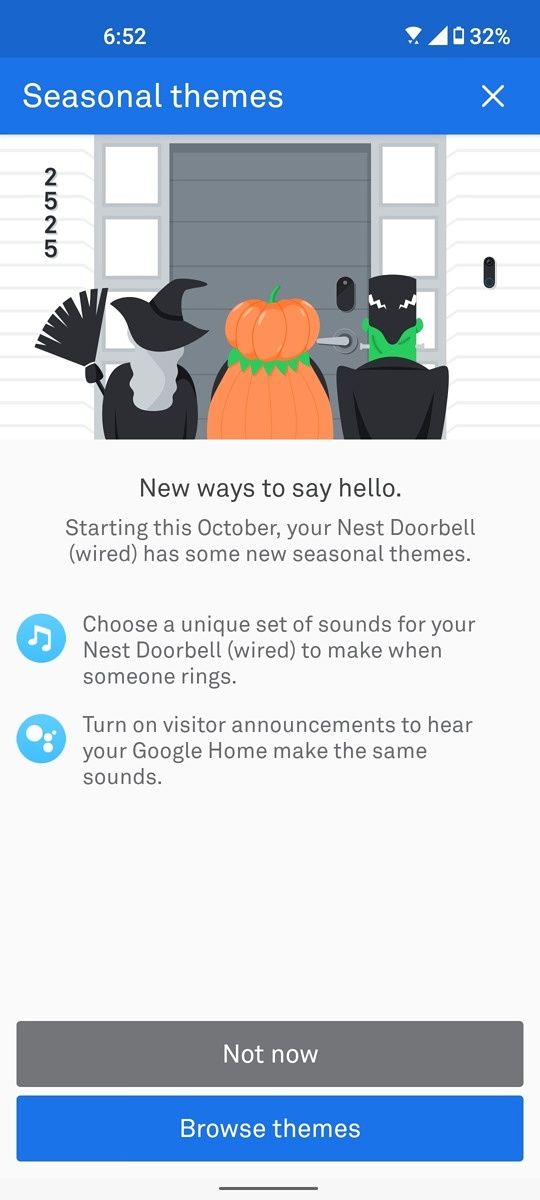
If you have a Nest doorbell from Google, it’s quite simple to change the ringtone of your device. Apart from the classic “ding dong” sound, the Nest doorbell can be customized to play various other ringtones that you can set from within the Nest app. Google also rolls out a few seasonal ringtones from time to time during festive seasons, the latest ones being themed according to the upcoming festive season. Google is giving you the option to change your traditional ringtone to sounds that match the festive holiday vibe. While Google has offered festive ringtones in the past, this year, they’re also offering six “evergreen” ringtones that can be used even after the festive season is over.

If you wish to modify the sound your doorbell plays when someone’s at your house, here’s how to change your Nest Doorbell ringtone.

How to change the ringtone on your Nest Doorbell

Nest doorbell

The procedure to change your Nest Doorbell’s ringtone is quite simple. You can change the sound your doorbell makes by following these steps and if you have other Nest speakers at home, the modified ringtone can also be played via them. Also, note that some ringtones are seasonal and can be used only when Google makes them available.

For example, the Halloween-themed ringtones like an evil laugh, a skeleton dance, a spooky raven, a ghostly boo, a howling werewolf, a cackling witch, etc. were available from 1 October 2021 to 31 October 2021. You could use these tones only during that phase. The news festive sounds include Jingle Bells, Winter Sleighbells, Ma’oz Tzur, Hanukkah Dreidel, and Auld Lang Syne. The update with the new tunes is already being made available to users and the sounds can be used till 4 January 2022.

This time around, Google is also making a few tones available throughout the year if you have the wireless version of the Nest Doorbell so those can be applied whenever you want. You can continue to use these ringtones throughout the year on your Nest Doorbell wireless instead of it defaulting back to the stock sound.

Here’s how you can change your Nest Doorbell ringtone to one of the new evergreen options –

  • Update your Google Home or Nest app to the latest version to receive all the new tones Google is rolling out.
  • Launch the Nest or the Google Home app on your smartphone to access the doorbell settings.
  • Select the doorbell you want to change the ringtone of.

Nest doorbell settings

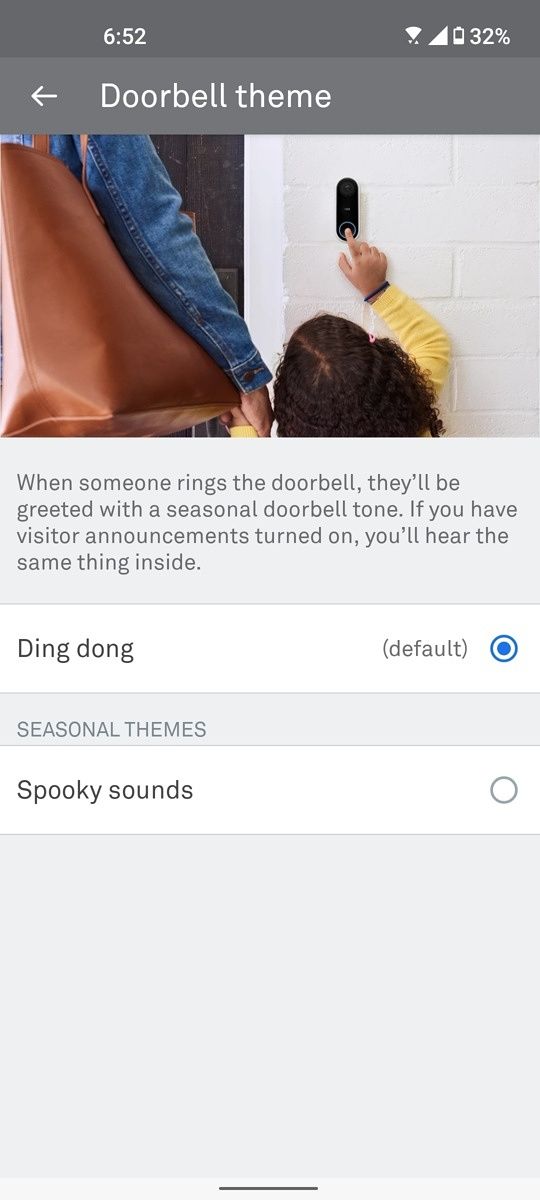
  • Head over to Device Options and then select Doorbell Theme. Here, you will find the option to choose a ringtone of your choice.
Nest doorbell spooky sounds spooky sounds option
  • Select the ringtone and you’re done.

Nest doorbell

If you’re using a time-limited ringtone, the sound will default back to your older tone once the duration elapses. Watch out for Google’s specially themed ringtones that keep rolling out throughout the year. Changing to those ringtones will give your house a unique feel whenever you have a visitor.

The post How to change your Nest Doorbell ringtone to jolly festive sounds or one of the new year-round tones appeared first on xda-developers.


from xda-developers https://ift.tt/3Gz9zzA
via IFTTT