LightBlog

vendredi 3 décembre 2021

A day with the future of connected PCs

For over a day now, the only laptop that I’ve been using is Qualcomm’s Snapdragon 8cx Gen 3 Reference Design. The only rule is that I can’t run benchmarks, so if that’s what you’re here to see, you won’t find them. I was OK with that though, because I’m really more interested in the experience.

Being someone that genuinely cares about Windows on ARM, I would normally bring an ARM laptop to an event like this. This year, I couldn’t bring myself to do it because everything that exists feels so dated. It was at Snapdragon Summit in 2018 when the Snapdragon 8cx was first announced, and while it did take another year to ship, the products show their age. I wanted to bring one laptop to this event, and an ARM one wasn’t going to be it.

If I had this laptop, I’d have been more than happy with it being my only one, and that’s saying a lot. But also, there are two aspects of what I want to talk about. One is general usage while the other is demos that were set up by Qualcomm.

Disclaimer: Qualcomm sponsored my trip to Kona, Hawaii, to attend the Snapdragon Tech Summit. The company paid for my flight and hotel. However, they did not have any input regarding the content of this article.

Snapdragon 8cx Gen 3 Reference Design Specs

I don’t have full specs for the device, such as dimensions or weight, but here’s what you need to know:

  • Snapdragon 8cx Gen 3 CPU
  • Adreno graphics
  • 14-inch FHD display
  • 256GB storage
  • 32GB RAM
  • Two USB Type-C ports
  • MicroSD
  • 3.5mm audio jack
  • Nano-SIM slot, supporting mmWave 5G
  • 49WHr battery
  • Windows 11

Qualcomm demos

Like any time it has new wares, Qualcomm had various demo stations set up to show off what the Snapdragon 8cx Gen 3 can do. Some of them were really interesting, so we’re going to do a bit of a rundown.

Noise canceling

Most of the features focused on in demos aren’t actually new. We’ve seen background noise canceling in some Intel-powered laptops, but the theme here is going to be better, faster, and more efficient. I’ve used those noise-canceling features on some business laptops from HP, but this is next-level.

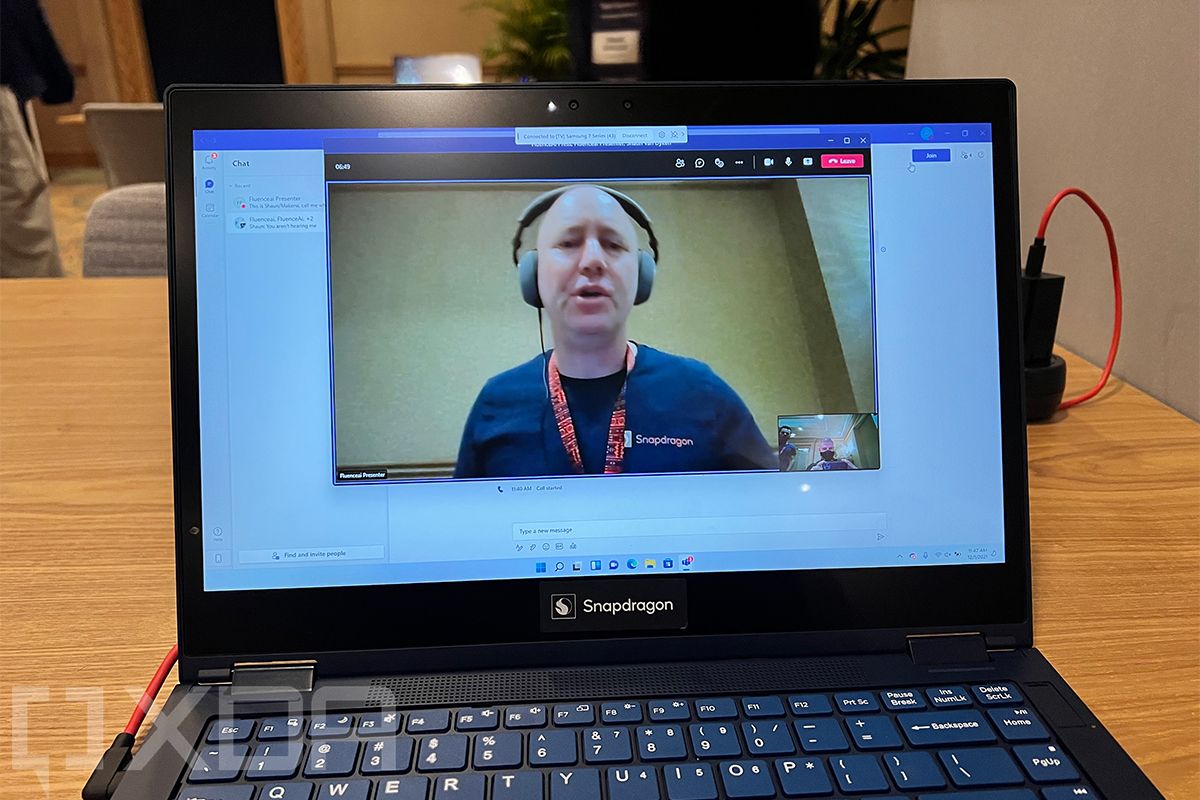
In fact, this was the last stop on my demo tour, but it’s the first thing I want to talk about. At first, I was shown recordings, but then I got on a Teams call and the presenter just kept hitting keyboards and playing with bags of chips, and I could not hear any of it. It is insanely good.

What’s even cooler is that this won’t require app developers. OEMs can implement it and then it’ll just work. The fun thing about AI performance, which is an area that Qualcomm excels at, is that it’s a horizontal feature, meaning that it elevates everything else.

Virtual monitors
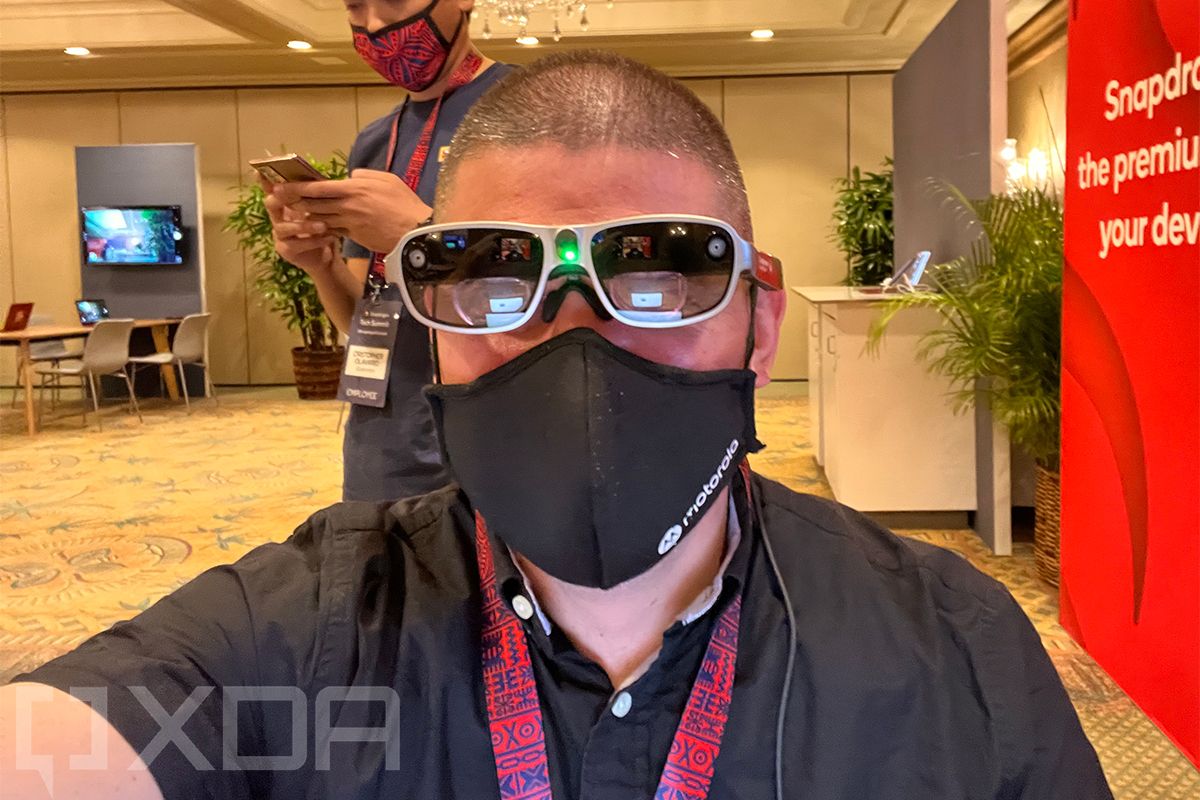
Yes, that’s me wearing a pair of augmented reality glasses called the XR1 AR Smart Viewer. What I’m about to describe is similar to what we’ve seen from Lenovo’s ThinkReality A3 glasses. In fact, both are powered by Qualcomm’s Snapdragon XR1 chipset and the use case described is multiple virtual desktops. The idea is that you can travel with a laptop and a headset, and thanks to augmented reality, you can have the same multi-monitor setup you’d have at home.

There’s a very important difference though. The Lenovo ThinkReality A3 is connected to a big, beefy Intel-powered laptop that has a 45W processor, heavy-duty dedicated graphics, weighs over five pounds, and is probably about an inch thick. These glasses are tethered to a Snapdragon PC that weighs a few pounds and is probably just over half an inch thick.

Honestly, I think the experience is even better. Everything felt so smooth, and the refresh rate in the glasses felt more natural with less latency between when I did something and when it appeared on the screen. This is something that I could actually see myself using.

Gaming

Gaming is something that Windows on ARM has struggled with. The company announced native games coming like Asphalt 9 and Among Us. The only problem is that Asphalt 9 was announced for Windows on ARM three years ago at Snapdragon Summit 2018. It never shipped.

But luckily, we have game streaming, such as Xbox Cloud Gaming. This reference device comes with support for mmWave 5G, and I’ve been seeing download speeds of around 2.5Gbps on Verizon’s network, so I can go and play any game I want on Xbox Game Pass from anywhere.

Regular, real-world usage

Those demos are great, but when it comes to Windows on ARM, the big question is still just how good it is to use in terms of regular old performance. That’s why it’s been so critical that I got to use the Reference Design as the only PC I used for well over 24 hours.

Apps

Here’s the list of apps that I used:

  • Microsoft Edge
  • Vivaldi
  • Google Chrome
  • Slack
  • OneNote for Windows 10
  • Adobe Creative Cloud
  • Adobe Photoshop (Beta)
  • Adobe Photoshop 2022
  • Adobe Photoshop 2021
  • Adobe Acrobat
  • Microsoft Excel
  • Microsoft Word
  • Skype
  • Amazon Appstore
  • Kindle
  • Microsoft Teams (integrated into Windows 11)

I don’t want to focus on every single one of the apps. Microsoft Office has been running on ARM since the days of Windows RT. It’s fine. A better starting point, and the most important one in my opinion, is browsers.

Microsoft Edge is amazing on this machine. Everything is snappy and bug-free, and despite the fact that it’s been native for ARM64 since the days of EdgeHTML, it hasn’t always been bug-free. While I didn’t test Firefox on this machine specifically, that’s the other browser that runs natively. The reason I didn’t test Firefox is because I already know it’s good, so after using Edge, I wanted to move on to emulated browsers such as Vivaldi, which is my browser of choice, and Google Chrome.

Both of those Chromium-based browsers aren’t too great. It was OK on the original Snapdragon 8cx, and it’s OK on the 8cx Gen 3. The real problem is that it’s simply not as good as if you were running it on an Intel machine. I can’t speak for everyone, but I think that for most of us, the web browser is our most-used app. It’s how we interact with everything we do on our PCs.

Running browsers in emulation is particularly problematic because they’re generating code in real-time. That makes it harder to cache. Eventually, the hardware just gets to a point where you can’t tell the difference, but I don’t think it’s there yet.

The same goes for Slack. In fact, Slack is actually pretty bad. That might have something to do with the fact that it’s already a slow, bloated app when it’s running natively, but still, for many of us, it’s essential. This is a situation where there’s lag when clicking on different threads and channels, and there’s even noticeable lag when typing sometimes.
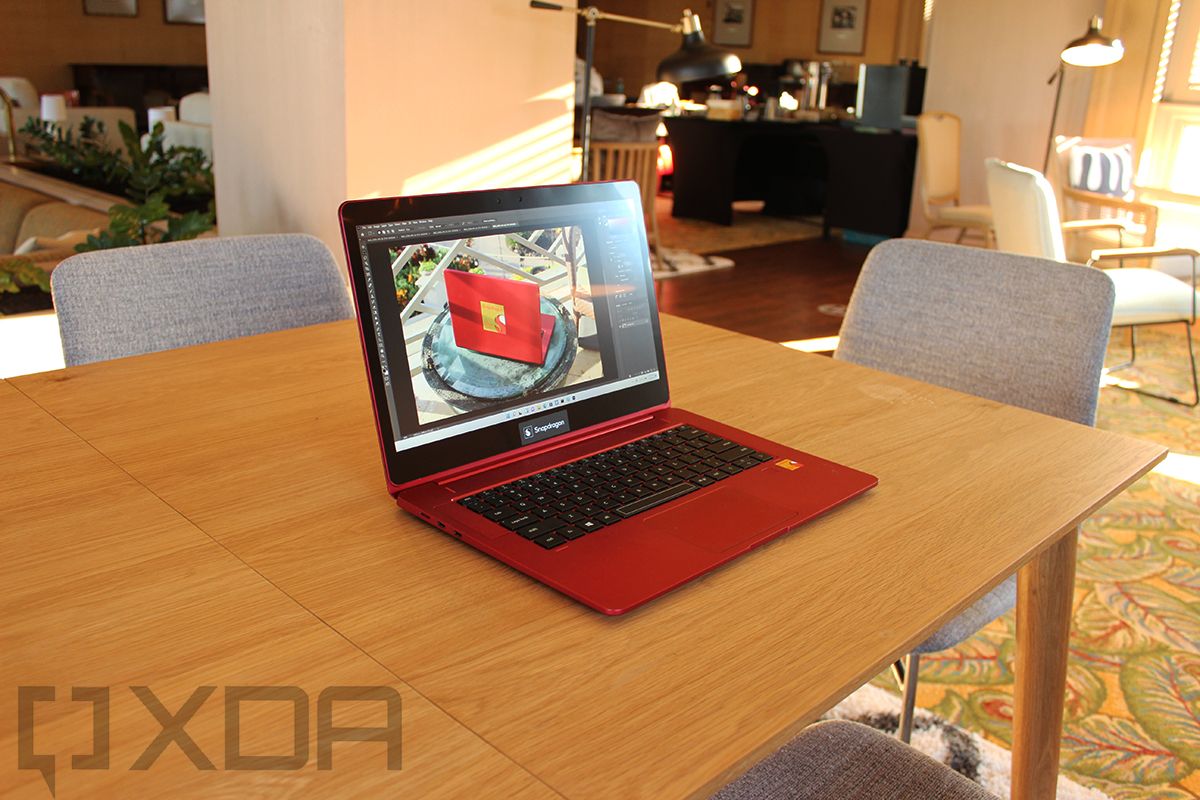
Now, let’s talk about Adobe CC. There’s some good and some bad here. The good is that Photoshop and Lightroom run natively, and they have for a little while. As you can see from the list of apps, there were three versions of Photoshop I could try out. It’s so smooth. One thing that sounds simple was rotating images, but it’s one of those areas where I’ve noticed a lot of stuttering in previous generations, but didn’t with this one. Edits were snappy too, including Adobe’s automatic image adjustments.

The bad with Adobe is that the company no longer offers versions of its apps that don’t run natively, aside from Acrobat. There are workarounds for this, but you shouldn’t have to. In the Creative Cloud app, you’re going to only see Photoshop, Lightroom, and Acrobat. Before these native apps showed up, Adobe used to offer 32-bit versions of apps that ran in emulation. Windows 11 offers 64-bit emulation now, but Adobe still just isn’t offering the apps.

Adobe has promised to bring the full Creative Cloud suite to Windows on ARM. There’s no timeline on this, and it’s moving a lot faster with Apple Silicon when it comes to ARM development. This is understandable, as Apple has probably already sold more ARM laptops than all of Windows on ARM combined, and they’re more aimed at creators.
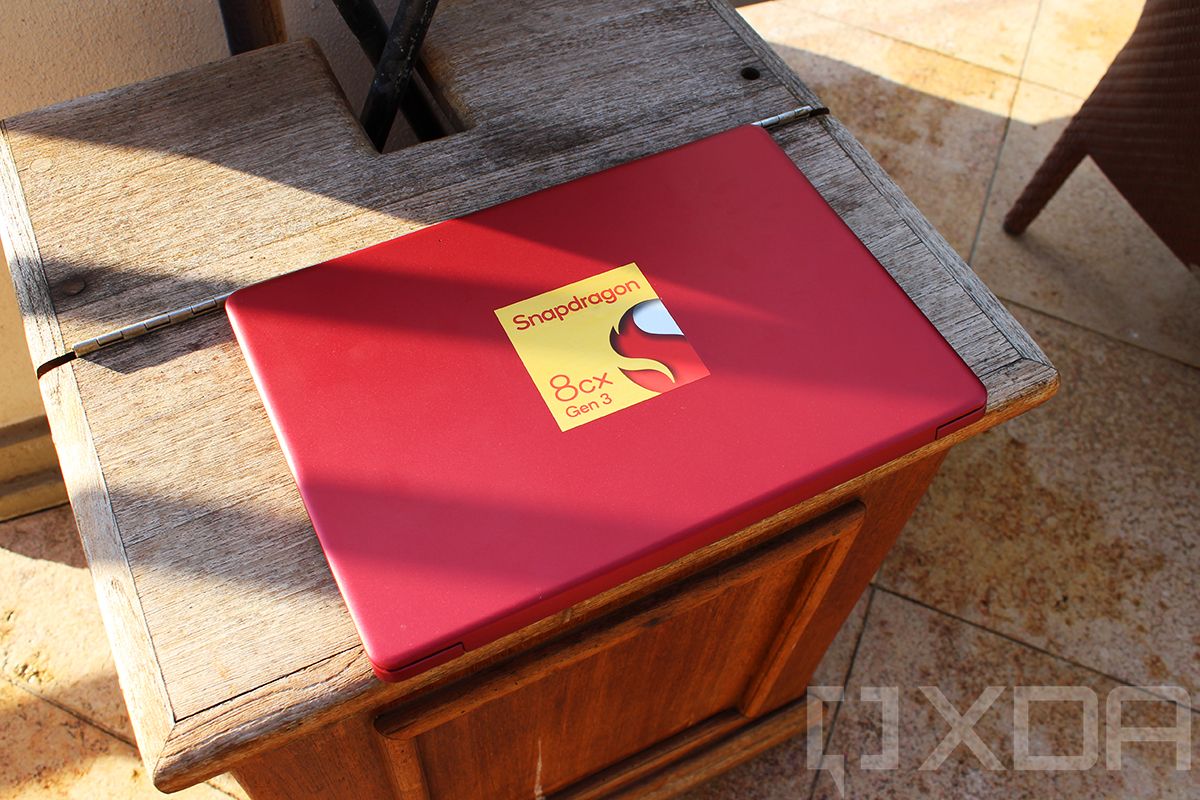
I went ahead and enrolled this laptop in the Beta channel of the Windows Insider Program so I could test out Android apps. Remember, ARM laptops don’t need the same emulation technology that Intel devices need. In previous Android testing on Windows 11, I’d run the Kindle app and for a game, Subway Surfers. It would seem that Subway Surfers has been pulled from the Amazon Appstore offering, so obviously, I didn’t test that out.

The Kindle app is pretty good though. This particular laptop isn’t the type of device that you’d use that on, but a tablet with a Snapdragon 8cx Gen 3 would be. It’s pretty smooth; not as smooth as an actual Android device, but still smooth.

Battery life

The Snapdragon 8cx Gen 3 Reference Design has a 49WHr battery, and battery life wasn’t very good. Please take this whole section with a grain of salt since this is just a reference device. It can barely be considered prototype hardware, and you’ll never be able to buy it.

But I did want to write this because now that integrated cellular connectivity isn’t as much of a selling point with so many OEMs shipping Wi-Fi-only devices, battery life is supposed to be one of the key selling points of Windows on ARM. It’s also an area where I feel like the platform hasn’t lived up to the promise, so I had a feeling people would be asking me about this.

Here are a few key points. While I was sleeping last night, the battery drained by 19% in connected standby in seven hours and five minutes. In a period of one hour and 13 minutes of actual usage, it drained by 27%. Other examples are a drain of 10% in 34 minutes, a drain of 23% in an hour and 14 minutes, and a drain of 22% in 44 minutes, all of this with active usage.

Those are just some general stats. Please don’t read too much into it, but if you’re wondering how battery life was with the Reference Design, that’s it.

Conclusion

There’s a bit of an elephant in the room with the Snapdragon 8cx Gen 3, which is that Qualcomm has been saying since the beginning of this year that thanks to its acquisition of Nuvia, it’s going to be able to compete with Apple Silicon in 2023. So now, we have Snapdragon 8cx Gen 3, which feels like this thing that’s in the middle of last-gen and next-gen.

All I can really say right now is that it’s good. I really like using the Snapdragon 8cx Gen 3 Reference Design. The laptop I did bring with me on this trip was the Lenovo IdeaPad 7i Slim Pro, and frankly, I regretted it. Not only am I fine using the Snapdragon 8cx Gen 3 as my only laptop, I absolutely prefer it. It’s phenomenal, as performance is great for productivity tasks and even Photoshop. And instead of dealing with hotel Wi-Fi, I’m dealing with 2.5Gbps download speeds on Verizon’s 5G network.

The Snapdragon 8cx Gen 3 packs four Kryo cores based on Cortex-X1 and four that are based on Cortex-A78, so there are really no “little” cores here. With Qualcomm promising 85% faster CPU performance and 60% better GPU performance, it shows in real-world usage. It’s also promising three times as much AI performance, but that’s a little harder to test, which is why I talked about the demos.

I am really excited about Snapdragon 8cx Gen 3 devices, which should arrive in the first half of 2022. Qualcomm says it has lots of partners, and it even said that those devices might be less expensive than they were in previous generations.

The post A day with the future of connected PCs appeared first on xda-developers.


from xda-developers https://ift.tt/31qbshY
via IFTTT

How to change your Nest Doorbell ringtone to jolly festive sounds or one of the new year-round tones

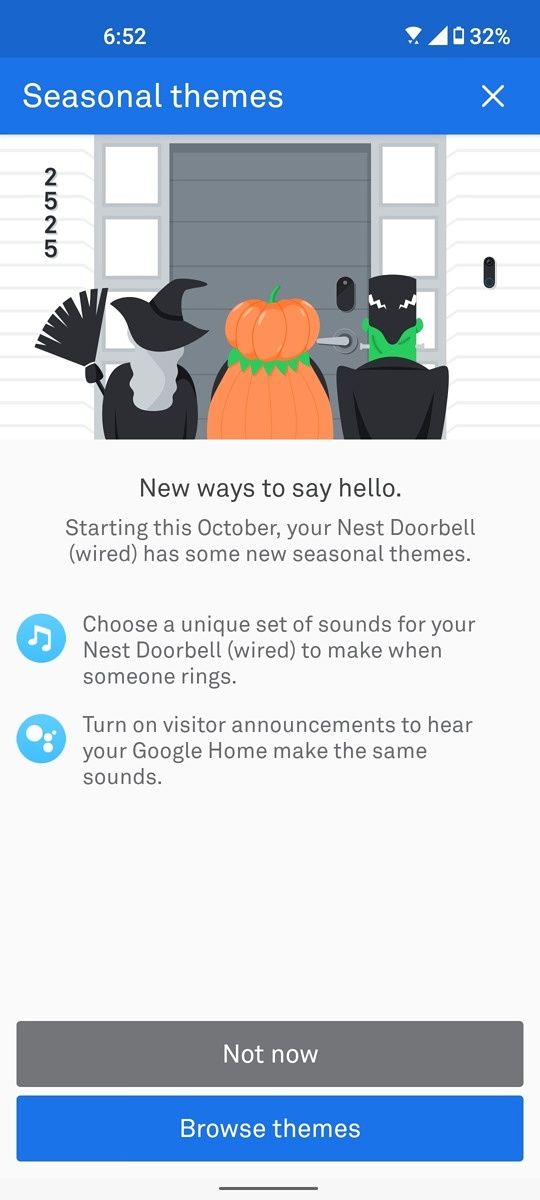
If you have a Nest doorbell from Google, it’s quite simple to change the ringtone of your device. Apart from the classic “ding dong” sound, the Nest doorbell can be customized to play various other ringtones that you can set from within the Nest app. Google also rolls out a few seasonal ringtones from time to time during festive seasons, the latest ones being themed according to the upcoming festive season. Google is giving you the option to change your traditional ringtone to sounds that match the festive holiday vibe. While Google has offered festive ringtones in the past, this year, they’re also offering six “evergreen” ringtones that can be used even after the festive season is over.

If you wish to modify the sound your doorbell plays when someone’s at your house, here’s how to change your Nest Doorbell ringtone.

How to change the ringtone on your Nest Doorbell

Nest doorbell

The procedure to change your Nest Doorbell’s ringtone is quite simple. You can change the sound your doorbell makes by following these steps and if you have other Nest speakers at home, the modified ringtone can also be played via them. Also, note that some ringtones are seasonal and can be used only when Google makes them available.

For example, the Halloween-themed ringtones like an evil laugh, a skeleton dance, a spooky raven, a ghostly boo, a howling werewolf, a cackling witch, etc. were available from 1 October 2021 to 31 October 2021. You could use these tones only during that phase. The news festive sounds include Jingle Bells, Winter Sleighbells, Ma’oz Tzur, Hanukkah Dreidel, and Auld Lang Syne. The update with the new tunes is already being made available to users and the sounds can be used till 4 January 2022.

This time around, Google is also making a few tones available throughout the year if you have the wireless version of the Nest Doorbell so those can be applied whenever you want. You can continue to use these ringtones throughout the year on your Nest Doorbell wireless instead of it defaulting back to the stock sound.

Here’s how you can change your Nest Doorbell ringtone to one of the new evergreen options –

  • Update your Google Home or Nest app to the latest version to receive all the new tones Google is rolling out.
  • Launch the Nest or the Google Home app on your smartphone to access the doorbell settings.
  • Select the doorbell you want to change the ringtone of.

Nest doorbell settings

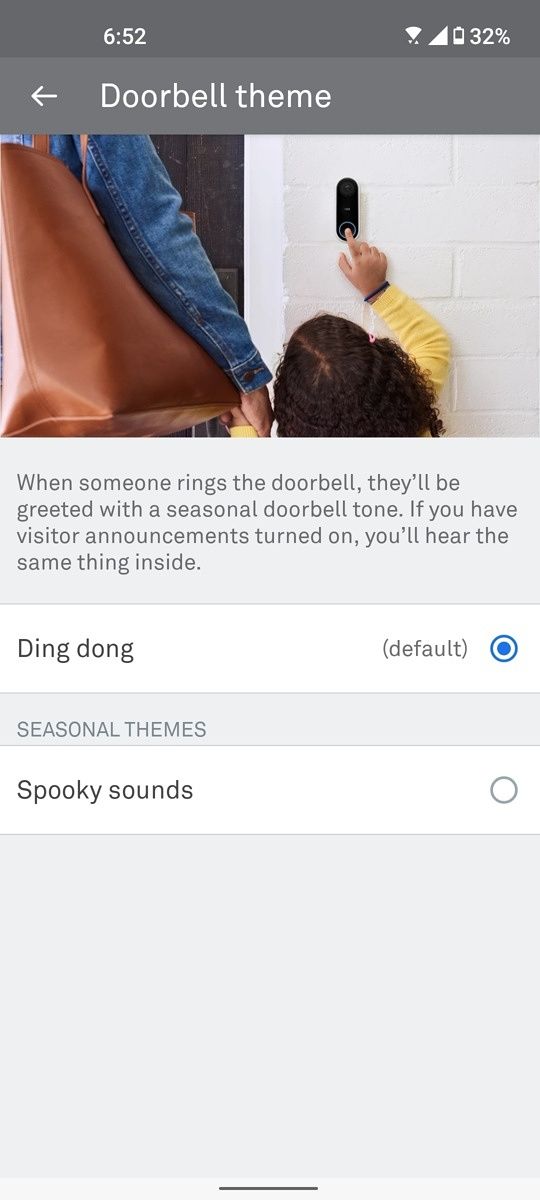
  • Head over to Device Options and then select Doorbell Theme. Here, you will find the option to choose a ringtone of your choice.
Nest doorbell spooky sounds spooky sounds option
  • Select the ringtone and you’re done.

Nest doorbell

If you’re using a time-limited ringtone, the sound will default back to your older tone once the duration elapses. Watch out for Google’s specially themed ringtones that keep rolling out throughout the year. Changing to those ringtones will give your house a unique feel whenever you have a visitor.

The post How to change your Nest Doorbell ringtone to jolly festive sounds or one of the new year-round tones appeared first on xda-developers.


from xda-developers https://ift.tt/3Gz9zzA
via IFTTT

You can now finally play Pokémon Go on your iPhone at a higher frame rate

You can now finally enjoy Pokémon Go at buttery smooth 60fps/120fps on your iPhone. The game has just received a new update on iOS which adds a new option to unlock a higher frame rate on supported iPhones.

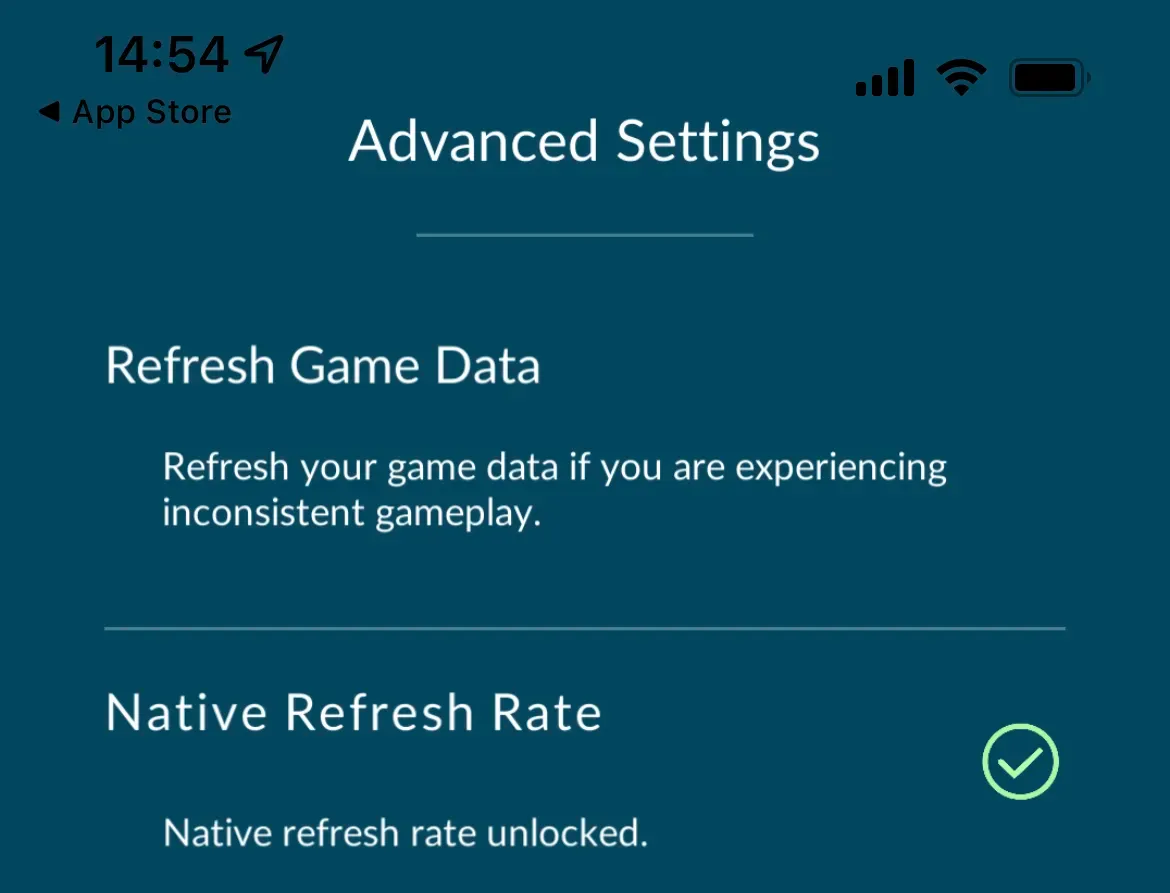
After installing the latest update (via The Verge), you can find the new “Native Refresh Rate” within the Advanced Settings. Checking this setting will make the game run much smoother on your iPhone. That means if you own an iPhone 13 Pro or iPhone 13 Pro Max — both of which have high refresh rate 120Hz ProMotion displays — you can now finally enjoy super smooth visuals in Pokémon Go.

Native Refresh Rate optionin Pokémon Go iOS app

Image credit: The Verge

The Verge notes that newer iPhones aren’t the only ones to receive “Native Refresh Rate” support. Older models such as the iPhone 8 Plus can now also run Pokémon Go at a higher refresh rate though performance may not be as smooth and consistent on those devices due to aging hardware. Also, note that running the game at a higher frame rate will likely drain your iPhone’s battery much faster.

While Android phones have long been able to enjoy Pokémon Go at a higher refresh rate, the iOS version was capped to 30fps. But at long last, Niantic is finally bringing the iOS version on an equal footing to the Android version.

The higher refresh rate support for Pokémon Go is rolling out with version 1.191.0 of the game. To try it out, head over to the App Store and update the app to the latest version. The feature is turned off by default. To enable it, open the app and tap on the Poke ball. From there go to Settings > Advanced Settings and look for an option called “Native Refresh Rate” and enable it.

Have you tried out the new higher frame rate feature in Pokémon Go? If so, has it actually improved your gaming experience? Let us know in the comments below.

The post You can now finally play Pokémon Go on your iPhone at a higher frame rate appeared first on xda-developers.


from xda-developers https://ift.tt/3EnBb94
via IFTTT

Samsung Galaxy Note 20 series gets third One UI 4 beta with several bug fixes

Samsung is hard at work releasing One UI 4 beta builds based on Android 12 to a bunch of its devices. Over the last few weeks, the company has released two One UI 4 beta builds to the Galaxy Note 20 series. The first beta update included all the new features introduced in Android 12, while the second beta bumped the Android security patch level to December 2021. Samsung has now started rolling out the third beta build for the Galaxy Note 20 and Galaxy Note 20 Ultra bringing several bug fixes to the devices.

One UI 4 Beta Overview: Hands-on with every feature in Samsung’s Android 12 update!

According to renowned Samsung tipster @FrontTron, the third beta update (software version ZUL1) has started rolling out to the Galaxy Note 20 and Galaxy Note 20 Ultra. The update includes the following bug fixes:

  • Bugs that have been fixed
    • Fixed the issue of Fingerprint authentication in some apps
    • Fixed the issues that are no effective when choosing the items of Quick panel
    • Fixed data display errors about a volume monitor
    • Fixed the dimming issue about the brightness of the screen after rebooting
    • Fixed the issue of rests when the lockscreen is not resolved quickly
    • Fixed crashes on Galaxy Watch 4
    • Fixed the issue that battery runs out quickly
    • Improved disconnected operations about USB connection with Windows PC
    • Fixed minor issues

At the moment, we don’t have access to download links for the latest One UI 4 beta update for the Galaxy Note 20 series. In case you have a Galaxy Note 20 and want to give the latest One UI 4 beta a shot, you can register for the beta program in the Samsung Members app. Just tap on the One UI beta banner at the top of the app and tap on the enroll button on the following screen. Wait a few minutes for the app to process your enrollment and then head over to the software update section in the device settings. If the beta build is available for your device, it should show up when you tap on check for updates. Alternatively, you can check out our One UI 4 update tracker to grab the OTA package once it becomes available.

The post Samsung Galaxy Note 20 series gets third One UI 4 beta with several bug fixes appeared first on xda-developers.


from xda-developers https://ift.tt/3Ekj1oT
via IFTTT

You can now finally play Pokémon Go on your iPhone at a higher frame rate

You can now finally enjoy Pokémon Go at buttery smooth 60fps/120fps on your iPhone. The game has just received a new update on iOS which adds a new option to unlock a higher frame rate on supported iPhones.

After installing the latest update (via The Verge), you can find the new “Native Refresh Rate” within the Advanced Settings. Checking this setting will make the game run much smoother on your iPhone. That means if you own an iPhone 13 Pro or iPhone 13 Pro Max — both of which have high refresh rate 120Hz ProMotion displays — you can now finally enjoy super smooth visuals in Pokémon Go.

Native Refresh Rate optionin Pokémon Go iOS app

Image credit: The Verge

The Verge notes that newer iPhones aren’t the only ones to receive “Native Refresh Rate” support. Older models such as the iPhone 8 Plus can now also run Pokémon Go at a higher refresh rate though performance may not be as smooth and consistent on those devices due to aging hardware. Also, note that running the game at a higher frame rate will likely drain your iPhone’s battery much faster.

While Android phones have long been able to enjoy Pokémon Go at a higher refresh rate, the iOS version was capped to 30fps. But at long last, Niantic is finally bringing the iOS version on an equal footing to the Android version.

The higher refresh rate support for Pokémon Go is rolling out with version 1.191.0 of the game. To try it out, head over to the App Store and update the app to the latest version. The feature is turned off by default. To enable it, open the app and tap on the Poke ball. From there go to Settings > Advanced Settings and look for an option called “Native Refresh Rate” and enable it.

Have you tried out the new higher frame rate feature in Pokémon Go? If so, has it actually improved your gaming experience? Let us know in the comments below.

The post You can now finally play Pokémon Go on your iPhone at a higher frame rate appeared first on xda-developers.


from xda-developers https://ift.tt/3EnBb94
via IFTTT

Samsung Galaxy Note 20 series gets third One UI 4 beta with several bug fixes

Samsung is hard at work releasing One UI 4 beta builds based on Android 12 to a bunch of its devices. Over the last few weeks, the company has released two One UI 4 beta builds to the Galaxy Note 20 series. The first beta update included all the new features introduced in Android 12, while the second beta bumped the Android security patch level to December 2021. Samsung has now started rolling out the third beta build for the Galaxy Note 20 and Galaxy Note 20 Ultra bringing several bug fixes to the devices.

One UI 4 Beta Overview: Hands-on with every feature in Samsung’s Android 12 update!

According to renowned Samsung tipster @FrontTron, the third beta update (software version ZUL1) has started rolling out to the Galaxy Note 20 and Galaxy Note 20 Ultra. The update includes the following bug fixes:

  • Bugs that have been fixed
    • Fixed the issue of Fingerprint authentication in some apps
    • Fixed the issues that are no effective when choosing the items of Quick panel
    • Fixed data display errors about a volume monitor
    • Fixed the dimming issue about the brightness of the screen after rebooting
    • Fixed the issue of rests when the lockscreen is not resolved quickly
    • Fixed crashes on Galaxy Watch 4
    • Fixed the issue that battery runs out quickly
    • Improved disconnected operations about USB connection with Windows PC
    • Fixed minor issues

At the moment, we don’t have access to download links for the latest One UI 4 beta update for the Galaxy Note 20 series. In case you have a Galaxy Note 20 and want to give the latest One UI 4 beta a shot, you can register for the beta program in the Samsung Members app. Just tap on the One UI beta banner at the top of the app and tap on the enroll button on the following screen. Wait a few minutes for the app to process your enrollment and then head over to the software update section in the device settings. If the beta build is available for your device, it should show up when you tap on check for updates. Alternatively, you can check out our One UI 4 update tracker to grab the OTA package once it becomes available.

The post Samsung Galaxy Note 20 series gets third One UI 4 beta with several bug fixes appeared first on xda-developers.


from xda-developers https://ift.tt/3Ekj1oT
via IFTTT

Android TV’s discovery-focused UI is now rolling out to more TVs in more regions

Google released a major UI update for the Android TV interface in February this year. The new interface resembled the Google TV UI and laid emphasis on helping users discover new content on the platform. However, it featured fewer tabs on the home screen. Google rolled out another update for this new discovery-focused UI in July this year, which introduced three new features including a watchlist. The UI is now rolling out to more TVs in more regions, and it comes with a minor home screen UI change.

The Android TV UI update recently started showing up for some users in India, Brazil, and Europe. The UI is reportedly rolling out to OnePlus TVs (via @hardik3333333), a few Xiaomi Mi Box models (via u/ErickJail), and even some TCL TVs. It includes all the content discovery-focused changes that Google introduced in February this year, along with a minor home screen UI update that adds a ‘Favorite apps’ carousel.

Android TV new home screen UI

(Screenshot: u/venky61)

In addition to the home screen UI changes, the latest update also highlights all of Android TV’s discovery features on the home screen. Clicking on the ‘New features available now’ dialog gives you an overview of the UI and navigation changes, personalized recommendations, and home screen customizations.

User reports on Reddit suggest that the new UI changes are rolling out with the latest Android TV Home app update. There doesn’t seem to be any regional limitation to the rollout, as users from India, Brazil, Europe, and a few other locations have received the update. In case you haven’t received the new UI so far, you can try sideloading the latest Android TV Home app release on your TV.

Do you like the new Android TV UI changes or would you rather have Google release the Google TV update to your TV? Let us know in the comments section below.

The post Android TV’s discovery-focused UI is now rolling out to more TVs in more regions appeared first on xda-developers.


from xda-developers https://ift.tt/3xOKOvb
via IFTTT