LightBlog

dimanche 7 novembre 2021

Download: MIUI 12 Super Wallpaper port receives new Earth and Mars scenes

The MIUI 12 Super wallpaper port from XDA Recognized Contributor linuxct has received a major update. The latest release brings several great additions to the collection, along with a couple of customization changes. Here’s everything new in the latest Super wallpaper port collection.

MIUI 12 Super Wallpaper port update

The new update for the MIUI 12 Super Wallpaper port brings new scenes for both the Earth and Mars Super wallpapers. These include Greece’s Navagio Beach and Italy’s Dolomites in the Super Earth collection and Pahrump Hills and Bahram Vallis in the Super Mars collection.

Along with the new scenes, the MIUI 12 Super Wallpaper port now lets you select different scenes using a built-in, custom-made configuration tool. Thanks to this change, you can now access all the planet wallpapers from a single APK.

But due to the new single APK implementation, the options for “bright” and “dark” wallpapers are no longer available. Instead, the new release brings Dynamic brightness support, which automatically adjusts the brightness of the wallpaper based on the time of the day by default. You will need to set up light mode or dark mode on a schedule for this feature to work, though.

If you’re someone who uses dark mode all the time but wants the MIUI 12 Super wallpapers to change brightness throughout the day, you can set up dark mode on schedule with a one-minute time difference. As linuxct explains, setting up dark mode to start at 4 AM and end at 3.59 AM will ensure you have both perpetual dark mode and Dynamic brightness enabled simultaneously.

You can download the new MIUI 12 Super Wallpaper port collections by following the links below. Note that you will have to uninstall the older APKs for the new ones to work as intended.

MIUI 12 Super Earth Wallpaper APK || MIUI 12 Super Mars Wallpaper APK

The post Download: MIUI 12 Super Wallpaper port receives new Earth and Mars scenes appeared first on xda-developers.


from xda-developers https://ift.tt/3BTPmRw
via IFTTT

Google explains why the Pixel 6 fingerprint scanner may feel slower at times

Almost all flagships and upper-midrange phones nowadays come equipped with an in-display fingerprint reader. Google was the only major OEM that kept using the good old rear-mounted capacitive fingerprint scanner on its smartphones. But that finally changed with the Pixel 6 series, which comes with an in-display fingerprint scanner. However, over the past weeks, we have seen numerous user complaints that the fingerprint scanner on the Pixel 6/6 Pro is a bit slower and unreliable at times. Google has now shed some light on why the sensor may feel sluggish sometimes.

Google Pixel 6 Pro Review: Fantastic everyday phone with an undeniable Exynos inspiration

Responding to a tweet from a Pixel 6 user complaining about unreliable fingerprint scanner performance, Google revealed that the Pixel 6’s fingerprint scanner uses advanced security algorithms, which sometimes can cause a delay or require more direct contact with the sensor.

Google didn’t confirm whether it would roll out a software fix to address the sub-par performance of the fingerprint scanner. However, as we reported last week, there’s an easy way to speed up the sluggish under-display scanner on your Pixel 6 and Pixel 6 Pro. All you need to do is head over to Settings > Display and toggle a setting called “Increase touch sensitivity.” Many users have reported that enabling this setting definitely improved the fingerprint scanner. As Google explains on its Pixel 6 support page, the scanner may not work as expected in bright outdoor sunlight, when using unofficial screen protectors, or if the display has smudges.

    Google Pixel 6
    The Pixel 6 comes with an under-display fingerprint scanner, Google's new Tensor chip, a fresh design, and flagship cameras.

Earlier this month, Google released a fingerprint sensor calibration tool for the Pixel 6 series. The tool allows Pixel 6 owners to recalibrate the fingerprint scanner after a screen replacement.

The post Google explains why the Pixel 6 fingerprint scanner may feel slower at times appeared first on xda-developers.


from xda-developers https://ift.tt/3mTBzpR
via IFTTT

Google explains why the Pixel 6 fingerprint scanner may feel slower at times

Almost all flagships and upper-midrange phones nowadays come equipped with an in-display fingerprint reader. Google was the only major OEM that kept using the good old rear-mounted capacitive fingerprint scanner on its smartphones. But that finally changed with the Pixel 6 series, which comes with an in-display fingerprint scanner. However, over the past weeks, we have seen numerous user complaints that the fingerprint scanner on the Pixel 6/6 Pro is a bit slower and unreliable at times. Google has now shed some light on why the sensor may feel sluggish sometimes.

Google Pixel 6 Pro Review: Fantastic everyday phone with an undeniable Exynos inspiration

Responding to a tweet from a Pixel 6 user complaining about unreliable fingerprint scanner performance, Google revealed that the Pixel 6’s fingerprint scanner uses advanced security algorithms, which sometimes can cause a delay or require more direct contact with the sensor.

Google didn’t confirm whether it would roll out a software fix to address the sub-par performance of the fingerprint scanner. However, as we reported last week, there’s an easy way to speed up the sluggish under-display scanner on your Pixel 6 and Pixel 6 Pro. All you need to do is head over to Settings > Display and toggle a setting called “Increase touch sensitivity.” Many users have reported that enabling this setting definitely improved the fingerprint scanner. As Google explains on its Pixel 6 support page, the scanner may not work as expected in bright outdoor sunlight, when using unofficial screen protectors, or if the display has smudges.

    Google Pixel 6
    The Pixel 6 comes with an under-display fingerprint scanner, Google's new Tensor chip, a fresh design, and flagship cameras.

Earlier this month, Google released a fingerprint sensor calibration tool for the Pixel 6 series. The tool allows Pixel 6 owners to recalibrate the fingerprint scanner after a screen replacement.

The post Google explains why the Pixel 6 fingerprint scanner may feel slower at times appeared first on xda-developers.


from xda-developers https://ift.tt/3mTBzpR
via IFTTT

HUAWEI MateBook 13s vs. MateBook 14s

HUAWEI has several different options available in their MateBook series of laptops. For people looking for a portable and powerful solution, there are two great solutions. The MateBook 14s and 13s are both available at the starting price of ¥6999. The names reveal the primary difference between these two models, with the screen sizes being 13.4 inches, and 14.2 inches.

If you are deciding which model you should get, your choice will come down to a couple of different things. This will depend on your preference for color, display size, and storage capacity. The specs for the displays on both the 14s and 13s are identical, with the only difference being the screen size.

HUAWEI MateBook 13s/14s display specs:

  • Size [MateBook 14s]– 14.2 inches
  • Size [MateBook 13s]– 13.4 inches
  • Type- LTPS
  • Screen-to-body Ratio- 90%
  • Aspect Ratio- 3 : 2
  • Resolution- 2520 x 1680, 213 PPI
  • Refresh rate- 90 Hz / 60 Hz
  • Maximum brightness- 400 nits
  • Colour gamut- 100% sRGB
  • Colour depth- 1.07 billion colors
  • Contrast Ratio- 1500 : 1
  • Viewing Angle- 178°
  • Touchscreen-10- point multi-touch sensitive screen
  • As far as

When it comes to CPU, RAM, and GPU options, the two models have the same options. Powered by Intel chipsets and integrated Iris Xe Graphics, the MateBook series is powerful and efficient.

Get the 11th generation intel processors with your MateBook 13s/14s. The Integrated Graphics: Intel Iris Xe Graphics enable better gaming performance. You can choose between 8GB or 16GBs of RAM and 512GB or 1TB of storage.

CPU configuration options:

  • Intel® Core™ i7-11370H Processor
  • Intel® Core™ i5-11300H Processor

Graphics:

  • Integrated Graphics: Intel® Iris® Xe Graphics

RAM options:

  • 16 GB LPDDR4x Dual Channel
  • 8 GB LPDDR4x Dual Channel

Battery:

  • Material- Lithium polymer
  • Capacity- 60 Wh (rated capacity)

With similar specs across the board, your choice between these two laptops might come down to color preference. Both models offer a Spruce Green option, while the 13s includes a model in Mystic Silver, and the 14s has Space Gray.

HUAWEI 13s in Spruce Green or Mystic Silver

HUAWEI 14s in Spruce Green or Space Gray

The final area where you’ll find a bit of variation between these two MateBooks is the configuration options. If you need 1TB of storage, you’ll want to opt for the MateBook 14s, as the 13s maxes out at 512GB. Prices start at ¥ 6999 for both available models.

HUAWEI MateBook 14s configuration options:

  • i5 / 16 GB / 512 GB
    ¥ 6999 
  • i7 / 16 GB / 512 GB
    ¥ 7999 
  • i7 / 16 GB / 1 TB
    ¥ 8999 

HUAWEI MateBook 13s configuration options:

  • i5 / 16 GB / 512 GB
    ¥ 6999 
  • i7 / 16 GB / 512 GB
    ¥ 7999 

This should help you choose between these two laptop options. You can find more information on their listings from the HUAWEI website.

Get the HUAWEI MateBook 13s

Get the HUAWEI MateBook 14s

We thank HUAWEI for sponsoring this post. Our sponsors help us pay for the many costs associated with running XDA, including server costs, full time developers, news writers, and much more. While you might see sponsored content (which will always be labeled as such) alongside Portal content, the Portal team is in no way responsible for these posts. Sponsored content, advertising and XDA Depot are managed by a separate team entirely. XDA will never compromise its journalistic integrity by accepting money to write favorably about a company, or alter our opinions or views in any way. Our opinion cannot be bought.

The post HUAWEI MateBook 13s vs. MateBook 14s appeared first on xda-developers.


from xda-developers https://ift.tt/3oo4BgT
via IFTTT

HUAWEI MateBook 13s vs. MateBook 14s

HUAWEI has several different options available in their MateBook series of laptops. For people looking for a portable and powerful solution, there are two great solutions. The MateBook 14s and 13s are both available at the starting price of ¥6999. The names reveal the primary difference between these two models, with the screen sizes being 13.4 inches, and 14.2 inches.

If you are deciding which model you should get, your choice will come down to a couple of different things. This will depend on your preference for color, display size, and storage capacity. The specs for the displays on both the 14s and 13s are identical, with the only difference being the screen size.

HUAWEI MateBook 13s/14s display specs:

  • Size [MateBook 14s]– 14.2 inches
  • Size [MateBook 13s]– 13.4 inches
  • Type- LTPS
  • Screen-to-body Ratio- 90%
  • Aspect Ratio- 3 : 2
  • Resolution- 2520 x 1680, 213 PPI
  • Refresh rate- 90 Hz / 60 Hz
  • Maximum brightness- 400 nits
  • Colour gamut- 100% sRGB
  • Colour depth- 1.07 billion colors
  • Contrast Ratio- 1500 : 1
  • Viewing Angle- 178°
  • Touchscreen-10- point multi-touch sensitive screen
  • As far as

When it comes to CPU, RAM, and GPU options, the two models have the same options. Powered by Intel chipsets and integrated Iris Xe Graphics, the MateBook series is powerful and efficient.

Get the 11th generation intel processors with your MateBook 13s/14s. The Integrated Graphics: Intel Iris Xe Graphics enable better gaming performance. You can choose between 8GB or 16GBs of RAM and 512GB or 1TB of storage.

CPU configuration options:

  • Intel® Core™ i7-11370H Processor
  • Intel® Core™ i5-11300H Processor

Graphics:

  • Integrated Graphics: Intel® Iris® Xe Graphics

RAM options:

  • 16 GB LPDDR4x Dual Channel
  • 8 GB LPDDR4x Dual Channel

Battery:

  • Material- Lithium polymer
  • Capacity- 60 Wh (rated capacity)

With similar specs across the board, your choice between these two laptops might come down to color preference. Both models offer a Spruce Green option, while the 13s includes a model in Mystic Silver, and the 14s has Space Gray.

HUAWEI 13s in Spruce Green or Mystic Silver

HUAWEI 14s in Spruce Green or Space Gray

The final area where you’ll find a bit of variation between these two MateBooks is the configuration options. If you need 1TB of storage, you’ll want to opt for the MateBook 14s, as the 13s maxes out at 512GB. Prices start at ¥ 6999 for both available models.

HUAWEI MateBook 14s configuration options:

  • i5 / 16 GB / 512 GB
    ¥ 6999 
  • i7 / 16 GB / 512 GB
    ¥ 7999 
  • i7 / 16 GB / 1 TB
    ¥ 8999 

HUAWEI MateBook 13s configuration options:

  • i5 / 16 GB / 512 GB
    ¥ 6999 
  • i7 / 16 GB / 512 GB
    ¥ 7999 

This should help you choose between these two laptop options. You can find more information on their listings from the HUAWEI website.

Get the HUAWEI MateBook 13s

Get the HUAWEI MateBook 14s

We thank HUAWEI for sponsoring this post. Our sponsors help us pay for the many costs associated with running XDA, including server costs, full time developers, news writers, and much more. While you might see sponsored content (which will always be labeled as such) alongside Portal content, the Portal team is in no way responsible for these posts. Sponsored content, advertising and XDA Depot are managed by a separate team entirely. XDA will never compromise its journalistic integrity by accepting money to write favorably about a company, or alter our opinions or views in any way. Our opinion cannot be bought.

The post HUAWEI MateBook 13s vs. MateBook 14s appeared first on xda-developers.


from xda-developers https://ift.tt/3oo4BgT
via IFTTT

XDA Basics: How to import photos from iPhone to Mac

Whether you want to transfer your iPhone photos to Mac for editing or just safe-keeping, there are many quick and easy ways to achieve this. This article will explain some of the best ways to import photos from iPhone to Mac, including the Apple Silicon-powered MacBook Pro (2021), in just a few steps.

Navigate this guide:

Import photos using a USB cable

You can use a USB to lightning cable and the Photos app to transfer photos from iPhone to Mac.

  1. Connect your iPhone to your Mac using the USB cable.
  2. Open the Photos app on your Mac and click on your iPhone in the left bar.Photos app on MacBook Air
  3. The app will show an import screen with all the photos present on your iPhone. You may need to unlock your iPhone.Import photos from iPhone to Mac
  4. You can select specific photos or import all iPhone photos that haven’t been imported to your Mac. In addition, you can choose the album to which you want to import the images.
  5. Once you have decided, select the album and click on the relevant Import button.
  6. The process will take some time, depending on the number of photos you are importing.
  7. Once done, disconnect your iPhone.

Your iPhone photos are now imported to your Mac. You can find them in the Photos app.

How to import photos from iPhone to Mac using iCloud

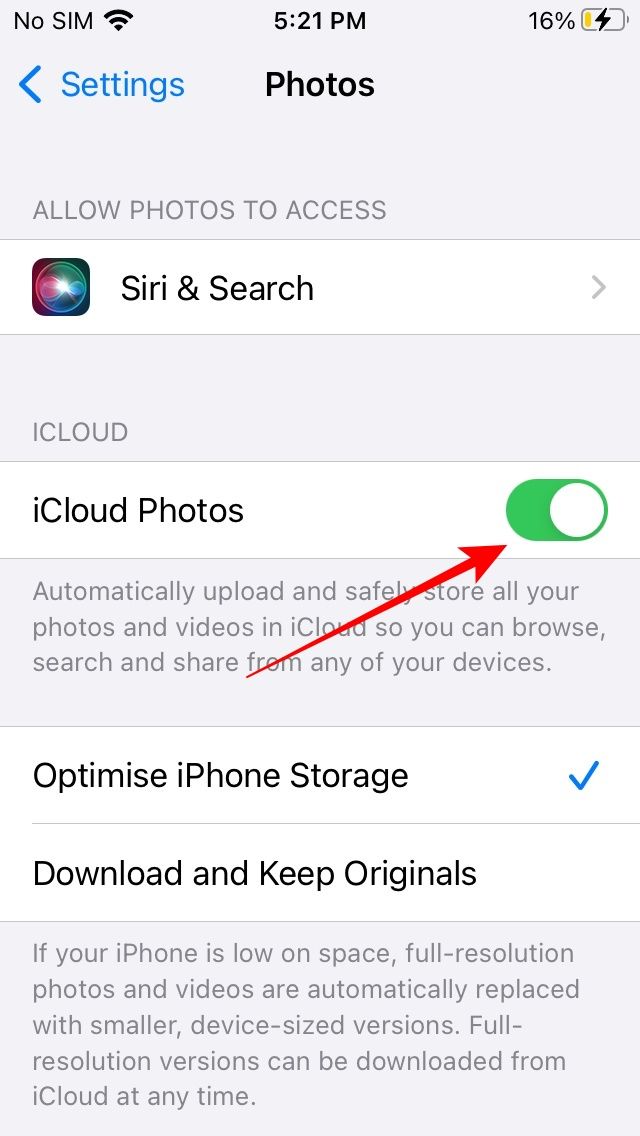
If you have iCloud Photos enabled on your iPhone, you can easily view or download your iPhone photos on Mac or any other device with a browser.

iPhone settings iCloud Photos option
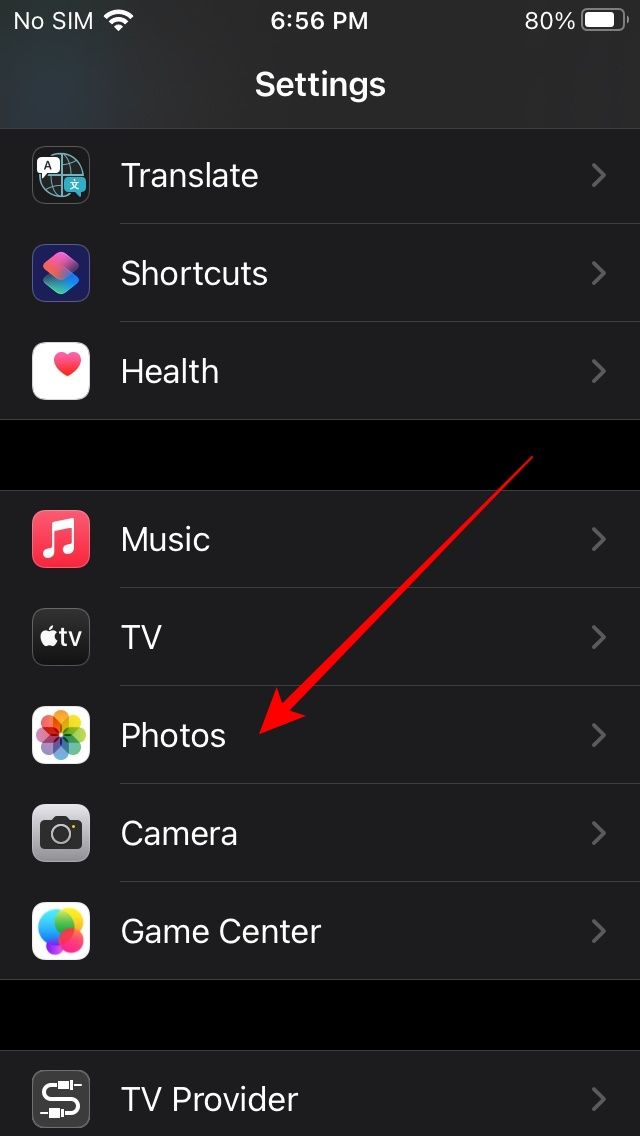
  1. If you haven’t enabled iCloud Photos, go to Settings > Photos on your iPhone and enable the iCloud Photos toggle. Depending on the data connection speed of your iPhone, the photos may take some time to upload to iCloud.
  2. Now, open iCloud.com on a web browser on your Mac.iCloud on Web
  3. Click Photos, and you will see all your iPhone photos.iCloud Photos on Web
  4. You can select a few or all the iPhone photos.
  5. Then click on the Download icon on the top-right.
  6. If you have selected multiple photos, iCloud will create a compressed file and download it on your Mac. In the case of a single photo, iCloud will download the regular image file.

Your photos will now be available in the Downloads folder. If you use Google Photos or cloud storage services like OneDrive or Dropbox, you can also use that to transfer photos from iPhone to Mac similarly.

Import photos from iPhone to Mac using AirDrop

AirDrop is another great way to transfer photos from your iPhone to Mac seamlessly. However, it is best for moving a limited number of pictures as you have to select each photo manually.

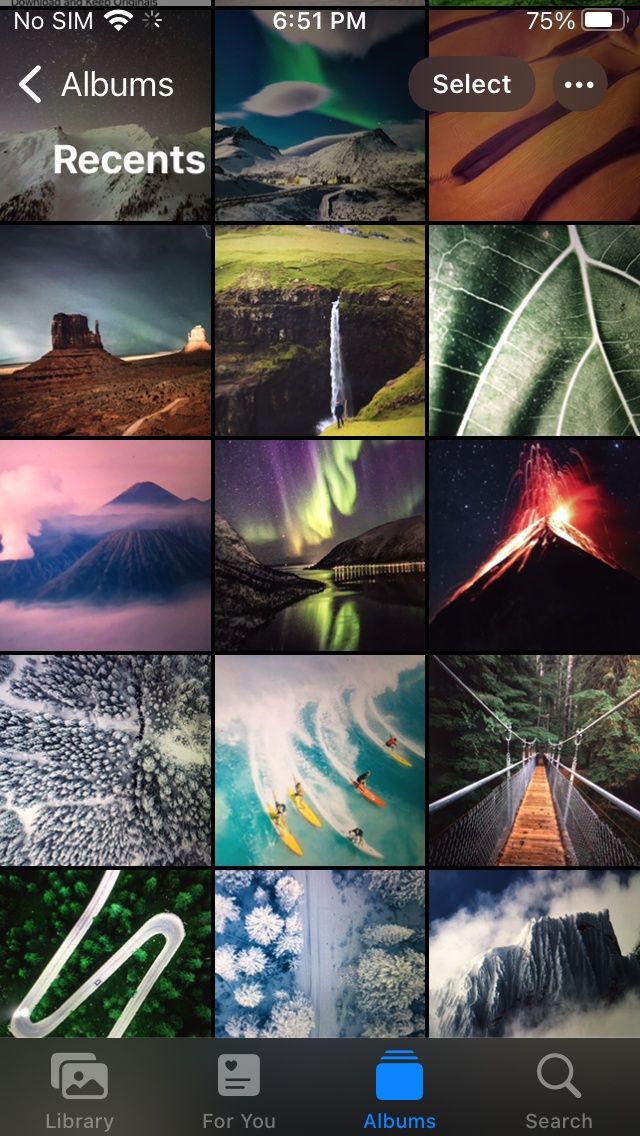
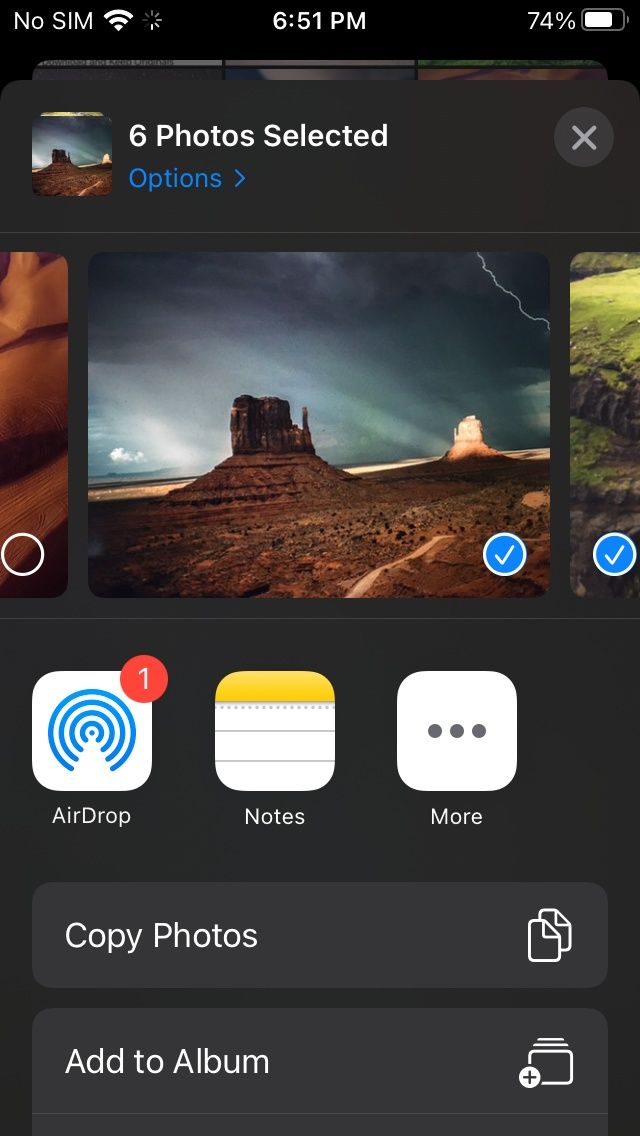
iPhone Photos app iPhone photos selected iPhone share sheet AirDrop device list
  1. Open Photos app on your iPhone.
  2. Select the photo(s) you want to transfer to your Mac.
  3. Then tap on the Share icon on the bottom left.
  4. Tap on the AirDrop icon in the Share menu.
  5. Then, tap on your Mac on the AirDrop screen and wait for the transfer to finish.
  6. Once the photos have transferred, tap Done on the top right.

These are some of the best ways to transfer photos from iPhone to Mac. If you prefer another method of importing your iPhone photos, let us know in the comments section. Meanwhile, if you are in the market for a new Mac, make sure to check our updated guide on the best Macs you can buy. We also suggest grabbing a case if you are getting a MacBook to protect it.

The post XDA Basics: How to import photos from iPhone to Mac appeared first on xda-developers.


from xda-developers https://ift.tt/3GWvFvT
via IFTTT

XDA Basics: How to import photos from iPhone to Mac

Whether you want to transfer your iPhone photos to Mac for editing or just safe-keeping, there are many quick and easy ways to achieve this. This article will explain some of the best ways to import photos from iPhone to Mac, including the Apple Silicon-powered MacBook Pro (2021), in just a few steps.

Navigate this guide:

Import photos using a USB cable

You can use a USB to lightning cable and the Photos app to transfer photos from iPhone to Mac.

  1. Connect your iPhone to your Mac using the USB cable.
  2. Open the Photos app on your Mac and click on your iPhone in the left bar.Photos app on MacBook Air
  3. The app will show an import screen with all the photos present on your iPhone. You may need to unlock your iPhone.Import photos from iPhone to Mac
  4. You can select specific photos or import all iPhone photos that haven’t been imported to your Mac. In addition, you can choose the album to which you want to import the images.
  5. Once you have decided, select the album and click on the relevant Import button.
  6. The process will take some time, depending on the number of photos you are importing.
  7. Once done, disconnect your iPhone.

Your iPhone photos are now imported to your Mac. You can find them in the Photos app.

How to import photos from iPhone to Mac using iCloud

If you have iCloud Photos enabled on your iPhone, you can easily view or download your iPhone photos on Mac or any other device with a browser.

iPhone settings iCloud Photos option
  1. If you haven’t enabled iCloud Photos, go to Settings > Photos on your iPhone and enable the iCloud Photos toggle. Depending on the data connection speed of your iPhone, the photos may take some time to upload to iCloud.
  2. Now, open iCloud.com on a web browser on your Mac.iCloud on Web
  3. Click Photos, and you will see all your iPhone photos.iCloud Photos on Web
  4. You can select a few or all the iPhone photos.
  5. Then click on the Download icon on the top-right.
  6. If you have selected multiple photos, iCloud will create a compressed file and download it on your Mac. In the case of a single photo, iCloud will download the regular image file.

Your photos will now be available in the Downloads folder. If you use Google Photos or cloud storage services like OneDrive or Dropbox, you can also use that to transfer photos from iPhone to Mac similarly.

Import photos from iPhone to Mac using AirDrop

AirDrop is another great way to transfer photos from your iPhone to Mac seamlessly. However, it is best for moving a limited number of pictures as you have to select each photo manually.

iPhone Photos app iPhone photos selected iPhone share sheet AirDrop device list
  1. Open Photos app on your iPhone.
  2. Select the photo(s) you want to transfer to your Mac.
  3. Then tap on the Share icon on the bottom left.
  4. Tap on the AirDrop icon in the Share menu.
  5. Then, tap on your Mac on the AirDrop screen and wait for the transfer to finish.
  6. Once the photos have transferred, tap Done on the top right.

These are some of the best ways to transfer photos from iPhone to Mac. If you prefer another method of importing your iPhone photos, let us know in the comments section. Meanwhile, if you are in the market for a new Mac, make sure to check our updated guide on the best Macs you can buy. We also suggest grabbing a case if you are getting a MacBook to protect it.

The post XDA Basics: How to import photos from iPhone to Mac appeared first on xda-developers.


from xda-developers https://ift.tt/3GWvFvT
via IFTTT