LightBlog

samedi 6 novembre 2021

HP Chromebook x2 11 review: A tough value proposition

When HP unveiled the Chromebook x2 11, there was a considerable amount of excitement in the Chrome OS community. It’s been quite awhile since we’ve seen a Chrome tablet with a high-resolution display, premium build, and a usable aspect ratio. Of course, there were still plenty of questions about the internals. The HP Chromebook x2 11 runs the Snapdragon 7c chip inside, which was less than impressive in my review of the Acer Chromebook Spin 513. Still, I had some hope that perhaps HP could pull off some software optimization to improve the overall performance on this beautiful tablet. So, is the best Chrome OS tablet you can buy? The answer is a bit complicated and depends on when and where you buy it.

One of the trickiest propositions in evaluating the HP Chromebook x2 11 is the price. While the MSRP from HP sits at $599 for the 8GB/64GB variant, Best Buy has frequently lowered that model to $399 on their website. There are also some other strange choices to include or not include the USI pen in certain models. Both of these things change the value on offer throughout the lineup. Throughout this review I will offer some insight on where each aspect of the device fits on that value spectrum. Regardless, this is definitely the best HP Chrome tablet you can find. This is our HP Chromebook x2 11 review.

Navigate this review:

HP Chromebook x2 11: Specifications

Specification HP Chromebook x2 11
Dimensions & Weight
  • 9.94″ x 6.96″ x 0.3″
  • 2.57-3.5 lbs
Display
  • 11″ 2160 x 1440 (Full HD+)
  • IPS LED
  • Touchscreen
Processor
  • Qualcomm Snapdragon 7c Compute Platform
  • 8 core
  • Qualcomm Adreno 618 GPU
RAM & Storage
  • 8GB RAM
  • 64GB eMMc storage
Battery & Charging
  • 2-cell
  • Lithium-Ion
Security
  • H1 Secure Microcontroller
  • Fingerprint scanner
Front camera
  • 5MP camera
World-facing camera
  • HP Wide Vision 8MP camera
Port(s)
  • 2 SuperSpeed USB Type-C 5Gbps
  • 3.5mm headphone jack
  • microSD card reader
Audio
  • Audio by Bang & Olufsen with dual speakers
  • Built-in microphone
Connectivity
  • Atheros 802.11a/b/g/n/ac (2×2) Wi-Fi
  • Bluetooth 5.0
Software Chrome OS
Other Features
  • Detachable keyboard
  • USI pen support
  • Starts at $599

About this review: I received the 8GB/64GB model from HP for review. I’ve used this as my primary Chromebook for a little over two weeks. Throughout that trial period I used it as my primary work device for writing articles, drafting lecture notes, and light video editing for my YouTube channel. 

Build and design

The build and overall design of the HP Chromebook x2 11 is definitely one of its most appealing aspects. If you asked me six months ago, I would’ve told you the original Chromebook Duet is the best Chrome tablet you can buy. The build on that particular device was anything but premium. Now, if you’re looking for a Chrome tablet, HP has a beautifully crafted option with solid aluminum frame that looks and feels durable. Given, this isn’t a revolutionary design by any means, but in a space starved for attractive tablets, it’s heads and shoulders above the competition.HP X2 11 back

Bezels on the tablet are slim enough to make the front of the display pleasing to the eye. The back is a matte silver, which makes the tablet easier to grip when you’re using it as a media consumption or gaming device. The stand cover is also a nice blue/teal color, which is actually something you can choose when purchasing the tablet. In addition, the magnets on that stand are incredibly strong. If you need a study stand for watching movies or even propping the tablet up while writing down a few notes, this will do the job with no issue.HP X2 11 camera

In terms of durability, the tablet feels sturdy and doesn’t have a ton of flex. I didn’t drop the device while reviewing it, but I would imagine it could survive a short drop onto a variety of surfaces. The placement of the power button isn’t exactly my favorite as it’s a bit high up when using in portrait mode. I would imagine most people might use it more in landscape, but I use my tablet quite a bit for notes, so this was something of a concern during my use. This tablet also lacks a headphone jack, which isn’t a big deal for everyone, but definitely worth mentioning. Other than that, I didn’t have any huge complaints when it comes to the build quality or overall layout on this tablet. HP did a solid job providing a more premium built option in the Chrome OS tablet category.

Keyboard and touchpad

When it comes to a Chrome OS convertible device like this, I don’t expect a whole lot out of the keyboard and touchpad. This is primarily because you’re guaranteed that these components are going to have some mushiness to them, not ideal for productivity. The good news is that the HP Chromebook x2 11 keyboard is generally better than most Chrome OS detachable keyboards, including the popular Lenovo Chromebook Duet.HP X2 11 keyboard

While it’s definitely not the best keyboard ever, the HP Chromebook x2 11 keyboard attachment is less cramped than most detachable keyboards. The key travel is also decent and it’s not completely uncomfortable to hammer out a longer email or short blog post using this device when it’s sitting on a desk. There’s definitely something to be said for the fact you can keep the keyboard attached to the device when closed. This is something you couldn’t do with the original Lenovo Chromebook Duet, which made it quite cumbersome to carry around the tablet and keyboard separately. Indeed, this also protects the front display of your tablet when you’re carrying it around, a definite benefit.HP X2 11 stand

That being said, the relative flimsiness of this keyboard does create considerable issues when using it on your lap. It’s quite frustrating to use for long periods of time this way, especially since merely resting your palm on the keyboard can cause false mouse clicks in this orientation. This really isn’t something that is easy to fix. By their very nature, detachable keyboards need to be relatively slim, which means tons of flex that cause such instability concerns. If you want a Chromebook you can use on your lap and enjoy that experience, this is definitely not the one for you.

Display and pen support

The display on the HP Chromebook x2 11 is, without a doubt, it’s most impressive feature. You get an 11 inch 2160 x 1440 IPS panel, which makes for a very workable 3;2 aspect ratio, if you’re looking to use this for actual work. The brightness is also quite solid at 400 nits, so you can even work outside, or just stream some Netflix in the sun. Viewing angles are generally excellent and all forms of media absolutely jump off this display with vivid colors and deep blacks. If you’re primarily looking for a media consumption tablet, that’s one place where the HP Chromebook x2 11 really shines.HP X2 11 front view

Of course, you’ll need excellent speakers if you’re going to consume tons of media. HP has you covered there as well. The  B&O branded speakers are front-facing and plenty loud and clear to enjoy streaming media and games without the need for headphones.

When I received the HP Chromebook x2 11, I was incredibly excited to test the included USI pen. I already made a short review of Google’s new Cursive PWA for Chromebooks, but the Chromebook x2 11 was supposedly optimize to work with the app. It is worth noting again, that only certain models of the tablet include the USI pen for no additional cost. For models sold directly from HP, you may not get the USI pen, in which case it costs $60 to purchase separately.HP X2 11 tablet mode

I’m happy to report the experience of using Cursive with HP USI pen on this tablet is excellent. In general, I had quite a few less false touches caused by resting my wrist on the display. This is something I experience quite a bit when testing Cursive on my ASUS Chromebook CX9 and Galaxy Chromebook 2. It seems that HP work with Google on some software magic, or I could just be angling my wrist different on this smaller screen. Either way, this tablet makes for a great writing companion and if you take a lot of notes you’ll likely enjoy it for that purpose.

Performance and battery life

That brings us to performance. My experience with the Qualcomm Snapdragon 7c was less than ideal when I reviewed the Acer Chromebook Spin 513. Unfortunately, the same can be said for 7c inside the HP Chromebook x2 11. Not only does it suffer from the same hiccups in general UI navigation and Android apps, it also has significantly more annoying issues due to the nature of a tablet interface. One key example is rotating from portrait to landscape, which is incredibly slow and laggy on this tablet. If you rotate an iPad from portrait to landscape, it’s nearly instantaneous. That’s definitely not the case on the HP Chromebook x2 11 and it can be frustrating at times.HP X2 11 side shot

If you need to accomplish serious work or do any sort of multi-tasking, this is not the best device at this price point. Even at the sale price of $399, you can find better Chromebooks for productivity tasks and with better general performance. Gaming is another application where I would not recommend the HP Chromebook x2 11. With Android games, you won’t be able to run anything on maximum settings and still enjoy gameplay.HP X2 11 cover closed

Battery life is pretty solid overall, especially for the media consumption tasks the Chromebook x2 11 excels at. I was able to squeeze out nearly 8 hours when browsing social media, watching Youtube/Netflix, and typing up some short articles for XDA. You probably won’t be able to stretch that to HP’s suggested 11 hours of battery life, but I think 8 hours is a pretty solid amount for a media tablet. If you use this in direct sunlight or crank it up to max brightness indoors, you can bank on closer to 6 hours on a single charge.

Conclusion: Should you buy it?

It’s tough to say whether the HP Chromebook x2 11 is a great value, since it depends on what price you buy it at. At the sale price of $399 that we’ve seen at Best Buy recently, this is a solid media consumption device with a beautiful display, solid battery life, and nice speakers. On the other hand, for HP’s recommended MSRP of $599, I’d expect quite a bit more out of this device. Considering that you can’t get much work done on it or play interesting games, I wouldn’t pay $599 for this tablet. There are several other great Chromebooks at that price point, while they aren’t all tablets, there are plenty of 2-in-1 offerings.

If you’re looking for my recommendation for a workhorse Chromebook at $599, I would suggest the Acer Chromebook Spin 713. That Chromebook has 2-in-1 capability, a beautiful screen, and enough processing power to accomplish more work than the HP Chromebook x2 11. For those of you that just need a media tablet or note-taking device that isn’t your primary device, grab the HP Chromebook x2 11 on sale and you’ll absolutely love it.

    HP Chromebook x2 11
    The HP Chromebook x2 11 combines the power of Chrome OS with the portability of a traditional tablet. You can work anywhere thanks to the optional 4G LTE capability. This is the new top of the line Chrome OS tablet experience.

The post HP Chromebook x2 11 review: A tough value proposition appeared first on xda-developers.


from xda-developers https://ift.tt/3bPeHBg
via IFTTT

HP Chromebook x2 11 review: A tough value proposition

When HP unveiled the Chromebook x2 11, there was a considerable amount of excitement in the Chrome OS community. It’s been quite awhile since we’ve seen a Chrome tablet with a high-resolution display, premium build, and a usable aspect ratio. Of course, there were still plenty of questions about the internals. The HP Chromebook x2 11 runs the Snapdragon 7c chip inside, which was less than impressive in my review of the Acer Chromebook Spin 513. Still, I had some hope that perhaps HP could pull off some software optimization to improve the overall performance on this beautiful tablet. So, is the best Chrome OS tablet you can buy? The answer is a bit complicated and depends on when and where you buy it.

One of the trickiest propositions in evaluating the HP Chromebook x2 11 is the price. While the MSRP from HP sits at $599 for the 8GB/64GB variant, Best Buy has frequently lowered that model to $399 on their website. There are also some other strange choices to include or not include the USI pen in certain models. Both of these things change the value on offer throughout the lineup. Throughout this review I will offer some insight on where each aspect of the device fits on that value spectrum. Regardless, this is definitely the best HP Chrome tablet you can find. This is our HP Chromebook x2 11 review.

Navigate this review:

HP Chromebook x2 11: Specifications

Specification HP Chromebook x2 11
Dimensions & Weight
  • 9.94″ x 6.96″ x 0.3″
  • 2.57-3.5 lbs
Display
  • 11″ 2160 x 1440 (Full HD+)
  • IPS LED
  • Touchscreen
Processor
  • Qualcomm Snapdragon 7c Compute Platform
  • 8 core
  • Qualcomm Adreno 618 GPU
RAM & Storage
  • 8GB RAM
  • 64GB eMMc storage
Battery & Charging
  • 2-cell
  • Lithium-Ion
Security
  • H1 Secure Microcontroller
  • Fingerprint scanner
Front camera
  • 5MP camera
World-facing camera
  • HP Wide Vision 8MP camera
Port(s)
  • 2 SuperSpeed USB Type-C 5Gbps
  • 3.5mm headphone jack
  • microSD card reader
Audio
  • Audio by Bang & Olufsen with dual speakers
  • Built-in microphone
Connectivity
  • Atheros 802.11a/b/g/n/ac (2×2) Wi-Fi
  • Bluetooth 5.0
Software Chrome OS
Other Features
  • Detachable keyboard
  • USI pen support
  • Starts at $599

About this review: I received the 8GB/64GB model from HP for review. I’ve used this as my primary Chromebook for a little over two weeks. Throughout that trial period I used it as my primary work device for writing articles, drafting lecture notes, and light video editing for my YouTube channel. 

Build and design

The build and overall design of the HP Chromebook x2 11 is definitely one of its most appealing aspects. If you asked me six months ago, I would’ve told you the original Chromebook Duet is the best Chrome tablet you can buy. The build on that particular device was anything but premium. Now, if you’re looking for a Chrome tablet, HP has a beautifully crafted option with solid aluminum frame that looks and feels durable. Given, this isn’t a revolutionary design by any means, but in a space starved for attractive tablets, it’s heads and shoulders above the competition.HP X2 11 back

Bezels on the tablet are slim enough to make the front of the display pleasing to the eye. The back is a matte silver, which makes the tablet easier to grip when you’re using it as a media consumption or gaming device. The stand cover is also a nice blue/teal color, which is actually something you can choose when purchasing the tablet. In addition, the magnets on that stand are incredibly strong. If you need a study stand for watching movies or even propping the tablet up while writing down a few notes, this will do the job with no issue.HP X2 11 camera

In terms of durability, the tablet feels sturdy and doesn’t have a ton of flex. I didn’t drop the device while reviewing it, but I would imagine it could survive a short drop onto a variety of surfaces. The placement of the power button isn’t exactly my favorite as it’s a bit high up when using in portrait mode. I would imagine most people might use it more in landscape, but I use my tablet quite a bit for notes, so this was something of a concern during my use. This tablet also lacks a headphone jack, which isn’t a big deal for everyone, but definitely worth mentioning. Other than that, I didn’t have any huge complaints when it comes to the build quality or overall layout on this tablet. HP did a solid job providing a more premium built option in the Chrome OS tablet category.

Keyboard and touchpad

When it comes to a Chrome OS convertible device like this, I don’t expect a whole lot out of the keyboard and touchpad. This is primarily because you’re guaranteed that these components are going to have some mushiness to them, not ideal for productivity. The good news is that the HP Chromebook x2 11 keyboard is generally better than most Chrome OS detachable keyboards, including the popular Lenovo Chromebook Duet.HP X2 11 keyboard

While it’s definitely not the best keyboard ever, the HP Chromebook x2 11 keyboard attachment is less cramped than most detachable keyboards. The key travel is also decent and it’s not completely uncomfortable to hammer out a longer email or short blog post using this device when it’s sitting on a desk. There’s definitely something to be said for the fact you can keep the keyboard attached to the device when closed. This is something you couldn’t do with the original Lenovo Chromebook Duet, which made it quite cumbersome to carry around the tablet and keyboard separately. Indeed, this also protects the front display of your tablet when you’re carrying it around, a definite benefit.HP X2 11 stand

That being said, the relative flimsiness of this keyboard does create considerable issues when using it on your lap. It’s quite frustrating to use for long periods of time this way, especially since merely resting your palm on the keyboard can cause false mouse clicks in this orientation. This really isn’t something that is easy to fix. By their very nature, detachable keyboards need to be relatively slim, which means tons of flex that cause such instability concerns. If you want a Chromebook you can use on your lap and enjoy that experience, this is definitely not the one for you.

Display and pen support

The display on the HP Chromebook x2 11 is, without a doubt, it’s most impressive feature. You get an 11 inch 2160 x 1440 IPS panel, which makes for a very workable 3;2 aspect ratio, if you’re looking to use this for actual work. The brightness is also quite solid at 400 nits, so you can even work outside, or just stream some Netflix in the sun. Viewing angles are generally excellent and all forms of media absolutely jump off this display with vivid colors and deep blacks. If you’re primarily looking for a media consumption tablet, that’s one place where the HP Chromebook x2 11 really shines.HP X2 11 front view

Of course, you’ll need excellent speakers if you’re going to consume tons of media. HP has you covered there as well. The  B&O branded speakers are front-facing and plenty loud and clear to enjoy streaming media and games without the need for headphones.

When I received the HP Chromebook x2 11, I was incredibly excited to test the included USI pen. I already made a short review of Google’s new Cursive PWA for Chromebooks, but the Chromebook x2 11 was supposedly optimize to work with the app. It is worth noting again, that only certain models of the tablet include the USI pen for no additional cost. For models sold directly from HP, you may not get the USI pen, in which case it costs $60 to purchase separately.HP X2 11 tablet mode

I’m happy to report the experience of using Cursive with HP USI pen on this tablet is excellent. In general, I had quite a few less false touches caused by resting my wrist on the display. This is something I experience quite a bit when testing Cursive on my ASUS Chromebook CX9 and Galaxy Chromebook 2. It seems that HP work with Google on some software magic, or I could just be angling my wrist different on this smaller screen. Either way, this tablet makes for a great writing companion and if you take a lot of notes you’ll likely enjoy it for that purpose.

Performance and battery life

That brings us to performance. My experience with the Qualcomm Snapdragon 7c was less than ideal when I reviewed the Acer Chromebook Spin 513. Unfortunately, the same can be said for 7c inside the HP Chromebook x2 11. Not only does it suffer from the same hiccups in general UI navigation and Android apps, it also has significantly more annoying issues due to the nature of a tablet interface. One key example is rotating from portrait to landscape, which is incredibly slow and laggy on this tablet. If you rotate an iPad from portrait to landscape, it’s nearly instantaneous. That’s definitely not the case on the HP Chromebook x2 11 and it can be frustrating at times.HP X2 11 side shot

If you need to accomplish serious work or do any sort of multi-tasking, this is not the best device at this price point. Even at the sale price of $399, you can find better Chromebooks for productivity tasks and with better general performance. Gaming is another application where I would not recommend the HP Chromebook x2 11. With Android games, you won’t be able to run anything on maximum settings and still enjoy gameplay.HP X2 11 cover closed

Battery life is pretty solid overall, especially for the media consumption tasks the Chromebook x2 11 excels at. I was able to squeeze out nearly 8 hours when browsing social media, watching Youtube/Netflix, and typing up some short articles for XDA. You probably won’t be able to stretch that to HP’s suggested 11 hours of battery life, but I think 8 hours is a pretty solid amount for a media tablet. If you use this in direct sunlight or crank it up to max brightness indoors, you can bank on closer to 6 hours on a single charge.

Conclusion: Should you buy it?

It’s tough to say whether the HP Chromebook x2 11 is a great value, since it depends on what price you buy it at. At the sale price of $399 that we’ve seen at Best Buy recently, this is a solid media consumption device with a beautiful display, solid battery life, and nice speakers. On the other hand, for HP’s recommended MSRP of $599, I’d expect quite a bit more out of this device. Considering that you can’t get much work done on it or play interesting games, I wouldn’t pay $599 for this tablet. There are several other great Chromebooks at that price point, while they aren’t all tablets, there are plenty of 2-in-1 offerings.

If you’re looking for my recommendation for a workhorse Chromebook at $599, I would suggest the Acer Chromebook Spin 713. That Chromebook has 2-in-1 capability, a beautiful screen, and enough processing power to accomplish more work than the HP Chromebook x2 11. For those of you that just need a media tablet or note-taking device that isn’t your primary device, grab the HP Chromebook x2 11 on sale and you’ll absolutely love it.

    HP Chromebook x2 11
    The HP Chromebook x2 11 combines the power of Chrome OS with the portability of a traditional tablet. You can work anywhere thanks to the optional 4G LTE capability. This is the new top of the line Chrome OS tablet experience.

The post HP Chromebook x2 11 review: A tough value proposition appeared first on xda-developers.


from xda-developers https://ift.tt/3bPeHBg
via IFTTT

The Huawei MatePad Pro with HarmonyOS

The 12.6″ HUAWEI MatePad Pro is a truly premium tablet designed for the ultimate media experience. The large OLED display has a 2560×1600 resolution and a 90% screen-to-body ratio. Running HarmonyOS, this device is powered by the Kirin 9000E SoC and a generous 8GB of RAM. Use 256GB of storage to get the most out of your media, whether you’re storing 4K movies, managing large music libraries, or enjoying many different gaming apps.

This tablet has a large 10,050mAh that can be charged via a wired connection at 40W or wireless at 27W. It’s very rare to see features like wireless charging in a tablet like this since other manufacturers cut corners and don’t include it. HUAWEI has made sure that the HUAWEI MatePad Pro has everything you’d expect out of a Pro model device.

HUAWEI MatePd Pro with Keyboard

HUAWEI MatePd Pro with Keyboard

Get more out of your tablet with optional accessories like the full-sized keyboard, or the HUAWEI M-pencil. The tablet supports both trackpad and mouse inputs. Compatibility with these accessories can turn your tablet into a real productivity machine.

Specifications Huawei MatePad Pro (2021, 12.6″ model)
Dimensions & Weight
  • 286.5 x 184.7 x 6.7mm
  • 609g
Display
  • 12.6-inch OLED FHD+
  • 60Hz refresh rate
  • 90% screen-to-body ratio
  • 1,000,000:1 contrast ratio
  • 100% DCI-P3
SoC
  • Kirin 9000E SoC
    • 1x Cortex-A77 @ 3.13GHz
    • 3x Cortex-A77 @ 2.54GHz
    • 4x Cortex-A55 @ 2.05GHz
RAM & Storage
  • 8GB RAM
  • 256GB storage
Battery & Charging
  • 10,050mAh battery
  • 40W wired fast charging
  • 27W fast wireless charging
Security Face unlock, side-mounted fingerprint scanner
Rear Camera(s)
  • Primary: 13MP, f/1.8 (wide)
  • Secondary: 8MP, f/2.4 (ultrawide)
  • Tertiary: TOF 3D
Front Camera(s) 8MP, f/2.0
Port(s)
  • USB Type-C
Connectivity
  • Wi-Fi 6
  • Bluetooth 5.0
  • 802.11 a/b/g/n/ac dual-band WiFi
  • GPS, GLONASS, BeiDou, Galileo
Software HarmonyOS 2.0
Audio
  • 8 speakers
  • 4 microphones
Accessories
  • Huawei M-Pencil support
  • Full-size keyboard (optional)
  • Mouse and trackpad support

A magnetic connection makes storing your M-pencil easy and effortless. Just snap it onto the side of your MatePad pro, and you’re ready to bring it with you.

HUAWEI MatePad Pro with M-pencil

HUAWEI MatePad Pro with M-pencil

The MatePad Pro comes in two different color options: Matte Grey and Olive Green. With a slim 6.7 mm width, the tablet weighs only 609g, making it easier to hold while sketching out your new digital masterpiece.

In XDA’s full review of the HUAWEI MatePad Pro, you’ll find a detailed look at how HarmonyOS performs on a device like this.

HarmonyOS 2.0 introduces a number of UI improvements across the board, particularly in the quick settings menu on the far right. I won’t lie — there are some very clear iPadOS influences here, and it’s pretty hard to miss them at times. Even the system icons look very Apple-inspired. – Adam Conway

Visit the HUAWEI MatePad Pro 2021 official page here. See XDA’s full review of the HUAWEI MatePad Pro:

HarmonyOS on the Huawei MatePad Pro brings the look of iPadOS to Android


We thank HUAWEI for sponsoring this post. Our sponsors help us pay for the many costs associated with running XDA, including server costs, full time developers, news writers, and much more. While you might see sponsored content (which will always be labeled as such) alongside Portal content, the Portal team is in no way responsible for these posts. Sponsored content, advertising and XDA Depot are managed by a separate team entirely. XDA will never compromise its journalistic integrity by accepting money to write favorably about a company, or alter our opinions or views in any way. Our opinion cannot be bought.


The post The Huawei MatePad Pro with HarmonyOS appeared first on xda-developers.


from xda-developers https://ift.tt/3GUCZYV
via IFTTT

The Huawei MatePad Pro with HarmonyOS

The 12.6″ HUAWEI MatePad Pro is a truly premium tablet designed for the ultimate media experience. The large OLED display has a 2560×1600 resolution and a 90% screen-to-body ratio. Running HarmonyOS, this device is powered by the Kirin 9000E SoC and a generous 8GB of RAM. Use 256GB of storage to get the most out of your media, whether you’re storing 4K movies, managing large music libraries, or enjoying many different gaming apps.

This tablet has a large 10,050mAh that can be charged via a wired connection at 40W or wireless at 27W. It’s very rare to see features like wireless charging in a tablet like this since other manufacturers cut corners and don’t include it. HUAWEI has made sure that the HUAWEI MatePad Pro has everything you’d expect out of a Pro model device.

HUAWEI MatePd Pro with Keyboard

HUAWEI MatePd Pro with Keyboard

Get more out of your tablet with optional accessories like the full-sized keyboard, or the HUAWEI M-pencil. The tablet supports both trackpad and mouse inputs. Compatibility with these accessories can turn your tablet into a real productivity machine.

Specifications Huawei MatePad Pro (2021, 12.6″ model)
Dimensions & Weight
  • 286.5 x 184.7 x 6.7mm
  • 609g
Display
  • 12.6-inch OLED FHD+
  • 60Hz refresh rate
  • 90% screen-to-body ratio
  • 1,000,000:1 contrast ratio
  • 100% DCI-P3
SoC
  • Kirin 9000E SoC
    • 1x Cortex-A77 @ 3.13GHz
    • 3x Cortex-A77 @ 2.54GHz
    • 4x Cortex-A55 @ 2.05GHz
RAM & Storage
  • 8GB RAM
  • 256GB storage
Battery & Charging
  • 10,050mAh battery
  • 40W wired fast charging
  • 27W fast wireless charging
Security Face unlock, side-mounted fingerprint scanner
Rear Camera(s)
  • Primary: 13MP, f/1.8 (wide)
  • Secondary: 8MP, f/2.4 (ultrawide)
  • Tertiary: TOF 3D
Front Camera(s) 8MP, f/2.0
Port(s)
  • USB Type-C
Connectivity
  • Wi-Fi 6
  • Bluetooth 5.0
  • 802.11 a/b/g/n/ac dual-band WiFi
  • GPS, GLONASS, BeiDou, Galileo
Software HarmonyOS 2.0 (based on Android?)
Audio
  • 8 speakers
  • 4 microphones
Accessories
  • Huawei M-Pencil support
  • Full-size keyboard (optional)
  • Mouse and trackpad support

A magnetic connection makes storing your M-pencil easy and effortless. Just snap it onto the side of your MatePad pro, and you’re ready to bring it with you.

HUAWEI MatePad Pro with M-pencil

HUAWEI MatePad Pro with M-pencil

The MatePad Pro comes in two different color options: Matte Grey and Olive Green. With a slim 6.7 mm width, the tablet weighs only 609g, making it easier to hold while sketching out your new digital masterpiece.

In XDA’s full review of the HUAWEI MatePad Pro, you’ll find a detailed look at how HarmonyOS performs on a device like this.

HarmonyOS 2.0 introduces a number of UI improvements across the board, particularly in the quick settings menu on the far right. I won’t lie — there are some very clear iPadOS influences here, and it’s pretty hard to miss them at times. Even the system icons look very Apple-inspired. – Adam Conway

Visit the HUAWEI MatePad Pro 2021 official page here. See XDA’s full review of the HUAWEI MatePad Pro:

HarmonyOS on the Huawei MatePad Pro brings the look of iPadOS to Android


We thank HUAWEI for sponsoring this post. Our sponsors help us pay for the many costs associated with running XDA, including server costs, full time developers, news writers, and much more. While you might see sponsored content (which will always be labeled as such) alongside Portal content, the Portal team is in no way responsible for these posts. Sponsored content, advertising and XDA Depot are managed by a separate team entirely. XDA will never compromise its journalistic integrity by accepting money to write favorably about a company, or alter our opinions or views in any way. Our opinion cannot be bought.


The post The Huawei MatePad Pro with HarmonyOS appeared first on xda-developers.


from xda-developers https://ift.tt/3GUCZYV
via IFTTT

Surface Pro 9: Release date, specs, and everything you need to know

Microsoft has only just launched the Surface Pro 8, and it’s quite a fantastic device. Bringing big new features like Thunderbolt and a 120Hz display, it’s easily one of the best Surface devices ever, and one of the best laptops you can buy right now, too. But it’s never too early to look into the future, and some of us are already thinking about the Surface Pro 9.

Of course, since the Surface Pro 8 was just released, a successor is likely still a ways out. That also means we don’t know a whole lot about it right now. However, there are some things we can estimate or speculate on.

When is the Surface Pro 9 coming?

The Surface Pro family is Microsoft’s most consistent line of products, starting back in 2012 and getting a refresh almost every year since. And that’s the key to knowing when the next one is coming. With the latest Surface Pro 8 just having released, it’s fair to expect the Surface Pro 9 is coming in the fall of 2022.

In addition to lining up in terms of the usual time between launches, this is also when Microsoft will likely debut the next major update for Windows 11, and the Surface Pro 9 will likely be a showcase device for it.

What’s new in the Surface Pro 9?

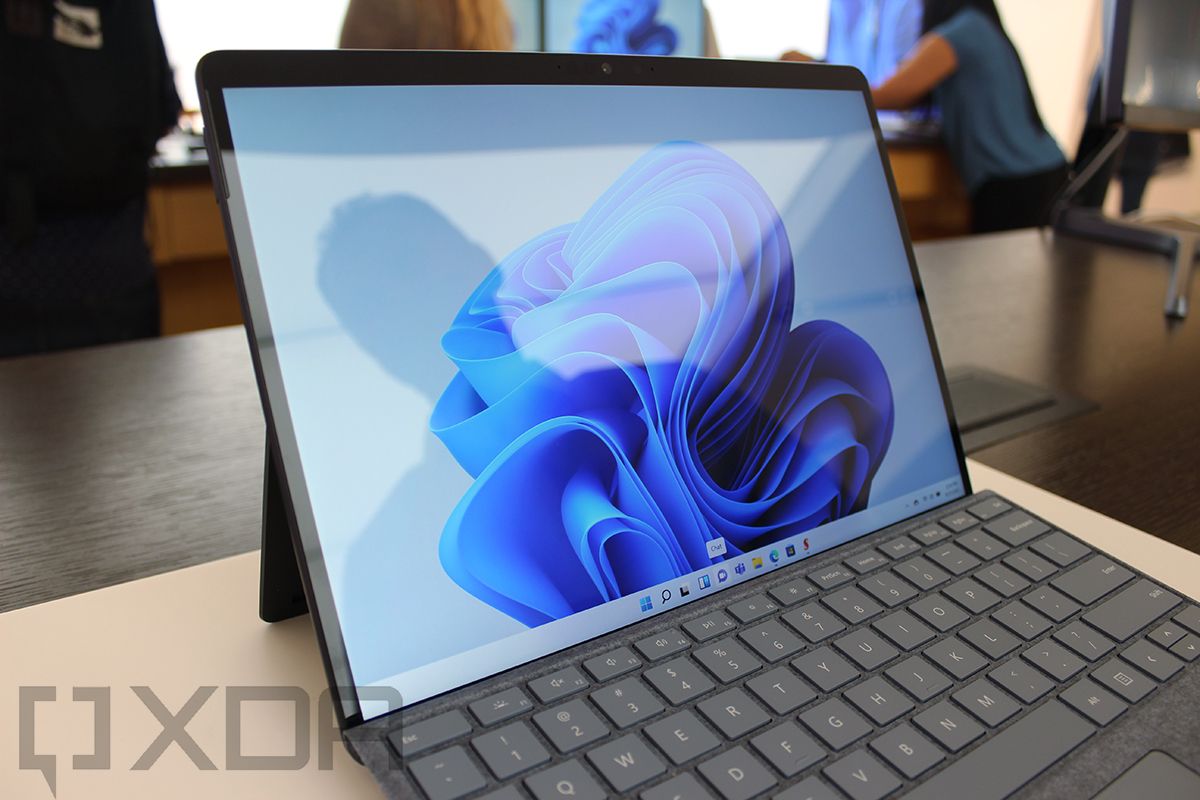
With the Surface Pro 8, Microsoft introduced some big new changes. It added Thunderbolt ports, a bigger display with smaller bezels, a 120Hz refresh rate, support for haptic feedback with the Surface Slim Pen 2, and more. But before that, the Surface Pro family was nearly unchanged for years, at least in terms of big new features. Typically, Microsoft only introduces major changes every few generations, so the Surface Pro 9 will likely focus on refinements and smaller improvements.

Close up of Surface Pro 8 screen

Surface Pro 8

Among them, of course, we’re likely to find Intel’s upcoming Alder Lake processors, which we’ve been hearing about for a while. These processors have a new core layout containing both performance cores and efficiency cores. That means next year’s model may not only perform better, it may also have better battery life than the current model.

Something else Microsoft could add to the Surface Pro line is support for 5G. Many laptops from competing brands already offer it, but Microsoft has stuck with just LTE for all of its cellular-enabled PCs. That hasn’t been a huge issue with 5G still not fully mature, but 2022 could be the year it happens.

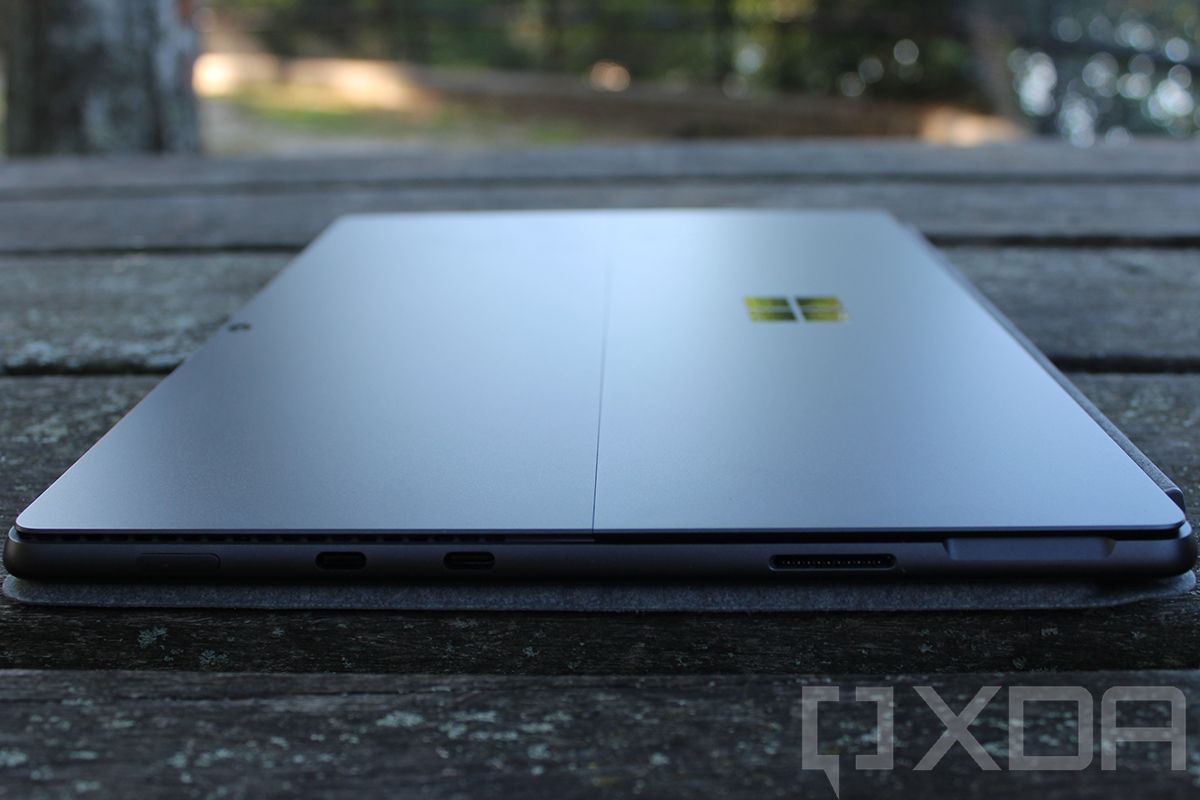
One other thing that may or may not change has to do with the Surface Connect port. With the addition of Thunderbolt, Surface Connect has become less useful, especially because it doesn’t have the same bandwidth as a Thunderbolt port. Microsoft could update the connector to support higher transfer speeds, remove it altogether, or just keep it around for anyone who already has a Surface Dock.

Side view of Surface Pro 8

Surface Connect and Thunderbolt ports on the Surface Pro 8

How much will it cost?

Again, we have no information on this so early on, but we do know that the Surface Pro 8 significantly raised the entry barrier for the Surface Pro line. While previous models started at $749, the Surface Pro 8 starts at $1,099, on account of having higher specs across the board. Most likely, we’ll be looking at similar pricing in the upcoming model, unless Microsoft decides to go back to including an Intel Core i3 processor in the base configuration.


That’s all we can really tell about the Surface Pro 9 at this time. Because we’re still pretty far from its launch, it’s hard to point out any specific features it will include. For the most part, and especially in terms of design, it will likely be very similar to the Surface Pro 8. We’ll just be looking at some internal upgrades. Of course, we’ll update this article as more information becomes available in the lead-up to launch.

If you don’t think it’s worth the wait, check out our review of the Surface Pro 8 to see if you should buy that instead.

The post Surface Pro 9: Release date, specs, and everything you need to know appeared first on xda-developers.


from xda-developers https://ift.tt/3mSogG9
via IFTTT

Surface Pro 9: Release date, specs, and everything you need to know

Microsoft has only just launched the Surface Pro 8, and it’s quite a fantastic device. Bringing big new features like Thunderbolt and a 120Hz display, it’s easily one of the best Surface devices ever, and one of the best laptops you can buy right now, too. But it’s never too early to look into the future, and some of us are already thinking about the Surface Pro 9.

Of course, since the Surface Pro 8 was just released, a successor is likely still a ways out. That also means we don’t know a whole lot about it right now. However, there are some things we can estimate or speculate on.

When is the Surface Pro 9 coming?

The Surface Pro family is Microsoft’s most consistent line of products, starting back in 2012 and getting a refresh almost every year since. And that’s the key to knowing when the next one is coming. With the latest Surface Pro 8 just having released, it’s fair to expect the Surface Pro 9 is coming in the fall of 2022.

In addition to lining up in terms of the usual time between launches, this is also when Microsoft will likely debut the next major update for Windows 11, and the Surface Pro 9 will likely be a showcase device for it.

What’s new in the Surface Pro 9?

With the Surface Pro 8, Microsoft introduced some big new changes. It added Thunderbolt ports, a bigger display with smaller bezels, a 120Hz refresh rate, support for haptic feedback with the Surface Slim Pen 2, and more. But before that, the Surface Pro family was nearly unchanged for years, at least in terms of big new features. Typically, Microsoft only introduces major changes every few generations, so the Surface Pro 9 will likely focus on refinements and smaller improvements.

Close up of Surface Pro 8 screen

Surface Pro 8

Among them, of course, we’re likely to find Intel’s upcoming Alder Lake processors, which we’ve been hearing about for a while. These processors have a new core layout containing both performance cores and efficiency cores. That means next year’s model may not only perform better, it may also have better battery life than the current model.

Something else Microsoft could add to the Surface Pro line is support for 5G. Many laptops from competing brands already offer it, but Microsoft has stuck with just LTE for all of its cellular-enabled PCs. That hasn’t been a huge issue with 5G still not fully mature, but 2022 could be the year it happens.

One other thing that may or may not change has to do with the Surface Connect port. With the addition of Thunderbolt, Surface Connect has become less useful, especially because it doesn’t have the same bandwidth as a Thunderbolt port. Microsoft could update the connector to support higher transfer speeds, remove it altogether, or just keep it around for anyone who already has a Surface Dock.

Side view of Surface Pro 8

Surface Connect and Thunderbolt ports on the Surface Pro 8

How much will it cost?

Again, we have no information on this so early on, but we do know that the Surface Pro 8 significantly raised the entry barrier for the Surface Pro line. While previous models started at $749, the Surface Pro 8 starts at $1,099, on account of having higher specs across the board. Most likely, we’ll be looking at similar pricing in the upcoming model, unless Microsoft decides to go back to including an Intel Core i3 processor in the base configuration.


That’s all we can really tell about the Surface Pro 9 at this time. Because we’re still pretty far from its launch, it’s hard to point out any specific features it will include. For the most part, and especially in terms of design, it will likely be very similar to the Surface Pro 8. We’ll just be looking at some internal upgrades. Of course, we’ll update this article as more information becomes available in the lead-up to launch.

If you don’t think it’s worth the wait, check out our review of the Surface Pro 8 to see if you should buy that instead.

The post Surface Pro 9: Release date, specs, and everything you need to know appeared first on xda-developers.


from xda-developers https://ift.tt/3mSogG9
via IFTTT

How to easily sideload apps on any iPhone using AltStore

Apple’s iPhones are pretty famous for being closed off, with jailbreaking being the only way that most people can imagine for sideloading apps. However, there are other ways to sideload apps onto an iPhone, and the easiest way is through AltStore.

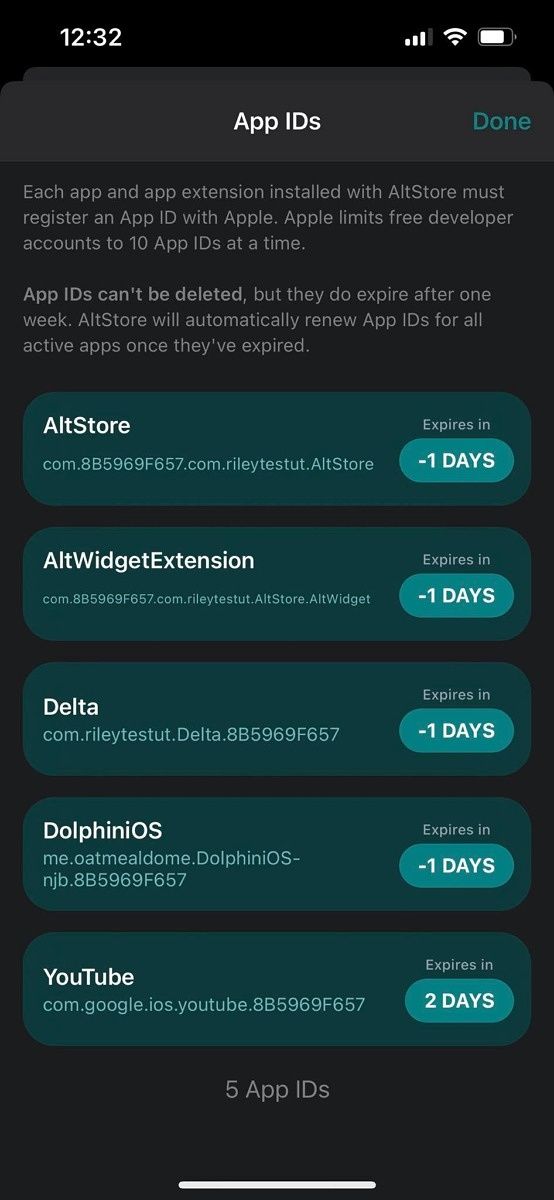
AltStore is, as the name implies, an alternative app store for iOS devices. Made by Riley Testut, it’s the easiest and safest way to sideload apps on your iPad or iPhone. It doesn’t rely on enterprise certificates that Apple has been cracking down on, and instead makes use of a feature Apple introduced that lets you install up to three apps for free using your Apple ID.

If you’re interested, we’re first going to explain how AltStore works, but you can skip to the actual installation part if you don’t care about that!

How AltStore works

AltStore firstly requires an Apple ID and password, but you can create a throwaway account if you don’t trust it. The developer says it’s never sent to any 3rd party server, it’s only sent directly to Apple for authentication, and then stored securely in the device’s keychain so nothing else can retrieve it. However, you would be completely within your rights to still feel uncomfortable with putting your main Apple ID into the app, which is why you can make a throwaway account for the purposes of this tutorial.

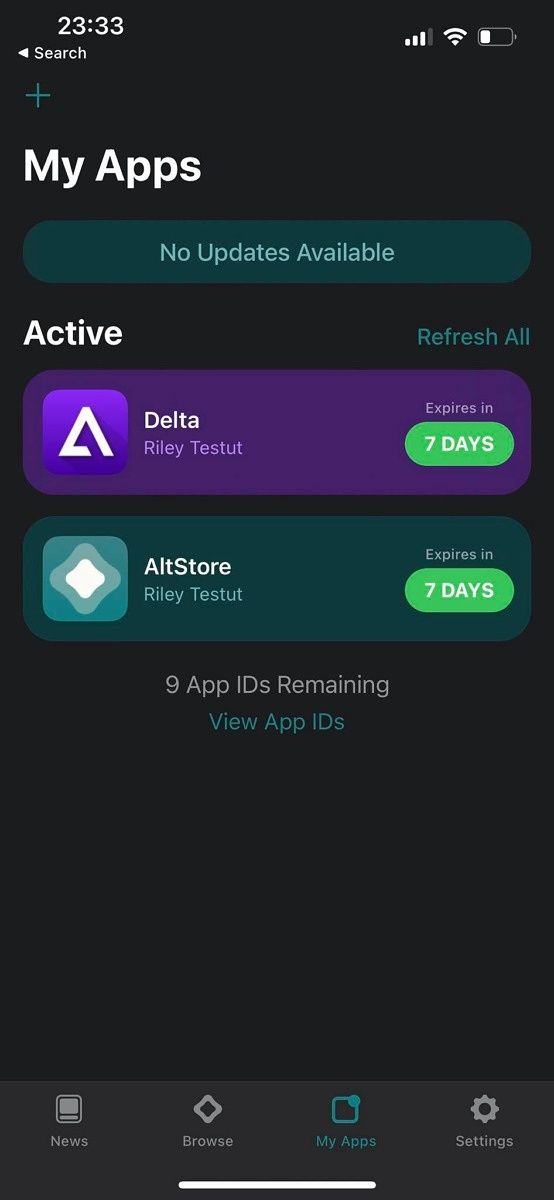
AltStore then signs the application with your Apple ID, so that the app can run. You’ll need to trust your developer certificate in your device settings, but when you do, any apps that you install through AltStore will work… for seven days. Apple has put several restrictions in place to make the process as difficult as possible, but the developer managed to work around those restrictions. As the clock nears closer to the end of the seven-day period, AltStore will refresh the signing key on the app so that you can get an extra seven days of usage out of it. This can also run in the background.

However, AltStore relies on a computer on the same network running AltServer, and you’ll need both iTunes and iCloud installed on that computer, too. AltServer is a companion app that sits and waits for AltStore connections, and apps can only be installed and refreshed via AltServer.

The reason AltServer is necessary is thanks to limitations placed on free Apple developer accounts. Apps can’t be distributed with a free Apple ID over the air. This means apps can’t be installed locally, but they can be installed using iTunes Wi-Fi sync. AltServer is also required to install AltStore initially, but once it’s installed, AltStore can send commands to AltServer for app installation. All you need to ensure is that you’re on the same network.

Installing AltStore

You’ll need a Windows or Mac machine to install AltStore on your iOS device. You’ll also need to install iTunes and iCloud, and they can’t be from the Windows Store. They need to be downloaded directly from Apple.

Next, you’ll need to download AltServer. You can download AltServer from AltStore’s website.

Download AltServer

Once installed, connect your iPhone to your computer. You’ll need to “trust” the computer you plugged it into, and that prompt will show up on the iPhone. Next, launch AltServer, and leave it running in the background. You’ll need to point it towards your iCloud installation.

Open iTunes, and enable “Sync with this iPhone over Wi-Fi” in your iPhone’s settings.

iTunes wi-fi cloud sync

Once enabled, you can unplug your iPhone from your computer. Click the AltServer icon in the notification area, click “install AltStore”, and choose your phone.

install altstore

You’ll then be prompted to enter your Apple ID and password. You can use a throwaway account as previously mentioned. Wait a little bit, and AltStore should then be installed on your iPhone.

Using AltStore

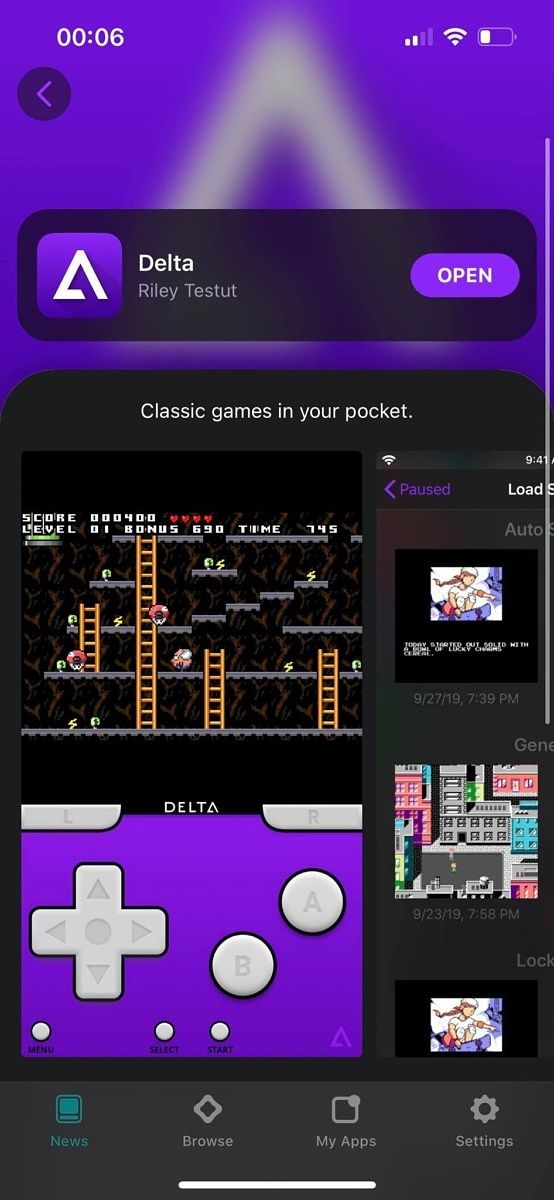
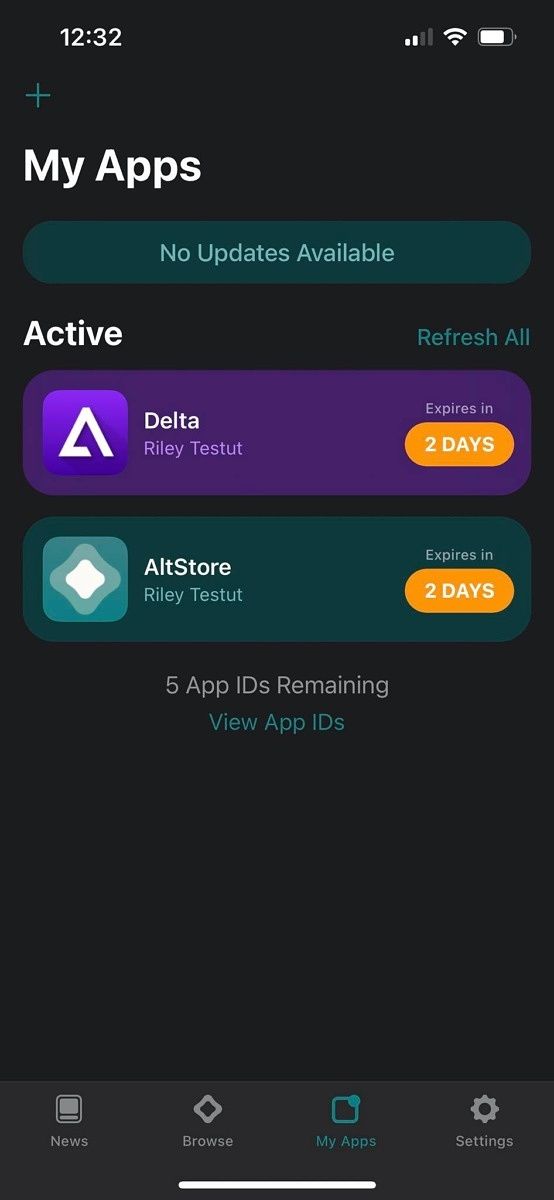
AltStore is a fairly simplistic application. It comes with the ability to install Delta (an emulator) or Clip (a more advanced clipboard manager). You can also install custom IPA files that you download online.

AltStore home AltStore apps list AltStore Delta installer

To install apps, you need to make sure you’re on the same Wi-Fi network as your computer with AltServer running on it. That’s because when you install an app, it needs to be signed and distributed by AltServer. Apps will try to refresh automatically in the background, but it’s luck of the draw if the app tries to refresh in the background or not when you’re on the same network. Testut recommends launching the AltStore app in the background occasionally just to make sure it can check for the local server in the background more often, as your phone will recognize it’s an app that you use frequently.

There are a lot of apps you can install and try out, and if you become a patron of Testut’s, you also get access to beta versions of Delta and AltStore. The biggest appeal of becoming a patron is the ability to add third-party sources to AltServer, and you can look them up on Google or on Reddit to find some to add to your iPhone.

I’ve been using Delta from the AltStore to play through Pokemon Fire Red, and I was also messing around with trying to get Dolphin working. Some apps don’t quite work on iOS 15 yet, but a lot of them will likely be updated as time goes on. What custom apps do you use? Let us know in the comments below!

The post How to easily sideload apps on any iPhone using AltStore appeared first on xda-developers.


from xda-developers https://ift.tt/3ERskww
via IFTTT