LightBlog

vendredi 5 novembre 2021

Apple is encouraging people to use Apple Card Family by offering $10

Apple first announced its Apple Card Family feature back in April. It allows iCloud family members to share expenses and build credit together. Two adults in a family can co-own the card and add up to four 13+ year old members to spend within limits and earn Daily Cash. The co-owners will have equal benefits, even if one of them doesn’t have an Apple Card of their own. To encourage people to use the feature, Apple is now offering $10 of Daily Cash when you add a family member to your card.

According to 9to5Mac, Apple sent out emails to Apple Card users stating the following:

Apple Card Family lets you share the great features and benefits of Apple Card with anyone you call family. Add a new Apple Card user to your account by November 30, 2021, and they’ll receive $10 Daily Cash from us when they make their first purchase with Apple Card within 30 days.

Daily Cash is stored on your Apple Cash card in Wallet and can be spent like real cash with Apple Pay or transferred to a bank account.

So if you add a new family member before the end of this month, they’ll have 30 days to claim the $10 by making a purchase. Once claimed, users will be able to spend the $10 through Apple Pay or transfer it to a bank account of their choice. This promo is pretty tempting, considering the requirements aren’t hard to meet. Any average Apple Card user can easily take advantage of it, if they have a family to share it with.

The full terms of this promo can be found below:

Subject to credit approval. Valid only for new Apple Card users who are added to an Apple Card Family account from November 4, 2021, to November 30, 2021, and the new user must make a purchase within 30 days of being added to the Apple Card Family account. Users added before November 4, 2021, and after November 30, 2021, do not qualify. Not valid for existing Apple Card users who merge their Apple Card accounts to become Co-Owners with other existing Apple Card users. Each Apple Card Family account is eligible to allow maximum five (5) people to redeem offer. Limit one offer per natural person per unique Apple Card account. $10 cash back is earned as Daily Cash and is transferred to your Apple Cash card after qualifying purchase has posted to your Apple Card account. A return of a purchase on which you earned $10 Daily Cash bonus may result in a $10 Daily Cash adjustment charge to your account. An additional purchase made during the offer period will qualify you for re-fulfillment of the $10 Daily Cash bonus, but re-fulfillment may be delayed. Changes to your account status during the offer period may delay the fulfillment of your Daily Cash bonus. An Apple Cash card is required for the accumulation of Daily Cash. Participants under 18 on Apple Card Family accounts must have the family organizer of their Apple Cash Family set up their own Apple Cash card. If you do not have an Apple Cash account, Daily Cash can be applied as a credit on account Owner’s statement balance by contacting Goldman Sachs Bank USA. The Apple Cash card is issued by Green Dot Bank, Member FDIC. Daily Cash is subject to exclusions, and additional details apply. See the Apple Card Customer Agreement for more details. If we determine that you have engaged in or plan to engage in abuse or gaming in connection with this offer, you will not be eligible for this offer.

Do you use Apple Card? If so, will you be claiming this offer? Let us know in the comments section below.

The post Apple is encouraging people to use Apple Card Family by offering $10 appeared first on xda-developers.


from xda-developers https://ift.tt/3ETvvnr
via IFTTT

Apple ID website gets an overdue facelift

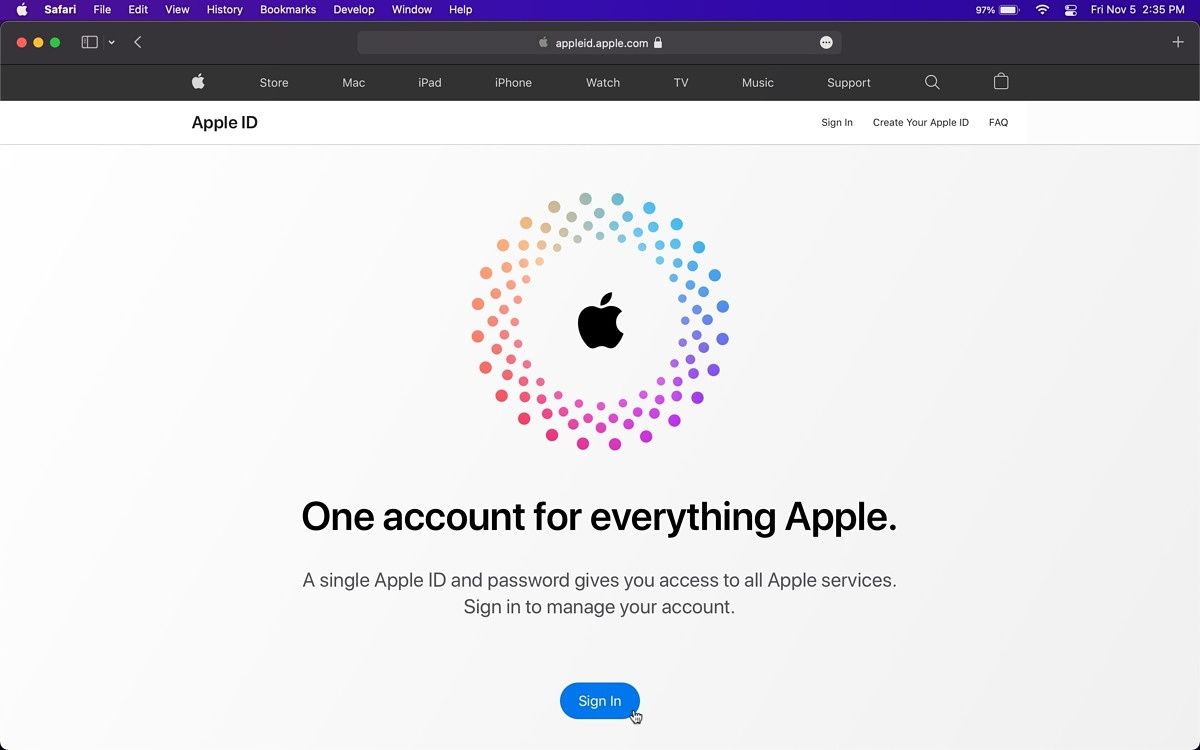
The Apple ID website had looked the same for the past few years. Fortunately, Apple has finally given it an overdue facelift that completely replaces the old interface. In the past, visitors were greeted by a sign in/up screen that showed random people using different Apple devices. Now it has a more modern look that matches the revamped iCloud website.

According to MacRumors, the new user interface (UI) went live yesterday. The photo of Apple users has been replaced by a the Apple logo surrounded by colorful dots that animate as you scroll past it. Once you sign in, you will be greeted by a card view where your information is neatly listed.

New Apple ID website New Apple ID website

On the left side, you will find a list of sections related to your Apple ID data and settings, such as Personal Information, which includes your name, birthday, and more. Payment Methods, as its name suggests, includes all of your saved bank cards and relevant information. In Family Sharing you can find the members of your iCloud Family. As for Devices, you can check and remove all Apple devices that are linked to your Apple ID.

Apple recently refreshed the iCloud website, too. It replaced the outdated Mail web app with a sleeker one that matches the UI of that on Apple operating systems. It also tweaked the rest of iCloud web apps to bring support to new features introduced in the latest versions of iOS and macOS.

The new Apple ID website can be reached through appleid.apple.com and the iCloud website can be accessed through icloud.com. Apple continues to give attention to its web apps, including maintaining the Apple Music and Apple TV web clients. This is probably to make them easier to access on a wider range of platform and devices, thus increasing the number of subscribers.

What do you think of the new Apple ID website? Let us know in the comments section below.

The post Apple ID website gets an overdue facelift appeared first on xda-developers.


from xda-developers https://ift.tt/2YiJ14a
via IFTTT

Apple ID website gets an overdue facelift

The Apple ID website had looked the same for the past few years. Fortunately, Apple has finally given it an overdue facelift that completely replaces the old interface. In the past, visitors were greeted by a sign in/up screen that showed random people using different Apple devices. Now it has a more modern look that matches the revamped iCloud website.

According to MacRumors, the new user interface (UI) went live yesterday. The photo of Apple users has been replaced by a the Apple logo surrounded by colorful dots that animate as you scroll past it. Once you sign in, you will be greeted by a card view where your information is neatly listed.

New Apple ID website New Apple ID website

On the left side, you will find a list of sections related to your Apple ID data and settings, such as Personal Information, which includes your name, birthday, and more. Payment Methods, as its name suggests, includes all of your saved bank cards and relevant information. In Family Sharing you can find the members of your iCloud Family. As for Devices, you can check and remove all Apple devices that are linked to your Apple ID.

Apple recently refreshed the iCloud website, too. It replaced the outdated Mail web app with a sleeker one that matches the UI of that on Apple operating systems. It also tweaked the rest of iCloud web apps to bring support to new features introduced in the latest versions of iOS and macOS.

The new Apple ID website can be reached through appleid.apple.com and the iCloud website can be accessed through icloud.com. Apple continues to give attention to its web apps, including maintaining the Apple Music and Apple TV web clients. This is probably to make them easier to access on a wider range of platform and devices, thus increasing the number of subscribers.

What do you think of the new Apple ID website? Let us know in the comments section below.

The post Apple ID website gets an overdue facelift appeared first on xda-developers.


from xda-developers https://ift.tt/2YiJ14a
via IFTTT

Dell Latitude 9420 2-in-1 Review: The top-end Dell business notebook struggles to deliver

Dell’s Latitude 9000 series of business laptops is the best that the company has to offer. Along with Intel 11th-generation processors, the Dell Latitude 9420 2-in-1 comes with a QHD+ screen standard, and it has interesting features like an automatic privacy guard on the camera.

It’s also got Dell Optimizer, a suite of tools designed to make your PC more intelligent. It includes things like ExpressSign-in, which automatically wakes your PC when you’re nearby and can even lock it when you walk away. It also includes ExpressConnect, ExpressCharge, ExpressResponse, and Intelligent Audio.

Navigate this review:

Dell Latitude 9420 2-in-1 Specs

Processor 11th Generation Intel Core Processors up to i7 vPro
Graphics Intel Iris Xe graphics
Display 14″ 16:10 QHD+ (2560 x 1600) WVA Touch, Antireflective and Anti-Smudge, Corning Gorilla Glass
6 DX, Super Low Power, 500 nits, sRGB 100%, Comfort View Plus Low Blue Light, Active Pen Support
Body Width: 310.59mm / 12.22”
Height: 8.42mm / .33” (front) /13.91mm /.54”
(rear)
Depth: 215.18mm / 8.47”
Starting weight: 3.2lbs / 1.4kg (2-in-1)
Memory Up to 32GB LPDDR4x SDRAM 4266MHz (on board)
Storage SSD M.2 2230 PCIe/NVMe Class 35 up to 1TB
SED SSD M.2 2230 PCIe/NVMe Class 35 256GB
Multimedia SafeShutter (electro-mechanical camera shutter)
IR Camera (User-Facing fixed focus) with low
light + TNR + capability +IPU6 + Proximity Sensor
(ExpressSign-in 1.0 ) OR IR Camera (User-Facing
fixed focus) with low light capability + TNR + IPU6 +
Proximity Sensor + Intel Camera Sensing Technology
(ExpressSign-in 2.0 )
2 x Top Firing Premium Speakers, 2 x bottom firing
Premium Speaker, Waves MaxxAudio Pro, Smart
Amplifier
4 x Noise Canceling Microphones
Universal Audio jack
Battery 2-Cell, 40 WH6 Polymer , ExpressCharge 2.0,
ExpressCharge Boost & Long Life Cycle capable
3-Cell, 60 Whr6 Polymer, ExpressCharge 2.0,
ExpressCharge Boost & Long Life Cycle capable
Connectivity Wireless LAN Options
:
Intel Wi-Fi 6E (6GHz) AX210 2×2 + Bluetooth 5.2
Mobile Broadband Options:8, 10
Qualcomm Snapdragon X20 LTE-A (DW5821e)
(eSIM enabled), WW excluding China, Turkey, US
Qualcomm Snapdragon X20 LTE-A (DW5821e)
WW
Qualcomm Snapdragon X20 LTE-A (DW5821e)
for AT&T, Verizon & Sprint, US.
Qualcomm Snapdragon X55 Global 5G Modem
(DW5930e) (2-in-1) (eSIM enabled), WW excluding
China, Turkey, US
Qualcomm Snapdragon X55 Global 5G Modem
(DW5930e) (2-in-1), WW
Qualcomm Snapdragon X55 Global 5G Modem
(DW5930e) (2-in-1), Sprint
Qualcomm Snapdragon X55 Global 5G Modem
(DW5930e) (2-in-1), AT&T, Verizon
Ports 1 x USB 3.2 Gen 1 (with PowerShare, USB Type-A)
2 x Thunderbolt 4 with Power Delivery &
DisplayPort (USB Type-C)
1 x HDMI 2.0
1x external uSIM card tray option (WWAN only)
1 x uSD 4.0 Memory card reader
1 x Optional Touch Fingerprint Reader in Power
Button
Wedge Lock slot
Input 10-Finger Touch Display
Glass Microsoft Precision Clickpad
Single Pointing Spill Resistant Backlit Keyboard
Dell Premium Active Pen PN579X
(optional, sold separately)
Sensors Gyroscope, eCompass/Magnetometer,
Accelerometer, GPS (via WWAN Card only),
Ambient Light Sensor, Adaptive Thermal
Performance (via Gyroscope/Accelerometer),
Dell ExpressSign-In 1.0 (via Proximity Sensor),
Dell ExpressSign-in 2.0 (via Intel Camera Sensing
Technology), Wake/Power on with lid open
Price Starts at $2,059

The model that Dell sent me for review includes an Intel Core i7-1185G7, 16GB RAM, no cellular, and a 512GB SSD. However, they actually said the unit would have 256GB of storage, so the $2,739 pricing on this unit assumes that amount, rather than the 512GB that I actually got.

Design: The Dell Latitude 9420 2-in-1 is made for business

When I say that the Dell Latitude 9420 2-in-1 is designed for business, I pretty much mean that it’s made out of metal and comes in a silver color. To be honest, I’d call the design bland, with the brushed aluminum lid. It’s just not as sexy as a Dell XPS or an HP Spectre x360. But then again, like an HP EliteBook, it doesn’t come in any other colors. This is all standard for a business laptop, unless the product is made out of carbon fiber like some are.

Top down view of Dell Latitude 9420 2-in-1

It also weighs in at 3.2 pounds, which is on the heavier side, and yes, that comes with the heavier material. If you want something lighter, I highly recommend checking out the carbon fiber Latitude 7320.

However, it’s worth remembering what we have to compare this to. This is only the second generation of the Latitude 9400; before that, the 9000 series didn’t even exist. Dell created it for a new level of premium. Because of that, I fully expect a convertible like this to go toe-to-toe with a Lenovo ThinkPad X1 Yoga or an HP EliteBook x360 1040. Both of those devices weigh three pounds or less.

Dell Latitude 9420 2-in-1 side view

It has the kind of port selection that you’d expect from a business laptop. On the left side, there are two Thunderbolt 4 ports, so you can use those for anything from charging to connecting dual 4K monitors. You’ll also find a microSD card slot, an HDMI 2.0 port, and a 3.5mm audio jack.

Dell Latitude 9420 2-in-1 side view

On the right side, there’s just a USB 3.2 Gen 1 Type-A port. While USB Type-A is obviously going away, and for good reason, I would have expected two on a business PC. That’s fine though. In fact, Dell is one of few PC OEMs that’s moved on from USB Type-A in its XPS consumer laptops.

Overall, the design of the Dell Latitude 9420 2-in-1 is fine. Nothing about it is particularly exciting, or exciting at all. But that’s the point of a business laptop. It’s all business.

Display: It has narrow bezels, but makes room for a webcam

As the second digit of the model number indicates, the Dell Latitude 9420 2-in-1 has a 14-inch screen. This time around, it’s 16:10, which means it’s taller and larger. Indeed, since screens are measured diagonally, the closer you get to square, the larger it becomes.

The quality of the display is really good, supporting 100% sRGB, 80% NTSC, 84% Adobe RGB, and 87% P3 color gamuts. But again, since this is the 9000 series, a series that literally came to exist to break the barriers of premium, I’m going to be hard on it. After all, you can’t go ultra-premium without being compared to the rest of the market, and the company that makes the PC I’m going to compare it to…is Dell.

The Dell XPS 17 got near-perfect in all four sections, including 100% sRGB, 99% NTSC, 100% Adobe RGB, and 98% P3. I had never seen anything like it. The OLED version of the Dell XPS 15 got 100%, 94%, 96%, and 100%, respectively, and that’s the second-best I had ever seen.

Dell Latitude 9420 2-in-1 in tablet mode

Clearly, Dell has what it takes to make better displays than what’s in the Latitude, even though the one in the Latitude is pretty darn good. It’s just that this is supposed to be a no-compromise machine; otherwise, why does it even exist?

Brightness maxed out at 427.5 nits, which is lower than the promised 500 nits, although I didn’t notice it in testing. It seemed to do well outdoors. The contrast ratio maxed out at 1610:1, which is solid.

One other thing I want to point out about the screen itself is that I love that it has a QHD+ resolution by default. In fact, there aren’t even any options according to the spec sheet. The clamshell model is FHD, oddly enough, but the higher resolution is a really good look.

The bezels are narrow on all sides, which always makes for a more immersive experience. The top bezel houses a webcam with an automatic privacy shutter. When you’re not using it, you’ll see a red physical guard over the camera, and it automatically flips open when you go to use it. It’s pretty cool, although I’ll be interested to see how people react to this. In my experience, people don’t like privacy features that they can’t explicitly control, but we’ll see.

Dell Latitude 9420 2-in-1 webcam close-up

The bad news is that the webcam that it covers is 720p. I was actually surprised to see this, as I thought Dell had moved its whole Latitude lineup to 1080p this year, but apparently not. I assume it has to do with the small top bezel, which limits the amount of space for a webcam module. It’s a shame, although to be fair, neither HP nor Lenovo has upgraded their premium 14-inch business convertibles to 1080p yet.

The top bezel also includes a proximity sensor, which works with ExpressSign-in. This detects when you’re in front of the PC and wakes it up. Once that happens, the IR camera lights up and it logs you in without you ever having to touch it. The proximity sensor can also be turned on for locking the PC when you walk away. You can set the timer for up to 120 seconds after you get up.

Close up of laptop speaker on keyboard

Audio quality is pretty good, with the keyboard flanked by dual speakers. Dell also has a feature called Intelligent Audio, where you can enable a 3D audio experience that sounds crystal clear. You can also change settings to adjust for if you’re in a quiet room, a noisy office, if there are multiple voices, or if you’re in a recording studio.

There’s even an auto-mute feature, which mutes noises that happen when you’re not speaking on a call. Indeed, aside from the 720p webcam, this is an amazing laptop for working from home. Dell did send along its UltraSharp HDR 4K Webcam along, so that does make up for it.

Keyboard: The Dell Latitude 9420 2-in-1 has a larger touchpad

The keyboard on the Dell Latitude 9420 2-in-1 is pretty standard. It’s backlit with Chiclet-style keys, and it’s comfortable enough. It’s not going to be a pain point by any means; in fact, it’s very accurate. It just doesn’t feel quite as good to type on as say, an HP EliteBook x360. I do definitely think there were some improvements made here though, and it’s good to see Dell trying to do better.

Top down view of Dell Latitude 9420 2-in-1 keyboard

Underneath the keyboard, there’s a glass Precision touchpad that takes advantage of most of the real estate available. Indeed, I really appreciate it when a company doesn’t leave extra space there that could have been used for a larger touchpad. It’s quite nice.

Close up of power button and fingerprint sensor

It also comes with a fingerprint sensor in the power button, just in case you don’t like the IR camera. Unfortunately, Dell is still the only company that makes you scan your finger after the PC boots up, rather than when you first press the button.

Performance: It comes with Intel 11th-gen processors

The model that Dell sent me for review includes an Intel Core i7-1185G7 and 16GB RAM, which is a pretty standard configuration as far as review units go. I really can’t tell you how many PCs I’ve come across with a Core i7-1185G7 and 16GB RAM, but this one was a bit different because I had a lot of issues with performance.

At this time, my setup includes a Thunderbolt dock, a 4K monitor, an FHD monitor, and the Dell UltraSharp 4K webcam. By the way, that’s the best webcam on the market. I was previously using the Logitech Brio, but I’ll take the Dell any day. Anyway, the company sent that over along with the Latitude, and it’s great for a work-from-home setup. And yes, despite the 720p webcam, this is a company that really cares about the work from home experience, probably more than anyone else.

Dell Latitude 9420 2-in-1 in tent mode

The performance issues I had were while the Latitude 9420 2-in-1 were connected to the dock and the two monitors. On battery power or just on wired power, I didn’t have any problems. But still, this CPU with its integrated Iris Xe graphics should have no problem pushing those two monitors. Like I said, I’ve done it with tons of machines before.

When connected to the dock, it didn’t handle multitasking well. Once I’d get on a Google Meet meeting, stream some music from the Apple Music web app, or stream some movie or TV show through Netflix or something else, things really start to stall. And I’m not talking about doing all three of those things at once. I’m talking about doing one of those things, and then trying to do some regular tasks like web browsing or writing. I’ve had meetings fall apart with choppy video, and then video getting shut down altogether. It’s just not reliable.

For benchmarks, I used PCMark 8, PCMark 10, 3DMark, Geekbench, and Cinebench.

Dell Latitude 9420 2-in-1
Core i7-1185G7
Huawei MateBook X Pro
Core i7-1165G7
HP Envy x360 13
Ryzen 5 4500U
Lenovo ThinkPad X1 Titanium
Core i7-1160G7
PCMark 8: Home 3,882 3,839 4,087 3,851
PCMark 8: Creative 4,566 4,598 4,247 4,264
PCMark 8: Work 3,811 3,541 3,687 3,686
PCMark 10 4,689 4,692 4,679 4,488
3DMark: Time Spy 1,467 1,334
Geekbench 1,486 / 4,922 1,518 / 4,929 1,333 / 4,055
Cinebench 1,359 / 3,993 1,361 / 4,119 1,127 / 2,597

When I looked up the scores in my benchmark spreadsheet, I found the Latitude 9420 2-in-1 toward the low-end of my 11th-gen benchmarks. It sat right around the machines you see above, one of which had a lower-tier 11th-gen UP3 Core i7, and below that, there was a Ryzen 4000 laptop and a UP4 (formerly known as Y-series) laptop.

Battery life was mostly between four and five hours, which was a real surprise. There were two things that were really touted when Dell introduced the Latitude 9000 series: 5G and battery life. Strangely enough, none of the Latitude 9000 series laptops that I’ve reviewed have had 5G, but the previous 15-inch model did get solid battery life. As always, my testing is just doing work the way I normally do and see how long it takes for the battery to die. The display is set to medium brightness and the power is set to recommended.

Conclusion: Should you buy the Dell Latitude 9420 2-in-1?

I always feel like the biggest Achilles’ Heel for the Latitude 9000 series is just that it exists. It uses to go up to the 7000 series until a couple of years ago. At that point, Dell said no, 7000 is not premium enough and we need a whole new tier just for how premium we want to get. So now, the only way to do this is to compare it to business laptop titans like the Lenovo ThinkPad X1 Yoga and the HP EliteBook x360 1040.

Let’s be fair here. The Dell Latitude 9420 2-in-1 has an excellent 16:10 display, a solid keyboard, and narrow bezels. It also has a lot of great business features like ExpressSign-in, which wakes your PC and logs you in without you ever having to touch it.

Dell Latitude 9420 2-in-1 in clamshell mode

It’s also got a lot of flaws. It’s tough to compete with HP’s and Lenovo’s offerings, which have better keyboards and weigh less. And while none of the three machines have one, I’m still going to criticize the lack of a 1080p camera, especially because Dell is using FHD cameras across its Latitude 7000 lineup.

My honest opinion is that if you’re looking in the Dell Latitude direction, you should check out the Latitude 7000 series, which is pretty awesome. It’s lighter, and it feels like a more mature product. The only trade-off if that you only get 4G LTE options instead of 5G, although there won’t be much difference there since sub-6 5G isn’t usually any different from 4G LTE.

    Dell Latitude 9420 2-in-1
    The Dell Latitude 9420 2-in-1 is the company's top-end 14-inch business convertible.

      Features:

      Pros:

      Cons:

The post Dell Latitude 9420 2-in-1 Review: The top-end Dell business notebook struggles to deliver appeared first on xda-developers.


from xda-developers https://ift.tt/3nXdMEM
via IFTTT

Dell Latitude 9420 2-in-1 Review: The top-end Dell business notebook struggles to deliver

Dell’s Latitude 9000 series of business laptops is the best that the company has to offer. Along with Intel 11th-generation processors, the Dell Latitude 9420 2-in-1 comes with a QHD+ screen standard, and it has interesting features like an automatic privacy guard on the camera.

It’s also got Dell Optimizer, a suite of tools designed to make your PC more intelligent. It includes things like ExpressSign-in, which automatically wakes your PC when you’re nearby and can even lock it when you walk away. It also includes ExpressConnect, ExpressCharge, ExpressResponse, and Intelligent Audio.

Navigate this review:

Dell Latitude 9420 2-in-1 Specs

Processor 11th Generation Intel Core Processors up to i7 vPro
Graphics Intel Iris Xe graphics
Display 14″ 16:10 QHD+ (2560 x 1600) WVA Touch, Antireflective and Anti-Smudge, Corning Gorilla Glass
6 DX, Super Low Power, 500 nits, sRGB 100%, Comfort View Plus Low Blue Light, Active Pen Support
Body Width: 310.59mm / 12.22”
Height: 8.42mm / .33” (front) /13.91mm /.54”
(rear)
Depth: 215.18mm / 8.47”
Starting weight: 3.2lbs / 1.4kg (2-in-1)
Memory Up to 32GB LPDDR4x SDRAM 4266MHz (on board)
Storage SSD M.2 2230 PCIe/NVMe Class 35 up to 1TB
SED SSD M.2 2230 PCIe/NVMe Class 35 256GB
Multimedia SafeShutter (electro-mechanical camera shutter)
IR Camera (User-Facing fixed focus) with low
light + TNR + capability +IPU6 + Proximity Sensor
(ExpressSign-in 1.0 ) OR IR Camera (User-Facing
fixed focus) with low light capability + TNR + IPU6 +
Proximity Sensor + Intel Camera Sensing Technology
(ExpressSign-in 2.0 )
2 x Top Firing Premium Speakers, 2 x bottom firing
Premium Speaker, Waves MaxxAudio Pro, Smart
Amplifier
4 x Noise Canceling Microphones
Universal Audio jack
Battery 2-Cell, 40 WH6 Polymer , ExpressCharge 2.0,
ExpressCharge Boost & Long Life Cycle capable
3-Cell, 60 Whr6 Polymer, ExpressCharge 2.0,
ExpressCharge Boost & Long Life Cycle capable
Connectivity Wireless LAN Options
:
Intel Wi-Fi 6E (6GHz) AX210 2×2 + Bluetooth 5.2
Mobile Broadband Options:8, 10
Qualcomm Snapdragon X20 LTE-A (DW5821e)
(eSIM enabled), WW excluding China, Turkey, US
Qualcomm Snapdragon X20 LTE-A (DW5821e)
WW
Qualcomm Snapdragon X20 LTE-A (DW5821e)
for AT&T, Verizon & Sprint, US.
Qualcomm Snapdragon X55 Global 5G Modem
(DW5930e) (2-in-1) (eSIM enabled), WW excluding
China, Turkey, US
Qualcomm Snapdragon X55 Global 5G Modem
(DW5930e) (2-in-1), WW
Qualcomm Snapdragon X55 Global 5G Modem
(DW5930e) (2-in-1), Sprint
Qualcomm Snapdragon X55 Global 5G Modem
(DW5930e) (2-in-1), AT&T, Verizon
Ports 1 x USB 3.2 Gen 1 (with PowerShare, USB Type-A)
2 x Thunderbolt 4 with Power Delivery &
DisplayPort (USB Type-C)
1 x HDMI 2.0
1x external uSIM card tray option (WWAN only)
1 x uSD 4.0 Memory card reader
1 x Optional Touch Fingerprint Reader in Power
Button
Wedge Lock slot
Input 10-Finger Touch Display
Glass Microsoft Precision Clickpad
Single Pointing Spill Resistant Backlit Keyboard
Dell Premium Active Pen PN579X
(optional, sold separately)
Sensors Gyroscope, eCompass/Magnetometer,
Accelerometer, GPS (via WWAN Card only),
Ambient Light Sensor, Adaptive Thermal
Performance (via Gyroscope/Accelerometer),
Dell ExpressSign-In 1.0 (via Proximity Sensor),
Dell ExpressSign-in 2.0 (via Intel Camera Sensing
Technology), Wake/Power on with lid open
Price Starts at $2,059

The model that Dell sent me for review includes an Intel Core i7-1185G7, 16GB RAM, no cellular, and a 512GB SSD. However, they actually said the unit would have 256GB of storage, so the $2,739 pricing on this unit assumes that amount, rather than the 512GB that I actually got.

Design: The Dell Latitude 9420 2-in-1 is made for business

When I say that the Dell Latitude 9420 2-in-1 is designed for business, I pretty much mean that it’s made out of metal and comes in a silver color. To be honest, I’d call the design bland, with the brushed aluminum lid. It’s just not as sexy as a Dell XPS or an HP Spectre x360. But then again, like an HP EliteBook, it doesn’t come in any other colors. This is all standard for a business laptop, unless the product is made out of carbon fiber like some are.

Top down view of Dell Latitude 9420 2-in-1

It also weighs in at 3.2 pounds, which is on the heavier side, and yes, that comes with the heavier material. If you want something lighter, I highly recommend checking out the carbon fiber Latitude 7320.

However, it’s worth remembering what we have to compare this to. This is only the second generation of the Latitude 9400; before that, the 9000 series didn’t even exist. Dell created it for a new level of premium. Because of that, I fully expect a convertible like this to go toe-to-toe with a Lenovo ThinkPad X1 Yoga or an HP EliteBook x360 1040. Both of those devices weigh three pounds or less.

Dell Latitude 9420 2-in-1 side view

It has the kind of port selection that you’d expect from a business laptop. On the left side, there are two Thunderbolt 4 ports, so you can use those for anything from charging to connecting dual 4K monitors. You’ll also find a microSD card slot, an HDMI 2.0 port, and a 3.5mm audio jack.

Dell Latitude 9420 2-in-1 side view

On the right side, there’s just a USB 3.2 Gen 1 Type-A port. While USB Type-A is obviously going away, and for good reason, I would have expected two on a business PC. That’s fine though. In fact, Dell is one of few PC OEMs that’s moved on from USB Type-A in its XPS consumer laptops.

Overall, the design of the Dell Latitude 9420 2-in-1 is fine. Nothing about it is particularly exciting, or exciting at all. But that’s the point of a business laptop. It’s all business.

Display: It has narrow bezels, but makes room for a webcam

As the second digit of the model number indicates, the Dell Latitude 9420 2-in-1 has a 14-inch screen. This time around, it’s 16:10, which means it’s taller and larger. Indeed, since screens are measured diagonally, the closer you get to square, the larger it becomes.

The quality of the display is really good, supporting 100% sRGB, 80% NTSC, 84% Adobe RGB, and 87% P3 color gamuts. But again, since this is the 9000 series, a series that literally came to exist to break the barriers of premium, I’m going to be hard on it. After all, you can’t go ultra-premium without being compared to the rest of the market, and the company that makes the PC I’m going to compare it to…is Dell.

The Dell XPS 17 got near-perfect in all four sections, including 100% sRGB, 99% NTSC, 100% Adobe RGB, and 98% P3. I had never seen anything like it. The OLED version of the Dell XPS 15 got 100%, 94%, 96%, and 100%, respectively, and that’s the second-best I had ever seen.

Dell Latitude 9420 2-in-1 in tablet mode

Clearly, Dell has what it takes to make better displays than what’s in the Latitude, even though the one in the Latitude is pretty darn good. It’s just that this is supposed to be a no-compromise machine; otherwise, why does it even exist?

Brightness maxed out at 427.5 nits, which is lower than the promised 500 nits, although I didn’t notice it in testing. It seemed to do well outdoors. The contrast ratio maxed out at 1610:1, which is solid.

One other thing I want to point out about the screen itself is that I love that it has a QHD+ resolution by default. In fact, there aren’t even any options according to the spec sheet. The clamshell model is FHD, oddly enough, but the higher resolution is a really good look.

The bezels are narrow on all sides, which always makes for a more immersive experience. The top bezel houses a webcam with an automatic privacy shutter. When you’re not using it, you’ll see a red physical guard over the camera, and it automatically flips open when you go to use it. It’s pretty cool, although I’ll be interested to see how people react to this. In my experience, people don’t like privacy features that they can’t explicitly control, but we’ll see.

Dell Latitude 9420 2-in-1 webcam close-up

The bad news is that the webcam that it covers is 720p. I was actually surprised to see this, as I thought Dell had moved its whole Latitude lineup to 1080p this year, but apparently not. I assume it has to do with the small top bezel, which limits the amount of space for a webcam module. It’s a shame, although to be fair, neither HP nor Lenovo has upgraded their premium 14-inch business convertibles to 1080p yet.

The top bezel also includes a proximity sensor, which works with ExpressSign-in. This detects when you’re in front of the PC and wakes it up. Once that happens, the IR camera lights up and it logs you in without you ever having to touch it. The proximity sensor can also be turned on for locking the PC when you walk away. You can set the timer for up to 120 seconds after you get up.

Close up of laptop speaker on keyboard

Audio quality is pretty good, with the keyboard flanked by dual speakers. Dell also has a feature called Intelligent Audio, where you can enable a 3D audio experience that sounds crystal clear. You can also change settings to adjust for if you’re in a quiet room, a noisy office, if there are multiple voices, or if you’re in a recording studio.

There’s even an auto-mute feature, which mutes noises that happen when you’re not speaking on a call. Indeed, aside from the 720p webcam, this is an amazing laptop for working from home. Dell did send along its UltraSharp HDR 4K Webcam along, so that does make up for it.

Keyboard: The Dell Latitude 9420 2-in-1 has a larger touchpad

The keyboard on the Dell Latitude 9420 2-in-1 is pretty standard. It’s backlit with Chiclet-style keys, and it’s comfortable enough. It’s not going to be a pain point by any means; in fact, it’s very accurate. It just doesn’t feel quite as good to type on as say, an HP EliteBook x360. I do definitely think there were some improvements made here though, and it’s good to see Dell trying to do better.

Top down view of Dell Latitude 9420 2-in-1 keyboard

Underneath the keyboard, there’s a glass Precision touchpad that takes advantage of most of the real estate available. Indeed, I really appreciate it when a company doesn’t leave extra space there that could have been used for a larger touchpad. It’s quite nice.

Close up of power button and fingerprint sensor

It also comes with a fingerprint sensor in the power button, just in case you don’t like the IR camera. Unfortunately, Dell is still the only company that makes you scan your finger after the PC boots up, rather than when you first press the button.

Performance: It comes with Intel 11th-gen processors

The model that Dell sent me for review includes an Intel Core i7-1185G7 and 16GB RAM, which is a pretty standard configuration as far as review units go. I really can’t tell you how many PCs I’ve come across with a Core i7-1185G7 and 16GB RAM, but this one was a bit different because I had a lot of issues with performance.

At this time, my setup includes a Thunderbolt dock, a 4K monitor, an FHD monitor, and the Dell UltraSharp 4K webcam. By the way, that’s the best webcam on the market. I was previously using the Logitech Brio, but I’ll take the Dell any day. Anyway, the company sent that over along with the Latitude, and it’s great for a work-from-home setup. And yes, despite the 720p webcam, this is a company that really cares about the work from home experience, probably more than anyone else.

Dell Latitude 9420 2-in-1 in tent mode

The performance issues I had were while the Latitude 9420 2-in-1 were connected to the dock and the two monitors. On battery power or just on wired power, I didn’t have any problems. But still, this CPU with its integrated Iris Xe graphics should have no problem pushing those two monitors. Like I said, I’ve done it with tons of machines before.

When connected to the dock, it didn’t handle multitasking well. Once I’d get on a Google Meet meeting, stream some music from the Apple Music web app, or stream some movie or TV show through Netflix or something else, things really start to stall. And I’m not talking about doing all three of those things at once. I’m talking about doing one of those things, and then trying to do some regular tasks like web browsing or writing. I’ve had meetings fall apart with choppy video, and then video getting shut down altogether. It’s just not reliable.

For benchmarks, I used PCMark 8, PCMark 10, 3DMark, Geekbench, and Cinebench.

Dell Latitude 9420 2-in-1
Core i7-1185G7
Huawei MateBook X Pro
Core i7-1165G7
HP Envy x360 13
Ryzen 5 4500U
Lenovo ThinkPad X1 Titanium
Core i7-1160G7
PCMark 8: Home 3,882 3,839 4,087 3,851
PCMark 8: Creative 4,566 4,598 4,247 4,264
PCMark 8: Work 3,811 3,541 3,687 3,686
PCMark 10 4,689 4,692 4,679 4,488
3DMark: Time Spy 1,467 1,334
Geekbench 1,486 / 4,922 1,518 / 4,929 1,333 / 4,055
Cinebench 1,359 / 3,993 1,361 / 4,119 1,127 / 2,597

When I looked up the scores in my benchmark spreadsheet, I found the Latitude 9420 2-in-1 toward the low-end of my 11th-gen benchmarks. It sat right around the machines you see above, one of which had a lower-tier 11th-gen UP3 Core i7, and below that, there was a Ryzen 4000 laptop and a UP4 (formerly known as Y-series) laptop.

Battery life was mostly between four and five hours, which was a real surprise. There were two things that were really touted when Dell introduced the Latitude 9000 series: 5G and battery life. Strangely enough, none of the Latitude 9000 series laptops that I’ve reviewed have had 5G, but the previous 15-inch model did get solid battery life. As always, my testing is just doing work the way I normally do and see how long it takes for the battery to die. The display is set to medium brightness and the power is set to recommended.

Conclusion: Should you buy the Dell Latitude 9420 2-in-1?

I always feel like the biggest Achilles’ Heel for the Latitude 9000 series is just that it exists. It uses to go up to the 7000 series until a couple of years ago. At that point, Dell said no, 7000 is not premium enough and we need a whole new tier just for how premium we want to get. So now, the only way to do this is to compare it to business laptop titans like the Lenovo ThinkPad X1 Yoga and the HP EliteBook x360 1040.

Let’s be fair here. The Dell Latitude 9420 2-in-1 has an excellent 16:10 display, a solid keyboard, and narrow bezels. It also has a lot of great business features like ExpressSign-in, which wakes your PC and logs you in without you ever having to touch it.

Dell Latitude 9420 2-in-1 in clamshell mode

It’s also got a lot of flaws. It’s tough to compete with HP’s and Lenovo’s offerings, which have better keyboards and weigh less. And while none of the three machines have one, I’m still going to criticize the lack of a 1080p camera, especially because Dell is using FHD cameras across its Latitude 7000 lineup.

My honest opinion is that if you’re looking in the Dell Latitude direction, you should check out the Latitude 7000 series, which is pretty awesome. It’s lighter, and it feels like a more mature product. The only trade-off if that you only get 4G LTE options instead of 5G, although there won’t be much difference there since sub-6 5G isn’t usually any different from 4G LTE.

    Dell Latitude 9420 2-in-1
    The Dell Latitude 9420 2-in-1 is the company's top-end 14-inch business convertible.

      Features:

      Pros:

      Cons:

The post Dell Latitude 9420 2-in-1 Review: The top-end Dell business notebook struggles to deliver appeared first on xda-developers.


from xda-developers https://ift.tt/3nXdMEM
via IFTTT

What is Chromecast: Explaining Google’s wireless streaming technology

If you have thought about picking up a dongle over the last several years to enable wireless streaming on your non-smart HDTV, there is an excellent chance you have come across Chromecast. It is essentially a lineup of devices by Google that allows you to stream media to your TV or AV receiver wirelessly. But the underlying Chromecast technology is not just limited to the Google dongles. In fact, you can find it in televisions, speakers, and AV receivers. And it can do far more than just stream online content.

What is Chromecast?

Google Chromecast Ultra

Apart from being a moniker for Google’s streaming dongles, Chromecast is also used to refer to Google’s proprietary technology that uses the Google Cast protocol. So while Chromecast is the user-facing branding, it is the Google Cast protocol that does everything under the hood.

The protocol allows users to initiate and control media content playback from their mobile devices or Chrome on compatible receiving devices like TVs. It can also be used to mirror a Chrome tab or a computer or Android device screen on your TV. In addition, you can stream locally saved media files to your TV using the cast function in Chrome or an app like AllCast or Plex.

The Google Cast protocol was launched in 2013 with the first Chromecast device. Google then introduced the Google Cast SDK to allow developers to integrate Google Cast in their apps and websites.

Since its debut in the original Chromecast, Google Cast has been integrated into hundreds of devices. Although it was initially meant to cast videos and images, Google added audio support in 2015.

Two types of casting

The Chromecast technology supports two types of content casting. In the first type, you use a mobile app or a web app with built-in Google Cast support to select a piece of content that you want on the receiver device, like a television. Then, you initiate the playback on the receiver device using the cast button. Once you have triggered the playback, your receiver device gets the instruction to play the specific content by fetching it directly from the app’s servers or your device’s local storage in case you are streaming a local file. The content is then streamed within a local version of Chrome on the receiver. This leaves the sender device free to do other stuff. But you can still control the playback and volume from your smartphone or Chrome.

The second type involves casting a Chrome tab from your computer or mirroring your Android device screen using the Google Home app. The quality of your cast or screen mirroring in the second method depends on the processing power of your sender device as all the processing is happening on that.

Chromecast devices from Google

Chromecast

First-gen Chromecast

The 2013 Chromecast was the first hardware to come with the Google Cast protocol. It was basically a dongle that plugged into an HDMI port on your TV. Google followed it up with a second-generation model featuring a new design and a Chromecast Audio dongle that was supposed to make the dumb speakers smart. Chromecast Ultra, Third-generation Chromecast, and Chromecast with Google TV debuted in the last few years.

Apart from the third-gen Chromecast and the Chromecast with Google TV, Google has discontinued the other Chromecast models. Also, while the third-gen Chromecast can only be used to cast content from other devices, the Chromecast with Google TV is a streaming device with a full version of Android TV OS and Google TV UI. So it doesn’t necessarily need Chromecast functionality to stream content as it has its own apps, but it includes the feature if you need it.

“Chromecast Built-in” devices from third-party manufacturers

Xiaomi TV with Chromecast Built-in

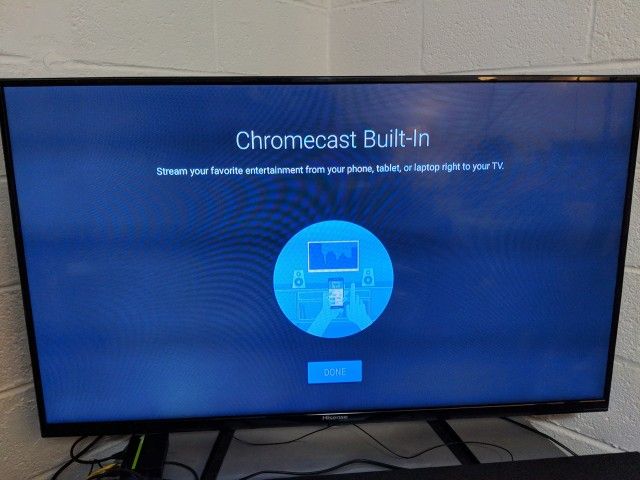
While the Chromecast technology debuted in a small dongle from Google, it has since reached hundreds of devices from dozens of TV, audio, and AV receiver manufacturers. You can identify a device with Chromecast technology with the Chromecast Built-in label. Every device that includes the technology comes with the label.

Specifically, you’ll primarily find Google Cast compatibility on Android TV and Google TV-powered devices among televisions. But Vizio has also included Chromecast support on its SmartCast OS-powered TVs.

How to cast content with Chromecast

OneDrive app showing Chromecast support

If you are looking to cast content from your smartphone to your TV or speaker, look for the cast icon — a rectangular icon with three concentric rings in the corner — in the app. The icon may appear on the homepage of the app or the playback screen.

When you tap on the icon, the app will list all the Google Cast-compatible devices around you. Make sure both your phone and the receiver device are on the same Wi-Fi network unless you are using a Chromecast with the Guest Mode enabled.

Select the device on which you want to cast the content, and the playback will begin on the receiver device. You can control the playback from the content app or use the Google Home app.

If you want to cast content from your computer, you’ll need the Chrome browser. First, open the website from which you want to cast content. And, if the website is Google Cast-enabled, you will see the cast icon. Otherwise, you’ll have to use Chrome tab casting from the three-dot menu to get the content from your TV.

You can also use Chrome to cast local files saved on your computer or your computer screen. These options can be found in the cast menu.


Although with the quick uptake of smart TVs and smart speakers, Chromecast is not as relevant as it used to be. But it is still one of the easiest ways to stream content from your smartphone or computer to a compatible device.

Do you still use Chromecast functionality? Let us know in the comments section. We also have similar explainers on Miracast and AirPlay.

The post What is Chromecast: Explaining Google’s wireless streaming technology appeared first on xda-developers.


from xda-developers https://ift.tt/3BOMtBp
via IFTTT

What is Chromecast: Explaining Google’s wireless streaming technology

If you have thought about picking up a dongle over the last several years to enable wireless streaming on your non-smart HDTV, there is an excellent chance you have come across Chromecast. It is essentially a lineup of devices by Google that allows you to stream media to your TV or AV receiver wirelessly. But the underlying Chromecast technology is not just limited to the Google dongles. In fact, you can find it in televisions, speakers, and AV receivers. And it can do far more than just stream online content.

What is Chromecast?

Google Chromecast Ultra

Apart from being a moniker for Google’s streaming dongles, Chromecast is also used to refer to Google’s proprietary technology that uses the Google Cast protocol. So while Chromecast is the user-facing branding, it is the Google Cast protocol that does everything under the hood.

The protocol allows users to initiate and control media content playback from their mobile devices or Chrome on compatible receiving devices like TVs. It can also be used to mirror a Chrome tab or a computer or Android device screen on your TV. In addition, you can stream locally saved media files to your TV using the cast function in Chrome or an app like AllCast or Plex.

The Google Cast protocol was launched in 2013 with the first Chromecast device. Google then introduced the Google Cast SDK to allow developers to integrate Google Cast in their apps and websites.

Since its debut in the original Chromecast, Google Cast has been integrated into hundreds of devices. Although it was initially meant to cast videos and images, Google added audio support in 2015.

Two types of casting

The Chromecast technology supports two types of content casting. In the first type, you use a mobile app or a web app with built-in Google Cast support to select a piece of content that you want on the receiver device, like a television. Then, you initiate the playback on the receiver device using the cast button. Once you have triggered the playback, your receiver device gets the instruction to play the specific content by fetching it directly from the app’s servers or your device’s local storage in case you are streaming a local file. The content is then streamed within a local version of Chrome on the receiver. This leaves the sender device free to do other stuff. But you can still control the playback and volume from your smartphone or Chrome.

The second type involves casting a Chrome tab from your computer or mirroring your Android device screen using the Google Home app. The quality of your cast or screen mirroring in the second method depends on the processing power of your sender device as all the processing is happening on that.

Chromecast devices from Google

Chromecast

First-gen Chromecast

The 2013 Chromecast was the first hardware to come with the Google Cast protocol. It was basically a dongle that plugged into an HDMI port on your TV. Google followed it up with a second-generation model featuring a new design and a Chromecast Audio dongle that was supposed to make the dumb speakers smart. Chromecast Ultra, Third-generation Chromecast, and Chromecast with Google TV debuted in the last few years.

Apart from the third-gen Chromecast and the Chromecast with Google TV, Google has discontinued the other Chromecast models. Also, while the third-gen Chromecast can only be used to cast content from other devices, the Chromecast with Google TV is a streaming device with a full version of Android TV OS and Google TV UI. So it doesn’t necessarily need Chromecast functionality to stream content as it has its own apps, but it includes the feature if you need it.

“Chromecast Built-in” devices from third-party manufacturers

Xiaomi TV with Chromecast Built-in

While the Chromecast technology debuted in a small dongle from Google, it has since reached hundreds of devices from dozens of TV, audio, and AV receiver manufacturers. You can identify a device with Chromecast technology with the Chromecast Built-in label. Every device that includes the technology comes with the label.

Specifically, you’ll primarily find Google Cast compatibility on Android TV and Google TV-powered devices among televisions. But Vizio has also included Chromecast support on its SmartCast OS-powered TVs.

How to cast content with Chromecast

OneDrive app showing Chromecast support

If you are looking to cast content from your smartphone to your TV or speaker, look for the cast icon — a rectangular icon with three concentric rings in the corner — in the app. The icon may appear on the homepage of the app or the playback screen.

When you tap on the icon, the app will list all the Google Cast-compatible devices around you. Make sure both your phone and the receiver device are on the same Wi-Fi network unless you are using a Chromecast with the Guest Mode enabled.

Select the device on which you want to cast the content, and the playback will begin on the receiver device. You can control the playback from the content app or use the Google Home app.

If you want to cast content from your computer, you’ll need the Chrome browser. First, open the website from which you want to cast content. And, if the website is Google Cast-enabled, you will see the cast icon. Otherwise, you’ll have to use Chrome tab casting from the three-dot menu to get the content from your TV.

You can also use Chrome to cast local files saved on your computer or your computer screen. These options can be found in the cast menu.


Although with the quick uptake of smart TVs and smart speakers, Chromecast is not as relevant as it used to be. But it is still one of the easiest ways to stream content from your smartphone or computer to a compatible device.

Do you still use Chromecast functionality? Let us know in the comments section. We also have similar explainers on Miracast and AirPlay.

The post What is Chromecast: Explaining Google’s wireless streaming technology appeared first on xda-developers.


from xda-developers https://ift.tt/3BOMtBp
via IFTTT