Typically, Intel processors have been much more prevalent than AMD ones, especially in laptops. Even today, many of the best laptops you can buy are powered by Intel processors. However, since introducing the Ryzen family, AMD has made great strides in becoming more popular, and more and more fantastic laptops have shown up with AMD Ryzen processors inside.
We’re now at the point where you can find really great laptops powered by AMD Ryzen in all different segments of the market. Whether you want a new gaming rig, a premium laptop, or something to get work done, AMD processors are now at the heart of many devices, and they’re some of the best you can find, too. As we approach the holiday season, if you’re looking to upgrade to a new AMD laptop, we’ve rounded up the best options you can find today. As we’ve mentioned, these laptops cover a lot of ground, so no matter what you’re looking for, you’re bound to find something you like here. Let’s get started.
Navigate this article:
Best overall: HP Envy x360 13

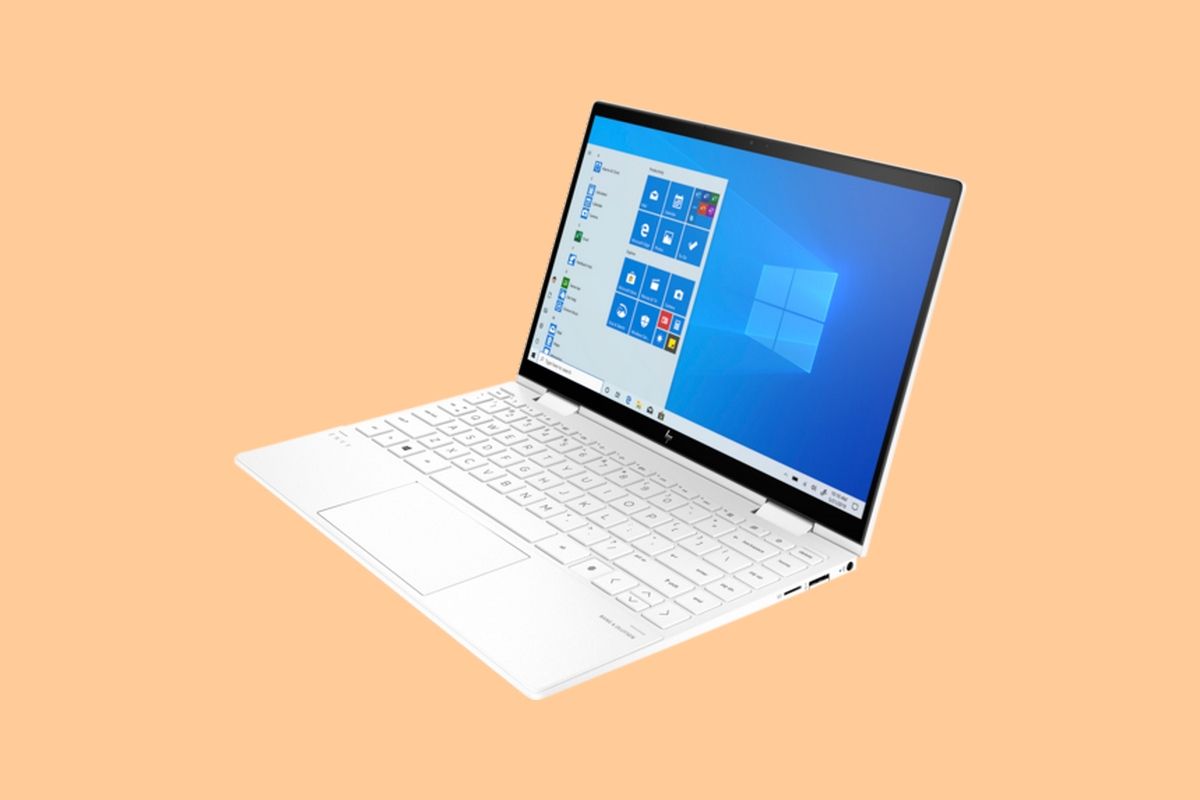
If you’re looking for a versatile high-end AMD Ryzen laptop, the HP Envy x360 13 is an absolutely fantastic option. Powered by the latest AMD processors and other high-end specs, this is a stellar convertible that’s bound to serve you well, and it’s relatively affordable, too.
Starting with performance, the HP Envy x360 is powered by the AMD Ryzen 5000 series, specifically a Ryzen 5 5600U or Ryzen 7 5800U. These aren’t just AMD’s latest processors, they’re actually based on the new Zen 3 architecture, which is better and more efficient than the Zen 2 architecture you’d find in the Ryzen 5 5500U and Ryzen 7 5700U many laptops use. Additionally, you get to choose between 8GB or 16GB of RAM, though we’d recommend the latter for optimal performance. You can also get up to a 1TB SSD for storage, so you won’t need more space anytime soon.
The display on the HP Envy Envy x360 is also pretty good. It’s a 13.3-inch panel with Full HD (1920 x 1080) resolution, a 16:9 aspect ratio, and 400 nits of brightness. Some users may scoff at the lack of a taller screen, but this is still the ideal form factor for media consumption. You can’t upgrade the resolution, but for a 13-inch laptop, Full HD is already very good. One upgrade option you do get is to add a privacy screen, so if you’re working in public, you can hide the contents of your screen from the people around you.
Design-wise, the HP Envy x360 is a fairly standard convertible, meaning the display hinge rotates 360 degrees so you can use it as a tablet. 13 inches is arguably the best size for a convertible, since anything bigger may be a bit unwieldy for some users. What’s great about the Envy x360 is that it comes in two colors: a fairly standard Nightfall Black, and a bright Ceramic White. There are a few pure white laptops out there, but they’re still not that common, and it really helps this one stand out from the crowd, which is appreciated in a sea of silver and black laptops. It’s also fairly light at 2.92lbs, which isn’t bad at all for a premium aluminum convertible.
As for ports, you get a USB 3.2 Gen 2 Type-C port, two USB 3.2 Gen 1 Type-A ports, a headphone jack, and a microSD card reader in addition to a proprietary charging port. The lack of a traditional display output is a bummer, but the USB Type-C port does support DisplayPort out, so you’re not out of options. As for bonuses, you get a fingerprint reader on the keyboard for Windows Hello, though there’s no facial recognition on the 720p webcam. The camera does have a privacy shutter, though, if you’re the kind of person to cover your webcam when you’re not using it.
Overall, the HP Envy x360 is a fantastic convertible laptop powered by AMD Ryzen, and you can’t really go wrong with it.
The HP Envy x360 is a premium convertible with the latest AMD Ryzen processors and other high-end specs.
Best AMD gaming laptop: Razer Blade 14

Razer finally launched its first AMD-powered laptop this year with the Razer Blade 14, and suffice it to say, it made quite the entrance. Razer calls it the most powerful 14-inch gaming laptop, and we’re inclined to believe that statement.
The Razer Blade 14 is powered by AMD Ryzen H-series processors, specifically the AMD Ryzen 9 5900HX. That’s one of the most powerful mobile processors you can find right now, with a total of 8 cores, 16 threads, and boost speeds up to 4.6GHz. On top of that, you can get it with up to an NVIDIA GeForce RTX 3080 GPU with 8GB of VRAM and 100W of power, which is no joke for a 14-inch laptop. Razer is also using a powerful cooling system to keep things running smoothly. Additionally, you get 16GB of RAM and a 1TB SSD, making this a very powerful combination, though it is unfortunate you can’t upgrade the RAM yourself.
A gaming laptop also needs a fast display, and the Razer Blade 14 delivers. The base model includes a Full HD (1920 x 1080) panel at 144Hz, but the higher tiers give you a Quad HD (2560 x 1440) display at 165Hz for even better visuals and smoother gaming. The displays should look great, and the Quad HD model specifically covers 100% of DCI-P3, so it’s even got potential for creative work. For sound, you get two top-firing stereo speakers with support for THX Spatial Audio, which should give you a pretty immersive experience without headphones.
One of the things that helps the Razer Blade 14 stand out is its compact size, and it’s certainly impressive. The fact that a 14-inch laptop packs these specs is impressive by itself, and on top of that, the Blade 14 is just 16.8mm thin. Gaming laptops have been getting thinner, but it’s still surprising to see this kind of power in such a small chassis, and this is one of the most portable gaming laptops you can get. It does weigh 3.92lbs, so it’s not the lightest laptop around, but it could be worse, too.
As for ports, the Blade 14 packs a healthy supply. You get two USB 3.2 Gen 2 Type-C ports (with power delivery and DisplayPort), two USB Type-A ports at the same speed, HDMI 2.1, and a headphone jack, plus the proprietary charging port. For bonus features, you get Windows Hello facial recognition alongside the 720p webcam, and the keyboard is RGB-backlit with per-key Razer Chroma lighting for a fully customized look.
All in all, the Razer Blade 14 is an impressive laptop with serious gaming chops for such a tiny package. You can find more powerful gaming laptops if you want something bigger, but this is still a phenomenal choice.
The Razer Blade 14 is a powerful AMD Ryzen gaming laptop packed into a compact chassis you can easily take anywhere.
Budget gaming laptop: HP Pavilion Gaming 15

If you want to play some games but you don’t have the budget for the latest and greatest specs, the HP Pavilion Gaming 15z is a solid way to get started. It gives you all the basics for a solid entry-level gaming experience without breaking the bank.
Performance-wise, the HP Pavilion Gaming 15z is packing the latest AMD Ryzen H-series CPUs, up to a Ryzen 7 5800H. That’s an 8-core, 16-thread CPU that can boost up to 4.4GHz, so you’re getting plenty of performance in that regard. For graphics, you get an NVIDIA GeForce GTX 1650, which is a decent entry-level CPU. It’s not going to rival the latest RTX cards, but if you’re just looking to get started with gaming, it’s still going to run most modern games at lower settings. Aside from that, you get up to 16GB of RAM and a 1TB SSD for storage, which should be enough for a solid experience. You can always upgrade these specs later on if you need to.
The display is fairly basic, but again, it can cover your gaming needs fairly well, too. It’s a 15.6-inch Full HD (1920 x 1080) display and the base configuration only runs at 60Hz, but you can upgrade to a 144Hz for a small price. You can also pay extra for a brighter display, which might come in handy if you often use the laptop under strong lights.
The design isn’t anything all too special for a gaming laptop. At over 23mm, it’s not exactly slim, and the 4.23lbs starting weight is also not particularly light, but that’s to be expected with a budget design like this. You see some elements of the typical “gamer aesthetic” here, but the keyboard uses a single-color backlight (white or green), and there’s nothing particularly interesting about the way it looks. However, you do get a full number pad on the keyboard, which might come in handy if you need extra controls for games or if you need to do some number-related work on the laptop.
For ports, you get a decent selection, with one USB Type-C port, two USB Type-A ports, HDMI, RJ45 Ethernet, an SD card reader, headphone jack, and a proprietary power connector. It covers all the basics, and the inclusion of Ethernet is useful if you don’t have a fast Wi-Fi connection available. A downside of this laptop is that you get no form of Windows Hello support, be it via an IR camera or a fingerprint reader.
While it’s certainly not up there with the cream of the crop of gaming laptops, the HP Pavilion Gaming 15z is a great entry point for up-and-coming PC gamers with a tight budget.
The HP Pavilion Gaming is an affordable gaming laptop with solid specs and a high refresh rate display.
Best premium AMD laptop: Surface Laptop 4

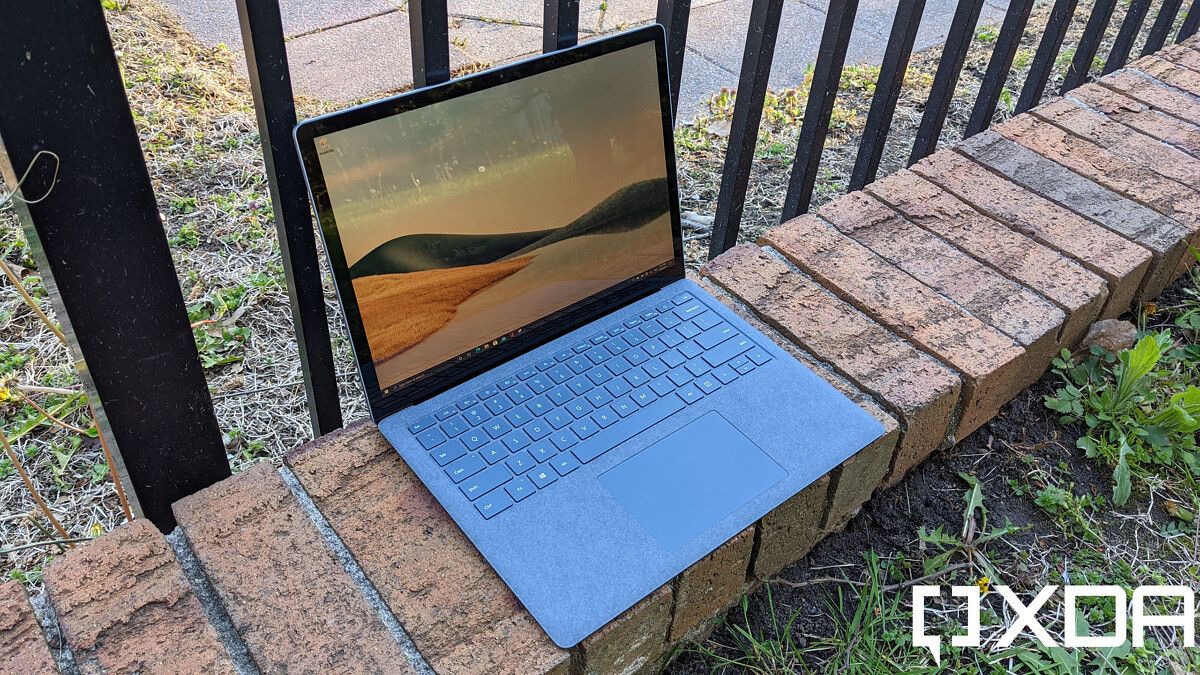
Microsoft’s Surface family is responsible for some of the most interesting Windows laptops, and if you want a traditional clamshell, the Surface Laptop 4 is a great option. It’s a premium laptop with a sleek design, a great display, and rock-solid performance.
Unlike other laptops on this list, the Surface Laptop 4 isn’t packing the latest AMD Ryzen 5000 series processors. Instead, Microsoft collaborated with AMD to develop the Ryzen Microsoft Surface Edition processors, specifically the Ryzen 5 4680U for the 13.5-inch model and Ryzen 7 4980U for the 15-inch model. The latter of those processors is an 8-core, 16-thread CPU that can boost up to 4.4GHz, so even though it’s not the most recent, it’s far from a weak processor.
The Microsoft Surface editions of these processors also have faster graphics than their standard versions, so this is a better package than you might initially think. Aside from that, you can configure the Surface Laptop 4 with up to 16GB of RAM and 512GB of storage (256GB for the 13.5-inch model), so you’re getting a solid experience overall.
Like most Surface devices, the Surface Laptop 4 has a fantastic display. The resolution depends on the size, but both models have a 201PPI, which is plenty sharp for a laptop, and of course, it has the typical 3:2 aspect ratio all Surface products have. This means the screen is taller, and that extra vertical space is fantastic for reading webpages and documents, typing, and productivity in general. This is also a PixelSense screen with support for touch and the Surface Pen, so you can doodle on the screen, though it might not be the best comfortable experience since this isn’t a convertible.
The design is one of the best things about most Surface devices, and while the Surface Laptop 4 is a standard clamshell laptop, it still has some perks. The 13.5-inch model is the most interesting visually because it comes in four different colors, and two of them include an Alcantara cover for the keyboard deck. This fabric cover goes a long way in looking unique but also making the laptop more comfortable to use. The 15-inch model doesn’t have Alcantara, and it only comes in Platinum or Matte Black colors, but it still looks sleek and refined.
The port selection is decent on the Surface Laptop 4, though this has typically been one area where Microsoft could do better. You get a USB Type-A port, USB Type-C, a headphone jack, and a Surface Connect port, which you can use with a Surface Dock if you need extra connectivity options. The lack of a traditional display output or an SD card reader is unfortunate, but it depends on your needs. As for bonus features, you get Windows Hello facial recognition alongside the 720p webcam, giving you the most convenient way to unlock your PC.
Overall, the Surface Laptop 4 is a great premium laptop, and when it comes to AMD Ryzen-based PCs, it’s certainly worth considering.
The Surface Laptop 4 has a premium metal design with optional Alcantara, a great display, and high-end specs.
Best lightweight AMD laptop: HP Pavilion Aero
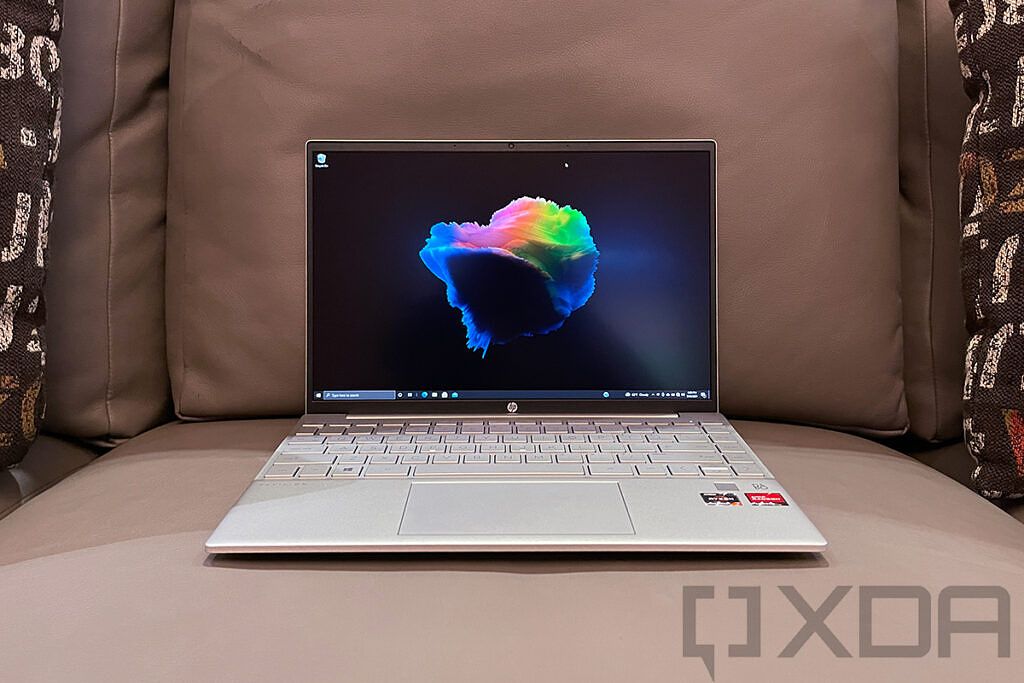
Looking for an exceptionally light laptop that you can easily take anywhere? Look no further than the HP Pavilion Aero, a fantastic AMD Ryzen-powered laptop that’s lightweight, fast, and surprisingly affordable for what it offers. This is one of the most interesting laptops of 2021, and it definitely deserves your attention.
First off, the HP Pavilion Aero is powered by the latest AMD Ryzen processors, up to a Ryzen 7 5800U. Similar to the HP Envy x360 we mentioned at the top, this is using the more modern version of AMD’s Ryzen 5000 series processors, based on the Zen 3 architecture. This is an 8-core, 16-thread CPU, and it can boost up to 4.4GHz, so you’re getting plenty of performance out of it. It also has solid integrated Radeon graphics, just like any mobile Ryzen chipset. In addition to that, you can get the Pavilion Aero 13 with up to 16GB of RAM and 1TB of SSD storage, so all your basic needs are covered.
Moving to the display, this is where the Pavilion Aero starts to really stand out. This is a 13.3-inch display, and it comes in the 16:10 aspect ratio, which is very rare for any laptop in this price range. Even premium laptops often miss out on taller screens like this, and having it at a relatively budget price is great. But that’s not all. The base configuration for the HP Pavilion Aero has Full HD+ (1920 x 1200) resolution, which is already great, but you can even upgrade to a Quad HD+ (2560 x 1600) panel, another rare sight in a laptop this affordable.
Design is another area where the HP Pavilion Aero stands out. Similar to many premium laptops, the Pavilion Aero is made from a magnesium alloy, and that allows the laptop to be extremely light. It weighs less than 2.2lbs or less than 1 kilogram, and it’s also just 17mm thin, so it’s truly a very portable laptop. Making it even cooler is the fact that you can get the Pavilion Aero in four different colors, a rare sight for magnesium laptops. The colors are all fairly tame, but they’re distinct enough that you can get something that matches your style.
Finally, we move on to ports, and there’s a decent supply here, too. You get one USB Type-C port, two USB Type-A ports, HDMI, a microSD card reader, and a proprietary charging connector. That covers all the basics, and for an affordable laptop that already gets so much right, it’s hard to ask for much more. You do get a bonus in the form of a fingerprint reader on the keyboard deck for Windows Hello, so you can still log in easily without having to type a password or PIN.
The HP Pavilion Aero is frankly a surprisingly good laptop in almost all respects, and it’s hard to fault it considering its price point. If you’re looking for the best bang for your buck, this might be it.
The HP Pavilion Aero is a lightweight and capable laptop with great display options and a surprisingly low price.
Best business laptop: Lenovo ThinkPad X13 Gen 2

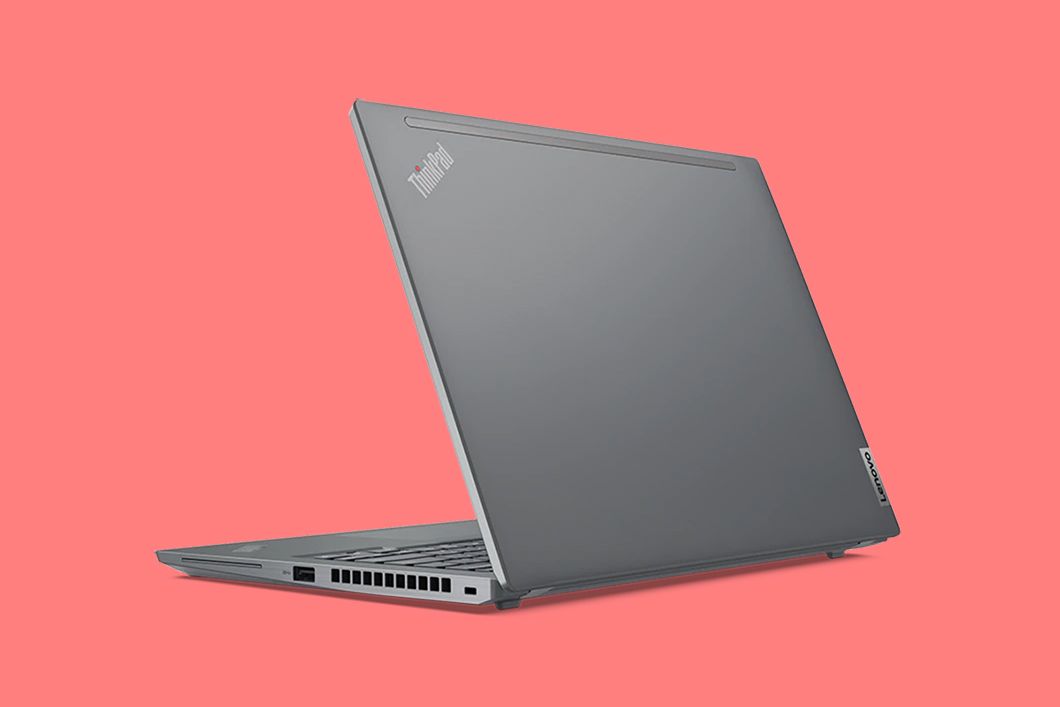
Lenovo’s ThinkPad lineup is hands-down one of the most recognizable names in the business laptop space. As such, it’s not exactly surprising that one of the best AMD-powered laptops is the ThinkPad X13, featuring AMD’s latest and greatest in professional laptop CPUs.
The Lenovo ThinkPad X13 is indeed powered by the latest AMD Ryzen mobile processors, but they’re not exactly the same as what you’d find on most other laptops. It comes with up to a Ryzen 7 Pro 5850U, which is an 8-core, 16-thread CPU that can boost up to 4.4GHz. The Pro designation means you get extra security features designed for businesses, so it makes perfect sense why those are the processors used here. In addition to that, you can get it with up to 32GB of onboard memory so you can run memory-heavy applications or multitask without any issues. You can also get up to 1TB of storage.
You get a few options for the display on the ThinkPad X13. Of course, it’s always going to be a 13.3-inch panel, with a 16:10 aspect ratio, and that already means you have a great screen for productivity. But while the base configuration is just a standard Full HD+ (1920 x 1200) screen, you can upgrade it to add touch, a privacy guard, or even opt for the Quad HD+ (2560 x 1600) panel. There are different options for different needs, something you see a lot in business laptops.
One big thing that distinguishes this laptop from all the others on this list is the webcam. While the base configuration is a 720p webcam just like the others, you have the option to upgrade to a 1080p camera with Windows Hello support, in addition to also having the option for a fingerprint reader.
The design itself is a standard Lenovo affair. It uses a black or storm grey color accented by ThinkPad’s signature red in some areas, including the pointing stick on the keyboard – another stable of the ThinkPad family. It’s fairly light at 2.78lbs, and it measures 18.19mm thin, so while it’s not the lightest or thinnest laptop around, it’s certainly very portable.
Ports are often important for business laptops, and thankfully, the ThinkPad X13 covers all the basics. You get two USB Type-C ports, two USB Type-A (and all four support USB 3.2 Gen 2 speeds), HDMI 2.0, and a headphone jack. In true business fashion, though, you have the option to add a smart card reader too, and even cellular network support, with options for either LTE or 5G.
At writing time, many of Lenovo’s configuration options don’t seem to be available, and you have just two models to choose from. Regardless, this is a great business laptop powered by AMD Ryzen processors, and you’re bound to have a great experience with it.
The Lenovo ThinkPad X13 is a capable business laptop with high-end AMD processors and various configuraiton options available.
Best laptop with an OLED display: ASUS ZenBook 13 OLED

If you’ve ever used an OLED display, you know how beautiful they look. OLED screens are fairly common on phones, but they’re still something of a rarity in laptops. Thankfully, ASUS is not only making a few OLED laptops, we have the thin and light ZenBook 13 powered by AMD Ryzen processors.
First off, the ASUS ZenBook 13 OLED comes with AMD Ryzen 5000 series CPUs, up to a Ryzen 7 5700U. That’s a powerful processor with 8 cores and 16 threads, and it can boost up to 4.3GHz, and even though it’s still based on the Zen 2 architecture, it’s quite the performer. It also comes with 8GB of RAM and 512GB of SSD storage, so it’s good enough for day-to-day use, though it’s not going to blow you away with its performance.
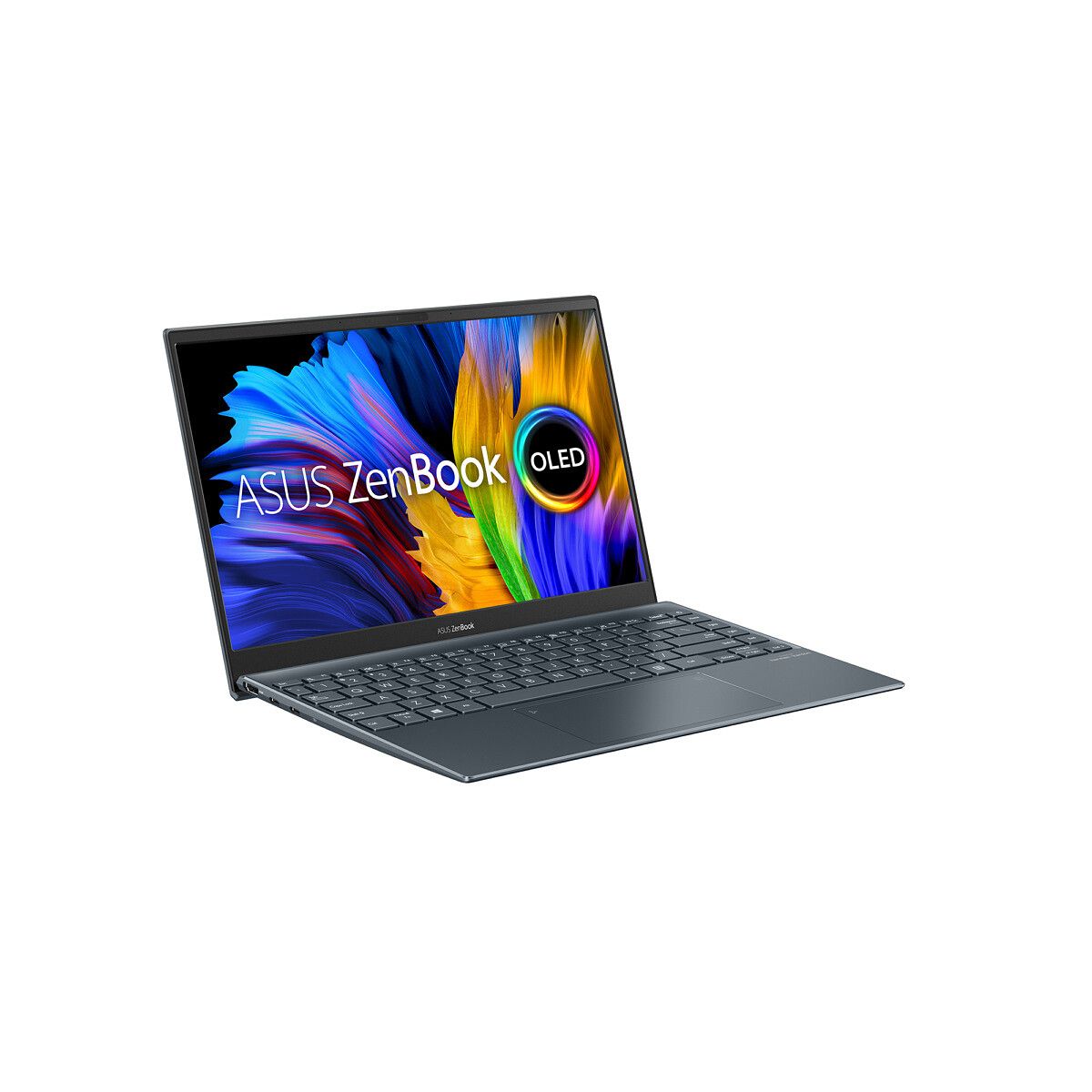
But performance isn’t the main focus here. It’s the display, and the ZenBook 13 OLED delivers. This is a 13.3-inch Full HD (1920 x 1080) OLED panel, and it comes complete with DisplayHDR certification and PANTONE validation. It also covers 100% of the DCI-P3 color gamut, making it great for color-sensitive work.
The design of the ZenBook 13 OLED also contributes to making it more special. It’s incredibly thin at just 13.9mm and it weighs 2.51lbs, which is very light, even if it’s not the lightest on this list. It still includes a 67Whr battery, though, which is impressive for this size. It’s also got a MIL-STD-810H rating for durability, so you won’t break it easily. The laptop is cleverly designed to automatically lift up the keyboard deck slightly when you open it, so it gives you a more comfortable typing experience and increases airflow for better cooling.
Despite being as thin as it is, the ASUS ZenBook 13 OLED still includes a decent selection of ports, including two USB Type-C ports, one USB Type-A, HDMI 2.1, and a microSD card reader. And in the box, you get adapters UBS-A to Ethernet and USB-C to 3.5mm audio, so you still have options here. One other thing that hasn’t been sacrificed is the IR camera for Windows Hello, so you can still unlock the PC conveniently.
On top of all that, there’s a neat feature ASUS built into the ZenBook 13. While there’s no space for a traditional number pad, the touchpad you use to control the mouse doubles as a digital number pad on demand. You can turn it on or off, but even if you leave it on, ASUS says it can detect when you want to use it as a mouse, and it should work anyway.
That’s an impressive set of features for something as thin and light as the ZenBook 13 is, and considering everything offers, it’s not expensive, either. It costs $859.99 at writing time, which is an appealing price for this combination of specs and design.
The ASUS ZenBook 13 OLED has a stunning OLED screen, high-end specs, and an impressively lightweight design.
Best budget laptop: Acer Swift 3

Looking for an affordable AMD Ryzen laptop that’s still capable? The Acer Swift 3 is one of the best options you can find if you have a small budget, offering high-end specs at a reasonable price that’s just over $600 at writing time.
Performance-wise, the Acer Swift 3 doesn’t leave much to be desired considering its price tag. It’s packing an AMD Ryzen 7 5700U processor with 8 core and 16 threads, which can boost up to 4.3GHz when needed. Of course, just like all other AMD processors, it also has integrated Radeon graphics. As we mentioned for the ZenBook 13 above, this isn’t AMD’s absolute best mobile processor right now, but you probably won’t be needing more CPU performance than what you get here. Aside from that, you get 8GB of RAM and a 512GB SSD – a decent combination, albeit 8GB of RAM won’t give you the best performance for multi-tasking.
The display on the Acer Swift 3 does a good enough job of covering the basics. It’s a 14-inch Full HD (1920 x 1080) IPS display that covers 100% of the sRGB color space. It’s got fairly small bezels on three sides, so it feels fairly modern, but it’s a basic display otherwise. Having Full HD resolution is definitely welcome, though, as that’s one area where some affordable laptops sometimes cut corners, and going below Full HD would make for a subpar experience. For sound, you get a pair of stereo speakers, which should give you a solid experience as well.
The design is expectedly simple, though it’s nice to see that the laptop measures just 16mm in thickness considering design is another area budget laptops usually sacrifice. It’s fairly light, too, at 2.65lbs, so this is a great machine if you want something portable. It’s also worth noting that, despite being relatively affordable, the Acer Swift 3 uses an all-aluminum chassis, so it’s still got a premium feel.
For ports, the Acer Swift 3 once again nails the basics. You get one USB 3.2 Gen 2 Type-C port with charging and DisplayPort out, two USB 3.2 Gen 1 Type-A ports, HDMI, a headphone jack, and a proprietary power connector. That covers support for most types of peripherals, including a second screen if you need it. In terms of extra features, the Acer Swift 3 includes a fingerprint reader below the keyboard, meaning it supports Windows Hello.
Getting all of that for just over $600 is certainly a good deal, and if you really don’t want to spend more, you won’t regret buying this laptop. The HP Pavilion Aero listed above starts at a similar price, but that’s with less impressive specs, and making those upgrades will add up. With the Acer Swift 3, you get a great experience without breaking the bank.
The Acer Swift 3 gives you high-end performance and a solid overall experience at an affordable price.
And those are what we’d consider the best AMD Ryzen laptops you can buy today. These are all great options, and you might prefer any of them over the others depending on what you’re looking for. We chose the HP Envy x360 as our best overall pick because it combines a premium design, the latest Zen 3-based AMD processors, and the versatility of a convertible into a very portable package that looks great. But that might not be what you want the most, and there are other great options here. I find the Razer Blade 14 particularly impressive for its combination of specs in such a compact chassis, and the HP Pavilion Aero is also a stand-out choice thanks to its ultralight design and affordable price point.
One thing you might have noticed is that none of the laptops on this list support Thunderbolt, and that’s because Thunderbolt is proprietary Intel technology. If you’re interested in those docking capabilities, we have a list of the best Thunderbolt 4 laptops you can buy today, which might just have what you’re looking for.
The post These are the best AMD Ryzen laptops this holiday appeared first on xda-developers.
from xda-developers https://ift.tt/38RWxOY
via
IFTTT