LightBlog

dimanche 7 mars 2021

Samsung Galaxy S21 vs iPhone 12 Mini: Which small phone is for you?

Over the past few weeks, we’ve been testing Samsung’s brand new Galaxy S21 series against Apple’s iPhone 12 series, beginning with the middle one and then the biggest one. Now it’s time for the smallest ones to shine. If you dislike the trend of phones getting bigger and bigger, then the iPhone 12 Mini and the Galaxy S21 are both small phones (to varying degrees) that most people should be able to one-hand use with ease.

The iPhone 12 Mini and Samsung Galaxy S21 placed on a cushion

Samsung Galaxy S21 vs. Apple iPhone 12 Mini: Specifications and Comparison

Specifications Samsung Galaxy S21 Apple iPhone 12 Mini
Build
  • Aluminum mid-frame
  • Plastic back
  • Gorilla Glass Victus front
  • Stainless steel mid-frame
  • Glass front and back
  • “Ceramic Shield” for glass protection
Dimensions & Weight
  • 151.7 x 71.2 x 7.9mm
  • 171 grams
  • 131.5 x 71.5mm x 7.4mm
  • 133 grams (Global)
  • 135 grams (USA)
Display
  • 6.2″ FHD+ Dynamic AMOLED 2X display
  • 2400 x 1080 pixels
  • 421 PPI
  • 120Hz variable refresh rate
  • 20:9 aspect ratio
  • 1300nits peak brightness
  • HDR10+
  • 5.4″ Super Retina XDR OLED Display
  • 2,340 x 1,080 resolution
  • 476 PPI
SoC
  • International: Exynos 2100:
    • 1x ARM Cortex X1 @ 2.9GHz +
    • 3x ARM Cortex A78 Cores @ 2.8GHz +
    • 4x ARM Cortex A55 Cores @ 2.2GHz
  • USA: Qualcomm Snapdragon 888:
    • 1x Kryo 680 Prime Core @ 2.84GHz +
    • 3x Kryo 680 Performance Cores @ 2.4GHz +
    • 4x Kryo 680 Efficiency Cores @ 1.8GHz
  • Apple A14 Bionic SoC
Ram & Storage Options
  • 8GB + 128GB
  • 8GB + 256GB
  • 64GB (Ram not disclosed)
  • 256GB (Ram not disclosed)
Battery & Charging
  • 4,000mAh
  • 25W USB Power Delivery 3.0 fast charging
  • 15W wireless charging
  • 4.5 reverse wireless charging
  • No charger in the box in most regions
  • 2,227 mAh battery as per certification listings
  • 15W Wireless Charging with MagSafe
  • 7.5W Qi Wireless Charging
  • No charger in the box
Security Ultrasonic In-Display Fingerprint Scanner Face ID (TrueDepth camera for facial recognition)
Rear Camera(s)
  • Primary: 12MP, wide-angle lens, f/1.8, 1/1.76″, 1.8µm, OIS, Dual Pixel PDAF
  • Secondary: 12MP, ultra-wide-angle lens, f/2.2, 1/2.55″, 1.4µm
  • Tertiary: 64MP, telephoto lens, f/2.0, 1/1.76″, 0.8µm, PDAF, OIS
  • Primary: 12MP
  • Secondary: 12MP, Ultra-wide angle
  • Tertiary: 12MP telephoto
Front Camera(s) 10MP, f/2.2, 1.22µm, Dual Pixel PDAF 12MP, f/2.2
Port(s) USB 3.2 Type-C Proprietary Lightning port
Connectivity
  • Bluetooth 5.1
  • NFC
  • Wi-Fi 6
  • 5G
  • 5G: Sub 6GHz
    • mmWave for the USA
  • Ultra-Wide Band (UWB)
  • Wi‑Fi 6 (802.11ax) with 2×2 MIMO
  • Bluetooth 5.0
Software Samsung One UI 3.1 based on Android 11 iOS 14
Other Features IP68 IP68
Pricing Starts at $799 Starts at $699

Design: One is small; the other’s tiny

If you’re considering either of these phones rather than their bigger siblings, chances are you’re either looking for a small phone, or you just want to pay less money. Either way, the iPhone 12 Mini “wins” if those are the sole reasons. The Galaxy S21 is small, but the iPhone 12 Mini is downright petite. My average adult-sized hand can completely wrap around the Mini, and my thumb can reach all four corners without readjusting my grip. The Galaxy S21 still requires a slight thumb stretch if I really need to reach the top of the 6.2-inch screen.

The iPhone 12 Mini and Galaxy S21 front side by side held in hand

But the thing is, the Galaxy S21’s harder-to-reach upper corners don’t actually matter much in real-world usage because Android, unlike iOS, is well optimized for one-hand use. I’ve written about this before, but with Android, I can place apps only at the bottom of the screen; I can pull down the notification panel by swiping anywhere on the screen — unlike the iPhone, which forces you to swipe from the very top of the screen.

The iPhone 12 Mini and Galaxy S21 backs held in hand together

So in terms of purely using the phone one-handed, the iPhone 12 Mini doesn’t necessarily have an advantage just because it’s smaller. However, that smaller size and lighter weight still bring benefits — it fits into small pockets or onto gimbals/phone mounts easier.

The iPhone 12 Mini and Galaxy S21 The iPhone 12 Mini and Galaxy S21

In-hand feel is great for both, but the iPhone 12 Mini uses more premium materials due to its glass-and-aluminum sandwich design, while the Galaxy S21 cheaps out with a plastic back. Yes, Samsung indeed did a great job of coating the plastic to make it not feel like plastic, and some will even argue plastic is preferable over glass because it won’t shatter when dropped. But if plastic is so great, Samsung would have used it across the entire S21 series — the reality is the use of a plastic back is a cost-cutting move by Samsung. The haptics of the Galaxy S21 is also a clear tier below the excellent haptics of the Galaxy S21 Ultra. The iPhone 12 Mini, for what it is worth, keeps the flagship tier haptics.

5nm SoCs power both phones, and each phone zips through daily tasks with ease. Moving around to the front of the devices, it’s the same story as my other two previous Galaxy S21 series versus iPhone 12 series comparison: The Samsung Galaxy S21’s screen beats the iPhone 12 Mini screen by being higher res, faster-refreshing, and has less of an interruption.

The screens of the iPhone 12 Mini and the Galaxy S21

It's true that Samsung did a great job of coating the plastic to make it not feel like plastic ... but the reality is the use of plastic back is a cost-cutting move

Cameras: Capable setups, but clearly a tier below the bigger siblings

Let’s start with the good: both the Galaxy S21 and iPhone 12 have rock solid 12MP wide and ultra-wide cameras. They focus fast, produce lively shots, find the right dynamic range without needing manual tweaks, and generally produce great shots in most lighting conditions. The iPhone 12 Mini’s shot tends to be warmer, while the Galaxy S21’s camera is cooler, with punchier colors. If we examine the photos below, we can see the Galaxy S21’s sensor pulls in more light, but as a result, the iPhone 12 Mini shots have better contrast.

Galaxy S21 iPhone 12 Mini Galaxy S21 iPhone 12 Mini Galaxy S21 iPhone 12 Mini Galaxy S21 iPhone 12 Mini

It’s the zoom system where we see that clearly, both Apple and Samsung decided to hold back here for the sake of keeping costs down. The Galaxy S21 uses a 64MP telephoto zoom lens that can do 3x optical zoom and digital zoom up to 30x, but really anything beyond 10x looks a bit too blotchy to be used.

Still, the lesser zooming system of the Galaxy S21 is still much better than the iPhone 12 Mini, which straight up doesn’t have a zoom lens at all, and its digital zoom maxes out at a measly 5x.

a reference shot captured by the iPhone 12 Mini Galaxy S21 5x zoom iphone 12 Mini 5x zoom

If I blow up the 5x shots to 100% view on a monitor, it’s not even close.

iPhone 12 Mini vs S21 shots

5x zoom, 100% crop, Galaxy S21 (left) and iPhone 12 Mini (right).

I did not do a specific video test between the iPhone 12 Mini and the Galaxy S21, but I did do an iPhone 12 versus Galaxy S21 Plus video comparison just last week. Considering the camera systems are identical between the iPhone 12 and iPhone Mini, and between the Galaxy S21 and Galaxy S21 Plus, that means results from that video pretty much applies here.

The iPhone 12 Mini is a slightly more capable video camera, particularly at night.

Battery life: Not enough Apple juice

Even though the Galaxy S21 refreshes at twice the rate, its larger battery cell allows it to offer slightly better battery life than the iPhone 12 Mini. Neither phone can quite last an entire 12 to 14-hour day for me — keep in mind I’m a heavy user — but the iPhone 12 Mini consistently runs out of juice for me well before my night is over, whereas the Galaxy S21 can at least hang on until near the end.

Final Thoughts: The iPhone 12 Mini is a better flagship

The iPhone 12 Mini still feels very much like a top Apple phone, just smaller

In my earlier comparison pitting the Galaxy S21 Ultra against the iPhone 12 Pro Max, I gave the overall win to Samsung, because I felt the Galaxy S21 Ultra offered more value. Here, it’s the reverse: the iPhone 12 Mini still feels very much like a top Apple phone, just smaller. But the Galaxy S21, with its plastic back and clearly weaker haptics? It feels far away from the Galaxy S21 Ultra as a premium offering. Throw in the fact that the iPhone 12 Mini is $100 cheaper, and I’d personally say the iPhone 12 Mini is a better buy if you want a small phone and are open to both eco-system.

    Samsung Galaxy S21
    The Samsung Galaxy S21 is the starting point of the new 2021 flagship series, packing in a flagship SoC, along with a decent display and camera setup.
    iPhone 12 Mini
    The iPhone 12 Mini is the smallest flagship in years. Despite it’s petite size, it packs arguably the most powerful SoC in smartphone right now, along with one of the very best cameras.

The post Samsung Galaxy S21 vs iPhone 12 Mini: Which small phone is for you? appeared first on xda-developers.


from xda-developers https://ift.tt/3vcN4uC
via IFTTT

Samsung Galaxy S21 vs iPhone 12 Mini: Which small phone is for you?

Over the past few weeks, we’ve been testing Samsung’s brand new Galaxy S21 series against Apple’s iPhone 12 series, beginning with the middle one and then the biggest one. Now it’s time for the smallest ones to shine. If you dislike the trend of phones getting bigger and bigger, then the iPhone 12 Mini and the Galaxy S21 are both small phones (to varying degrees) that most people should be able to one-hand use with ease.

The iPhone 12 Mini and Samsung Galaxy S21 placed on a cushion

Samsung Galaxy S21 vs. Apple iPhone 12 Mini: Specifications and Comparison

Specifications Samsung Galaxy S21 Apple iPhone 12 Mini
Build
  • Aluminum mid-frame
  • Plastic back
  • Gorilla Glass Victus front
  • Stainless steel mid-frame
  • Glass front and back
  • “Ceramic Shield” for glass protection
Dimensions & Weight
  • 151.7 x 71.2 x 7.9mm
  • 171 grams
  • 131.5 x 71.5mm x 7.4mm
  • 133 grams (Global)
  • 135 grams (USA)
Display
  • 6.2″ FHD+ Dynamic AMOLED 2X display
  • 2400 x 1080 pixels
  • 421 PPI
  • 120Hz variable refresh rate
  • 20:9 aspect ratio
  • 1300nits peak brightness
  • HDR10+
  • 5.4″ Super Retina XDR OLED Display
  • 2,340 x 1,080 resolution
  • 476 PPI
SoC
  • International: Exynos 2100:
    • 1x ARM Cortex X1 @ 2.9GHz +
    • 3x ARM Cortex A78 Cores @ 2.8GHz +
    • 4x ARM Cortex A55 Cores @ 2.2GHz
  • USA: Qualcomm Snapdragon 888:
    • 1x Kryo 680 Prime Core @ 2.84GHz +
    • 3x Kryo 680 Performance Cores @ 2.4GHz +
    • 4x Kryo 680 Efficiency Cores @ 1.8GHz
  • Apple A14 Bionic SoC
Ram & Storage Options
  • 8GB + 128GB
  • 8GB + 256GB
  • 64GB (Ram not disclosed)
  • 256GB (Ram not disclosed)
Battery & Charging
  • 4,000mAh
  • 25W USB Power Delivery 3.0 fast charging
  • 15W wireless charging
  • 4.5 reverse wireless charging
  • No charger in the box in most regions
  • 2,227 mAh battery as per certification listings
  • 15W Wireless Charging with MagSafe
  • 7.5W Qi Wireless Charging
  • No charger in the box
Security Ultrasonic In-Display Fingerprint Scanner Face ID (TrueDepth camera for facial recognition)
Rear Camera(s)
  • Primary: 12MP, wide-angle lens, f/1.8, 1/1.76″, 1.8µm, OIS, Dual Pixel PDAF
  • Secondary: 12MP, ultra-wide-angle lens, f/2.2, 1/2.55″, 1.4µm
  • Tertiary: 64MP, telephoto lens, f/2.0, 1/1.76″, 0.8µm, PDAF, OIS
  • Primary: 12MP
  • Secondary: 12MP, Ultra-wide angle
  • Tertiary: 12MP telephoto
Front Camera(s) 10MP, f/2.2, 1.22µm, Dual Pixel PDAF 12MP, f/2.2
Port(s) USB 3.2 Type-C Proprietary Lightning port
Connectivity
  • Bluetooth 5.1
  • NFC
  • Wi-Fi 6
  • 5G
  • 5G: Sub 6GHz
    • mmWave for the USA
  • Ultra-Wide Band (UWB)
  • Wi‑Fi 6 (802.11ax) with 2×2 MIMO
  • Bluetooth 5.0
Software Samsung One UI 3.1 based on Android 11 iOS 14
Other Features IP68 IP68
Pricing Starts at $799 Starts at $699

Design: One is small; the other’s tiny

If you’re considering either of these phones rather than their bigger siblings, chances are you’re either looking for a small phone, or you just want to pay less money. Either way, the iPhone 12 Mini “wins” if those are the sole reasons. The Galaxy S21 is small, but the iPhone 12 Mini is downright petite. My average adult-sized hand can completely wrap around the Mini, and my thumb can reach all four corners without readjusting my grip. The Galaxy S21 still requires a slight thumb stretch if I really need to reach the top of the 6.2-inch screen.

The iPhone 12 Mini and Galaxy S21 front side by side held in hand

But the thing is, the Galaxy S21’s harder-to-reach upper corners don’t actually matter much in real-world usage because Android, unlike iOS, is well optimized for one-hand use. I’ve written about this before, but with Android, I can place apps only at the bottom of the screen; I can pull down the notification panel by swiping anywhere on the screen — unlike the iPhone, which forces you to swipe from the very top of the screen.

The iPhone 12 Mini and Galaxy S21 backs held in hand together

So in terms of purely using the phone one-handed, the iPhone 12 Mini doesn’t necessarily have an advantage just because it’s smaller. However, that smaller size and lighter weight still bring benefits — it fits into small pockets or onto gimbals/phone mounts easier.

The iPhone 12 Mini and Galaxy S21 The iPhone 12 Mini and Galaxy S21

In-hand feel is great for both, but the iPhone 12 Mini uses more premium materials due to its glass-and-aluminum sandwich design, while the Galaxy S21 cheaps out with a plastic back. Yes, Samsung indeed did a great job of coating the plastic to make it not feel like plastic, and some will even argue plastic is preferable over glass because it won’t shatter when dropped. But if plastic is so great, Samsung would have used it across the entire S21 series — the reality is the use of a plastic back is a cost-cutting move by Samsung. The haptics of the Galaxy S21 is also a clear tier below the excellent haptics of the Galaxy S21 Ultra. The iPhone 12 Mini, for what it is worth, keeps the flagship tier haptics.

5nm SoCs power both phones, and each phone zips through daily tasks with ease. Moving around to the front of the devices, it’s the same story as my other two previous Galaxy S21 series versus iPhone 12 series comparison: The Samsung Galaxy S21’s screen beats the iPhone 12 Mini screen by being higher res, faster-refreshing, and has less of an interruption.

The screens of the iPhone 12 Mini and the Galaxy S21

It's true that Samsung did a great job of coating the plastic to make it not feel like plastic ... but the reality is the use of plastic back is a cost-cutting move

Cameras: Capable setups, but clearly a tier below the bigger siblings

Let’s start with the good: both the Galaxy S21 and iPhone 12 have rock solid 12MP wide and ultra-wide cameras. They focus fast, produce lively shots, find the right dynamic range without needing manual tweaks, and generally produce great shots in most lighting conditions. The iPhone 12 Mini’s shot tends to be warmer, while the Galaxy S21’s camera is cooler, with punchier colors. If we examine the photos below, we can see the Galaxy S21’s sensor pulls in more light, but as a result, the iPhone 12 Mini shots have better contrast.

Galaxy S21 iPhone 12 Mini Galaxy S21 iPhone 12 Mini Galaxy S21 iPhone 12 Mini Galaxy S21 iPhone 12 Mini

It’s the zoom system where we see that clearly, both Apple and Samsung decided to hold back here for the sake of keeping costs down. The Galaxy S21 uses a 64MP telephoto zoom lens that can do 3x optical zoom and digital zoom up to 30x, but really anything beyond 10x looks a bit too blotchy to be used.

Still, the lesser zooming system of the Galaxy S21 is still much better than the iPhone 12 Mini, which straight up doesn’t have a zoom lens at all, and its digital zoom maxes out at a measly 5x.

a reference shot captured by the iPhone 12 Mini Galaxy S21 5x zoom iphone 12 Mini 5x zoom

If I blow up the 5x shots to 100% view on a monitor, it’s not even close.

iPhone 12 Mini vs S21 shots

5x zoom, 100% crop, Galaxy S21 (left) and iPhone 12 Mini (right).

I did not do a specific video test between the iPhone 12 Mini and the Galaxy S21, but I did do an iPhone 12 versus Galaxy S21 Plus video comparison just last week. Considering the camera systems are identical between the iPhone 12 and iPhone Mini, and between the Galaxy S21 and Galaxy S21 Plus, that means results from that video pretty much applies here.

The iPhone 12 Mini is a slightly more capable video camera, particularly at night.

Battery life: Not enough Apple juice

Even though the Galaxy S21 refreshes at twice the rate, its larger battery cell allows it to offer slightly better battery life than the iPhone 12 Mini. Neither phone can quite last an entire 12 to 14-hour day for me — keep in mind I’m a heavy user — but the iPhone 12 Mini consistently runs out of juice for me well before my night is over, whereas the Galaxy S21 can at least hang on until near the end.

Final Thoughts: The iPhone 12 Mini is a better flagship

The iPhone 12 Mini still feels very much like a top Apple phone, just smaller

In my earlier comparison pitting the Galaxy S21 Ultra against the iPhone 12 Pro Max, I gave the overall win to Samsung, because I felt the Galaxy S21 Ultra offered more value. Here, it’s the reverse: the iPhone 12 Mini still feels very much like a top Apple phone, just smaller. But the Galaxy S21, with its plastic back and clearly weaker haptics? It feels far away from the Galaxy S21 Ultra as a premium offering. Throw in the fact that the iPhone 12 Mini is $100 cheaper, and I’d personally say the iPhone 12 Mini is a better buy if you want a small phone and are open to both eco-system.
    Samsung Galaxy S21
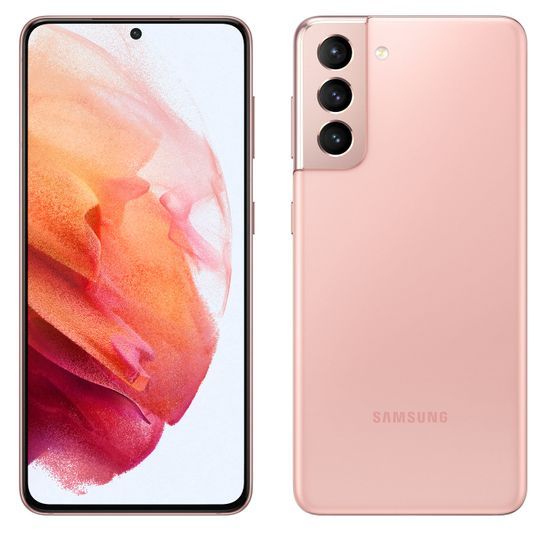
    The Samsung Galaxy S21 is the starting point of the new 2021 flagship series, packing in a flagship SoC, along with a decent display and camera setup.
    iPhone 12 Mini
    The iPhone 12 Mini is the smallest flagship in years. Despite it’s petite size, it packs arguably the most powerful SoC in smartphone right now, along with one of the very best cameras.

The post Samsung Galaxy S21 vs iPhone 12 Mini: Which small phone is for you? appeared first on xda-developers.


from xda-developers https://ift.tt/3vcN4uC
via IFTTT

samedi 6 mars 2021

Play PUBG Mobile and other Android games with a controller using Mantis Gamepad

Mobile gaming has taken a huge leap over the past few years. With improvements in hardware and graphics technologies as well as various software innovations, one can enjoy high-quality games capable of matching (if not better than) some of the gaming consoles in the market. We also have a variety of game streaming services, including NVIDIA GeForce Now, Google Stadia, Xbox Game Streaming, etc., that let you enjoy AAA gaming titles by just streaming them on your smartphone using high-speed internet.

The one thing that is still a big pain point for mobile gamers is support for physical controllers on smartphones. We’ve seen some mods and support for certain controllers, but none of them provide a seamless experience unless you are using a streaming service. Not to mention some of the biggest mobile games, including PUBG Mobile and Genshin Impact, don’t officially offer support for physical controllers, at least not on Android.

That’s where Mantis Gamepad Pro comes in. Mantis Gamepad is a keymapping tool for Android that claims to that protect you from getting banned and promises compatibility with almost any Android game. The best part of the app is that you don’t need to root your device to make it work.

What is Mantis Gamepad Pro?

Mantis Gamepad Pro is a keymapper app for Android that is claimed to be ‘modern and safe.’ Currently available in beta on the Google Play Store as well as from the team’s own website, it features a ‘Universal Touch Mapping’ feature that lets you play almost any Android game with a physical game controller.

As per the developers, Mantis has been made with data safety and integrity in mind. It doesn’t request a lot of permissions, and the developers have made sure that the purpose of each permission is explained in the app itself. One of the most common issues while using game controllers with an Android device is the risk of getting banned, as most controller keymapper apps use cloning. Mantis says you won’t get banned in any games thanks to its design.

“It’s nearly impossible for an App/Game to detect whether Touch Mapping is being executed.” According to the developer, the Universal Touch Mapping feature uses Emulated Touch Injection which the system treats as identical to physical touch inputs. Thus it should be indistinguishable from normal taps. Mantis makes this happen by initiating an ADB shell process via Android or PC. While overlays can be detected by most apps, the overlay running apps’ identity cannot be detected. This means that a game cannot ban a user as there are a variety of apps that include overlay use cases. To ensure there is no cheating, the app doesn’t offer the option of adding any Macros either, which would offer an unfair advantage in multiplayer games.

Other keymapper apps like Octopus, for instance, use an app cloning method that can get user accounts banned. Such keymapper apps clone games and run them within their own Sandbox. Most games today can easily detect whether they are running in a sandbox or not. Mantis is also said to readily support all your next-gen controllers to enable pro-level gaming on Android with precise controls. This means that the new controllers from Microsoft and Sony will indeed be compatible.

How to setup Mantis Gamepad Pro?

The app requires a small activation process that is done via ADB using a PC or Mac. Here’s how to set up Mantis Gamepad Pro:

  1. Download the Mantis Gamepad Pro app from the Google Play Store on your Android smartphone over here.
  2. Head over to this link and download the MantisBuddy Package on your Mac or Windows PC.
  3. Enable USB Debugging on your Android device.
    1. Go to Settings > About > Tap on Build Number (or MIUI Version) repeatedly until it displays you’re a developer.
    2. Go back and open Developer Settings, available under System or Additional Settings.
    3. Turn on USB Debugging.
  4. Connect your Android device to your PC/Mac via USB Cable.
  5. Extract the MantisBuddyForWindows.rar (MantisBuddyForMacOS.zip for Mac) file into any folder. You should see a few ADB files along with MantisBuddy files.
  6. Run ActivateBuddy.bat (ActivateBuddy.command for Mac), which should automatically run the entire process of activating the app on your device. Tap on the Allow/Trust/OK button and tick ‘Allow always for this Computer’ if you get a debugging authorization pop-up on your device.
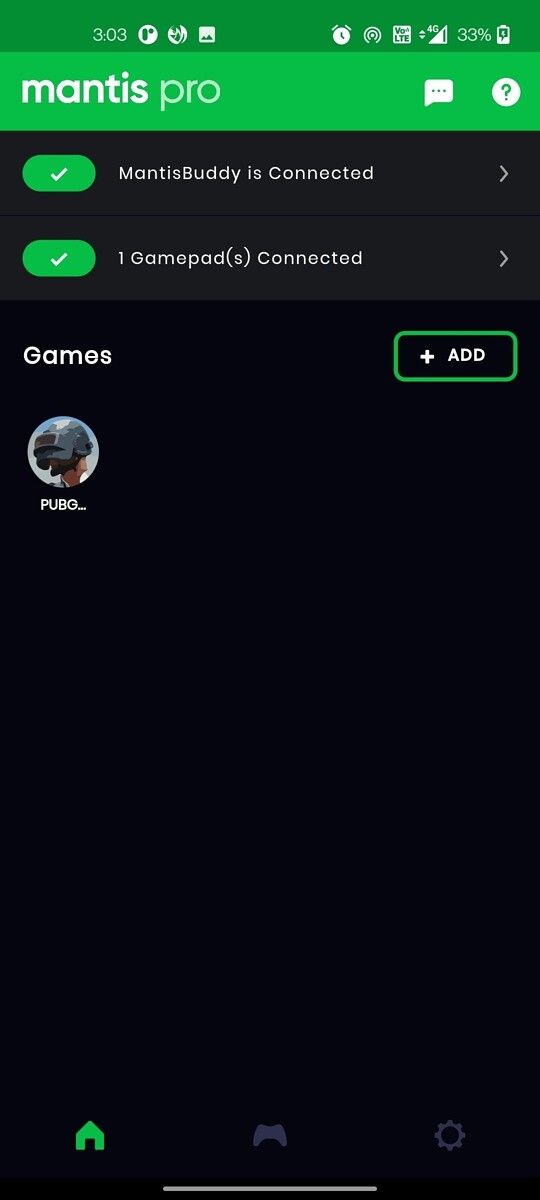
  7. You should see the ‘Mantis Buddy Connected’ message once the process is complete.

Mantis Gamepad Pro Beta - Free & No-Root KeyMapper (Free, Google Play) →

For Windows users:

Extract MantisBuddyForWindows.rar into any folder. If you’re using Windows 7 or below/or you’re facing any issues, make sure you install the Universal ADB Driver first. If MantisBuddy cannot recognize your Android device, you need to install the respective USB Driver of your device on your PC.

For Mac users:

Follow the same instructions as Windows. When you run ActivateBuddy.command for the first time, you may encounter an error saying that “ADB can’t be opened because it is from an unidentified developer”. If so, set System Preference > Security & Privacy > Open Anyway. In case this process doesn’t work, set System Preference > Security & Privacy > Allow apps downloaded from: Anywhere.

If you don’t see the Anywhere option, open Terminal and type sudo spctl –master-disable and hit return then input your password (different from the usual password interface with *****, here you can’t see anything from your input) and return.

Mantis is also the only keymapper on the Google Play Store that doesn’t require a PC for ADB connection. The latest update now allows you to activate the app via ADB by connecting to an Android device using a USB cable.

Experience

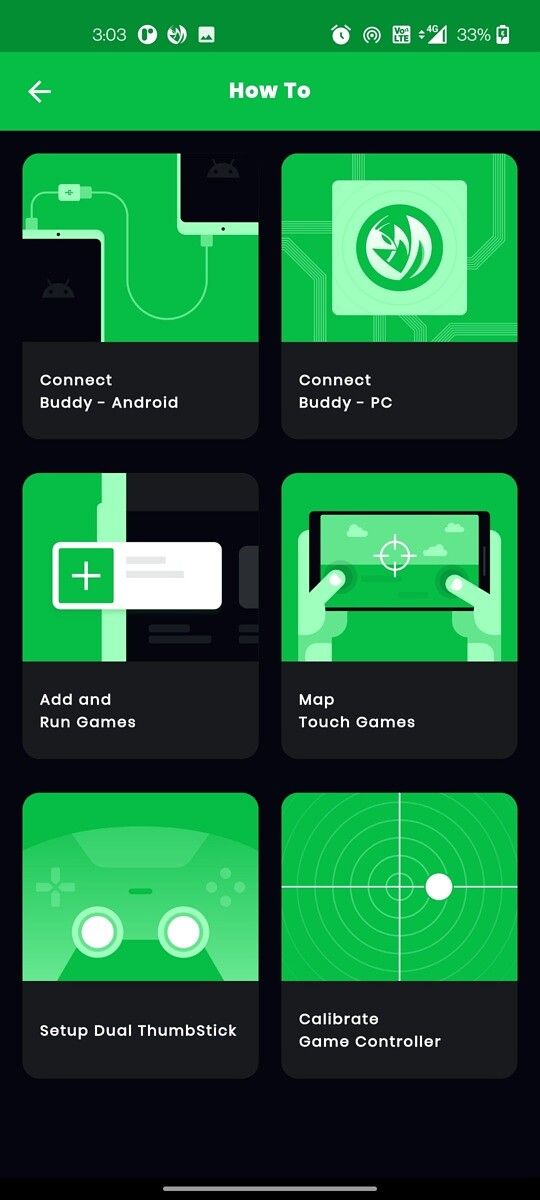
I personally tested the Mantis Gamepad Pro with a Logitech F310 wired controller and the new Sony DualSense Wireless controller via Bluetooth. The entire process is fairly simple, even for someone who is not aware of how ADB works. The user interface is clean and easy to understand. There is a dark theme option, with well-defined instructions and an FAQ section, to help users troubleshoot easily.

The app is supported on devices running on Android 7.0 or above. However, I could not get the screen overlay feature to work on the ASUS ROG Phone II that is currently running on Android 10. I spoke to the developers and was told that there have been a few reports from users facing the same issue, which are currently being investigated. I didn’t face any issues on my OnePlus 8 running on Android 11 though. We also didn’t have any issues using it on a Pixel 4 running Android 11.

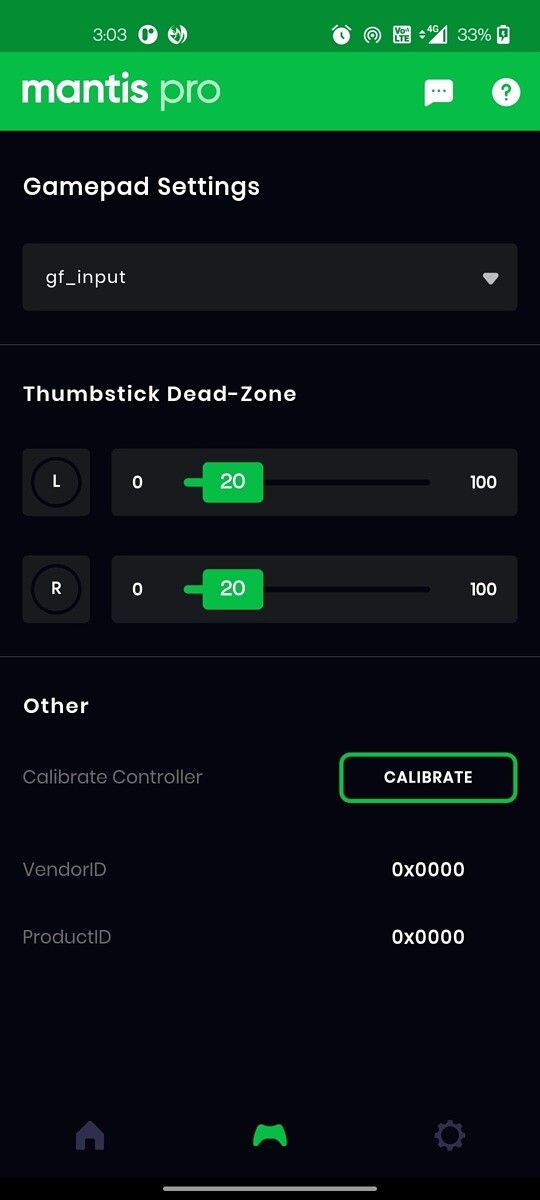
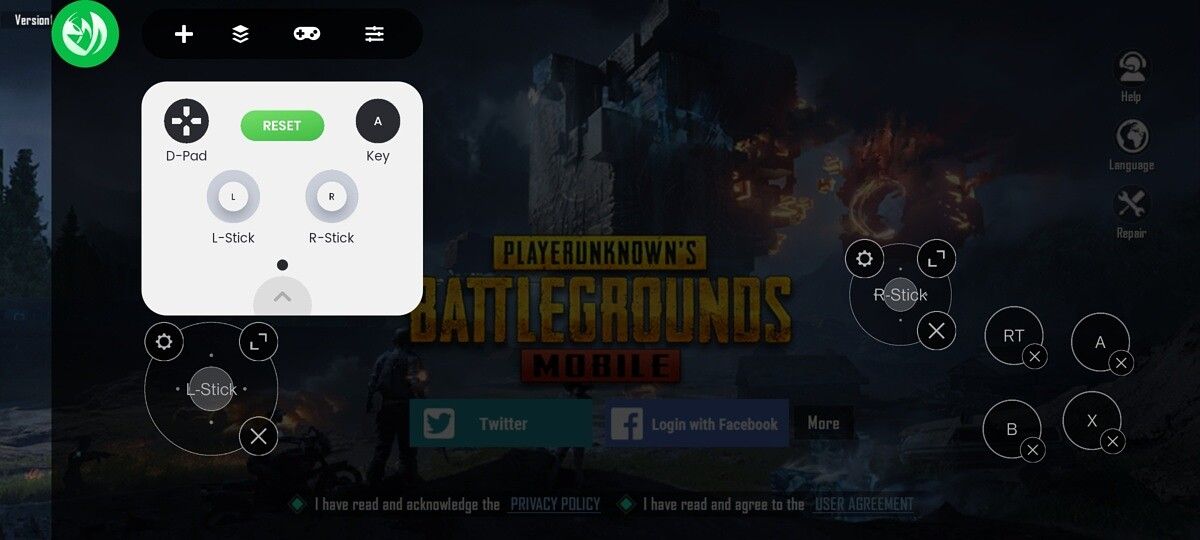
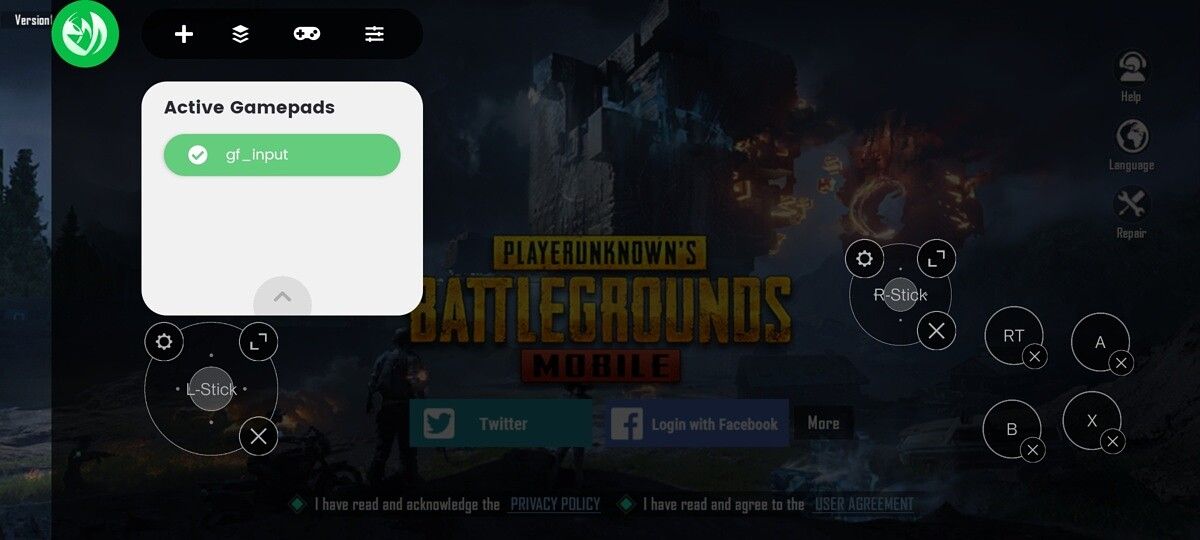
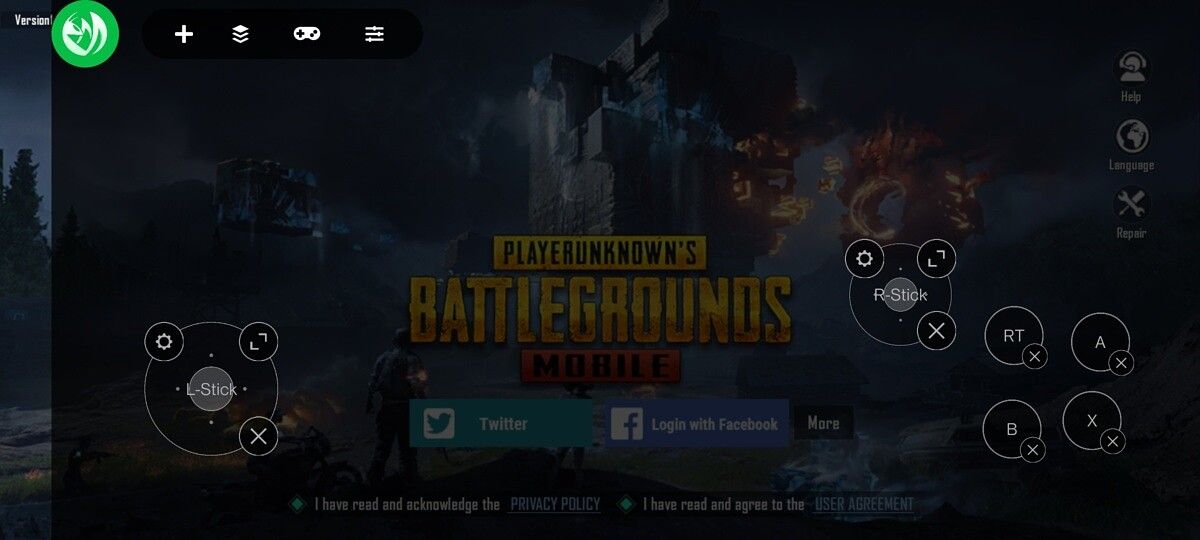
Calibration is pretty seamless wherein you tap all the buttons one by one on your controller including the thumbsticks to assign various functions. Once you have configured the controller, you have to map those keys onto the touchscreen controls. This can be done by adding games to the app and running them through Mantis itself. Once you add and open a game through Mantis, suppose PUBG Mobile, you should see a small overlay on the top left corner.  To map your controls, open the game’s touch-based control layout and then tap on the Mantis floating widget and hit the ‘+’ sign to add a D-Pad, face keys, or the left and right thumbstick, and even the opacity. You can assign as many buttons as you want, depending on the controller that you have. It takes a while to map every single function, but it is just a matter of loading them once you are done.

I tried a bit of PUBG Mobile with the Logitech F310, and overall I didn’t face any latency issues. Considering I’ve always played the game using touch controls, there is a learning curve when you move to physical controls. You can’t completely navigate the game menus and various other options without going back to the touch screen. It is only when you enter a match where the physical controller actually made sense to me.

I believe the developers of Mantis Gamepad Pro have done a fine job on the app. Apart from a few issues like compatibility with certain smartphones, the Mantis Gamepad Pro could soon become a role model for other keymapper apps. You can follow the development of the app by heading to the official XDA Forum page.

The post Play PUBG Mobile and other Android games with a controller using Mantis Gamepad appeared first on xda-developers.


from xda-developers https://ift.tt/3ej8O1J
via IFTTT

Play PUBG Mobile and other Android games with a controller using Mantis Gamepad

Mobile gaming has taken a huge leap over the past few years. With improvements in hardware and graphics technologies as well as various software innovations, one can enjoy high-quality games capable of matching (if not better than) some of the gaming consoles in the market. We also have a variety of game streaming services, including NVIDIA GeForce Now, Google Stadia, Xbox Game Streaming, etc., that let you enjoy AAA gaming titles by just streaming them on your smartphone using high-speed internet.

The one thing that is still a big pain point for mobile gamers is support for physical controllers on smartphones. We’ve seen some mods and support for certain controllers, but none of them provide a seamless experience unless you are using a streaming service. Not to mention some of the biggest mobile games, including PUBG Mobile and Genshin Impact, don’t officially offer support for physical controllers, at least not on Android.

That’s where Mantis Gamepad Pro comes in. Mantis Gamepad is a keymapping tool for Android that claims to that protect you from getting banned and promises compatibility with almost any Android game. The best part of the app is that you don’t need to root your device to make it work.

What is Mantis Gamepad Pro?

Mantis Gamepad Pro is a keymapper app for Android that is claimed to be ‘modern and safe.’ Currently available in beta on the Google Play Store as well as from the team’s own website, it features a ‘Universal Touch Mapping’ feature that lets you play almost any Android game with a physical game controller.

As per the developers, Mantis has been made with data safety and integrity in mind. It doesn’t request a lot of permissions, and the developers have made sure that the purpose of each permission is explained in the app itself. One of the most common issues while using game controllers with an Android device is the risk of getting banned, as most controller keymapper apps use cloning. Mantis says you won’t get banned in any games thanks to its design.

“It’s nearly impossible for an App/Game to detect whether Touch Mapping is being executed.” According to the developer, the Universal Touch Mapping feature uses Emulated Touch Injection which the system treats as identical to physical touch inputs. Thus it should be indistinguishable from normal taps. Mantis makes this happen by initiating an ADB shell process via Android or PC. While overlays can be detected by most apps, the overlay running apps’ identity cannot be detected. This means that a game cannot ban a user as there are a variety of apps that include overlay use cases. To ensure there is no cheating, the app doesn’t offer the option of adding any Macros either, which would offer an unfair advantage in multiplayer games.

Other keymapper apps like Octopus, for instance, use an app cloning method that can get user accounts banned. Such keymapper apps clone games and run them within their own Sandbox. Most games today can easily detect whether they are running in a sandbox or not. Mantis is also said to readily support all your next-gen controllers to enable pro-level gaming on Android with precise controls. This means that the new controllers from Microsoft and Sony will indeed be compatible.

How to setup Mantis Gamepad Pro?

The app requires a small activation process that is done via ADB using a PC or Mac. Here’s how to set up Mantis Gamepad Pro:

  1. Download the Mantis Gamepad Pro app from the Google Play Store on your Android smartphone over here.
  2. Head over to this link and download the MantisBuddy Package on your Mac or Windows PC.
  3. Enable USB Debugging on your Android device.
    1. Go to Settings > About > Tap on Build Number (or MIUI Version) repeatedly until it displays you’re a developer.
    2. Go back and open Developer Settings, available under System or Additional Settings.
    3. Turn on USB Debugging.
  4. Connect your Android device to your PC/Mac via USB Cable.
  5. Extract the MantisBuddyForWindows.rar (MantisBuddyForMacOS.zip for Mac) file into any folder. You should see a few ADB files along with MantisBuddy files.
  6. Run ActivateBuddy.bat (ActivateBuddy.command for Mac), which should automatically run the entire process of activating the app on your device. Tap on the Allow/Trust/OK button and tick ‘Allow always for this Computer’ if you get a debugging authorization pop-up on your device.
  7. You should see the ‘Mantis Buddy Connected’ message once the process is complete.

Mantis Gamepad Pro Beta - Free & No-Root KeyMapper (Free, Google Play) →

For Windows users:

Extract MantisBuddyForWindows.rar into any folder. If you’re using Windows 7 or below/or you’re facing any issues, make sure you install the Universal ADB Driver first. If MantisBuddy cannot recognize your Android device, you need to install the respective USB Driver of your device on your PC.

For Mac users:

Follow the same instructions as Windows. When you run ActivateBuddy.command for the first time, you may encounter an error saying that “ADB can’t be opened because it is from an unidentified developer”. If so, set System Preference > Security & Privacy > Open Anyway. In case this process doesn’t work, set System Preference > Security & Privacy > Allow apps downloaded from: Anywhere.

If you don’t see the Anywhere option, open Terminal and type sudo spctl –master-disable and hit return then input your password (different from the usual password interface with *****, here you can’t see anything from your input) and return.

Mantis is also the only keymapper on the Google Play Store that doesn’t require a PC for ADB connection. The latest update now allows you to activate the app via ADB by connecting to an Android device using a USB cable.

Experience

I personally tested the Mantis Gamepad Pro with a Logitech F310 wired controller and the new Sony DualSense Wireless controller via Bluetooth. The entire process is fairly simple, even for someone who is not aware of how ADB works. The user interface is clean and easy to understand. There is a dark theme option, with well-defined instructions and an FAQ section, to help users troubleshoot easily.

The app is supported on devices running on Android 7.0 or above. However, I could not get the screen overlay feature to work on the ASUS ROG Phone II that is currently running on Android 10. I spoke to the developers and was told that there have been a few reports from users facing the same issue, which are currently being investigated. I didn’t face any issues on my OnePlus 8 running on Android 11 though. We also didn’t have any issues using it on a Pixel 4 running Android 11.

Calibration is pretty seamless wherein you tap all the buttons one by one on your controller including the thumbsticks to assign various functions. Once you have configured the controller, you have to map those keys onto the touchscreen controls. This can be done by adding games to the app and running them through Mantis itself. Once you add and open a game through Mantis, suppose PUBG Mobile, you should see a small overlay on the top left corner.  To map your controls, open the game’s touch-based control layout and then tap on the Mantis floating widget and hit the ‘+’ sign to add a D-Pad, face keys, or the left and right thumbstick, and even the opacity. You can assign as many buttons as you want, depending on the controller that you have. It takes a while to map every single function, but it is just a matter of loading them once you are done.

I tried a bit of PUBG Mobile with the Logitech F310, and overall I didn’t face any latency issues. Considering I’ve always played the game using touch controls, there is a learning curve when you move to physical controls. You can’t completely navigate the game menus and various other options without going back to the touch screen. It is only when you enter a match where the physical controller actually made sense to me.

I believe the developers of Mantis Gamepad Pro have done a fine job on the app. Apart from a few issues like compatibility with certain smartphones, the Mantis Gamepad Pro could soon become a role model for other keymapper apps. You can follow the development of the app by heading to the official XDA Forum page.

The post Play PUBG Mobile and other Android games with a controller using Mantis Gamepad appeared first on xda-developers.


from xda-developers https://ift.tt/3ej8O1J
via IFTTT