LightBlog

mardi 13 octobre 2020

20+ Tips & Tricks to help you master PUBG Mobile

PUBG Mobile continues to be one of the leading mobile games around the globe. It has managed to earn over $3.5 billion in player spendings ever since its launch in 2018, out of which over $500 million were made in just 72-days earlier this year. According to a report by Sensor Tower, PUBG Mobile is also the top-grossing battle royale game beating the likes of Garena Free Fire, Knives Out, Fortnite, and Call of Duty: Mobile.

India notably has been the largest country in terms of game installs. However, with the recent ban in place, the numbers are expected to change drastically. PUBG Corp, the South Korean company responsible for publishing the PC and console version of the game, has cut its ties with Tencent for PUBG Mobile in India. PUBG Corp is said to be working on finalizing a deal with a new brand that can handle the game’s distributing rights. We don’t know if and when the ban will be lifted.

Now if you are still playing the game and want to improve your skills, we have just the guide for you. Here are some valuable tips that can help you earn that chicken dinner.

Looting in PUBG Mobile

You need to be very efficient when it comes to looting. Make quick decisions and do not spend much time picking up items. It is best to keep moving while grabbing items as you see and discard the ones you don’t need, later in the game. If you have enemies in your area, quickly grab a gun and some protection.

pubg mobile 4x scope loot

Ammunition

Managing ammunition can get tricky. Pickup all types of ammo in the first few minutes of the game, until you find a good set of weapons that you are satisfied with. You should drop any unnecessary ammo from your bag to make space for other items. We also suggest marking the ammo that you have dropped, in case your teammate finds it useful. Keep a constant eye on the amount of ammo you are carrying and keep looting crates of enemies as you progress in the game. Also, make sure that you keep reloading your gun to avoid delays in between battles.

Share resources

It’s a good habit to share your loot with teammates. There is no point in hoarding items if you have no use, rather pass it on to someone who might actually need it. Mark items on the ground and inform teammates about them especially if you find extra ammo, scopes, or heals.

Use the best graphics settings

PUBG Mobile is a resource-intensive game. Most flagship phones and tablets should offer you the highest level of graphics. Our advice is to set your settings to Smooth along with the maximum frame rate available for your device. Currently, 90fps is the highest setting which makes the gameplay quite fluid. Of course, you would need a phone or tablet that comes with a 90Hz refresh rate display or above. A faster frame-rate also means that the game will respond faster to your commands.

pubg mobile graphics settings

Headphones are a must

PUBG Mobile is a lot more than just gunfights and explosions. You need to be very careful about enemies lurking around, especially the ones who camp. Having a good pair of headphones ensures that you can hear enemies approaching you on foot or in vehicles. Using headphones can also help you get a fair idea of gunshots fired nearby so you can be alert for a potential incoming attack. Moreover, headphones are a must if you are playing the game with your friends for effective communication.

Voice command presets on PUBG Mobile

If you are playing as a duo or squad, you need to actively communicate with your teammates. The game comes with preloaded voice commands that you can quickly access which makes it easier to communicate. Some of these commands also come with the ability to drop a marker. This makes it easier for other players in your team to pinpoint the location of enemies, vehicles, loot items, and so on.

pubg mobile chat presets

In-game voice chat

Of course, the best and most effective way to communicate is to use the in-game voice chat option. Before you leave your mic on, make sure that you are not playing in a noisy environment as it can be very distracting for the rest of the players in your team. There are toggles to quickly switch your mic on and off or you can rely on the ‘tap to speak’ option. Additionally, use the compass that is on the top to give precise directions to your crew.

Third-person view

We can’t stress this enough, but make good use of the third-person view to your advantage. Don’t rush to attack your opponents, instead wait for them behind a wall and let them approach you. Attack your enemy when they are most vulnerable and unaware of your location. There is a learning curve to efficiently killing an enemy using a third-person view. But once you have a fair idea, you will gain the confidence of performing a clutch and finishing a full squad all by yourself.

Pre-fire

Pre-firing or shooting right before you get the enemy in your aim has its benefits. By doing so, not only are you reducing the reaction time for your enemy to attack you, your bullets are expected to land faster and effectively. This is best for close-range fights and does not apply to bolt-action sniper rifles.

Under-rated weapons on PUBG Mobile

The game offers a wide variety of weapons and while some might look useless, they can be very deadly. Do not under-estimate the ability of shotguns, or some of the SMGs like UZI and UMP45. They can be your lifesaver in the early stages of the game.

Peek and Fire

Do not expose yourself especially when you know there is an enemy sniper around. Use the peek option which is available under basic settings. It is switched off by default so make sure you enable it. There are additional settings for the peek option so try to experiment with these as well.

pubg mobile peek settings

Notice your surroundings

Having a keen eye is very important. All doors are closed when the game starts, so if you see one that is open, it means someone has been there. You can confirm this by checking the available loot in that area.

How to run fast

The best way to run fast is by putting away your weapon. You can also consume some boosters like pain-killers or energy drinks to increase your pace.

Red zone and blue zone

The red zone is a randomly placed area on the map and should be avoided at all costs. Take cover until the zone clears else you could be blown away by the bombs dropping from the sky. As for the blue zone, the first two circles do not inflict a lot of damage, so don’t panic. It is the last few circles that you need to worry about.

pubg mobile blue zone

Single fire mode

There are certain guns that can be used to fire a single shot instead of burst or automatic. This means you need to constantly tap the fire button. Now that might sound inconvenient, but it can be beneficial in certain situations especially if you have a DMR weapon or the M16A4.

Auto pick up

PUBG Mobile offers the ability to auto-pick items. You can enable or disable this feature from the settings and even set the limit for ammo, recovery items, throwables, and scopes. This can be really handy as it avoids picking up every single item on the ground and saving crucial space in your backpack.

pubg mobile auto pickup settings

Avoid getting shot

If you are being shot at, do not run in a straight line. Try to zig-zag and jump around to avoid the bullets. If an enemy has shot you from a distance, laying down is the worst thing that you can do. Try to get cover and immediately look at the mini-map to get an idea of the direction from where the shot was taken.

Gyroscope

PUBG Mobile can make use of your phone’s gyroscope. It does have a learning curve, but once you get the hang of it, you will have much better control over your aiming and gun recoil. You can enable it by heading to Settings>Basic and fine-tune it by going to Settings>Sensitivity.

pubg mobile gyroscope settings

Sensitivity

Having the right sensitivity can make a huge difference. There are different sensitivity settings for the camera, ADS (aim down sight), and the gyroscope as we mentioned above. Each has different sliders for different scopes and camera views. It might look a little overwhelming at first but you can choose an overall setting that is available on the top. Eventually, you can customize them as you get a better hold of the game.

pubg mobile sensitivity settings

Use vehicles wisely

There are various vehicles that you can use in the game. Be mindful while driving as it is easy for enemies to spot you because of the noise they make. You also need to keep an eye on the health bar of your vehicle or you might end up in a pile of roasted junk. It is also a good habit to carry a gas can so you can refuel your vehicle when required.

pubg mobile driving in vehicle uaz

Plan your attack

Make a strategy before rushing into a building for an ambush. Check your corners, listen to footsteps, use grenades, and coordinate with your team to efficiently hunt down opponents. Running straight into the enemy will never do any good.

PUBG MOBILE - NEW ERA (Free+, Google Play) →

The post 20+ Tips & Tricks to help you master PUBG Mobile appeared first on xda-developers.


from xda-developers https://ift.tt/3jWxr4t
via IFTTT

This Anker Soundcore Life Q10 Lightning Deal isn’t one to miss

As you know well by now, Prime Day 2020 is in full swing, and that means deep discounts and time-limited Lightning Deals to keep track and take advantage of. Not all of them are worth the trouble, but you’ll definitely want to snap up these Anker Soundcore Life Q10s while they’re on a Lightning Deal, as they’re one of the best budget headphones you can pick up during Prime Day.

We’ve showcased a number of headphones already this Prime Day 2020, including the biggest discount we’ve seen on the Bose QuietComfort 35 II’s yet, but while these are all great deals, they are still quite expensive. As much as I know that the QC35s and the Sony XM4s are high-quality wireless headphones, if you’re not an audiophile or don’t plan on using them constantly, it can still be hard to put a few hundred dollars down on them.

For me, I simply need headphones that work all day and don’t pinch my ears and glasses in a way that makes them uncomfortable to wear. The Soundcore Life Q10s do both, with 60 hours of playtime on a single charge and memory foam, flexible earcups built for comfort. It’s only an added bonus that their “blue” color is a striking purple that I totally love.

But just because these are lower cost doesn’t mean they’re lower quality headphones, either. The Soundcore Q10s are Hi-Res certified, so you’ll still get great audio quality. In addition, Anker’s BassUp technology will… well, turn the bass up, when needed. These are not noise-canceling headphones, but honestly, if you’re using them outside, it’s probably best to have an idea of your surroundings anyway.

Convinced? Then hurry up and grab a pair, before this Lightning Deal is done!

    Anker Soundcore Life Q10 Wireless Bluetooth Headphones
    Grab some quality headphones without it costing an arm and a leg with this Lightning Deal. The Soundcore Life Q10s are Hi-Res certified and provide up to 60 hours of playtime, so you're able to listen all day.

Looking for more deals? Check out our Amazon Prime Day and Non-Amazon Prime Day deal round-ups!

The post This Anker Soundcore Life Q10 Lightning Deal isn’t one to miss appeared first on xda-developers.


from xda-developers https://ift.tt/35ahFgf
via IFTTT
Official LineageOS 17.1 based on Android 10 is here for the Nokia 6.1

Back in April, the LineageOS team released LineageOS 17.1 with Android 10 as the base. Since then, we’ve seen several devices receive official support from this popular custom ROM distribution, including Google’s Pixel lineup. Most recently, the Redmi K20 (also known as the Xiaomi Mi 9T in some regions), Samsung Galaxy S5, and Samsung Galaxy Note 3 received their first official LineageOS 17.1 builds. And now, the Nokia 6.1 has joined the list, making it the first ever Nokia smartphone to receive official LineageOS support.

Nokia 6.1 XDA Forums

HMD Global’s Nokia is known for offering a clean stock Android experience on its devices and the stock Android One ROM on the Nokia 6.1 is no different. The OEM, however, cracks down on the ability to modify the software on their devices, which means there is no simple way you can unlock the bootloader of your Nokia phone and install a custom recovery like TWRP, root, and flash custom ROMs (either in the form of GSIs or device-specific ROMs). If you already own a Nokia 6.1 and you’re really desperate to unlock the bootloader, there’s one last resort: third-party paid services.

Naturally, XDA-Developers does not endorse the use of third-party services to unlock the bootloader of your device. This is a tricky situation for users who were looking forward to getting their bootloaders unlocked. If you have managed to do it anyway, then you can grab the official LineageOS 17.1 package for the Nokia 6.1 (code-name “PL2”) from the LineageOS download portal, courtesy to XDA Recognized Developer theimpulson and XDA Senior Member npjohnson. The developers have been compiling unofficial LineageOS builds for this device since January, so we’re not too surprised to see an official build.

LineageOS 17.1 for the Nokia 6.1 — XDA Discussion Thread

Nokia 6.1 on LineageOS Wiki

It is worth mentioning that the Nokia 6.1 received its second major (as well as last) platform update in the form of Android 10 earlier this year. Given that, the availability of official LineageOS builds certainly broadens the scope of aftermarket development on the device.

The post Official LineageOS 17.1 based on Android 10 is here for the Nokia 6.1 appeared first on xda-developers.


from xda-developers https://ift.tt/34VGegq
via IFTTT

Vivo V20 with Snapdragon 720G, 44MP selfie camera, and Android 11 launched in India for ₹24,990

Google’s Pixel devices are usually the first Android smartphones to ship with the latest version of Android out of the box. But this year, Chinese OEM Vivo beat Google to the punch with the launch of the Vivo V20 late last month. The mid-range device was the first new smartphone to ship with Android 11 out of the box, beating Google’s new Pixel 5 and Pixel 4a 5G. Now, Vivo has launched the device in the Indian market at a starting price of ₹24,990 (~$341).

The Vivo V20 is the first phone shipping with Android 11, and we tested it

Vivo V20 Pro Selfie Camera Tests: Justified Marketing Hype!

Vivo V20: Specifications

Specification Vivo V20
Display
  • 6.44-inch FHD+ AMOLED
  • 2400 x 1080p
SoC Qualcomm Snapdragon 720G
RAM & Storage
  • 8GB+128GB
  • 8GB+256GB
Battery & Charging
  • 4,000mAh
  • 33W FlashCharge support
  • 33W fast charger included in the box
Rear Camera(s)
  • 64MP primary camera
  • 8MP wide-angle camera
  • 2MP depth sensor
Front Camera(s)
  • 44MP selfie camera
  • 4K 60fps video support
Software Funtouch OS 11 based on Android 11
Other Features
  • In-display optical fingerprint scanner
  • USB Type-C
  • 3.5mm headphone jack

The Vivo V20 is a mid-range device powered by Qualcomm’s Snapdragon 720G chip. It features a 6.44-inch AMOLED display with a 2400 x 1080 resolution, a waterdrop-style notch, and an in-display fingerprint scanner. The Snapdragon 720G on the device is paired with 8GB of RAM and up to 256GB of storage, with a dedicated microSD card slot for expansion up to 1TB.

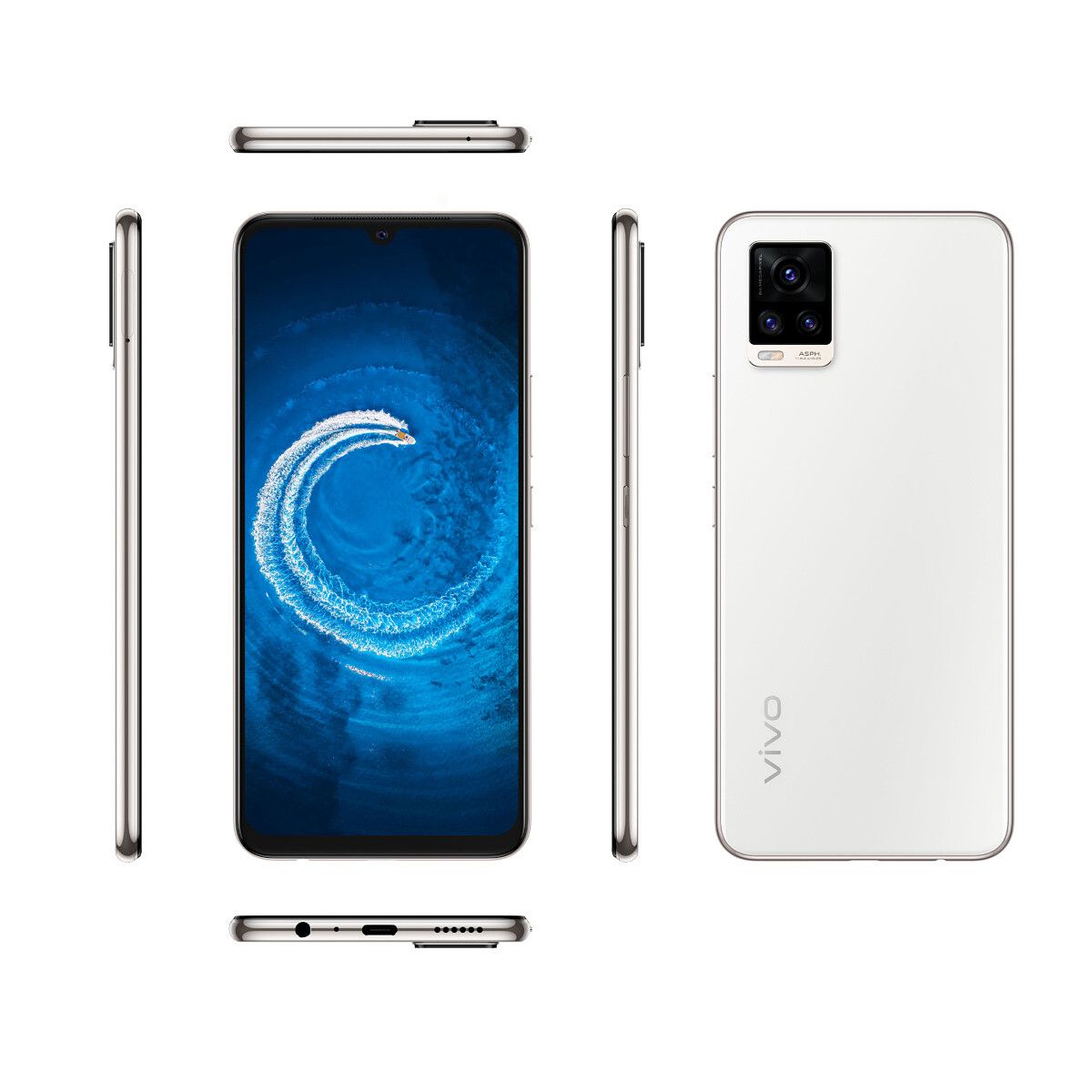
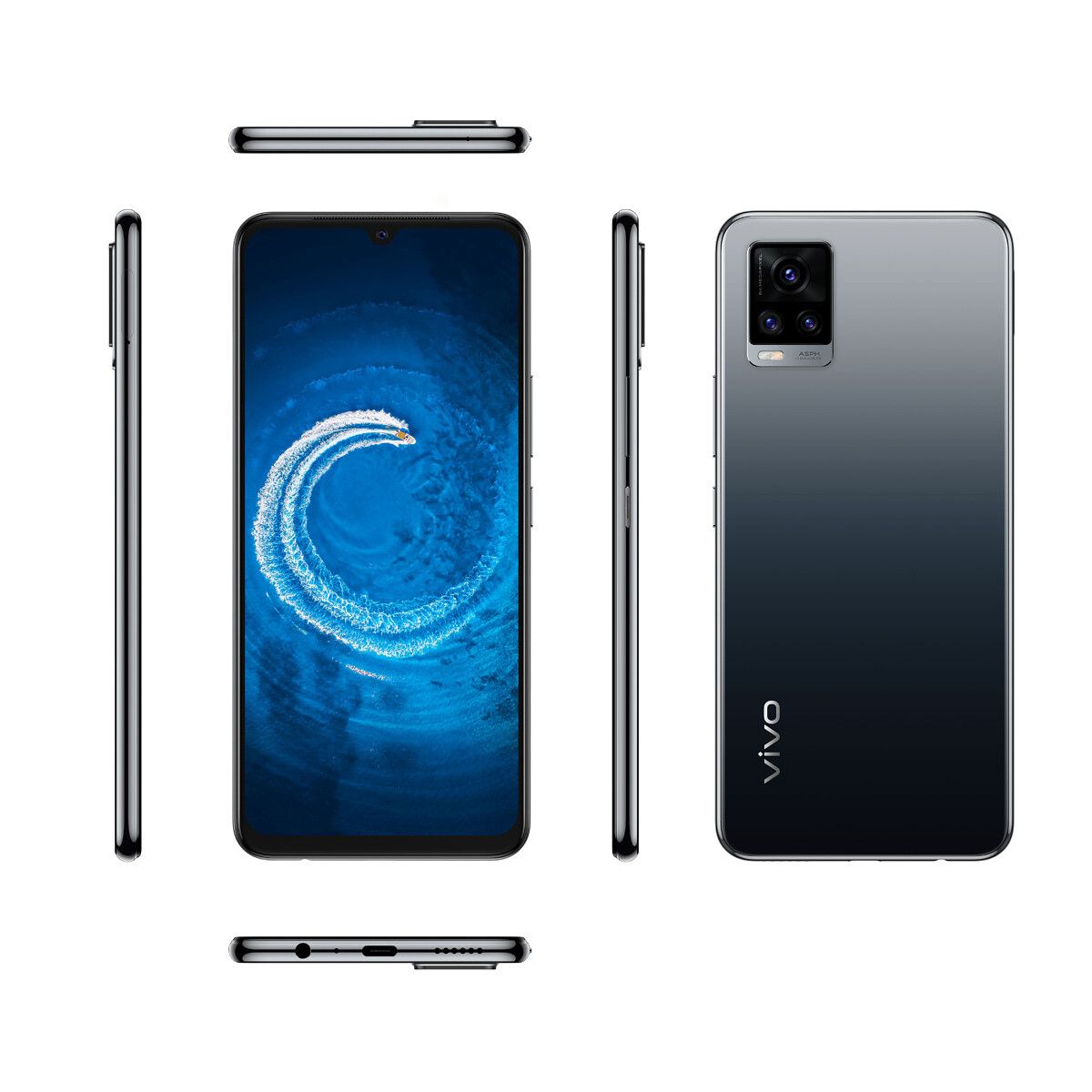
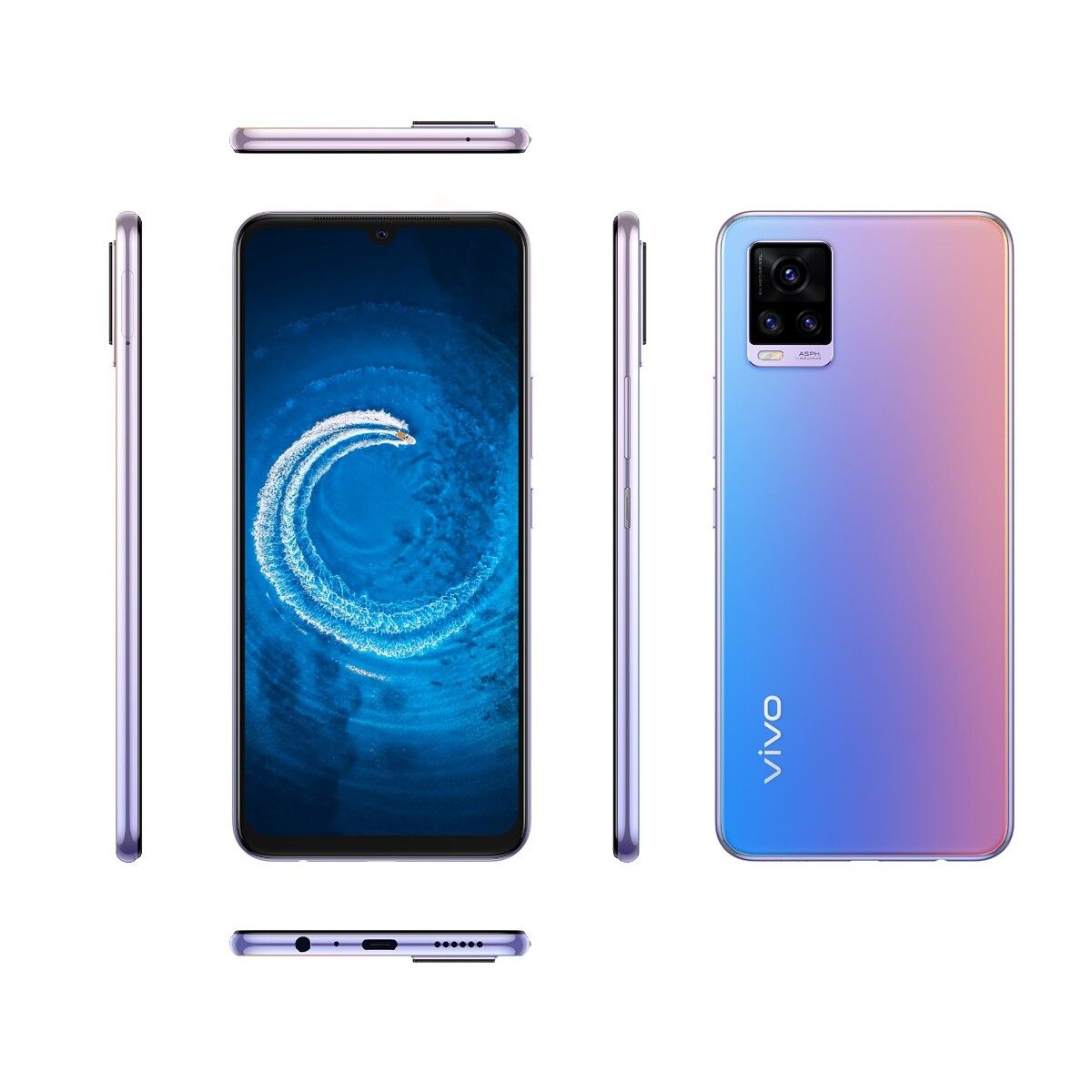
Vivo V20 in three color variants on white background

The device packs in a triple camera module on the back, with a 64MP primary sensor, an 8MP ultra-wide sensor, and a 2MP depth sensor for portrait shots. Over on the front, it features an impressive 44MP selfie shooter capable of 4K 60fps video recording. Powering the device is a 4,000mAh battery that comes with 33W FlashCharge support.

White Vivo V20 in all angles on white background Black Vivo V20 in all angles on white background

In terms of software, the Vivo V20 runs the company’s Funtouch OS 11 skin based on Android 11. The latest update for Funtouch OS brings a new UI design, new desktop icons, improvements to the dark mode, new live wallpapers, and several customization options.

Pricing & Availability

The Vivo V20 will go on sale in India starting from October 20th. The device will be available in three color variants — Midnight Jazz, Sunset Melody, and Moonlight Sonata — on Vivo’s website and Flipkart. It will also be available across offline retail stores in the country. Vivo is offering two RAM/storage variants for the device, which are priced as follows:

  • 8GB/128GB: ₹24,990 (~$341)
  • 8GB/256GB: ₹27,990 (~$382)

Launch offers for the device include a flat 10% cashback on ICICI bank credit card EMI transactions, flat 10% cashback on Kotak Bank credit card and credit card EMI transactions, flat 10% cashback on Federal Bank debit card transaction, V-Shield complete mobile protection, and V! 12 months extended warranty on ₹819 recharge with 100% cashback on PayTM. On top of that, Vivo is also offering a ₹1,500 additional exchange bonus and up to 80% assured buyback for the device. As part of Flipkart’s upcoming Big Billion Day sale, you’ll also be able to get an additional 10% off on SBI card transactions.

The post Vivo V20 with Snapdragon 720G, 44MP selfie camera, and Android 11 launched in India for ₹24,990 appeared first on xda-developers.


from xda-developers https://ift.tt/3lMBOj7
via IFTTT

OnePlus Gallery 4.0.77 update brings OxygenOS 11 design changes

Shortly after OnePlus released its first Android 11 developer preview for the OnePlus 8 Series, the company rolled out the redesigned OnePlus Weather app from OxygenOS 11 for all OnePlus users. The OnePlus Notes app from OxygenOS 11 followed soon thereafter, bringing the redesigned look to users with older OnePlus devices. The company is now rolling out OnePlus Gallery 4.0.77 via the Google Play Store, and it also includes the OxygenOS 11 design refresh.

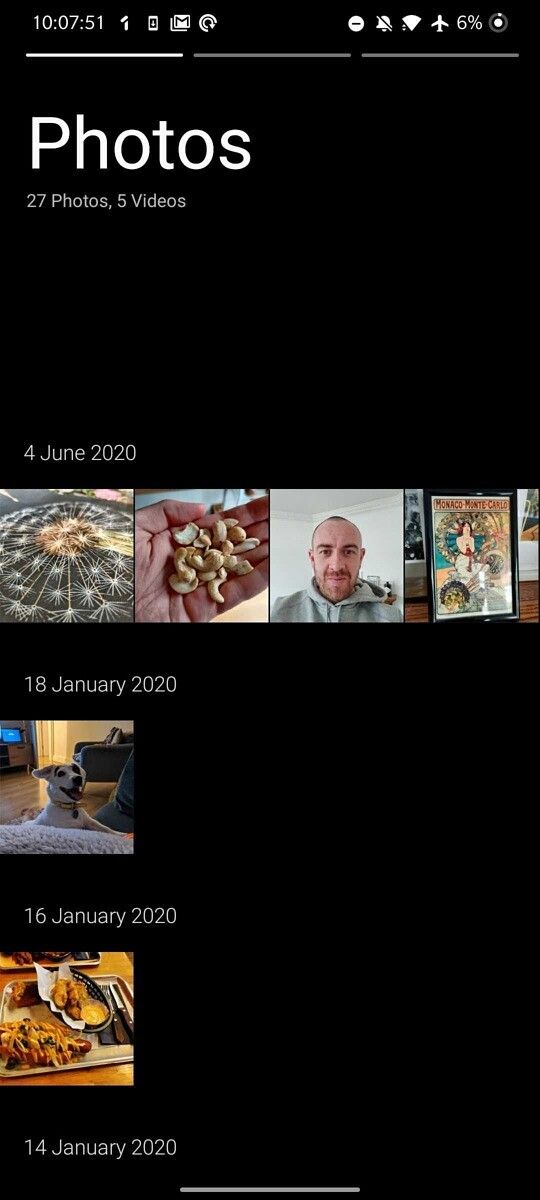
As per a recent 9to5Google reportthe latest update for OnePlus Gallery brings the new OxygenOS 11 UI to older OnePlus devices. The updated UI includes several improvements for easier one-handed use, with the most noticeable change being the space at the top that moves all UI elements closer to the bottom of your phone.

Old OnePlus Gallery UI from OxygenOS 10 with a couple of thumbnails New OxygenOS 11 UI with a few thumbnails and empty space at the top

Along with the OxygenOS 11 UI changes, the update also includes optimizations for faster app launch speed and bug fixes. Here’s the complete changelog for OnePlus Gallery 4.0.77:

  • Optimize the speed of app launch
  • Update OOS11 UI style
  • Fix issues with missing screenshots and photos

As mentioned earlier, the update is now available for all OnePlus users on the Google Play Store. In case you haven’t received the update notification yet, you can head over to the Play Store listing from the link below and update it to the latest version of the app. Alternatively, you can download the latest APK from APKMirror.

Before you go ahead and update to the latest version of the OnePlus Gallery app though, do note that you may encounter some issues following the update. As per recent reviews on the Google Play Store, a few users have experienced bugs like photos not appearing, app crashes, and laggy performance in the latest release. OnePlus will likely address these issues in the next few days, so it would be best to wait for some time before updating to the latest version.

OnePlus Gallery (Free, Google Play) →


Via: 9to5Google

The post OnePlus Gallery 4.0.77 update brings OxygenOS 11 design changes appeared first on xda-developers.


from xda-developers https://ift.tt/34VYHcO
via IFTTT

Vivo V20 Pro Selfie Camera Tests: Justified Marketing Hype!

Between Instagram and TikTok, it seems like most young people these days really enjoy taking photos and videos of themselves. And so it’s surprising that Vivo is the only brand with a phone line whose entire shtick is catering to the selfie generation. Ever since the Vivo V5 in early 2017, which was billed as the “perfect selfie phone,” the Chinese company has pumped out a V phone two to three times a year, and they all usually feature sort of bland design — plastic back and muted colors — but highlighted by a selfie camera that packs more pixels than most phones’ main cameras.

The new Vivo V20 series brings the same selfie-focused feature again — this time the top two variants of the phone pack a whopping 44MP front-facing camera — but for the first time in a V series, the devices look and feel good. It helps that Vivo gave them glass backs and a matte, gradient coating. The rear camera module also has one of the cleaner designs in my opinion.

Still, the highlight of the series is that front-facing camera — well, that and the standard V20 somehow beat Google to shipping a device with Android 11 — and so for this piece I’m going to put the Vivo V20 Pro’s 44MP shooter to the test against some high-profile devices such as the Samsung Galaxy Z Fold 2, Galaxy S20 FE, and iPhone 11 Pro.

But first, a rundown of the specs of all three devices:

Specification Vivo V20 Pro Vivo V20 Vivo V20 SE
System-on-chip Qualcomm Snapdragon 765G Qualcomm Snapdragon 720G Qualcomm Snapdragon 665
Display
  • 6.44-inch AMOLED
  • 2400 x 1080
  • 6.44-inch AMOLED
  • 2400 x 1080
  • 6.44-inch AMOLED
  • 2400 x 1080
Fingerprint scanner In-display optical In-display optical In-display optical
Front camera
  • 44MP
  • Video recording up to 4K 60fps
  • 8MP ultra-wide
  • 44MP
  • Video recording up to 4K 60fps
  • 32MP
Rear Camera
  • 64MP wide
  • 8MP ultra-wide
  • 2MP depth
  •  64MP wide
  • 8MP ultra-wide
  • 2MP dept
  • 48MP wide
  • 8MP ultra-wide
  • 2MP dept
RAM 8GB 8GB 8GB
Storage
  • 128GB
  • 128GB
  • 128GB
Battery Capacity 4,000 mAh 4,000 mAh 4,100 mAh

Vivo V20 Pro Forums ||| Vivo V20 Forums ||| Vivo V20 SE Forums

Test 1: Daytime selfie

We’ll start simple with a basic selfie outside on a sunny day.

Vivo V20 Pro selfie

This is a clear win for the Vivo V20 Pro, as it produced the image with the least amount of flaws. The Galaxy Z Fold 2’s 10MP selfie camera smoothened my face so much that I do not look natural, while the iPhone 11 Pro blows out the light in the back. One thing to note is that the Vivo V20 Pro supports eye auto-focus that works similarly to Sony’s mirrorless cameras. As soon as a face goes into frame, I can see a yellow box around my eye. However, in all my testing, I’m not sure it really made a difference, as the other phones managed to track my face just fine.

Test 2: Indoor, against harsh backlight

For this test, I purposely made it a challenging shot by shooting with harsh light coming right behind me. And the results is similar to test one, in that the iPhone 11’s camera just could not find the right balance, as it blew out the lights through the window entirely. Samsung’s image still gives my skin an unnatural look, and it still slightly overexposes the sky outside.

Vivo V20 Pro backlit selfie

Test 3: Portrait/bokeh, with two faces

For this test, I shot a portrait/bokeh selfie with an extra person in frame to see how edge detection would work. The first thing I noticed is that the Vivo V20 Pro’s shot doesn’t really have any depth-of-field effect, but left both of our faces looking natural and well lit. I switched to another Samsung phone for this shot — the Galaxy S20 FE — but the usual Samsung crazy skin smoothening effect is still here, though at least there’s a very creamy bokeh effect with natural edge detection.

Vivo V20 Pro portrait bokeh

Test 4: Low light

This is a night shot taken in a relatively dark corner of a street with a giant tree covering most of the city’s ambient lights. Considering the Galaxy S20 FE’s 32MP, f/2.2 front-facing camera at least gets close to the Vivo V20 Pro’s 44MP, f/2.0 selfie in specs, I thought it’d be close in low light, but no — Samsung’s image exhibits a lot more noise.

Vivo V20 Pro low-light selfie

Test 5: Extreme low light

For this shot, I took selfies in a really dark alley. If we’re just shooting a regular shot, the Pixel 4’s 8MP selfie camera did an admirable job considering the hardware limitation, but it still fell short of the Vivo V20 Pro’s camera. But Google has a trick up its sleeve — computational photography. With “Night Sight” on, the Pixel 4 pulls far ahead.

Test 6: Video selfie, day time

Below are 4K/60fps videos captured by the Vivo V20 Pro and the Samsung Galaxy S20 FE — another landslide win for Vivo.

Conclusion: The Vivo V20 Pro’s selfie camera is legit

It would appear that all the marketing hype around the Vivo V20 Pro’s selfie camera is justified, as it can clearly produce sharper, better lit, and better balanced selfies than every phone I threw against it. The only area where the Vivo V20 Pro lost is in extreme low light against the Pixel 4.

But of course, there’s a lot more to a phone than just the selfie camera, and the Vivo V20 Pro would almost certainly fall to the other rivals on this list if we were to test the other cameras.

The post Vivo V20 Pro Selfie Camera Tests: Justified Marketing Hype! appeared first on xda-developers.


from xda-developers https://ift.tt/3jUTZCr
via IFTTT
The Vivo V20 is the first phone shipping with Android 11, and we tested it

Vivo’s V series has tried to stand out from the pack by prioritizing the selfie-taking experience, and this year’s V20 series is no different. However, there’s one more noteworthy thing about at least one of the models this year: The standard Vivo V20 beat Google’s Pixel 4a 5G and Pixel 5 to the punch in being the first device to ship with Android 11 out of the box.

Well, a version of Android 11 anyway, as Vivo’s runs a customized version named Funtouch OS, also in version 11. (For some unexplained reason, only the standard, non-Pro Vivo V20 runs on Android 11; the Vivo V20 Pro, which I’m also testing, is still on Android 10)

I’ve been testing the Vivo V20 (and the Pro) for a couple of days now, and it seems like most of the new Android 11 features have made their way to the Vivo V20, although there are some notable features not working. Vivo has cleaned up its custom Android software by quite a bit, as Funtouch OS used to be one of the heaviest skins around, even going as far as changing the core Android experience. (For example, previous versions of Funtouch OS placed shortcut toggle buttons in a swipe-up menu located at the bottom of the screen instead of within the notification shade at the top of the screen.) This time, it seems Vivo tried to stick closer to what Google had in mind for Android 11, though some things still fell through.

First, let’s look at design and specs

It feels a bit odd to just jump straight into a brand new phone series and talk about small software tweaks, so let’s get the basics out of the way and go over the specs of the entire Vivo V20 series (including the lowest tier SE model that I do not have for testing), along with the overall look and feel of the devices.

Specification Vivo V20 Pro Vivo V20 Vivo V20 SE
System-on-chip Qualcomm Snapdragon 765G Qualcomm Snapdragon 720G Qualcomm Snapdragon 665
Display
  • 6.44-inch AMOLED
  • 2400 x 1080
  • 6.44-inch AMOLED
  • 2400 x 1080
  • 6.44-inch AMOLED
  • 2400 x 1080
Fingerprint scanner In-display optical In-display optical In-display optical
Front camera
  • 44MP
  • Video recording up to 4K 60fps
  • 8MP ultra-wide
  • 44MP
  • Video recording up to 4K 60fps
  • 32MP
Rear Camera
  • 64MP wide
  • 8MP ultra-wide
  • 2MP depth
  •  64MP wide
  • 8MP ultra-wide
  • 2MP dept
  • 48MP wide
  • 8MP ultra-wide
  • 2MP dept
RAM 8GB 8GB 8GB
Storage
  • 128GB
  • 128GB
  • 128GB
Battery Capacity 4,000 mAh 4,000 mAh 4,100 mAh

Vivo V20 Pro Forums ||| Vivo V20 Forums ||| Vivo V20 SE Forums

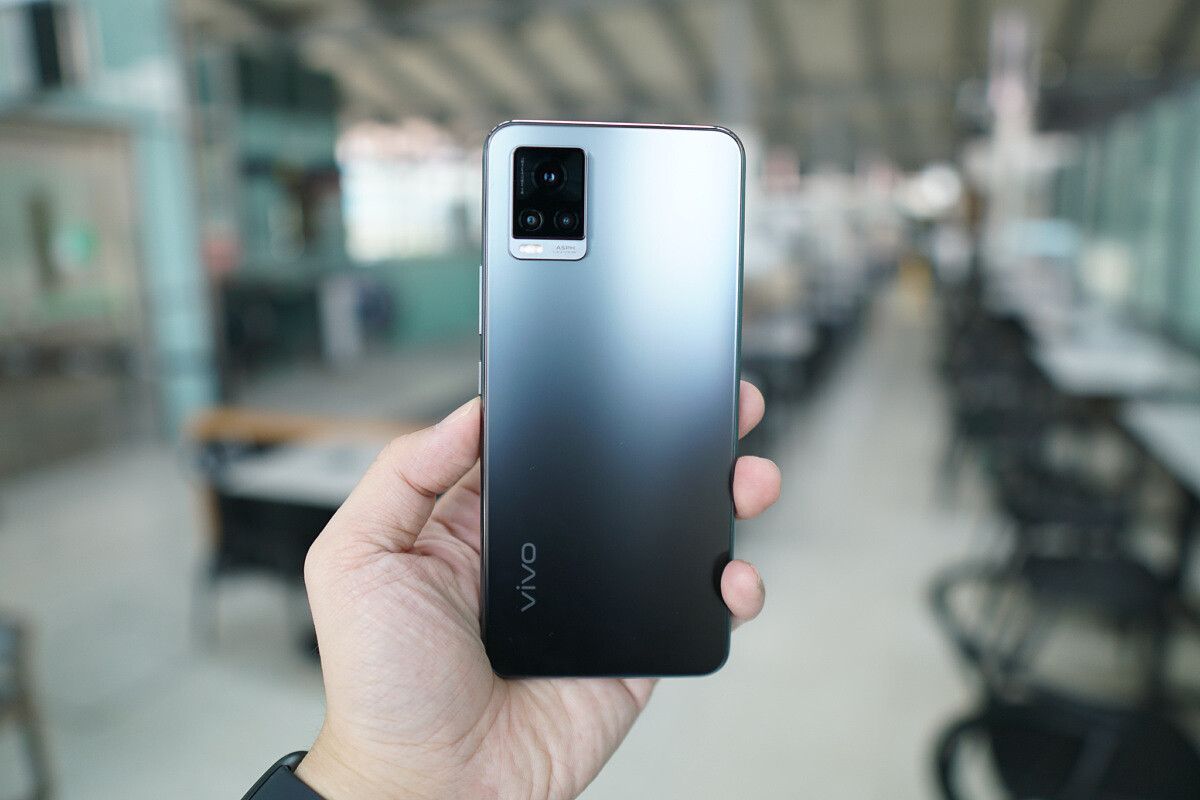
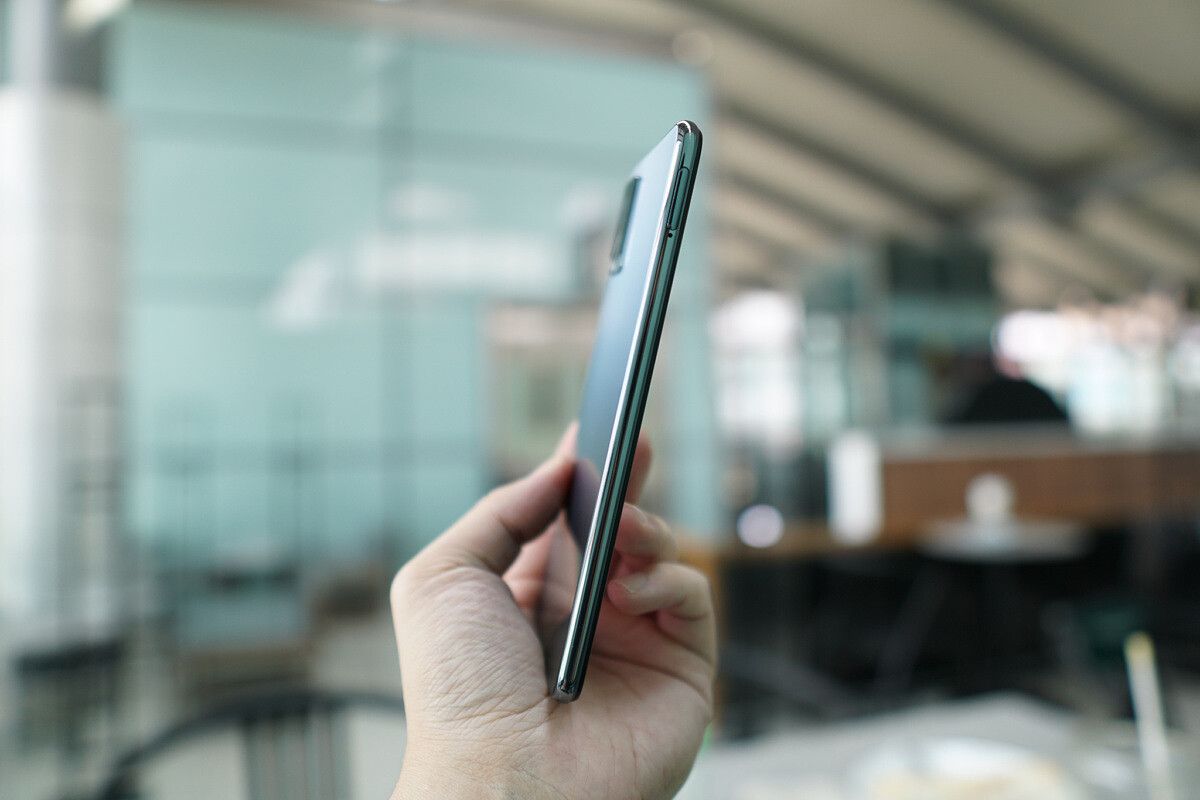
As you can see, the standout feature of the Vivo V20 series, at least in the top two models, is the 44MP selfie camera. Other than that and the soft matte finish of both devices, the overall build and design of these phones are very familiar, if not a bit tired by late 2020. Still, they are quite thin and well constructed for what should be a sub-$400 device, with decent haptics and a sturdy aluminum frame.

Android 11 features

Android 11 doesn’t bring wholesale changes to Android 10 the way some previous version jumps have; instead, Android 11 is about refining an already very polished experience. The key to Android 11 this year seems to be better managing notifications, particularly chats. For example, ongoing messages in any chat app — AKA conversations — are now grouped together and prioritized at the top of the notification card stack, above less important notifications.

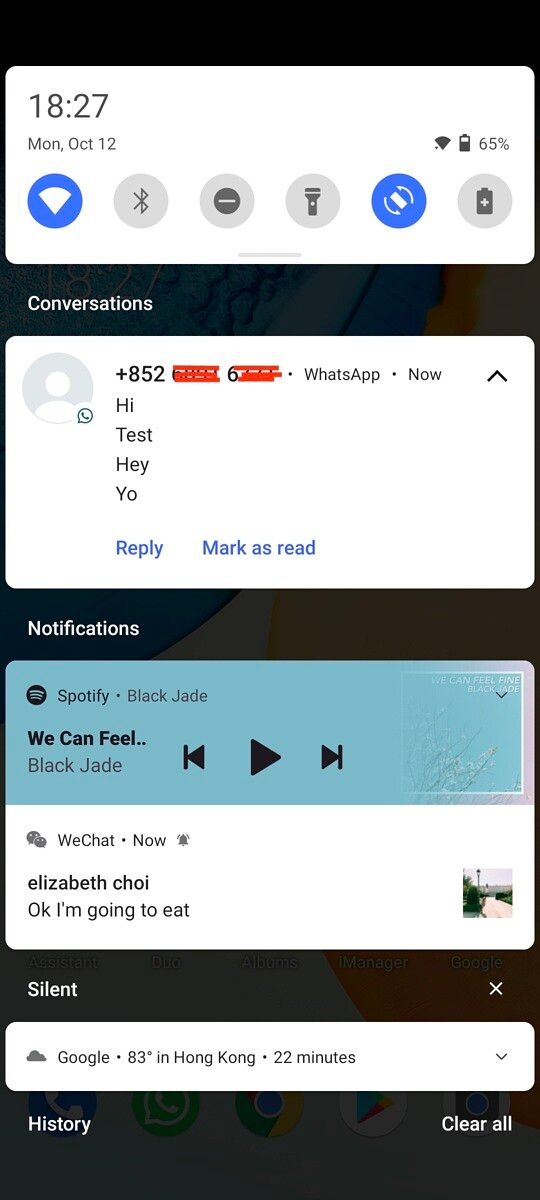
On the Vivo V20, that change has sort of carried over. I say “sort of” because while WhatsApp and Facebook Messenger are grouped together in a single conversations box that’s prioritized above less important notifications, WeChat is left out and remains its own notification card. I whipped out my Pixel 4 running Android 11 to see if this was the case on Google’s device too, and nope, WeChat was correctly grouped alongside other chat apps on the Pixel 4.

You’ll see that Android 11 on the Pixel 4 has also pushed the music player widget into the core notification shade along with the toggles instead of being its own separate card. This feature, too, only works from time to time on the Vivo V20’s version of Android 11, as you can see from the screenshot above where the Spotify player is still its own card below the WhatsApp notification card.

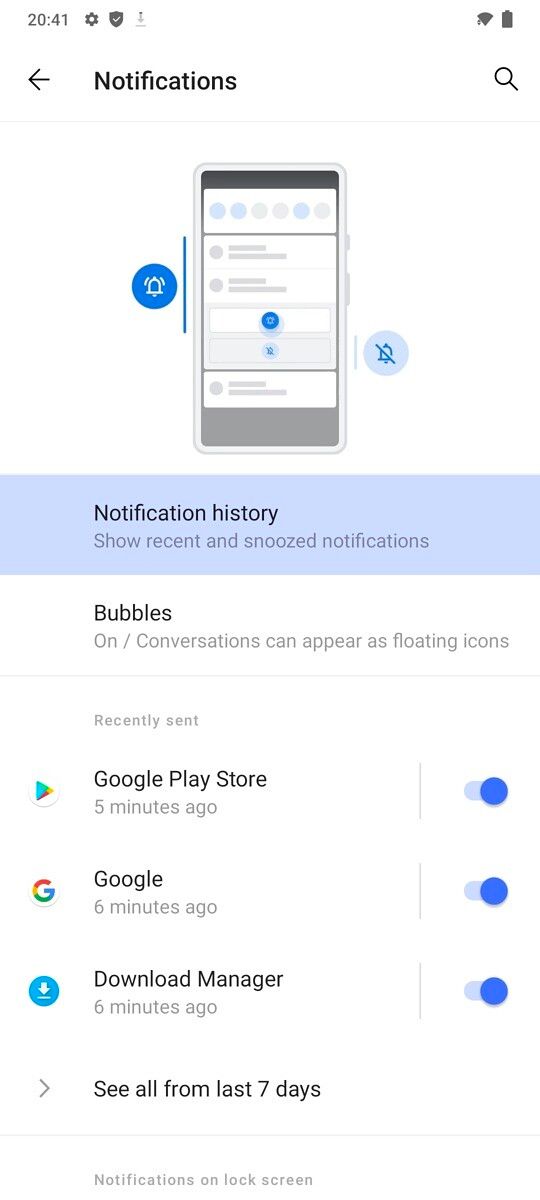
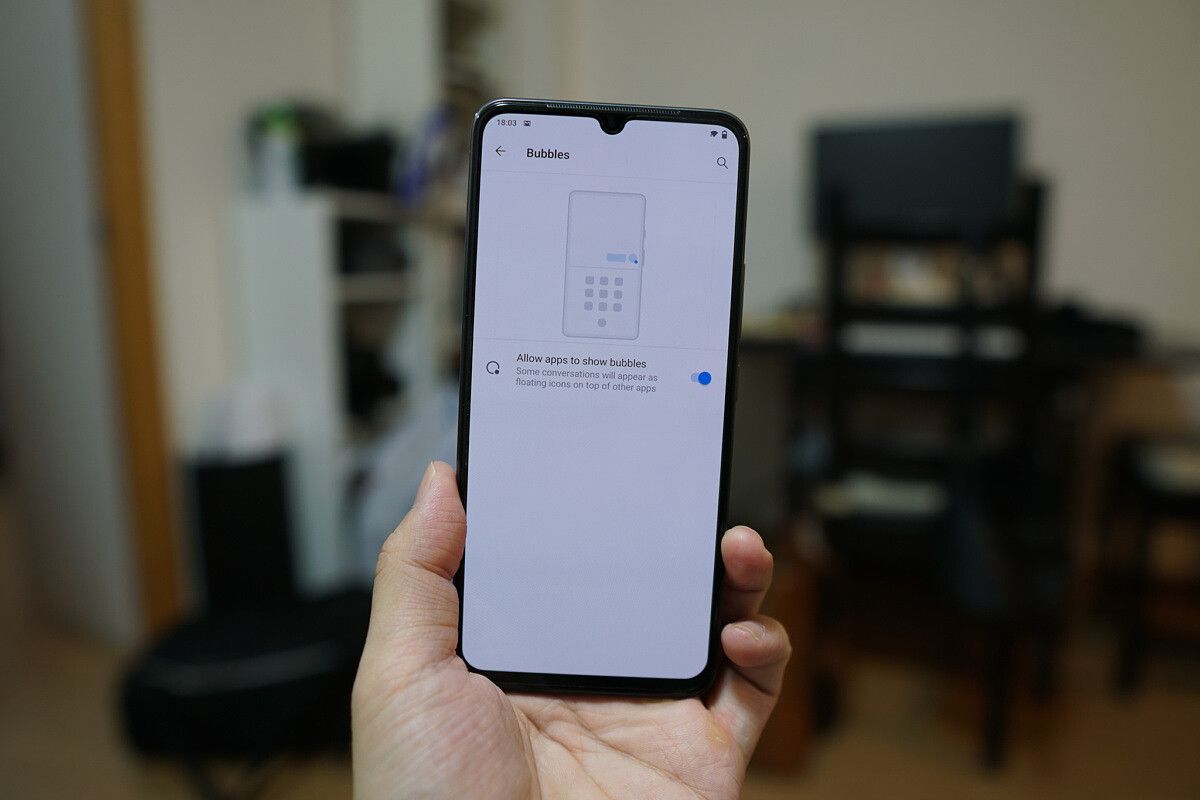
Two features that have carried over successfully are the notification history, which allows users to see all their notifications from the past 24 hours, and chat bubble support. The latter will be familiar to those who’ve used Facebook Messenger on Android in the past — it essentially allows chat apps to be minimized into a floating window so users can jump back and forth between an ongoing conversation and whatever else they may be doing on the screen.

Finally, the other two notable changes to Android 11 — power menu device control and one-time permission for location tracking — have both made it over to Funtouch OS 11 on the Vivo V20 without changes. Long pressing the power menu on the Vivo V20 brings up the power menu as can be seen in one of the screenshots above, and it’s basically a central hub for not only controlling your phone’s shutdown or reboot options, but also your one-stop-shop for housing your smart home controls.

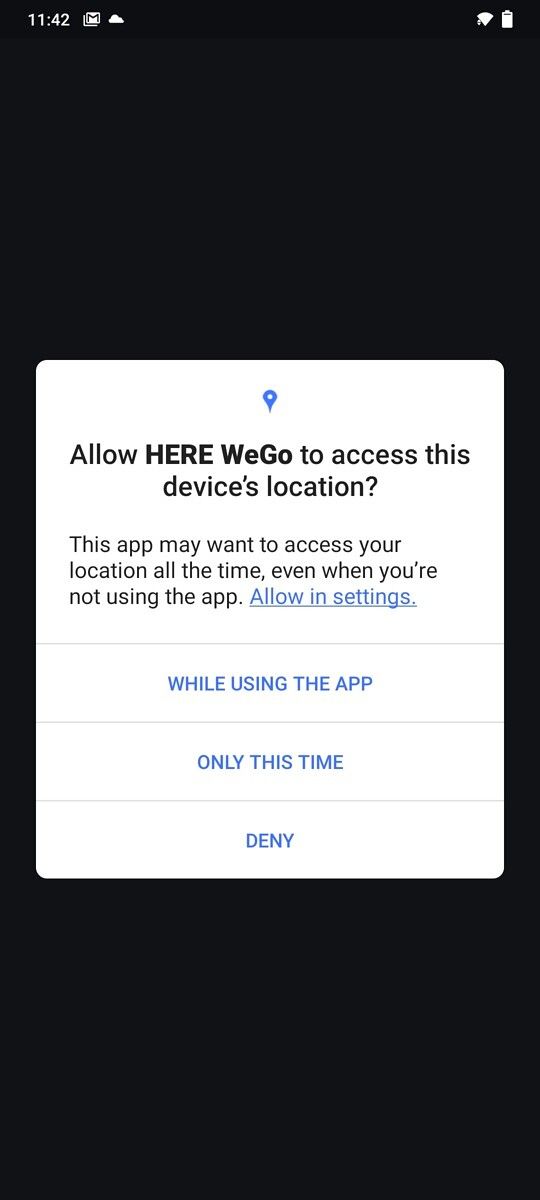
Elsewhere, the one-time location tracking permission worked as advertised on Here WeGo maps. I only allowed it to use my location once, and as soon as I closed the app and locked the phone, the next time I opened the app it had to ask for permission again.

Funtouch OS 11: What’s new?

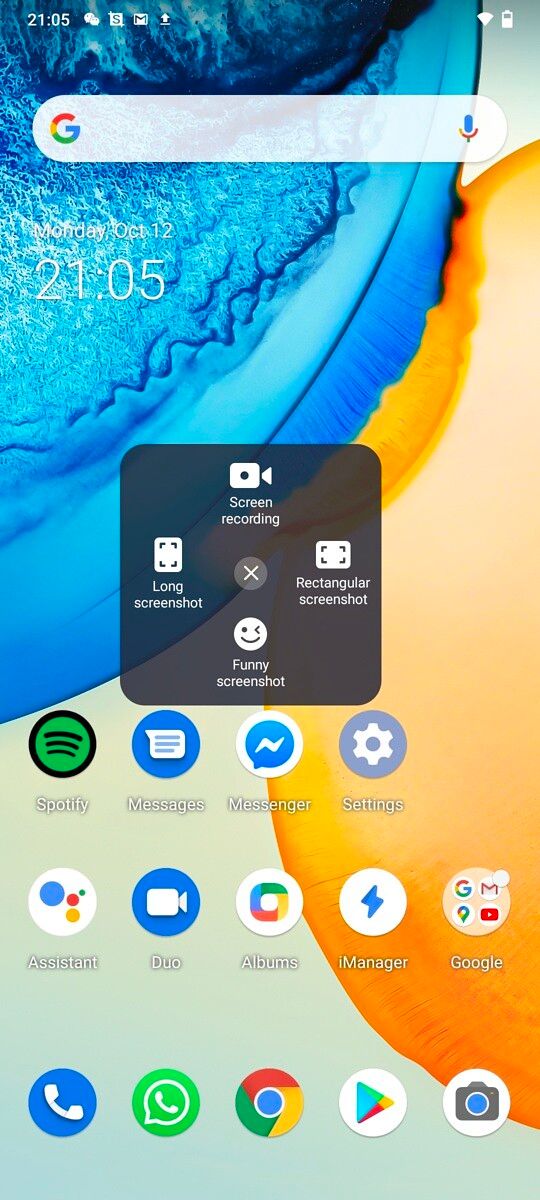
Vivo’s Funtouch OS has its own software changes that go beyond what Google had in mind, some of which overlap with Android 11’s additions. For example, Android 11 added a native screen recorder, which Vivo’s Funtouch OS has had for years. So instead, Vivo added to “S-Capture”, which is a group of screen grabbing or recording tools. These include a basic screen recorder, of course, but also scrolling screenshot capture, or the ability to grab screenshots in specific shapes, like a heart, circle, etc.

There’s also a new “AI Photo Editor,” which offers a very comprehensive suite of photo editing tools baked into the phone’s native Album app. With most phones, we can expect to be able to adjust exposure, orientation, crop into photos, and maybe scribble some marks. Vivo’s editor includes all the aforementioned features plus object eraser, which allows the user to remove unwanted elements from a photo — like a stranger photobombing your selfie — from the shot. This trick, to be honest, can be found in any photo editing app or software worth its salt, so it’s not exactly a groundbreaking feature, but having it built into the app will make it easier for casual smartphone users to make light edits.

The results from the object eraser can be hit-and-miss — though this isn’t really Vivo’s fault, as even widely used photo-editing apps like Adobe Lightroom or Pixelmator can’t quite pull off a clean erase every time. In the screenshot samples below, you can see I somewhat successfully removed a car from the corner of the shot.

There’s also a new batch of Always-On Display options that are colorful and vibrant, but they are not interactive like LG’s or Samsung’s AOD, which allows for music controls. Overall, none of the new additions to Vivo’s Funtouch OS 11 are amazing per se, but together they do give it a more playful vibe than some of the more staid Android skins like LG’s or Sony’s UI.

The post The Vivo V20 is the first phone shipping with Android 11, and we tested it appeared first on xda-developers.


from xda-developers https://ift.tt/2SQoRrS
via IFTTT