LightBlog

jeudi 6 août 2020

How to remove Facebook bloatware from the OnePlus 8 series and OnePlus Nord

Android and bloatware are two spheres that have co-existed since the very beginning of the OS’s existence. The story started off with carriers bundling a variety of useless or functionally-duplicate-yet-inferior apps onto smartphones sold under their network. From there, the story expanded to OEMs themselves bundling duplicate apps, and even to apps from Facebook and Microsoft being bundled onto smartphones. We see bloatware everywhere, so much so that its existence is no longer a surprise, but its non-existence definitely is a pleasant surprise. OnePlus is partaking in the bloatware mess by bundling in Facebook-owned apps on the OnePlus 8, OnePlus 8 Pro, and the OnePlus Nord. But thankfully, there is a way to remove Facebook bloatware from these devices.

XDA Forums: OnePlus 8 || OnePlus 8 Pro || OnePlus Nord

The definition of bloatware is fluid and changes for each user — what one considers as bloat might actually be useful to someone else. With that in mind, it isn’t exactly news that OnePlus smartphones are now packing in apps that may or may not add utility to all users. OnePlus has been bundling its Community app since the OnePlus 3, and you can also spot the Kindle app and some more such apps for quite a few generations now. But most of it could be easily uninstalled, so it wasn’t that big of a deal.

However, as Android Police confirmed, OxygenOS on the OnePlus 8, OnePlus 8 Pro, and the OnePlus Nord (at least) now pack in the Facebook App Installer, Facebook App Manager, and Facebook Services as system apps, alongside the main Facebook app, Facebook Messenger, Instagram, and Netflix. In response to a feature suggestion under its Ideas campaign, OnePlus reasoned that the pre-installation of these apps ensures better battery efficiency on Facebook and enhances HDR playback on Netflix, though we aren’t sold. It is common knowledge that app preloading is a monetization opportunity, and OEMs regularly partner with apps to preload them onto their smartphones, and we reckon that is what is happening here as well. You can uninstall the user-facing apps like Facebook, Messenger, and Instagram, but the background services cannot be uninstalled and can only be disabled.

XDA Reviews: OnePlus 8 || OnePlus 8 Pro || OnePlus Nord

Well, you can still uninstall them, but you need ADB for it. We have long-standing guides on how to remove carrier and OEM bloatware without root access, and those learnings continue to hold true. You can follow the guide to clean your phone (any Android phone), but if you are looking for specific commands to remove the Facebook apps from the OnePlus 8 series and OnePlus Nord, XDA Senior Member Saiger notes that these are the commands that you need to run through ADB:

adb shell
pm uninstall -k --user 0 com.facebook.appmanager
pm uninstall -k --user 0 com.facebook.services
pm uninstall -k --user 0 com.facebook.system

These commands should rid your new $900 smartphone from the pre-loaded and “uninstallable” Facebook bloatware. You may need to repeat the steps again with every OTA, but it’s better than having no solution at all.

Buy from Amazon.in: OnePlus 8 || OnePlus 8 Pro || OnePlus Nord

The post How to remove Facebook bloatware from the OnePlus 8 series and OnePlus Nord appeared first on xda-developers.


from xda-developers https://ift.tt/33wJ2lj
via IFTTT

Trump signs executive order to ban U.S. “transactions” with TikTok and WeChat

US President Donald Trump has signed a pair of executive orders that ban any US transactions with the Chinese companies that own TikTok and WeChat, citing national security risks. The executive orders come just weeks after the Indian government issued a ban on over 100 Chinese apps due to similar reasons. According to a recent report from The Associated Press, the executive orders will take effect in 45 days, and they call on the Commerce Secretary to define the banned dealings in that time.

Once the ban goes into effect, it will bar “any transaction by any person, or with respect to any property, subject to the jurisdiction of the United States, with ByteDance Ltd” and Tencent Holdings Ltd. For the unaware, ByteDance Ltd and Tencent Holdings Ltd are the parent companies of TikTok and WeChat, respectively. While the executive orders aren’t clear about the extent of the ban, experts suggest that they intend to bar the Google Play Store and Apple App Store from hosting these apps and thereby remove the apps from distribution in the US.

The executive orders allege that these apps pose a threat to the data of American users and could give “the Chinese Communist Party access to Americans’ personal and proprietary information — potentially allowing China to track the location of federal employees and contractors, build dossiers of persona information for blackmail, and conduct corporate espionage.”

It’s worth noting that WeChat’s parent company, Tencent Holdings Ltd, also owns or has a stake in several major American video game companies, like Riot Games, the studio behind League of Legends, Clash of Clans publisher Supercell, Epic Games, and more. The company also develops and distributed popular mobile games like PUBG Mobile and Call of Duty Mobile. Because the executive order calls for a ban on any US transactions with Tencent Holdings Ltd, it was previously speculated that the ban could have a significant impact on all of Tencent’s properties. However, a White House official has since clarified that the executive order concerning WeChat only bans transactions related to the messenger and doesn’t involve other Tencent holdings.


Via: APNews

Source: WhiteHouse.gov (1,2)

The post Trump signs executive order to ban U.S. “transactions” with TikTok and WeChat appeared first on xda-developers.


from xda-developers https://ift.tt/2Dle3y5
via IFTTT

Trump signs executive order to ban U.S. “transactions” with TikTok and WeChat

US President Donald Trump has signed a pair of executive orders that ban any US transactions with the Chinese companies that own TikTok and WeChat, citing national security risks. The executive orders come just weeks after the Indian government issued a ban on over 100 Chinese apps due to similar reasons. According to a recent report from The Associated Press, the executive orders will take effect in 45 days, and they call on the Commerce Secretary to define the banned dealings in that time.

Once the ban goes into effect, it will bar “any transaction by any person, or with respect to any property, subject to the jurisdiction of the United States, with ByteDance Ltd” and Tencent Holdings Ltd. For the unaware, ByteDance Ltd and Tencent Holdings Ltd are the parent companies of TikTok and WeChat, respectively. While the executive orders aren’t clear about the extent of the ban, experts suggest that they intend to bar the Google Play Store and Apple App Store from hosting these apps and thereby remove the apps from distribution in the US.

The executive orders allege that these apps pose a threat to the data of American users and could give “the Chinese Communist Party access to Americans’ personal and proprietary information — potentially allowing China to track the location of federal employees and contractors, build dossiers of persona information for blackmail, and conduct corporate espionage.”

It’s worth noting that WeChat’s parent company, Tencent Holdings Ltd, also owns or has a stake in several major American video game companies, like Riot Games, the studio behind League of Legends, Clash of Clans publisher Supercell, Epic Games, and more. The company also develops and distributed popular mobile games like PUBG Mobile and Call of Duty Mobile. Because the executive order calls for a ban on any US transactions with Tencent Holdings Ltd, it was previously speculated that the ban could have a significant impact on all of Tencent’s properties. However, a White House official has since clarified that the executive order concerning WeChat only bans transactions related to the messenger and doesn’t involve other Tencent holdings.


Via: APNews

Source: WhiteHouse.gov (1,2)

The post Trump signs executive order to ban U.S. “transactions” with TikTok and WeChat appeared first on xda-developers.


from xda-developers https://ift.tt/2Dle3y5
via IFTTT

What’s new in Android 11 Beta 3: New Easter egg, emojis, and media player behavior

On Thursday, Google released the last Android 11 beta build before the rumored stable release next month. Whereas last month’s Android 11 Beta 2 release brought the final SDK, NDK, app-facing surfaces, platform behaviors, and restrictions on non-SDK interfaces, Android 11 Beta 3 simply includes bug fixes in preparation for the stable update. Google did sneak in one change to Android 11 in Beta 3, though: Users no longer need to turn on location services in order for apps using the Exposure Notifications System (ENS) to work. As usual, though, there are a few unannounced changes in the release that we discovered after installing the update on a Pixel device. Beta 3 doesn’t have nearly as many changes as earlier betas, but regardless, here’s what we found.

Android 11 Beta 3 – New User-Facing Changes

The Android 11 Easter egg is here

Every new Android version comes with a new Easter egg, and Android 11’s is now accessible in Beta 3. To access it, go to Settings > System > About phone > Android version and repeatedly tap on the “Android version” field. After a few taps, you’ll see a green circle in the middle with one smaller white circle inside of it and several smaller white (or black if your system theme is the light theme) circles surrounding it. This is actually a dial that you need to turn clockwise 3 times until you see the Android 11 logo appear as well as a toast message with a cat emoji. (You’re “turning it up to 11” in case you don’t get it.)

Once you do this, you’ll have access to a new minigame involving Android 11’s smart home power menu feature called Device Controls. You can get started with this by opening the power menu (with a long-press of the power button) and then tapping on the three-dot menu to “add controls.” At the bottom left, tap on “see other apps” to find “Cat Controls.”

Yes, the cat game from Android Nougat is back.

If you love silly little games like this (or just love cats), then I’m sure you’ll get a kick out of this. Play around with this enough and you’ll even come across another cat-related Easter egg in Android 11’s new Conversation section in notifications. This one is a notification that can be opened up in a Bubble like a conversation from a messaging app.

Credits: @anoop_v1 on Telegram

New “Media” setting, Swipe Away Media Player Notifications

Android 11 separates media playback notifications from other notifications, placing them instead in a dedicated section underneath the Quick Settings. This feature can also store up to 5 previous media sessions if supported by the app.

Android 11 Beta 2 automatically placed all media playback notifications in the dedicated space below Quick Settings with no way for users to revert back to the old behavior. While Android 11 Beta 3 still doesn’t allow you to put media playback notifications where they used to be, it does introduce a new toggle in Settings > Sound > Media called “hide player when the media session has ended.” Enabling this toggle will hide media controls when the active media session has ended. This is for those of you who don’t want to see media controls from apps that haven’t been playing anything recently.

Another minor change in Android 11 Beta 3 is the ability to hide media playback controls from the unexpanded Quick Settings panel. Here are screenshots showing the Quick Settings UI before and after swiping away the media player:

New Emojis are here

The Unicode Consortium announced Unicode 13 earlier this year, and all the new emojis have made their way into Android 11. You can flash a Magisk Module to install them on any rooted Android device or you can see them (kind of) with an input method like Gboard, but you won’t need to do either in Android 11 Beta 3 since the emoji styles are baked into the system font file. Here’s a screenshot showing the new emoji designs in SwiftKey:

A slight tweak to the power menu

Since Android 11’s new power menu packs so many buttons, including the standard row of power menu controls, contactless payment methods via the Quick Access Wallet API, and smart home controls via the Device Controls API, Google had to combine the power off and reboot buttons into a single “power” button. Tapping “power” shows the standard power off and reboot options with a new design in Android 11 Beta 3.

Forced 90Hz option is back on the Pixel 4

Android 11 Beta 2 introduced a screen flickering issue at low brightness levels on the Pixel 4 which happened because the device was frequently switching between the 60Hz and 90Hz display modes which have different gamma calibrations. Some users tried to fix this issue by manually forcing the phone to always stay at its 90Hz display mode, but Google threw a wrench in their plans by removing the force 90Hz toggle in the Developer Options of Android 11 Beta 2. Thankfully, a similar toggle has now returned in the Developer Options of Android 11 Beta 3, as spotted by Redditor /u/amenotef.


That’s about it for semi-noteworthy changes in Android 11 Beta 3. Google is now focused on fixing bugs and improving the stability of Android 11 for the rumored stable release on September 8th. We’ll continue to dig into the latest Android 11 release to see if we can find more details on unannounced and in-development features, of course.

The post What’s new in Android 11 Beta 3: New Easter egg, emojis, and media player behavior appeared first on xda-developers.


from xda-developers https://ift.tt/31yzofw
via IFTTT

What’s new in Android 11 Beta 3: New Easter egg, emojis, and media player behavior

On Thursday, Google released the last Android 11 beta build before the rumored stable release next month. Whereas last month’s Android 11 Beta 2 release brought the final SDK, NDK, app-facing surfaces, platform behaviors, and restrictions on non-SDK interfaces, Android 11 Beta 3 simply includes bug fixes in preparation for the stable update. Google did sneak in one change to Android 11 in Beta 3, though: Users no longer need to turn on location services in order for apps using the Exposure Notifications System (ENS) to work. As usual, though, there are a few unannounced changes in the release that we discovered after installing the update on a Pixel device. Beta 3 doesn’t have nearly as many changes as earlier betas, but regardless, here’s what we found.

Android 11 Beta 3 – New User-Facing Changes

The Android 11 Easter egg is here

Every new Android version comes with a new Easter egg, and Android 11’s is now accessible in Beta 3. To access it, go to Settings > System > About phone > Android version and repeatedly tap on the “Android version” field. After a few taps, you’ll see a green circle in the middle with one smaller white circle inside of it and several smaller white (or black if your system theme is the light theme) circles surrounding it. This is actually a dial that you need to turn clockwise 3 times until you see the Android 11 logo appear as well as a toast message with a cat emoji. (You’re “turning it up to 11” in case you don’t get it.)

Once you do this, you’ll have access to a new minigame involving Android 11’s smart home power menu feature called Device Controls. You can get started with this by opening the power menu (with a long-press of the power button) and then tapping on the three-dot menu to “add controls.” At the bottom left, tap on “see other apps” to find “Cat Controls.”

Yes, the cat game from Android Nougat is back.

If you love silly little games like this (or just love cats), then I’m sure you’ll get a kick out of this. Play around with this enough and you’ll even come across another cat-related Easter egg in Android 11’s new Conversation section in notifications. This one is a notification that can be opened up in a Bubble like a conversation from a messaging app.

Credits: @anoop_v1 on Telegram

New “Media” setting, Swipe Away Media Player Notifications

Android 11 separates media playback notifications from other notifications, placing them instead in a dedicated section underneath the Quick Settings. This feature can also store up to 5 previous media sessions if supported by the app.

Android 11 Beta 2 automatically placed all media playback notifications in the dedicated space below Quick Settings with no way for users to revert back to the old behavior. While Android 11 Beta 3 still doesn’t allow you to put media playback notifications where they used to be, it does introduce a new toggle in Settings > Sound > Media called “hide player when the media session has ended.” Enabling this toggle will hide media controls when the active media session has ended. This is for those of you who don’t want to see media controls from apps that haven’t been playing anything recently.

Another minor change in Android 11 Beta 3 is the ability to hide media playback controls from the unexpanded Quick Settings panel. Here are screenshots showing the Quick Settings UI before and after swiping away the media player:

New Emojis are here

The Unicode Consortium announced Unicode 13 earlier this year, and all the new emojis have made their way into Android 11. You can flash a Magisk Module to install them on any rooted Android device or you can see them (kind of) with an input method like Gboard, but you won’t need to do either in Android 11 Beta 3 since the emoji styles are baked into the system font file. Here’s a screenshot showing the new emoji designs in SwiftKey:

A slight tweak to the power menu

Since Android 11’s new power menu packs so many buttons, including the standard row of power menu controls, contactless payment methods via the Quick Access Wallet API, and smart home controls via the Device Controls API, Google had to combine the power off and reboot buttons into a single “power” button. Tapping “power” shows the standard power off and reboot options with a new design in Android 11 Beta 3.

Forced 90Hz option is back on the Pixel 4

Android 11 Beta 2 introduced a screen flickering issue at low brightness levels on the Pixel 4 which happened because the device was frequently switching between the 60Hz and 90Hz display modes which have different gamma calibrations. Some users tried to fix this issue by manually forcing the phone to always stay at its 90Hz display mode, but Google threw a wrench in their plans by removing the force 90Hz toggle in the Developer Options of Android 11 Beta 2. Thankfully, a similar toggle has now returned in the Developer Options of Android 11 Beta 3, as spotted by Redditor /u/amenotef.


That’s about it for semi-noteworthy changes in Android 11 Beta 3. Google is now focused on fixing bugs and improving the stability of Android 11 for the rumored stable release on September 8th. We’ll continue to dig into the latest Android 11 release to see if we can find more details on unannounced and in-development features, of course.

The post What’s new in Android 11 Beta 3: New Easter egg, emojis, and media player behavior appeared first on xda-developers.


from xda-developers https://ift.tt/31yzofw
via IFTTT

TeamViewer’s QuickSupport App now supports remote control for many Xiaomi, OPPO, and Pixel devices

With social distancing rules in place, it’s probably been a while since you were able to troubleshoot your relative’s tech issues in person. And with many businesses closed down, it can be that much harder to find the support you’re looking for. Thankfully, TeamViewer’s QuickSupport app makes it easy to troubleshoot issues from afar. And now thanks to expanded support via a universal add-on app for Android, many Google Pixel, Xiaomi, and OPPO smartphones can be remotely controlled to help mom or dad figure out what’s wrong with their phone.

According to TeamViewer (via AndroidPolice), its QuickSupport app now features the ability to remotely control basically all Android devices running Android 7 Nougat and later. Before, some Android devices with the TeamViewer app installed only supported screen sharing but not the ability to control a device remotely.

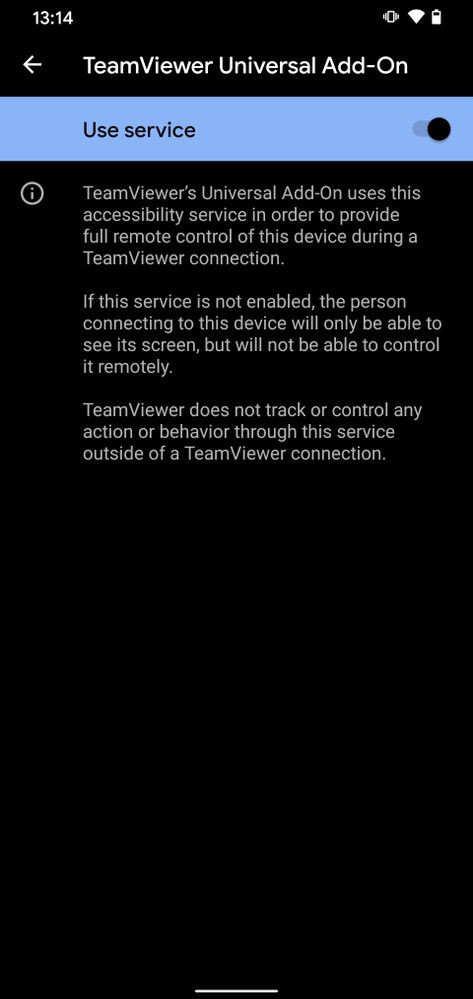
Once you download TeamViewer’s universal add-on, you’ll need to enable the service as shown in the screenshots above so you can provide remote support. This might be ideal in situations when you need to show a relative how to do something or when an IT department has to troubleshoot a device.

With travel essentially banned in many places stilled and large gatherings heavily discouraged, TeamViewer’s solution might be the best way to provide technical support for family. And with wider support for TeamViewer’s universal add-on, solving devices issues from afar has never been easier.

TeamViewer QuickSupport (Free, Google Play) →

TeamViewer Universal Add-On (Free, Google Play) →

The post TeamViewer’s QuickSupport App now supports remote control for many Xiaomi, OPPO, and Pixel devices appeared first on xda-developers.


from xda-developers https://ift.tt/3a3TS3m
via IFTTT

TeamViewer’s QuickSupport App now supports remote control for many Xiaomi, OPPO, and Pixel devices

With social distancing rules in place, it’s probably been a while since you were able to troubleshoot your relative’s tech issues in person. And with many businesses closed down, it can be that much harder to find the support you’re looking for. Thankfully, TeamViewer’s QuickSupport app makes it easy to troubleshoot issues from afar. And now thanks to expanded support via a universal add-on app for Android, many Google Pixel, Xiaomi, and OPPO smartphones can be remotely controlled to help mom or dad figure out what’s wrong with their phone.

According to TeamViewer (via AndroidPolice), its QuickSupport app now features the ability to remotely control basically all Android devices running Android 7 Nougat and later. Before, some Android devices with the TeamViewer app installed only supported screen sharing but not the ability to control a device remotely.

Once you download TeamViewer’s universal add-on, you’ll need to enable the service as shown in the screenshots above so you can provide remote support. This might be ideal in situations when you need to show a relative how to do something or when an IT department has to troubleshoot a device.

With travel essentially banned in many places stilled and large gatherings heavily discouraged, TeamViewer’s solution might be the best way to provide technical support for family. And with wider support for TeamViewer’s universal add-on, solving devices issues from afar has never been easier.

TeamViewer QuickSupport (Free, Google Play) →

TeamViewer Universal Add-On (Free, Google Play) →

The post TeamViewer’s QuickSupport App now supports remote control for many Xiaomi, OPPO, and Pixel devices appeared first on xda-developers.


from xda-developers https://ift.tt/3a3TS3m
via IFTTT