LightBlog

samedi 23 mai 2020

New unc0ver exploit allows jailbreaking Apple iPhone and iPads running iOS/iPadOS 12 to 13.5

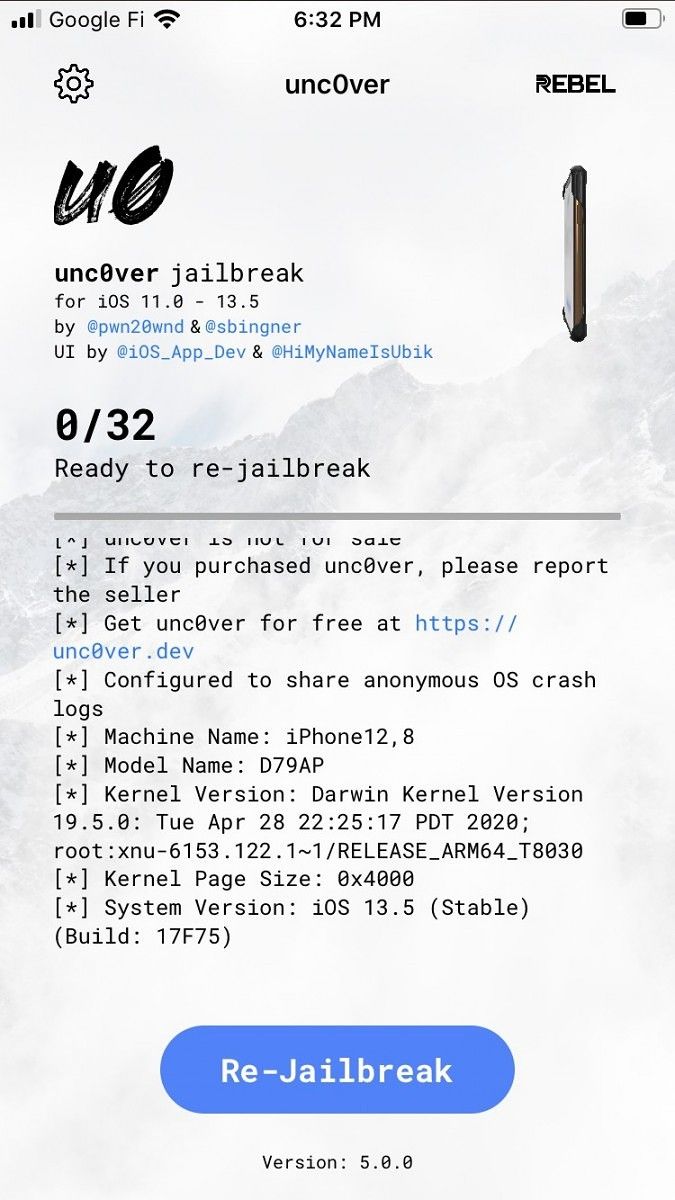
The iOS jailbreak and Android rooting communities have a lot in common. We both love our respective devices but are disappointed by the lack of customization. Unfortunately, Apple devices aren’t as easy to tinker with when compared to many Android devices. That’s why new jailbreaks, like the recently released unc0ver exploit, are such huge deals. The new unc0ver jailbreak works on all Apple iPhone and iPad devices from iOS 11 to iOS/iPad OS 13.5 with 12.3-12.3.2 and 12.4.2-12.4.5 being unsupported.

This new jailbreak is one of the larger exploits to come out recently. There was recently a chip-level exploit called checkra1n that supports all Apple iOS devices using the A7 to A11 SoC. Unlike checkra1n, unc0ver uses a zero-day exploit that hasn’t been used in iOS jailbreaks since iOS 8. To use this exploit to jailbreak your iPhone or iPad, all you need to do is sideload the unc0ver .ipa file using software like AltStore. The full tutorial is available on the unc0ver website.

How to jailbreak your Apple iPhone or iPad with unc0ver

While I do daily driver Android phones, I also use iPhones a good amount. At the time of writing this article, I have easily jailbroken my iPhone SE and iPhone 11 Pro Max without any issues using this exploit. There are a lot of great tweaks on a lot of great repositories, but many of them will need to be updated for iOS 13.5 support before I can use them. A few tweaks I’ve already started using are Garden, EyeOS, SnowBoard, and AirPort 13. Garden adds a nice music page to your home screen, EyeOS is an iOS 6-style icon pack with modern touches, SnowBoard is a theme engine for iOS, and AirPort 13 lets you customize the AirPods connection UI.

This jailbreak is thanks to the full unc0ver team. This jailbreak was also sponsored by Phone Rebel from EverythingApplePro, who is launching new iPhone cases very soon. The developers’ names and positions on the project are listed below:

Apple iPhone and iPad jailbreaking are huge and there’s a very large community behind it, though most of it is on other forums. There will be a lot more tweaks for iOS devices jailbroken with unc0ver coming up soon, so keep an eye on the /r/Jailbreak subreddit for some of those mods.

The post New unc0ver exploit allows jailbreaking Apple iPhone and iPads running iOS/iPadOS 12 to 13.5 appeared first on xda-developers.


from xda-developers https://ift.tt/2AWBdsV
via IFTTT

New unc0ver exploit allows jailbreaking Apple iPhone and iPads running iOS/iPadOS 12 to 13.5

The iOS jailbreak and Android rooting communities have a lot in common. We both love our respective devices but are disappointed by the lack of customization. Unfortunately, Apple devices aren’t as easy to tinker with when compared to many Android devices. That’s why new jailbreaks, like the recently released unc0ver exploit, are such huge deals. The new unc0ver jailbreak works on all Apple iPhone and iPad devices from iOS 11 to iOS/iPad OS 13.5 with 12.3-12.3.2 and 12.4.2-12.4.5 being unsupported.

This new jailbreak is one of the larger exploits to come out recently. There was recently a chip-level exploit called checkra1n that supports all Apple iOS devices using the A7 to A11 SoC. Unlike checkra1n, unc0ver uses a zero-day exploit that hasn’t been used in iOS jailbreaks since iOS 8. To use this exploit to jailbreak your iPhone or iPad, all you need to do is sideload the unc0ver .ipa file using software like AltStore. The full tutorial is available on the unc0ver website.

How to jailbreak your Apple iPhone or iPad with unc0ver

While I do daily driver Android phones, I also use iPhones a good amount. At the time of writing this article, I have easily jailbroken my iPhone SE and iPhone 11 Pro Max without any issues using this exploit. There are a lot of great tweaks on a lot of great repositories, but many of them will need to be updated for iOS 13.5 support before I can use them. A few tweaks I’ve already started using are Garden, EyeOS, SnowBoard, and AirPort 13. Garden adds a nice music page to your home screen, EyeOS is an iOS 6-style icon pack with modern touches, SnowBoard is a theme engine for iOS, and AirPort 13 lets you customize the AirPods connection UI.

This jailbreak is thanks to the full unc0ver team. This jailbreak was also sponsored by Phone Rebel from EverythingApplePro, who is launching new iPhone cases very soon. The developers’ names and positions on the project are listed below:

Apple iPhone and iPad jailbreaking are huge and there’s a very large community behind it, though most of it is on other forums. There will be a lot more tweaks for iOS devices jailbroken with unc0ver coming up soon, so keep an eye on the /r/Jailbreak subreddit for some of those mods.

The post New unc0ver exploit allows jailbreaking Apple iPhone and iPads running iOS/iPadOS 12 to 13.5 appeared first on xda-developers.


from xda-developers https://ift.tt/2AWBdsV
via IFTTT

Google Messages prepares end-to-end encryption for RCS, Google Fi integration, manual cloud restores

Earlier today, our friends at AndroidPolice got their hands on Google Messages 6.2.031 and uploaded it to APKMirror. Our friend Quinny899 notified us that this APK is actually a dogfood build, meaning it was not supposed to be released to the public. Sometimes, these dogfood builds have a lot of interesting code for features that are in development, and Messages 6.2.031 is definitely one of those cases. This dogfood build hints that Google is preparing end-to-end encryption for RCS messages, Google Fi account integration to sync calls, texts, and voicemails, and manual cloud restores of backups.

An APK teardown can often predict features that may arrive in a future update of an application, but it is possible that any of the features we mention here may not make it in a future release. This is because these features are currently unimplemented in the live build and may be pulled at any time by the developers in a future build.

End-to-End Encryption for RCS

RCS is widely seen as the successor to SMS. With RCS, users can exchange media files in high quality, see read receipts, see typing indicators, start group chats, and do more over mobile data and even Wi-Fi. Rather than wait for carriers to adopt the RCS protocol on their own, Google started to roll out RCS support in the Google Messages app for everyone in the UK and France. They later rolled out RCS support in the Messages app for people in the US, Spain, Italy, Singapore, Portugal, Argentina, Pakistan, Poland, and Turkey.

One feature that popular messaging apps like WhatsApp and Telegram support but RCS hasn’t is end-to-end encryption, but it looks like Google is preparing to add support for that on their own end. The biggest new feature that is in the works in Google Messages 6.2.031 is “End-to-End Encrypted Rich Communication Service message[s].” According to the strings, you’ll have the option to send messages with end-to-end encryption or, if your data connection is poor, without encryption by falling back to SMS/MMS.

<string name="e2ee_conversation_tombstone">Chatting end-to-end encrypted with %s</string>
<string name="e2ee_fail_to_send_retry_description">Resend as chat</string>
<string name="encrypted_rcs_message">End-to-End Encrypted Rich Communication Service message</string>
<string name="encryption_default_fallback_body">"SMS/MMS texts aren't end-to-end encrypted.
To send with end-to-end encryption, wait for improved data connection or send messages now as SMS/MMS."</string>
<string name="encryption_fallback_dialog_accept_button">Send unencrypted</string>
<string name="encryption_fallback_dialog_decline_button">Wait</string>
<string name="encryption_fallback_title">Send unencrypted messages?</string>
<string name="encryption_sent_fallback_body">"SMS/MMS texts aren't end-to-end encrypted.
To send with end-to-end encryption, wait until %1$s has data connection or send messages now as SMS/MMS."</string><string name="not_yet_sent_e2ee_dialog_body">This message is still trying to be sent end-to-end encrypted to the recipient. You can also send the message as SMS/MMS instead.</string>

You’ll even be able to send your location through an end-to-end encrypted message:

<string name="location_attachment_picker_send_encrypted_content_description">Send end-to-end encrypted message with selected location %1$s</string>

Finally, it seems that you will be able to choose whether or not other apps can access your end-to-end encrypted messages. However, third-party app developers are currently not able to implement RCS support in their messaging apps.

<string name="etouffee_to_telephony_setting_title">Let other apps access end-to-end encrypted messages</string>

Google Fi integration

Another new feature that many users are looking forward to is Google Fi integration. Although Google Hangouts is on its way out, it’s still recommended to users who want to see and respond to their calls, texts, and voicemails on multiple devices. That could change soon, however, as Google Messages is preparing to pick up the slack.

Google Messages Google Fi settings

The above settings page, once it goes live for all users, will allow Google Fi subscribers to sign into their account to sync any texts, calls, or voicemails they have across screens. Google Messages has had a web app for nearly 2 years now, so this is likely where Google Fi users will be able to read and respond to their texts.

When you sign in to your Google Fi account in Google Messages, you’ll have the option to transfer conversation history from Hangouts to Messages. Unfortunately, you won’t be able to sync messages or voice calls to a computer if you enable RCS in Message. If you disable multi-device sync in settings, you’ll also be unable to access calls and voicemails on the web but you’ll continue to be able to text from the web.

Google Fi strings

<string name="fi_account_confirmation_cancel_button">Cancel</string>
<string name="fi_account_confirmation_change_primary_device_dialog_message">"You're already signed in from the primary phone for your Google Account. To replace your primary phone with this one, continue signing in."</string>
<string name="fi_account_confirmation_change_primary_device_dialog_negative">Cancel</string>
<string name="fi_account_confirmation_change_primary_device_dialog_positive">Sign in</string>
<string name="fi_account_confirmation_change_primary_device_dialog_title">"You're signing in on a different phone"</string>
<string name="fi_account_confirmation_hangouts_cancel_button">Cancel</string>
<string name="fi_account_confirmation_hangouts_description">"Before Hangouts SMS/MMS stops working, transfer your conversation histories to Messages
%1$s"</string>
<string name="fi_account_confirmation_hangouts_ok_button">Transfer conversations</string>
<string name="fi_account_confirmation_hangouts_phone_link">Enjoy texts, calls &amp; voicemail on the web even when your phone is off</string>
<string name="fi_account_confirmation_hangouts_security">Conversations stay synced &amp; secure on Google servers</string>
<string name="fi_account_confirmation_hangouts_title">Hangouts SMS/MMS is going away</string>
<string name="fi_account_confirmation_ok_button">Sync conversations</string>
<string name="fi_account_confirmation_phone_link">Text or call on the web while your phone is off</string>
<string name="fi_account_confirmation_security">Messages stores your information securely on Google servers</string>
<string name="fi_account_confirmation_sync">Your conversations stay synced across screens</string>
<string name="fi_account_confirmation_title">Sync your conversations to enjoy texts, calls &amp; voicemail on the web</string>
<string name="fi_account_invalid_fi_account">Wrong account. Sign in with your Google Fi account.</string>
<string name="fi_account_login_pref_key">fi_account_login</string>
<string name="fi_account_login_summary">Sync texts, calls &amp; voicemails across screens</string>
<string name="fi_account_login_title">Sign in to Google Fi</string>
<string name="fi_account_pref_key">fi_account</string>
<string name="fi_account_preference_button">Stop sync &amp; sign out</string>
<string name="fi_account_rcs_enabled_dialog_body">To get messaging &amp; voice calls on your computer, turn off chat features. %1$s</string>
<string name="fi_account_rcs_enabled_dialog_negative_button">Cancel</string>
<string name="fi_account_rcs_enabled_dialog_positive_button">Turn off</string>
<string name="fi_account_rcs_enabled_dialog_title">Using chat features?</string>
<string name="fi_account_verify_fail_message">Failed to validate Google Fi account</string>
<string name="fi_current_sync_pref_key">fi_current_sync</string>
<string name="fi_enable_download_over_wifi_pref_key">fi_enable_download_over_wifi</string>
<string name="fi_settings_delete_backup">Also delete synced conversations?</string>
<string name="fi_settings_delete_backup_dialog_negative">Keep</string>
<string name="fi_settings_delete_backup_dialog_neutral">Cancel</string>
<string name="fi_settings_delete_backup_dialog_positive">Delete</string>
<string name="fi_settings_delete_backup_message">If you delete synced conversations, they’ll be available only on your phone</string>
<string name="fi_settings_device_status_unpaired">Unpaired</string>
<string name="fi_settings_devices_status_key">devices</string>
<string name="fi_settings_devices_status_summary">Pair phone &amp; computer</string>
<string name="fi_settings_devices_status_title">Status: %1$s</string>
<string name="fi_settings_devices_status_title_default">Status: Loading</string>
<string name="fi_settings_disable_multidevice_dialog_message">You’ll be able to text from your phone and computer, but calls and voicemail won’t be available on the web</string>
<string name="fi_settings_disable_multidevice_dialog_negative">Cancel</string>
<string name="fi_settings_disable_multidevice_dialog_positive">Stop syncing</string>
<string name="fi_settings_disable_multidevice_dialog_title">Stop syncing messages, calls &amp; voicemail across screens?</string>
<string name="fi_settings_download_over_wifi_summary">Some video &amp; images will not be available across all devices when Wi-Fi is off</string>
<string name="fi_settings_download_over_wifi_title">Sync media only over Wi-Fi</string>
<string name="fi_settings_opt_out_failed">Can’t stop sync &amp; sign out right now. Try again later.</string>
<string name="fi_settings_opt_out_in_progress">Stopping sync and signing out.</string>
<string name="fi_settings_sync_preference_summary">Messages, calls &amp; voicemail stay current across screens</string>
<string name="fi_settings_sync_preference_title_synced">Sync complete</string>
<string name="fi_settings_sync_preference_title_syncing">Sync in progress</string>
<string name="fi_settings_title">Google Fi</string>

Backup & Restore

Finally, two layout files were added hinting at a new settings page to restore messages backed up on the cloud: restore_activity_layout.xml and restore_fragment_layout.xml. The backup service in Google Play Services, as well as the backup service in Google One, can backup and restore your messages when you initially sign into a new device. It seems that Google Messages will let you choose to manually restore a previous backup of your conversations.

<string name="backup_detected">Backup detected</string>
<string name="last_backup_datetime_label">Last backup</string>
<string name="restore">Restore</string>
<string name="restore_description">Restore your previous backup. Backups will discontinue from occuring on any of your other devices.</string>
<string name="skip_restore">Skip restore</string>
<string name="skip_restore_dialog_message">This option will delete your existing cloud backup, then backup chats from this device.</string>
<string name="skip_restore_dialog_negative">Cancel</string>
<string name="skip_restore_dialog_positive">Continue</string>

You can download the latest version of the Google Messages app from the Google Play Store link below. Note, however, that the dogfood build version 6.2.031 won’t be available through Google Play and can only be downloaded through APKMirror.

Messages (Free, Google Play) →

Thanks to PNF Software for providing us a license to use JEB Decompiler, a professional-grade reverse engineering tool for Android applications.

The post Google Messages prepares end-to-end encryption for RCS, Google Fi integration, manual cloud restores appeared first on xda-developers.


from xda-developers https://ift.tt/2Xolomj
via IFTTT

Google Messages prepares end-to-end encryption for RCS, Google Fi integration, manual cloud restores

Earlier today, our friends at AndroidPolice got their hands on Google Messages 6.2.031 and uploaded it to APKMirror. Our friend Quinny899 notified us that this APK is actually a dogfood build, meaning it was not supposed to be released to the public. Sometimes, these dogfood builds have a lot of interesting code for features that are in development, and Messages 6.2.031 is definitely one of those cases. This dogfood build hints that Google is preparing end-to-end encryption for RCS messages, Google Fi account integration to sync calls, texts, and voicemails, and manual cloud restores of backups.

An APK teardown can often predict features that may arrive in a future update of an application, but it is possible that any of the features we mention here may not make it in a future release. This is because these features are currently unimplemented in the live build and may be pulled at any time by the developers in a future build.

End-to-End Encryption for RCS

RCS is widely seen as the successor to SMS. With RCS, users can exchange media files in high quality, see read receipts, see typing indicators, start group chats, and do more over mobile data and even Wi-Fi. Rather than wait for carriers to adopt the RCS protocol on their own, Google started to roll out RCS support in the Google Messages app for everyone in the UK and France. They later rolled out RCS support in the Messages app for people in the US, Spain, Italy, Singapore, Portugal, Argentina, Pakistan, Poland, and Turkey.

One feature that popular messaging apps like WhatsApp and Telegram support but RCS hasn’t is end-to-end encryption, but it looks like Google is preparing to add support for that on their own end. The biggest new feature that is in the works in Google Messages 6.2.031 is “End-to-End Encrypted Rich Communication Service message[s].” According to the strings, you’ll have the option to send messages with end-to-end encryption or, if your data connection is poor, without encryption by falling back to SMS/MMS.

<string name="e2ee_conversation_tombstone">Chatting end-to-end encrypted with %s</string>
<string name="e2ee_fail_to_send_retry_description">Resend as chat</string>
<string name="encrypted_rcs_message">End-to-End Encrypted Rich Communication Service message</string>
<string name="encryption_default_fallback_body">"SMS/MMS texts aren't end-to-end encrypted.
To send with end-to-end encryption, wait for improved data connection or send messages now as SMS/MMS."</string>
<string name="encryption_fallback_dialog_accept_button">Send unencrypted</string>
<string name="encryption_fallback_dialog_decline_button">Wait</string>
<string name="encryption_fallback_title">Send unencrypted messages?</string>
<string name="encryption_sent_fallback_body">"SMS/MMS texts aren't end-to-end encrypted.
To send with end-to-end encryption, wait until %1$s has data connection or send messages now as SMS/MMS."</string><string name="not_yet_sent_e2ee_dialog_body">This message is still trying to be sent end-to-end encrypted to the recipient. You can also send the message as SMS/MMS instead.</string>

You’ll even be able to send your location through an end-to-end encrypted message:

<string name="location_attachment_picker_send_encrypted_content_description">Send end-to-end encrypted message with selected location %1$s</string>

Finally, it seems that you will be able to choose whether or not other apps can access your end-to-end encrypted messages. However, third-party app developers are currently not able to implement RCS support in their messaging apps.

<string name="etouffee_to_telephony_setting_title">Let other apps access end-to-end encrypted messages</string>

Google Fi integration

Another new feature that many users are looking forward to is Google Fi integration. Although Google Hangouts is on its way out, it’s still recommended to users who want to see and respond to their calls, texts, and voicemails on multiple devices. That could change soon, however, as Google Messages is preparing to pick up the slack.

Google Messages Google Fi settings

The above settings page, once it goes live for all users, will allow Google Fi subscribers to sign into their account to sync any texts, calls, or voicemails they have across screens. Google Messages has had a web app for nearly 2 years now, so this is likely where Google Fi users will be able to read and respond to their texts.

When you sign in to your Google Fi account in Google Messages, you’ll have the option to transfer conversation history from Hangouts to Messages. Unfortunately, you won’t be able to sync messages or voice calls to a computer if you enable RCS in Message. If you disable multi-device sync in settings, you’ll also be unable to access calls and voicemails on the web but you’ll continue to be able to text from the web.

Google Fi strings

<string name="fi_account_confirmation_cancel_button">Cancel</string>
<string name="fi_account_confirmation_change_primary_device_dialog_message">"You're already signed in from the primary phone for your Google Account. To replace your primary phone with this one, continue signing in."</string>
<string name="fi_account_confirmation_change_primary_device_dialog_negative">Cancel</string>
<string name="fi_account_confirmation_change_primary_device_dialog_positive">Sign in</string>
<string name="fi_account_confirmation_change_primary_device_dialog_title">"You're signing in on a different phone"</string>
<string name="fi_account_confirmation_hangouts_cancel_button">Cancel</string>
<string name="fi_account_confirmation_hangouts_description">"Before Hangouts SMS/MMS stops working, transfer your conversation histories to Messages
%1$s"</string>
<string name="fi_account_confirmation_hangouts_ok_button">Transfer conversations</string>
<string name="fi_account_confirmation_hangouts_phone_link">Enjoy texts, calls &amp; voicemail on the web even when your phone is off</string>
<string name="fi_account_confirmation_hangouts_security">Conversations stay synced &amp; secure on Google servers</string>
<string name="fi_account_confirmation_hangouts_title">Hangouts SMS/MMS is going away</string>
<string name="fi_account_confirmation_ok_button">Sync conversations</string>
<string name="fi_account_confirmation_phone_link">Text or call on the web while your phone is off</string>
<string name="fi_account_confirmation_security">Messages stores your information securely on Google servers</string>
<string name="fi_account_confirmation_sync">Your conversations stay synced across screens</string>
<string name="fi_account_confirmation_title">Sync your conversations to enjoy texts, calls &amp; voicemail on the web</string>
<string name="fi_account_invalid_fi_account">Wrong account. Sign in with your Google Fi account.</string>
<string name="fi_account_login_pref_key">fi_account_login</string>
<string name="fi_account_login_summary">Sync texts, calls &amp; voicemails across screens</string>
<string name="fi_account_login_title">Sign in to Google Fi</string>
<string name="fi_account_pref_key">fi_account</string>
<string name="fi_account_preference_button">Stop sync &amp; sign out</string>
<string name="fi_account_rcs_enabled_dialog_body">To get messaging &amp; voice calls on your computer, turn off chat features. %1$s</string>
<string name="fi_account_rcs_enabled_dialog_negative_button">Cancel</string>
<string name="fi_account_rcs_enabled_dialog_positive_button">Turn off</string>
<string name="fi_account_rcs_enabled_dialog_title">Using chat features?</string>
<string name="fi_account_verify_fail_message">Failed to validate Google Fi account</string>
<string name="fi_current_sync_pref_key">fi_current_sync</string>
<string name="fi_enable_download_over_wifi_pref_key">fi_enable_download_over_wifi</string>
<string name="fi_settings_delete_backup">Also delete synced conversations?</string>
<string name="fi_settings_delete_backup_dialog_negative">Keep</string>
<string name="fi_settings_delete_backup_dialog_neutral">Cancel</string>
<string name="fi_settings_delete_backup_dialog_positive">Delete</string>
<string name="fi_settings_delete_backup_message">If you delete synced conversations, they’ll be available only on your phone</string>
<string name="fi_settings_device_status_unpaired">Unpaired</string>
<string name="fi_settings_devices_status_key">devices</string>
<string name="fi_settings_devices_status_summary">Pair phone &amp; computer</string>
<string name="fi_settings_devices_status_title">Status: %1$s</string>
<string name="fi_settings_devices_status_title_default">Status: Loading</string>
<string name="fi_settings_disable_multidevice_dialog_message">You’ll be able to text from your phone and computer, but calls and voicemail won’t be available on the web</string>
<string name="fi_settings_disable_multidevice_dialog_negative">Cancel</string>
<string name="fi_settings_disable_multidevice_dialog_positive">Stop syncing</string>
<string name="fi_settings_disable_multidevice_dialog_title">Stop syncing messages, calls &amp; voicemail across screens?</string>
<string name="fi_settings_download_over_wifi_summary">Some video &amp; images will not be available across all devices when Wi-Fi is off</string>
<string name="fi_settings_download_over_wifi_title">Sync media only over Wi-Fi</string>
<string name="fi_settings_opt_out_failed">Can’t stop sync &amp; sign out right now. Try again later.</string>
<string name="fi_settings_opt_out_in_progress">Stopping sync and signing out.</string>
<string name="fi_settings_sync_preference_summary">Messages, calls &amp; voicemail stay current across screens</string>
<string name="fi_settings_sync_preference_title_synced">Sync complete</string>
<string name="fi_settings_sync_preference_title_syncing">Sync in progress</string>
<string name="fi_settings_title">Google Fi</string>

Backup & Restore

Finally, two layout files were added hinting at a new settings page to restore messages backed up on the cloud: restore_activity_layout.xml and restore_fragment_layout.xml. The backup service in Google Play Services, as well as the backup service in Google One, can backup and restore your messages when you initially sign into a new device. It seems that Google Messages will let you choose to manually restore a previous backup of your conversations.

<string name="backup_detected">Backup detected</string>
<string name="last_backup_datetime_label">Last backup</string>
<string name="restore">Restore</string>
<string name="restore_description">Restore your previous backup. Backups will discontinue from occuring on any of your other devices.</string>
<string name="skip_restore">Skip restore</string>
<string name="skip_restore_dialog_message">This option will delete your existing cloud backup, then backup chats from this device.</string>
<string name="skip_restore_dialog_negative">Cancel</string>
<string name="skip_restore_dialog_positive">Continue</string>

You can download the latest version of the Google Messages app from the Google Play Store link below. Note, however, that the dogfood build version 6.2.031 won’t be available through Google Play and can only be downloaded through APKMirror.

Messages (Free, Google Play) →

Thanks to PNF Software for providing us a license to use JEB Decompiler, a professional-grade reverse engineering tool for Android applications.

The post Google Messages prepares end-to-end encryption for RCS, Google Fi integration, manual cloud restores appeared first on xda-developers.


from xda-developers https://ift.tt/2Xolomj
via IFTTT
Here’s how to run a Minecraft Server from your Android phone, because why not

Have you ever wanted to run a Minecraft server from your phone? No? Well, now you can. Thanks to a set of instructions from Reddit user endmymisouri, you can use an unrooted Android device to host a Minecraft server. In all seriousness, this is a good way to make use of an old Android phone or tablet you may have lying around. Of course, your Android device is not going to be especially powerful as a server, but it will work. I set up a Minecraft server on my Samsung Galaxy Note9 running One UI 2.0 and was able to join from my computer without issues.

If you’re interested, it’s recommended that you use a phone or tablet with at least 4GB RAM. Even though a Minecraft server can easily run on 1GB of RAM, you’ll need more RAM so Android itself doesn’t crash. You should also have a fairly powerful processor since Minecraft does need to do some computational work. If this all sounds good to you, keep reading, because it’s time for the instructions.

Set Up Minecraft

  1. The first thing you’ll need to do is download Termux and AnLinux, both available from the Play Store.
  2. Open AnLinux, swipe from the left to open the navigation drawer, and then click “Dashboard.”
  3. Tap the “CHOOSE” button and choose Ubuntu.
  4. Tap the “COPY” button and then tap the “LAUNCH” button. Termux should now open.
  5. Let Termux set itself up if needed. Hold down anywhere in the terminal window for a second, and then choose “PASTE.” Hit enter to let it run.
  6. Once it’s done, it’s time to start Ubuntu. Enter the following commands:
    chmod +x start-ubuntu.sh
    ./start-ubuntu.sh
  7. If it worked, you should see a prompt that looks something like root@localhost:~#.
  8. Now you’ll need to install some dependencies. Run the following commands:
    apt install software-properties-common
    add-apt-repository ppa:openjdk-r/ppa && apt update
    apt install openjdk-8-jre
  9. Now you’re ready to install Minecraft.
  10. Run:
    cd ~/

    …to make sure you’re in the right directory.

  11. Next, run:
    mkdir mc && cd mc
  12. Now run:
    wget -O minecraft_server.jar https://launcher.mojang.com/v1/objects/bb2b6b1aefcd70dfd1892149ac3a215f6c636b07/server.jar

    This will download the 1.15.2 Minecraft server JAR. If you want another version, you can download the JAR here.

  13. After downloading the JAR, do this command:
    chmod +x minecraft_server.jar
  14. And then:
    echo eula=true > eula.txt
  15. Finally, run:
    java -Xmx1024M -Xms1024M -jar minecraft-server.jar nogui

    This will run the Minecraft server with 1GB (1024MB) of RAM. If you want to give it more or less RAM to work with, change the “1024M” number in the -Xmx argument.

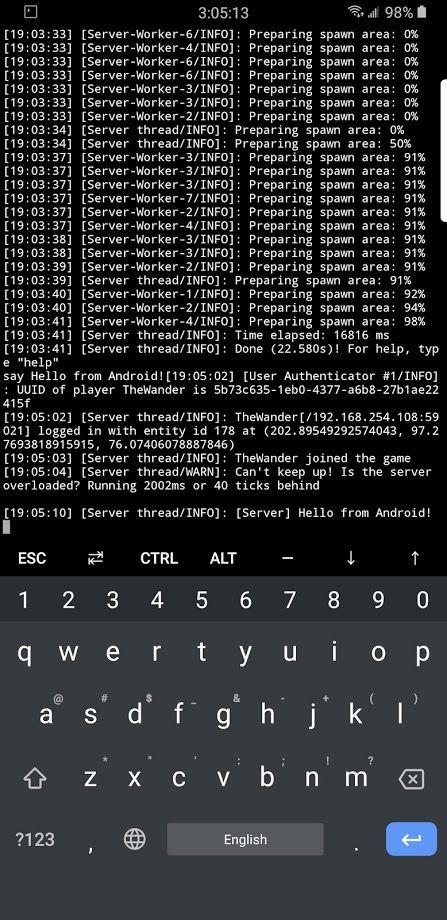
  16. Let it start up.

Termux (Free, Google Play) →

AnLinux : Run Linux On Android Without Root Access (Free, Google Play) →

If everything went well, you’ll now have a Vanilla Minecraft server running on your Android device!

For more advanced instructions, such as SSH access, Forge installation, and making your server public, be sure to visit the original Reddit thread.

The post Here’s how to run a Minecraft Server from your Android phone, because why not appeared first on xda-developers.


from xda-developers https://ift.tt/2LSxHlp
via IFTTT

Here’s how to run a Minecraft Server from your Android phone, because why not

Have you ever wanted to run a Minecraft server from your phone? No? Well, now you can. Thanks to a set of instructions from Reddit user endmymisouri, you can use an unrooted Android device to host a Minecraft server. In all seriousness, this is a good way to make use of an old Android phone or tablet you may have lying around. Of course, your Android device is not going to be especially powerful as a server, but it will work. I set up a Minecraft server on my Samsung Galaxy Note9 running One UI 2.0 and was able to join from my computer without issues.

If you’re interested, it’s recommended that you use a phone or tablet with at least 4GB RAM. Even though a Minecraft server can easily run on 1GB of RAM, you’ll need more RAM so Android itself doesn’t crash. You should also have a fairly powerful processor since Minecraft does need to do some computational work. If this all sounds good to you, keep reading, because it’s time for the instructions.

Set Up Minecraft

  1. The first thing you’ll need to do is download Termux and AnLinux, both available from the Play Store.
  2. Open AnLinux, swipe from the left to open the navigation drawer, and then click “Dashboard.”
  3. Tap the “CHOOSE” button and choose Ubuntu.
  4. Tap the “COPY” button and then tap the “LAUNCH” button. Termux should now open.
  5. Let Termux set itself up if needed. Hold down anywhere in the terminal window for a second, and then choose “PASTE.” Hit enter to let it run.
  6. Once it’s done, it’s time to start Ubuntu. Enter the following commands:
    chmod +x start-ubuntu.sh
    ./start-ubuntu.sh
  7. If it worked, you should see a prompt that looks something like root@localhost:~#.
  8. Now you’ll need to install some dependencies. Run the following commands:
    apt install software-properties-common
    add-apt-repository ppa:openjdk-r/ppa && apt update
    apt install openjdk-8-jre
  9. Now you’re ready to install Minecraft.
  10. Run:
    cd ~/

    …to make sure you’re in the right directory.

  11. Next, run:
    mkdir mc && cd mc
  12. Now run:
    wget -O minecraft_server.jar https://launcher.mojang.com/v1/objects/bb2b6b1aefcd70dfd1892149ac3a215f6c636b07/server.jar

    This will download the 1.15.2 Minecraft server JAR. If you want another version, you can download the JAR here.

  13. After downloading the JAR, do this command:
    chmod +x minecraft_server.jar
  14. And then:
    echo eula=true > eula.txt
  15. Finally, run:
    java -Xmx1024M -Xms1024M -jar minecraft-server.jar nogui

    This will run the Minecraft server with 1GB (1024MB) of RAM. If you want to give it more or less RAM to work with, change the “1024M” number in the -Xmx argument.

  16. Let it start up.

Termux (Free, Google Play) →

AnLinux : Run Linux On Android Without Root Access (Free, Google Play) →

If everything went well, you’ll now have a Vanilla Minecraft server running on your Android device!

For more advanced instructions, such as SSH access, Forge installation, and making your server public, be sure to visit the original Reddit thread.

The post Here’s how to run a Minecraft Server from your Android phone, because why not appeared first on xda-developers.


from xda-developers https://ift.tt/2LSxHlp
via IFTTT

How to add any app to OxygenOS Parallel Apps space on OnePlus phones

Back in 2017, OnePlus introduced a new feature in an OxygenOS Open Beta for the OnePlus 3/3T called “Parallel Apps”. This feature lets you clone select applications so you can run a separate account on them, even if the app itself did not support quick account switching. Supported apps include Facebook, Facebook Messenger, Instagram, WhatsApp, Twitter, LinkedIn, Quora, and others. However, not every app is supported in parallel space. Fortunately, there’s an easy workaround.

What Parallel Apps does is create a new user profile with the ID “999”. OxygenOS integrates apps installed on this user profile onto the main user profile and also hides this profile from the lockscreen so you can’t sign into it. This hidden user profile has Google Play Services installed, but not the Google Play Store. Thankfully, it’s possible to sideload apps onto the user profile for Parallel Space. For the purposes of getting whatever app we want running as a Parallel App, we’re going to install the “Aurora Store” app, which is a fully open-source unofficial client of the Google Play Store. In case you wonder why we are not preferring the actual Google Play Store to be installed under the Parallel App user profile, it’s due to a bug with the Play Store and Parallel Apps that won’t let you install any apps that have already been installed on the main profile since the Play Store thinks those apps have already been installed on the Parallel Apps profile.

To install the Aurora Store app to Parallel Apps and thus enable the ability to install any other app, simply do the following:

  1. Download the APK file for the Aurora Store from its XDA Thread.
  2. Set up ADB shell access. You can find a handy guide by clicking here.
  3. Run the following ADB command: adb install --user 999 <aurora_store_apk_name>.apk
  4. This will install the Aurora Store to user profile 999, which is the profile for Parallel Apps. Now you can simply open the Aurora Store and download whatever other apps you want.
  5. Alternatively, you can download the APK file for whatever app you want to be cloned and run the command in step #3.
OxygenOS Parallel Apps any app

Credits go to XDA Recognized Developer Quinny899 for this screenshot!

If you don’t want to go down this route, you can also use a third-party app like Shelter or Island to create a work profile on your device and then install whatever app you want.

Do you find this feature useful? Let us know in the comments below!

The post How to add any app to OxygenOS Parallel Apps space on OnePlus phones appeared first on xda-developers.


from xda-developers https://ift.tt/2LUOB32
via IFTTT