LightBlog

dimanche 23 février 2020

Realme C3 Gaming Review: Excellent Budget Gaming Performance with the MediaTek Helio G70

Realme opened shop in India back in 2018 with the Realme 1 — a MediaTek Helio P60 powered budget handset that proved to be the beginning of a remarkable journey for the brand. At first, the brand released a slew of budget handsets aimed at the growing number of first-time smartphone buyers in the country. However, Realme has since matured into a formidable smartphone player in India with a strong portfolio of offerings in a few different categories. In addition, the company has also expanded to several international markets, including Europe, where it offers some of its most popular mid-range and flagship devices. Over the course of last year, Realme launched more than 10 smartphones in the 18 countries where it currently operates, and the company finally entered the value flagship space with the launch of the Realme X2 Pro (review). Realme made yet another bold move late last year with the launch of the Realme X50 5G in China, which is the first 5G-enabled smartphone from the company. While Realme was preparing to launch the X50 and the upcoming X50 Pro internationally, the company kicked off 2020 with the launch of the Realme C3 — an entry-level smartphone in the sub ₹10,000 category.

Realme C3

As its name suggests, the Realme C3 is the third device in the company’s C Series that offers entry-level specifications at a very affordable price point. Much like the Realme C1 and C2, the C3 packs in an entry-level processor, an HD+ (720p) display, and a dual-camera setup. However, while the C1 and C2 packed in tried and true SoCs like the Qualcomm Snapdragon 450 and MediaTek Helio P22 respectively, the Realme C3 is the first smartphone to be powered by the new MediaTek Helio G70 chipset. The SoC was announced earlier this year in January and, at the time, MediaTek marketed the SoC as a chip for budget gaming smartphones. The octa-core CPU features a combination of ARM Cortex-A75 big cores clocked at 2GHz and ARM Cortex-A55 little cores clocked at 1.7GHz. Much like the Helio G90T, which is a more powerful gaming chip from the company, the G70 also features MediaTek’s HyperEngine technology which is meant to enhance gaming performance. We’ve already taken a look at the performance of the Helio G90T in our review of the Redmi Note 8 Pro and in this post, we’ll be taking a look at how the new MediaTek G70 holds up in the Realme C3.

For the purpose of this Realme C3 review, I used the 4/64GB variant which was loaned to us by Realme India. It’s also worth noting that the review unit runs Realme UI v1.0 based on Android 10, making it the first smartphone from the company to include the new UI out of the box.

Buy the Realme C3 from Flipkart: 3/32GB for ₹6,999 || 4/64GB for ₹7,999

Realme C3 Forums


Realme C3 specifications

Specifications Realme C3
Dimensions & Weight
  • 164.4 × 75.0 × 8.95 mm
  • 195g
Display
  • 6.52-inch LCD
  • 720 x 1600
SoC
  • MediaTek Helio G70
  • Mali G52 GPU
RAM 3GB/4GB
Storage
  • 32GB eMMC 5.1
  • 64GB

Dedicated microSD slot

Battery 5000mAh, 10W charging, reverse wired charging
Rear Camera
  • 12MP primary
  • 2MP depth sensor
Front Camera
  • 5MP
Android Version Realme UI v1.0 based on Android 10
Colors Frozen Blue, Blazing Red

Benchmarks: Realme C3 vs Redmi Note 7 Pro vs Realme 5 Pro

I tested the Realme C3 using a few synthetic benchmarking apps, including Geekbench 4, AnTuTu, PCMark, 3DMark, etc. We compared the scores posted by the Realme C3 with those from the Snapdragon 675-powered Redmi Note 7 Pro (review) and the Snapdragon 712-powered Realme 5 Pro (review). This helps us gauge where the MediaTek Helio G70 stands in comparison to its Snapdragon alternatives. Before we head to the results, however, let’s first talk about the specifications of the three SoCs in consideration.

The MediaTek Helio G70, as mentioned above, packs in a combination of ARM Cortex-A75 big cores and ARM Cortex- A55 little cores clocked in at 2GHz and 1.7GHz, respectively. The SoC is manufactured using the 12nm FinFET process and it includes an ARM Mali-G52 GPU for enhanced graphics performance. In comparison, the Snapdragon 675 inside the Redmi Note 7 Pro packs in two ARM Cortex-A76 big cores clocked at 2GHz and six ARM Cortex-A55 little cores clocked at 1.7GHz. The SoC is manufactured using Samsung’s 11nm LPP process and makes use of an Adreno 612 GPU. Finally, the Snapdragon 712 on the Realme 5 Pro features two Kryo 360 Gold cores (based on ARM Cortex-A75) clocked at 2.3GHz and six Kryo 360 Silver cores (based on ARM Cortex-A55) clocked at 1.7GHz. The SoC is manufactured using Samsung’s 10nm LPP process and makes use of the Adreno 616 GPU.

Note: The benchmark results in this comparison have been collected from the 4/64GB variant of the Redmi Note 7 Pro, the 8/128GB variant of the Realme 5 Pro, and the 4/64GB variant of the Realme C3. For the sake of transparency, it’s also worth mentioning that there’s a significant price difference between the three devices. The 4/64GB variant of the Redmi Note 7 Pro currently retails for ₹9,999 (~$139), the 8/128GB variant of the Realme 5 Pro retails for ₹14,999 (~$208), and the 4/64GB variant of the Realme C3 is priced at ₹7,999 (~$111).

Specification Realme C3 Xiaomi Redmi Note 7 Pro Realme 5 Pro
SoC MediaTek Helio G70 Qualcomm Snapdragon 675 Qualcomm Snapdragon 712
SoC Setup
  • 12nm FinFET process
  • 2x ARM Cortex-A75 @ 2GHz
  • 6x ARM Cortex-A55 @ 1.7GHz
  • 11nm LPP process
  • 2x ARM Cortex-A76 @ 2GHz
  • 6x ARM Cortex-A55 @1.7GHz
  • 10nm LPP process
  • 2x ARM Cortex-A75 (Kryo 360 Gold) @ 2.3GHz
  • 6x ARM Cortex-A55 (Kryo 360 Silver) @ 1.7GHz
GPU ARM Mali-G52 Adreno 612 Adreno 616
RAM and Storage variant used in comparison 4GB/64GB 4GB/64GB 8GB/128GB
Pricing at time of comparison ₹7,999 (~$111) ₹9,999 (~$139) ₹14,999 (~$208)
Launched in February 2020 February 2019 August 2019

Now that we’ve got the specifications out of the way, let’s take a look at the benchmark scores.

CPU and GPU performance

First off, Geekbench gives us an overall look at the phone’s general CPU performance. With a single-core score of 1825 and a multi-core score of 5752, the Helio G70-powered Realme C3 performs almost as well as the Snapdragon 712-powered Realme 5 Pro, but it significantly lags behind the Redmi Note 7 Pro with its Snapdragon 675. This is, most likely, due to the fact that the Redmi Note 7 Pro’s Snapdragon 675 makes use of the newer ARM Cortex-A76 cores on the chipset instead of the older Cortex-A75 cores or derivatives found on the other two SoCs.

Similarly, in the PCMark Work 2.0 system performance benchmark, the Realme C3 performs just as well (sometimes even better) than the Realme 5 Pro. However, this time around, it beats the Redmi Note 7 Pro by a significant margin. The Helio G70 on the Realme C3 consistently delivers better results in the benchmark’s web browsing, video editing, writing, and photo editing tests, but it falls behind the other two devices in the data manipulation test. Overall, the Realme C3 manages to achieve a score of 8587, closely followed by the Realme 5 Pro at 7910, with the Redmi Note 7 Pro lagging behind at 7467.

The Redmi Note 7 Pro continues to lag behind in the 3DMark Sling Shot Extreme benchmark, with the Realme 5 Pro taking the lead this time around and the Realme C3 taking the second spot. This is due to the fact that the Adreno 612 GPU on the Redmi Note 7 Pro isn’t as powerful as the Adreno 616 on the Realme 5 Pro. The ARM Mali-G52 GPU on the Realme C3, however, just manages to outperform the Adreno 612 by a small margin. This means that the Realme C3 can be expected to perform better than the Redmi Note 7 Pro in applications and games with heavy 3D usage.

Now, let’s take a look at the AndroBench scores posted by the three devices, which will give us some idea of the storage speeds on the Realme C3 and its impact on the device’s performance. It’s worth noting, however, that the Realme C3 and the Redmi Note 7 Pro offer eMMC 5.1 storage, while the Realme 5 Pro offers UFS 2.1 storage. As you’d already know, UFS 2.1 storage is considerably faster than eMMC storage which should, on paper, give the Realme 5 Pro an edge over the other two devices. But due to the fact that the Snapdragon 712 doesn’t support dual-channel simultaneous data transfer, the UFS 2.1 read and write speeds on the Realme 5 Pro aren’t all that different from eMMC on the device.

Sure, the Realme 5 Pro takes a lead by a significant margin in Sequential Read speeds, but the device performs just about the same (or even worse) in other tests. The Realme C3, in comparison, performs better than the Redmi Note 7 Pro in Sequential Read speeds and just about the same as the Realme 5 Pro in Sequential Write speeds. The Realme C3 does lag behind both the other processors in Random Read speeds, but it takes a decent lead against the other two in Random Write speeds.

Keeping the aforementioned numbers in mind, it’s safe to say that the Helio G70-powered Realme C3 falls squarely in between the Redmi Note 7 Pro and Realme 5 Pro in terms of performance. However, since there’s a major price difference between the three devices, the Realme C3 delivers a better bang for your buck if we just take theoretical performance into consideration. When compared to other devices in the price range, like the Redmi 8, Redmi 8A, Samsung Galaxy M10s, and Nokia 4.2, the Realme C3 appears to be miles ahead of the competition. This is due to the fact that these devices pack in significantly less powerful SoCs like the Snapdragon 439 and the Exynos 7884B.

Thermal throttling

Most smartphones these days come equipped with some form of heat reduction. While some pack in hardware level features to dissipate heat more efficiently, all devices include throttling algorithms for the CPU and GPU to limit the components and protect them from overheating-induced damage. This, in turn, results in visibly poor performance when the smartphone heats up and the components thermally throttle. To test if there’s any thermal throttling on the Realme C3, I used an app called CPU Throttling Test, and here are the results.
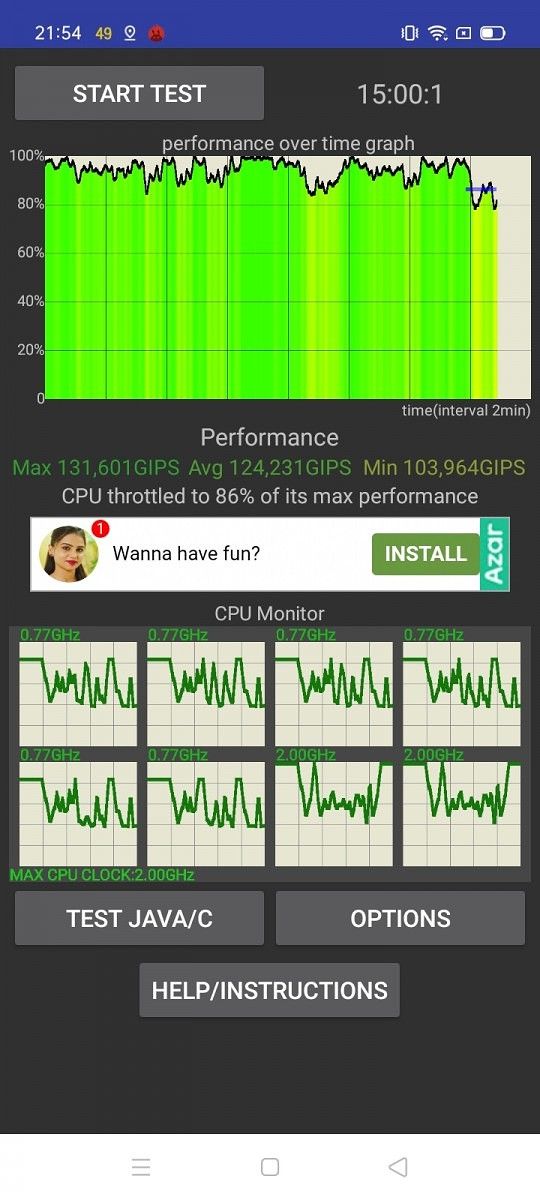
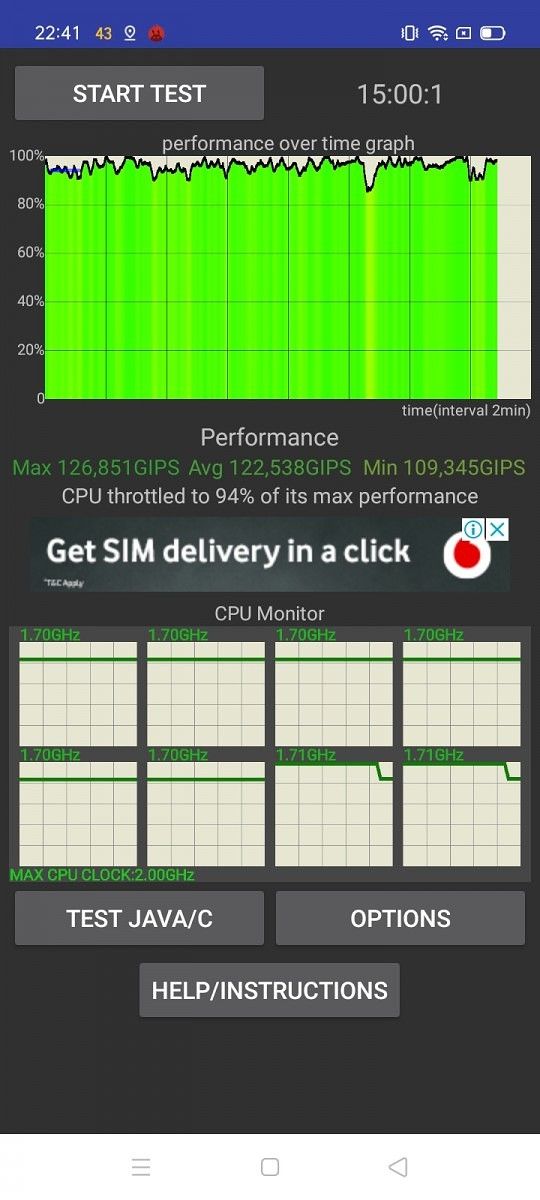
The graph to the left shows the results obtained when running the thermal throttling test on the Realme C3 without enabling the included Game Space Competition Mode. The one in the middle shows the results obtained when the app is accelerated using the Competition Mode, and the one on the right shows results when the device is put on charging and the Game Space Competition Mode was enabled. In the first run without the Game Space Competition Mode enabled, the CPU usage is throttled at around 86% of peak performance. When using Game Space Competition Mode, however, the CPU is throttled to 94% of peak performance. Lastly, when the test was run with the device on charging, the CPU throttled to 89% of peak performance.

Realme C3 Competition mode

For the unaware, the Game Space Competition Mode in Realme UI claims to improve the performance of games (or apps) at the cost of increasing battery drain. However, in our test, we observed that instead of providing peak performance, as its name suggests, the Competition Mode offers a higher level of performance that is sustained over a longer time frame. This means that the Game Space Competition Mode on the device is theoretically effective at preventing thermal throttling during long gaming sessions. Even while charging the device, you’ll be able to achieve better performance with the mode turned on. In real-life use, the Realme C3 doesn’t heat up a lot while gaming which is a good sign for users who enjoy long gaming sessions. The thermal throttling is rather insignificant if you have the Game Space Competition Mode turned on, and you will be able to continue gaming without any noticeable performance drop, even with the phone plugged in and charging.


Realme C3: Gaming Performance

Speaking of gaming, I played a couple of popular games on the device during my testing and I was pleasantly surprised by its performance. The list included some of the usual picks like Asphalt 9, PUBG Mobile, Call of Duty: Mobile, and Dead Effect 2. Here’s how the device performed in all of these titles.

Asphalt 9

Starting with Asphalt 9, the Realme C3 delivers stutter-free performance. However, it automatically selects the High Performance setting, which prioritizes gameplay over graphics quality. After switching over to the High Graphics setting though, I noticed that the gameplay wasn’t as smooth. While performing stunts, drifting or taking down opponents, the game feels very choppy. But all of this disappeared as soon as I switched back to the performance setting. So, if you stick to the High Performance setting, you should have absolutely no problems enjoying Asphalt 9 on the Realme C3.

Asphalt 9: Legends - Epic Car Action Racing Game (Free+, Google Play) →

PUBG Mobile

With PUBG Mobile, the Realme C3 automatically selected the HD graphics setting and the High frame rate preset. These are the highest available settings on the device and the game performs quite well on the default settings. I didn’t see any stuttering or frame drops in-game and it was a pleasant experience overall until I tried to adjust the display brightness. Pulling down the notification shade while in-game caused the UI to stutter, but as soon as I closed the notification shade, everything went back to normal. If you’re planning on playing PUBG Mobile on the device, I would recommend that you avoid opening the notification shade unless you’re idling in the lobby.

PUBG MOBILE (Free+, Google Play) →

Call of Duty: Mobile

This aforementioned issue continued while playing Call of Duty: Mobile on the device. Unlike PUBG Mobile, though, COD selected the low graphics quality preset by default, with the frame rate set to medium. All of the other options, including Depth of Field, Bloom, Real-time Shadows, and Ragdoll, were disabled and the game worked flawlessly with these settings. As with PUBG Mobile, the phone’s UI stuttered when I pulled the notification shade down, but other than that, I had no complaints. Sure, the graphics have been dumbed down quite a bit but that’s just something one should expect from a device in this price range.

Call of Duty®: Mobile (Free+, Google Play) →

Dead Effect 2

Finally, in Dead Effect 2, the visual quality was medium by default, with shadows, bloom and anisotropy turned off. With these settings, the Realme C3 managed to run the game without a hitch and I had absolutely no issues with gameplay. Interestingly, the UI stuttering wasn’t as evident while playing the game at default settings. Upon switching all the presets to high though, the stuttering issue reappears, though the gameplay remained just as smooth.

Dead Effect 2 (Free+, Google Play) →

So, in conclusion, if you stick to the default settings in each game on the Realme C3, you’ll have a great time with the device. As long as you keep the notification shade access to a minimum, you shouldn’t experience any stuttering in-game, and that’s definitely quite good for a device in this price range. Of course, one would always prefer not disabling any graphic setting, but you need to temper your expectations with the price you are paying for the device.


Battery life and Charging

The Realme C3 packs in a massive 5,000 mAh battery with support for 10W charging and reverse wired charging. The battery, coupled with the 720p display and battery optimizations in Realme UI, easily lasted me two days on a single charge with a screen-on-time of around 6 hours. After a full day of use, including gaming for about two hours, I was left with almost 50% battery, and that barely dropped overnight. I continued using the device the next day, and it dropped to 17% after the second full day of use.

Sadly, though, the slow charging speed and the massive battery meant that the Realme C3 took fairly long to charge back up to 100%. The device took around two and a half hours to go from 17 to 100%, which means that it would be best to charge it overnight. I wasn’t able to test the reverse wired charging as I did not have a compatible cable. Keep in mind that the Realme C3 has a microUSB port.


Realme C3: A great entry-level device for gaming

The Realme C3 is an excellent entry-level Android device for mobile gamers on a very tight budget. The MediaTek Helio G70 on the device manages to hold its own in day-to-day use and gaming alike, delivering solid performance all around. Other than the unusual UI stuttering issue I mentioned earlier, I have absolutely no qualms about the Realme C3’s performance, and I wouldn’t hesitate to recommend it to anyone looking to purchase a phone under the ₹10,000 mark with a focus on gaming.

Realme C3

Along with great performance, the MediaTek Helio G70 also enables some additional features, like hardware-level bokeh, in the Realme C3 that weren’t available in its predecessor, the Realme C2. And finally, thanks to Realme UI, the software experience also feels very polished and feature-rich.

Buy the Realme C3 from Flipkart: 3/32GB (₹6,999) || 4/64GB (₹7,999)

Realme C3 Forums

The post Realme C3 Gaming Review: Excellent Budget Gaming Performance with the MediaTek Helio G70 appeared first on xda-developers.


from xda-developers https://ift.tt/2Pi3gaA
via IFTTT

Realme C3 Gaming Review: Excellent Budget Gaming Performance with the MediaTek Helio G70

Realme opened shop in India back in 2018 with the Realme 1 — a MediaTek Helio P60 powered budget handset that proved to be the beginning of a remarkable journey for the brand. At first, the brand released a slew of budget handsets aimed at the growing number of first-time smartphone buyers in the country. However, Realme has since matured into a formidable smartphone player in India with a strong portfolio of offerings in a few different categories. In addition, the company has also expanded to several international markets, including Europe, where it offers some of its most popular mid-range and flagship devices. Over the course of last year, Realme launched more than 10 smartphones in the 18 countries where it currently operates, and the company finally entered the value flagship space with the launch of the Realme X2 Pro (review). Realme made yet another bold move late last year with the launch of the Realme X50 5G in China, which is the first 5G-enabled smartphone from the company. While Realme was preparing to launch the X50 and the upcoming X50 Pro internationally, the company kicked off 2020 with the launch of the Realme C3 — an entry-level smartphone in the sub ₹10,000 category.

Realme C3

As its name suggests, the Realme C3 is the third device in the company’s C Series that offers entry-level specifications at a very affordable price point. Much like the Realme C1 and C2, the C3 packs in an entry-level processor, an HD+ (720p) display, and a dual-camera setup. However, while the C1 and C2 packed in tried and true SoCs like the Qualcomm Snapdragon 450 and MediaTek Helio P22 respectively, the Realme C3 is the first smartphone to be powered by the new MediaTek Helio G70 chipset. The SoC was announced earlier this year in January and, at the time, MediaTek marketed the SoC as a chip for budget gaming smartphones. The octa-core CPU features a combination of ARM Cortex-A75 big cores clocked at 2GHz and ARM Cortex-A55 little cores clocked at 1.7GHz. Much like the Helio G90T, which is a more powerful gaming chip from the company, the G70 also features MediaTek’s HyperEngine technology which is meant to enhance gaming performance. We’ve already taken a look at the performance of the Helio G90T in our review of the Redmi Note 8 Pro and in this post, we’ll be taking a look at how the new MediaTek G70 holds up in the Realme C3.

For the purpose of this Realme C3 review, I used the 4/64GB variant which was loaned to us by Realme India. It’s also worth noting that the review unit runs Realme UI v1.0 based on Android 10, making it the first smartphone from the company to include the new UI out of the box.

Buy the Realme C3 from Flipkart: 3/32GB for ₹6,999 || 4/64GB for ₹7,999

Realme C3 Forums


Realme C3 specifications

Specifications Realme C3
Dimensions & Weight
  • 164.4 × 75.0 × 8.95 mm
  • 195g
Display
  • 6.52-inch LCD
  • 720 x 1600
SoC
  • MediaTek Helio G70
  • Mali G52 GPU
RAM 3GB/4GB
Storage
  • 32GB eMMC 5.1
  • 64GB

Dedicated microSD slot

Battery 5000mAh, 10W charging, reverse wired charging
Rear Camera
  • 12MP primary
  • 2MP depth sensor
Front Camera
  • 5MP
Android Version Realme UI v1.0 based on Android 10
Colors Frozen Blue, Blazing Red

Benchmarks: Realme C3 vs Redmi Note 7 Pro vs Realme 5 Pro

I tested the Realme C3 using a few synthetic benchmarking apps, including Geekbench 4, AnTuTu, PCMark, 3DMark, etc. We compared the scores posted by the Realme C3 with those from the Snapdragon 675-powered Redmi Note 7 Pro (review) and the Snapdragon 712-powered Realme 5 Pro (review). This helps us gauge where the MediaTek Helio G70 stands in comparison to its Snapdragon alternatives. Before we head to the results, however, let’s first talk about the specifications of the three SoCs in consideration.

The MediaTek Helio G70, as mentioned above, packs in a combination of ARM Cortex-A75 big cores and ARM Cortex- A55 little cores clocked in at 2GHz and 1.7GHz, respectively. The SoC is manufactured using the 12nm FinFET process and it includes an ARM Mali-G52 GPU for enhanced graphics performance. In comparison, the Snapdragon 675 inside the Redmi Note 7 Pro packs in two ARM Cortex-A76 big cores clocked at 2GHz and six ARM Cortex-A55 little cores clocked at 1.7GHz. The SoC is manufactured using Samsung’s 11nm LPP process and makes use of an Adreno 612 GPU. Finally, the Snapdragon 712 on the Realme 5 Pro features two Kryo 360 Gold cores (based on ARM Cortex-A75) clocked at 2.3GHz and six Kryo 360 Silver cores (based on ARM Cortex-A55) clocked at 1.7GHz. The SoC is manufactured using Samsung’s 10nm LPP process and makes use of the Adreno 616 GPU.

Note: The benchmark results in this comparison have been collected from the 4/64GB variant of the Redmi Note 7 Pro, the 8/128GB variant of the Realme 5 Pro, and the 4/64GB variant of the Realme C3. For the sake of transparency, it’s also worth mentioning that there’s a significant price difference between the three devices. The 4/64GB variant of the Redmi Note 7 Pro currently retails for ₹9,999 (~$139), the 8/128GB variant of the Realme 5 Pro retails for ₹14,999 (~$208), and the 4/64GB variant of the Realme C3 is priced at ₹7,999 (~$111).

Specification Realme C3 Xiaomi Redmi Note 7 Pro Realme 5 Pro
SoC MediaTek Helio G70 Qualcomm Snapdragon 675 Qualcomm Snapdragon 712
SoC Setup
  • 12nm FinFET process
  • 2x ARM Cortex-A75 @ 2GHz
  • 6x ARM Cortex-A55 @ 1.7GHz
  • 11nm LPP process
  • 2x ARM Cortex-A76 @ 2GHz
  • 6x ARM Cortex-A55 @1.7GHz
  • 10nm LPP process
  • 2x ARM Cortex-A75 (Kryo 360 Gold) @ 2.3GHz
  • 6x ARM Cortex-A55 (Kryo 360 Silver) @ 1.7GHz
GPU ARM Mali-G52 Adreno 612 Adreno 616
RAM and Storage variant used in comparison 4GB/64GB 4GB/64GB 8GB/128GB
Pricing at time of comparison ₹7,999 (~$111) ₹9,999 (~$139) ₹14,999 (~$208)
Launched in February 2020 February 2019 August 2019

Now that we’ve got the specifications out of the way, let’s take a look at the benchmark scores.

CPU and GPU performance

First off, Geekbench gives us an overall look at the phone’s general CPU performance. With a single-core score of 1825 and a multi-core score of 5752, the Helio G70-powered Realme C3 performs almost as well as the Snapdragon 712-powered Realme 5 Pro, but it significantly lags behind the Redmi Note 7 Pro with its Snapdragon 675. This is, most likely, due to the fact that the Redmi Note 7 Pro’s Snapdragon 675 makes use of the newer ARM Cortex-A76 cores on the chipset instead of the older Cortex-A75 cores or derivatives found on the other two SoCs.

Similarly, in the PCMark Work 2.0 system performance benchmark, the Realme C3 performs just as well (sometimes even better) than the Realme 5 Pro. However, this time around, it beats the Redmi Note 7 Pro by a significant margin. The Helio G70 on the Realme C3 consistently delivers better results in the benchmark’s web browsing, video editing, writing, and photo editing tests, but it falls behind the other two devices in the data manipulation test. Overall, the Realme C3 manages to achieve a score of 8587, closely followed by the Realme 5 Pro at 7910, with the Redmi Note 7 Pro lagging behind at 7467.

The Redmi Note 7 Pro continues to lag behind in the 3DMark Sling Shot Extreme benchmark, with the Realme 5 Pro taking the lead this time around and the Realme C3 taking the second spot. This is due to the fact that the Adreno 612 GPU on the Redmi Note 7 Pro isn’t as powerful as the Adreno 616 on the Realme 5 Pro. The ARM Mali-G52 GPU on the Realme C3, however, just manages to outperform the Adreno 612 by a small margin. This means that the Realme C3 can be expected to perform better than the Redmi Note 7 Pro in applications and games with heavy 3D usage.

Now, let’s take a look at the AndroBench scores posted by the three devices, which will give us some idea of the storage speeds on the Realme C3 and its impact on the device’s performance. It’s worth noting, however, that the Realme C3 and the Redmi Note 7 Pro offer eMMC 5.1 storage, while the Realme 5 Pro offers UFS 2.1 storage. As you’d already know, UFS 2.1 storage is considerably faster than eMMC storage which should, on paper, give the Realme 5 Pro an edge over the other two devices. But due to the fact that the Snapdragon 712 doesn’t support dual-channel simultaneous data transfer, the UFS 2.1 read and write speeds on the Realme 5 Pro aren’t all that different from eMMC on the device.

Sure, the Realme 5 Pro takes a lead by a significant margin in Sequential Read speeds, but the device performs just about the same (or even worse) in other tests. The Realme C3, in comparison, performs better than the Redmi Note 7 Pro in Sequential Read speeds and just about the same as the Realme 5 Pro in Sequential Write speeds. The Realme C3 does lag behind both the other processors in Random Read speeds, but it takes a decent lead against the other two in Random Write speeds.

Keeping the aforementioned numbers in mind, it’s safe to say that the Helio G70-powered Realme C3 falls squarely in between the Redmi Note 7 Pro and Realme 5 Pro in terms of performance. However, since there’s a major price difference between the three devices, the Realme C3 delivers a better bang for your buck if we just take theoretical performance into consideration. When compared to other devices in the price range, like the Redmi 8, Redmi 8A, Samsung Galaxy M10s, and Nokia 4.2, the Realme C3 appears to be miles ahead of the competition. This is due to the fact that these devices pack in significantly less powerful SoCs like the Snapdragon 439 and the Exynos 7884B.

Thermal throttling

Most smartphones these days come equipped with some form of heat reduction. While some pack in hardware level features to dissipate heat more efficiently, all devices include throttling algorithms for the CPU and GPU to limit the components and protect them from overheating-induced damage. This, in turn, results in visibly poor performance when the smartphone heats up and the components thermally throttle. To test if there’s any thermal throttling on the Realme C3, I used an app called CPU Throttling Test, and here are the results.

The graph to the left shows the results obtained when running the thermal throttling test on the Realme C3 without enabling the included Game Space Competition Mode. The one in the middle shows the results obtained when the app is accelerated using the Competition Mode, and the one on the right shows results when the device is put on charging and the Game Space Competition Mode was enabled. In the first run without the Game Space Competition Mode enabled, the CPU usage is throttled at around 86% of peak performance. When using Game Space Competition Mode, however, the CPU is throttled to 94% of peak performance. Lastly, when the test was run with the device on charging, the CPU throttled to 89% of peak performance.

For the unaware, the Game Space Competition Mode in Realme UI claims to improve the performance of games (or apps) at the cost of increasing battery drain. However, in our test, we observed that instead of providing peak performance, as its name suggests, the Competition Mode offers a higher level of performance that is sustained over a longer time frame. This means that the Game Space Competition Mode on the device is theoretically effective at preventing thermal throttling during long gaming sessions. Even while charging the device, you’ll be able to achieve better performance with the mode turned on. In real-life use, the Realme C3 doesn’t heat up a lot while gaming which is a good sign for users who enjoy long gaming sessions. The thermal throttling is rather insignificant if you have the Game Space Competition Mode turned on, and you will be able to continue gaming without any noticeable performance drop, even with the phone plugged in and charging.


Realme C3: Gaming Performance

Speaking of gaming, I played a couple of popular games on the device during my testing and I was pleasantly surprised by its performance. The list included some of the usual picks like Asphalt 9, PUBG Mobile, Call of Duty: Mobile, and Dead Effect 2. Here’s how the device performed in all of these titles.

Asphalt 9

Starting with Asphalt 9, the Realme C3 delivers stutter-free performance. However, it automatically selects the High Performance setting, which prioritizes gameplay over graphics quality. After switching over to the High Graphics setting though, I noticed that the gameplay wasn’t as smooth. While performing stunts, drifting or taking down opponents, the game feels very choppy. But all of this disappeared as soon as I switched back to the performance setting. So, if you stick to the High Performance setting, you should have absolutely no problems enjoying Asphalt 9 on the Realme C3.

Asphalt 9: Legends - Epic Car Action Racing Game (Free+, Google Play) →

PUBG Mobile

With PUBG Mobile, the Realme C3 automatically selected the HD graphics setting and the High frame rate preset. These are the highest available settings on the device and the game performs quite well on the default settings. I didn’t see any stuttering or frame drops in-game and it was a pleasant experience overall until I tried to adjust the display brightness. Pulling down the notification shade while in-game caused the UI to stutter, but as soon as I closed the notification shade, everything went back to normal. If you’re planning on playing PUBG Mobile on the device, I would recommend that you avoid opening the notification shade unless you’re idling in the lobby.

PUBG MOBILE (Free+, Google Play) →

Call of Duty: Mobile

This aforementioned issue continued while playing Call of Duty: Mobile on the device. Unlike PUBG Mobile, though, COD selected the low graphics quality preset by default, with the frame rate set to medium. All of the other options, including Depth of Field, Bloom, Real-time Shadows, and Ragdoll, were disabled and the game worked flawlessly with these settings. As with PUBG Mobile, the phone’s UI stuttered when I pulled the notification shade down, but other than that, I had no complaints. Sure, the graphics have been dumbed down quite a bit but that’s just something one should expect from a device in this price range.

Call of Duty®: Mobile (Free+, Google Play) →

Dead Effect 2

Finally, in Dead Effect 2, the visual quality was medium by default, with shadows, bloom and anisotropy turned off. With these settings, the Realme C3 managed to run the game without a hitch and I had absolutely no issues with gameplay. Interestingly, the UI stuttering wasn’t as evident while playing the game at default settings. Upon switching all the presets to high though, the stuttering issue reappears, though the gameplay remained just as smooth.

Dead Effect 2 (Free+, Google Play) →

So, in conclusion, if you stick to the default settings in each game on the Realme C3, you’ll have a great time with the device. As long as you keep the notification shade access to a minimum, you shouldn’t experience any stuttering in-game, and that’s definitely quite good for a device in this price range. Of course, one would always prefer not disabling any graphic setting, but you need to temper your expectations with the price you are paying for the device.


Battery life and Charging

The Realme C3 packs in a massive 5,000 mAh battery with support for 10W charging and reverse wired charging. The battery, coupled with the 720p display and battery optimizations in Realme UI, easily lasted me two days on a single charge with a screen-on-time of around 6 hours. After a full day of use, including gaming for about two hours, I was left with almost 50% battery, and that barely dropped overnight. I continued using the device the next day, and it dropped to 17% after the second full day of use.

Sadly, though, the slow charging speed and the massive battery meant that the Realme C3 took fairly long to charge back up to 100%. The device took around two and a half hours to go from 17 to 100%, which means that it would be best to charge it overnight. I wasn’t able to test the reverse wired charging as I did not have a compatible cable. Keep in mind that the Realme C3 has a microUSB port.


Realme C3: A great entry-level device for gaming

The Realme C3 is an excellent entry-level Android device for mobile gamers on a very tight budget. The MediaTek Helio G70 on the device manages to hold its own in day-to-day use and gaming alike, delivering solid performance all around. Other than the unusual UI stuttering issue I mentioned earlier, I have absolutely no qualms about the Realme C3’s performance, and I wouldn’t hesitate to recommend it to anyone looking to purchase a phone under the ₹10,000 mark with a focus on gaming.

Realme C3

Along with great performance, the MediaTek Helio G70 also enables some additional features, like hardware-level bokeh, in the Realme C3 that weren’t available in its predecessor, the Realme C2. And finally, thanks to Realme UI, the software experience also feels very polished and feature-rich.

Buy the Realme C3 from Flipkart: 3/32GB (₹6,999) || 4/64GB (₹7,999)

Realme C3 Forums

The post Realme C3 Gaming Review: Excellent Budget Gaming Performance with the MediaTek Helio G70 appeared first on xda-developers.


from xda-developers https://ift.tt/2Pi3gaA
via IFTTT

Pixel Launcher in Android 11 tests new actions in recent apps overview, hiding individual app suggestions, and auto-folder naming

Google’s Pixel Launcher may not have as many features as third-party alternatives like Lawnchair, Nova Launcher, or Action Launcher, but its simplicity and clean design have earned it many fans. The launcher comes pre-installed on Google Pixel devices and only rarely receives updates. We generally see new features come to the launcher when Google releases a new Pixel device or major Android update, but the first Android 11 Developer Preview didn’t bring any new Pixel Launcher features with it. However, we know Google has been working on the launcher since we spotted hints at a new “hotseat” feature. Now, XDA Senior Member paphonb, one of the developers on the Lawnchair team and a veteran Pixel Launcher modder, has discovered several other new features that could be coming to Google’s launcher app.

Paphonb modified the latest Pixel Launcher build from the Android 11 Developer Preview in order to surface several in-development features. These features include new actions in the recent apps overview, the ability to hide individual app suggestions in the app drawer, and automatic naming of newly created folders.

New Actions in Recent Apps Overview

In Android 9 Pie, Google moved the code for the recent apps handler from SystemUI to Launcher3, which is the stock AOSP launcher. In the process, Google also introduced higher-quality recent app overview cards that scrolled horizontally, a service that allows the user to select text and images from overview cards (on Pixel devices only), and a service that surfaces a row of suggested apps underneath the overview card.

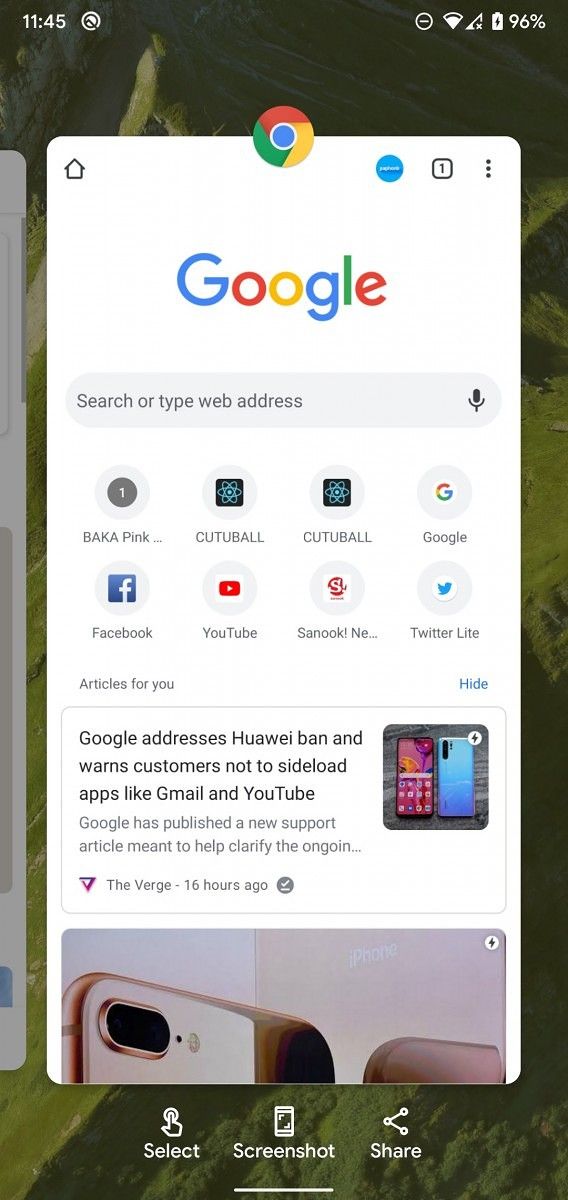
Now in Android 11, Google is testing replacing the app suggestion row in the recent apps overview with a set of 3 actions. These actions include “select,” “screenshot,” and “share.” The “select” button wasn’t functional for paphonb, but we can guess what it does. It likely highlights all text and images that can be selected in the overview card. As for the other two buttons, the screenshot button captures an image of the app that’s in focus, while the share button captures a screenshot then opens the share menu so you can quickly share it.

Pixel Launcher recent apps overview test in Android 11 DP1

Screenshot by paphonb

Hiding Individual App Suggestions

Google’s row of suggested apps is based on the recent apps that you have most frequently opened. While it’s possible to hide this row entirely by going to the Suggestions submenu in the Pixel Launcher settings, it isn’t possible to stop certain apps from showing up in this row. That could change soon, however. Paphonb shared a screenshot showing a new “don’t suggest app” action when long-pressing the icon of any app in the suggested app row. This action currently doesn’t work, but it’s clear what it would do.

Pixel Launcher in Android 11 Hide App Suggestions

Screenshot by paphonb

Automatically Naming Folders

The Pixel Launcher may soon be able to automatically provide a name for newly created folders that you make by dragging and dropping one app icon onto another. Currently, you can manually name folders by tapping on the “unnamed” text at the bottom of the folder, but Google may save you a bit of effort by detecting what kind of apps you’re grouping together. For example, in the video below, paphonb demonstrated the Pixel Launcher automatically naming a newly created folder “Communication” when he grouped Messages and Gmail together. He also showed it naming a newly created folder as “Social” when he put Telegram and Facebook together.

We don’t know exactly how the Pixel Launcher is determining what kind of applications the user has grouped together, but it’s likely that Google is using a long list of names and types of the most popular apps on the Play Store.

These features are not yet available for users in the latest Pixel Launcher release, and it’s possible that Google may never release them. You can look forward to features like these in modified versions of Google’s launcher, though. If Google does decide to enable any of these features in a future update, we’ll let you know. You can follow our latest posts on the Android 11 release through the following link:

Android 11 News on XDA

The post Pixel Launcher in Android 11 tests new actions in recent apps overview, hiding individual app suggestions, and auto-folder naming appeared first on xda-developers.


from xda-developers https://ift.tt/32ru6ST
via IFTTT

Pixel Launcher in Android 11 tests new actions in recent apps overview, hiding individual app suggestions, and auto-folder naming

Google’s Pixel Launcher may not have as many features as third-party alternatives like Lawnchair, Nova Launcher, or Action Launcher, but its simplicity and clean design have earned it many fans. The launcher comes pre-installed on Google Pixel devices and only rarely receives updates. We generally see new features come to the launcher when Google releases a new Pixel device or major Android update, but the first Android 11 Developer Preview didn’t bring any new Pixel Launcher features with it. However, we know Google has been working on the launcher since we spotted hints at a new “hotseat” feature. Now, XDA Senior Member paphonb, one of the developers on the Lawnchair team and a veteran Pixel Launcher modder, has discovered several other new features that could be coming to Google’s launcher app.

Paphonb modified the latest Pixel Launcher build from the Android 11 Developer Preview in order to surface several in-development features. These features include new actions in the recent apps overview, the ability to hide individual app suggestions in the app drawer, and automatic naming of newly created folders.

New Actions in Recent Apps Overview

In Android 9 Pie, Google moved the code for the recent apps handler from SystemUI to Launcher3, which is the stock AOSP launcher. In the process, Google also introduced higher-quality recent app overview cards that scrolled horizontally, a service that allows the user to select text and images from overview cards (on Pixel devices only), and a service that surfaces a row of suggested apps underneath the overview card.

Now in Android 11, Google is testing replacing the app suggestion row in the recent apps overview with a set of 3 actions. These actions include “select,” “screenshot,” and “share.” The “select” button wasn’t functional for paphonb, but we can guess what it does. It likely highlights all text and images that can be selected in the overview card. As for the other two buttons, the screenshot button captures an image of the app that’s in focus, while the share button captures a screenshot then opens the share menu so you can quickly share it.

Pixel Launcher recent apps overview test in Android 11 DP1

Screenshot by paphonb

Hiding Individual App Suggestions

Google’s row of suggested apps is based on the recent apps that you have most frequently opened. While it’s possible to hide this row entirely by going to the Suggestions submenu in the Pixel Launcher settings, it isn’t possible to stop certain apps from showing up in this row. That could change soon, however. Paphonb shared a screenshot showing a new “don’t suggest app” action when long-pressing the icon of any app in the suggested app row. This action currently doesn’t work, but it’s clear what it would do.

Pixel Launcher in Android 11 Hide App Suggestions

Screenshot by paphonb

Automatically Naming Folders

The Pixel Launcher may soon be able to automatically provide a name for newly created folders that you make by dragging and dropping one app icon onto another. Currently, you can manually name folders by tapping on the “unnamed” text at the bottom of the folder, but Google may save you a bit of effort by detecting what kind of apps you’re grouping together. For example, in the video below, paphonb demonstrated the Pixel Launcher automatically naming a newly created folder “Communication” when he grouped Messages and Gmail together. He also showed it naming a newly created folder as “Social” when he put Telegram and Facebook together.

We don’t know exactly how the Pixel Launcher is determining what kind of applications the user has grouped together, but it’s likely that Google is using a long list of names and types of the most popular apps on the Play Store.

These features are not yet available for users in the latest Pixel Launcher release, and it’s possible that Google may never release them. You can look forward to features like these in modified versions of Google’s launcher, though. If Google does decide to enable any of these features in a future update, we’ll let you know. You can follow our latest posts on the Android 11 release through the following link:

Android 11 News on XDA

The post Pixel Launcher in Android 11 tests new actions in recent apps overview, hiding individual app suggestions, and auto-folder naming appeared first on xda-developers.


from xda-developers https://ift.tt/32ru6ST
via IFTTT

Essential Phone is getting support for the Android 11 Developer Preview

Earlier this month, Essential dropped the news that they were shutting down. The company would no longer continue working on its second smartphone, the Project GEM device. More importantly for customers, Essential stated they would no longer provide software support for its first and only smartphone, the Essential Phone. That meant the device, which initially launched in 2017 with Android 7.1 Nougat, won’t get any updates after the February 2020 security patch rolled out earlier this month. Even though the company has shut down, it looks like Essential will give customers the opportunity to test one more update: the Android 11 Developer Preview.

As spotted by Braden Farmer on Twitter, Essential engineers have opened a new branch called “r-preview” on their GitHub repo. The commits are aimed at making the Essential Phone more compatible with the Android 11 Generic System Image (GSI), a prebuilt system image that can be booted on devices that support Project Treble. It should already be possible to boot the Android 11 DP1 GSI on the PH-1 thanks to the work that Essential has done to support Project Treble; in fact, Essential’s ability to roll out day 1 updates of monthly Android security patches and major OS updates can be credited to their work on Treblizing the device and how close to stock the software is.

Jean-Baptiste Théou, System Software Lead at Essential, confirmed in a comment that they “just need final internal review and validation on the latest GSI for Android 11 to allow the community to use it.” Once that is finished, Essential will release prebuilt vendor, boot, and system images that users must first flash onto their devices before flashing the official Android 11 GSI from Google. Even though Essential won’t be rolling out an official Android 11 update, users can thus try the latest version of Android on their own, provided they have unlocked the bootloader.

Essential Phone Forums

The post Essential Phone is getting support for the Android 11 Developer Preview appeared first on xda-developers.


from xda-developers https://ift.tt/2Vc7Gnb
via IFTTT

Essential Phone is getting support for the Android 11 Developer Preview

Earlier this month, Essential dropped the news that they were shutting down. The company would no longer continue working on its second smartphone, the Project GEM device. More importantly for customers, Essential stated they would no longer provide software support for its first and only smartphone, the Essential Phone. That meant the device, which initially launched in 2017 with Android 7.1 Nougat, won’t get any updates after the February 2020 security patch rolled out earlier this month. Even though the company has shut down, it looks like Essential will give customers the opportunity to test one more update: the Android 11 Developer Preview.

As spotted by Braden Farmer on Twitter, Essential engineers have opened a new branch called “r-preview” on their GitHub repo. The commits are aimed at making the Essential Phone compatible with the Android 11 Generic System Image (GSI), a prebuilt system image that can be booted on devices that support Project Treble. It should already be possible to boot the Android 11 DP1 GSI on the PH-1 thanks to the work that Essential has done to support Project Treble; in fact, Essential’s ability to roll out day 1 updates of monthly Android security patches and major OS updates can be credited to their work on Treblizing the device and how close to stock the software is.

Jean-Baptiste Théou, System Software Lead at Essential, confirmed in a comment that they “just need final internal review and validation on the latest GSI for Android 11 to allow the community to use it.” Once that is finished, Essential will release prebuilt vendor, boot, and system images that users must first flash onto their devices before flashing the official Android 11 GSI from Google. Even though Essential won’t be rolling out an official Android 11 update, users can thus try the latest version of Android on their own.

Essential Phone Forums

The post Essential Phone is getting support for the Android 11 Developer Preview appeared first on xda-developers.


from xda-developers https://ift.tt/2Vc7Gnb
via IFTTT

One Shade themes your notification panel to be like Samsung’s One UI

Samsung’s One UI has largely been acclaimed to be one of the most user-friendly user interfaces. Although One UI is the successor of the maligned TouchWiz and Samsung Experience, it has a different reputation. Samsung smartly designed the user interface in such a way that it prioritizes navigation with a single hand. Therefore, in first-party Samsung apps, user interface elements are moved towards the bottom of the display, instead of being at the top. This is done to ensure one-handed navigation on modern smartphone displays that have large display diagonal sizes and tall aspect ratios. The notification panel and Quick Settings in One UI follows the same UI design philosophy, and it works. What if you don’t have a Samsung phone running One UI, though? Can you still get that one-hand friendly notifications panel? It turns out you can, thanks to an app called One Shade.

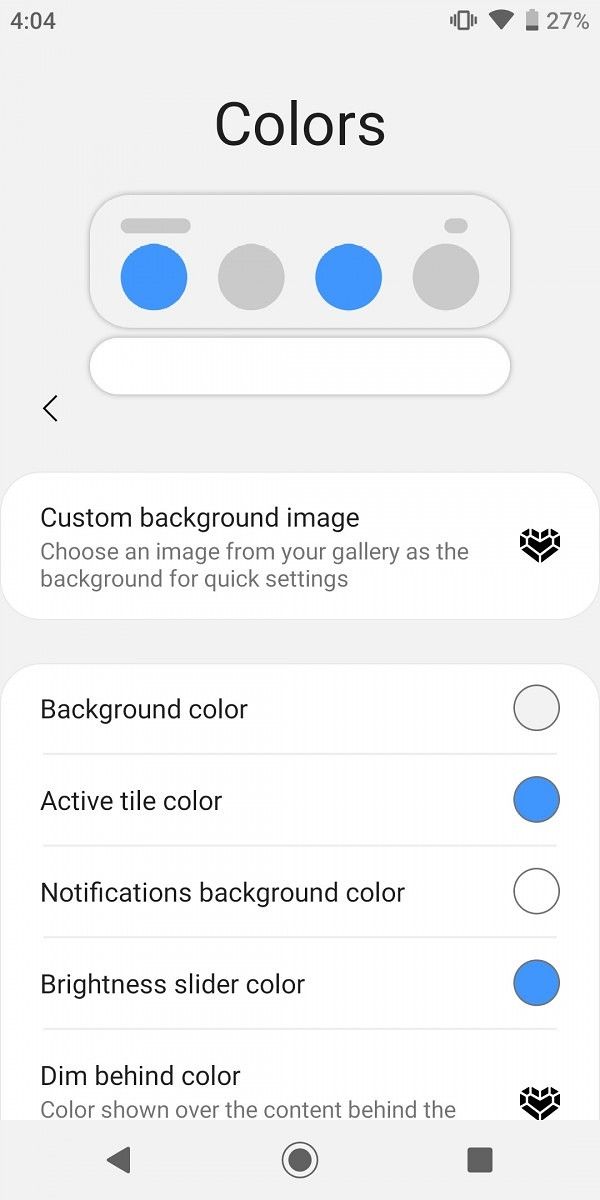
One Shade is an app made by Treydev Inc. It acts similar to Power Shade in that it completely replaces an Android phone’s notifications panel with a custom notification panel. The design of the One Shade notifications menu is inspired by the one in One UI. The One Shade version is customizable, however, unlike One UI. One Shade also brings extra utilities that are detailed in the features list below. The developer mentions that users are given a full walk-through for every step to setup the app so that they can change their quick settings. Having a custom ROM or root is not required for the app.

The app’s key feature list is quoted below from the developer’s Play Store listing:

  • “Key Features
    Full color customization: Take the base layout and color all the elements how you like.
    Advanced notifications: Get it, read it, snooze or dismiss.
    Advanced music: Dynamic colors based on the currently playing album artwork. You can skip to any part of the track right from the notification’s progress bar.
    Quick reply: Reply to your messages as soon as you see them. For all Android devices.
    Auto bundled: Tired of that one app that spams you notifications? Now they’re all grouped together, for easy control.
    Custom background picture: Pick your favorite image to be displayed in the shade.
    Notification card themes: Android 10 inspired.
    – Light: your ordinary notifications
    – Colored: dynamically uses the notification’s color as the card background.
    – Dark: blend all your notifications with a pure black background (great on AMOLED screens).
    Quick settings panel
    – Choose a different color for the background or foreground (icons) of the quick settings panel.
    – Change brightness slider color.
    – Useful icons with your current device information
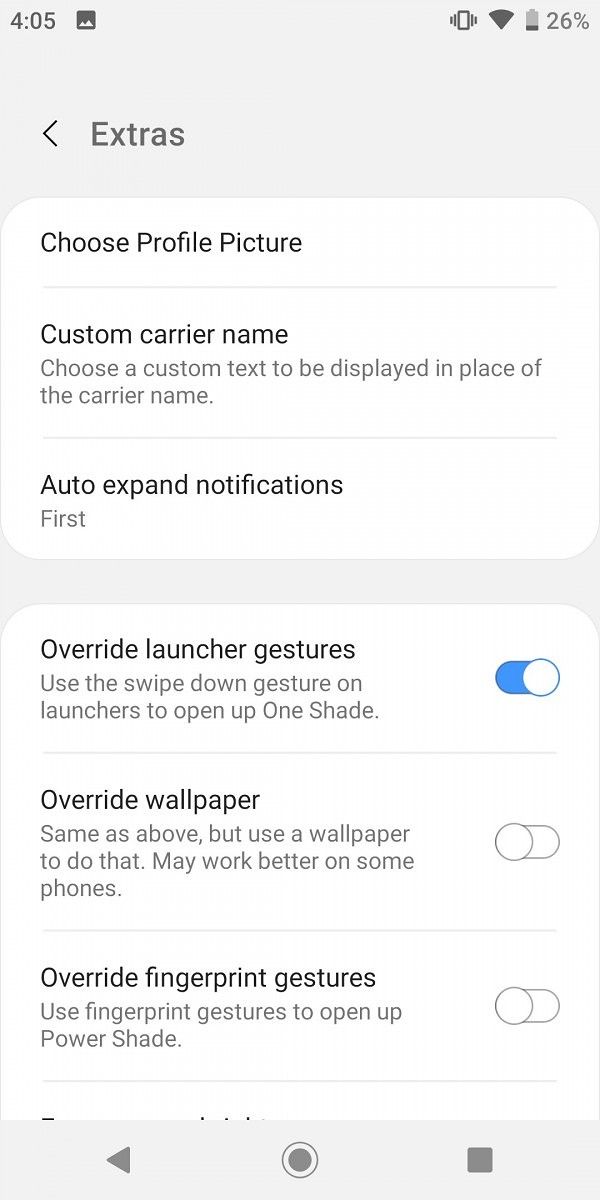
    – Choose your own profile picture to be displayed in the shade.
    – Choose between a number of tile icon shapes (circle, square, teardrop, gradients and more)
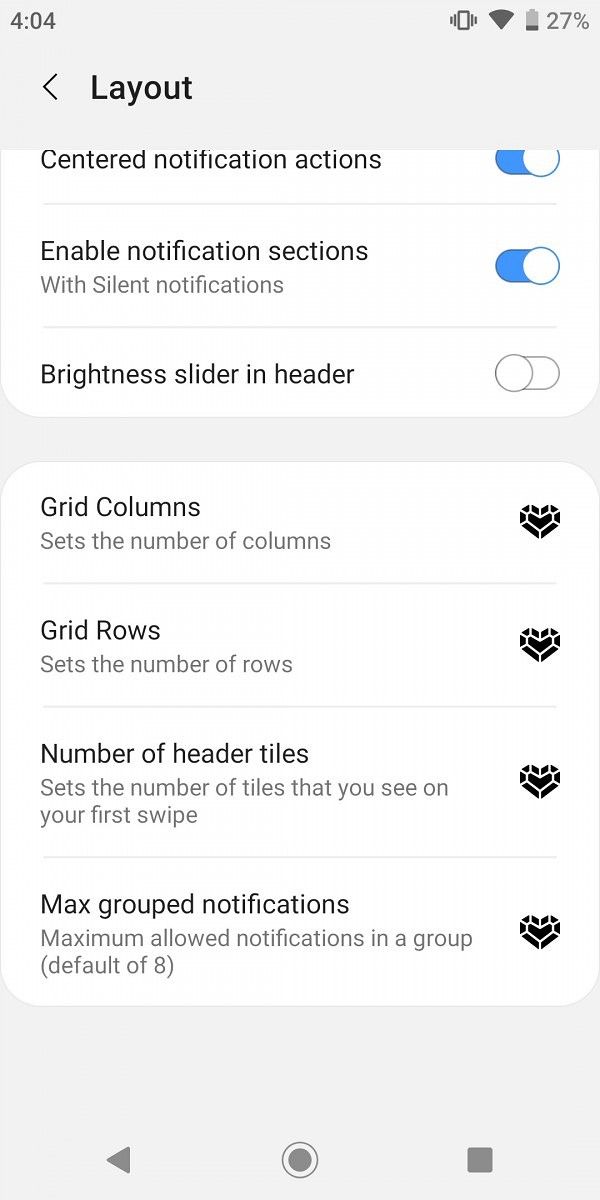
    – (Pro) Change quick settings grid layout (ie. number of columns and rows).”

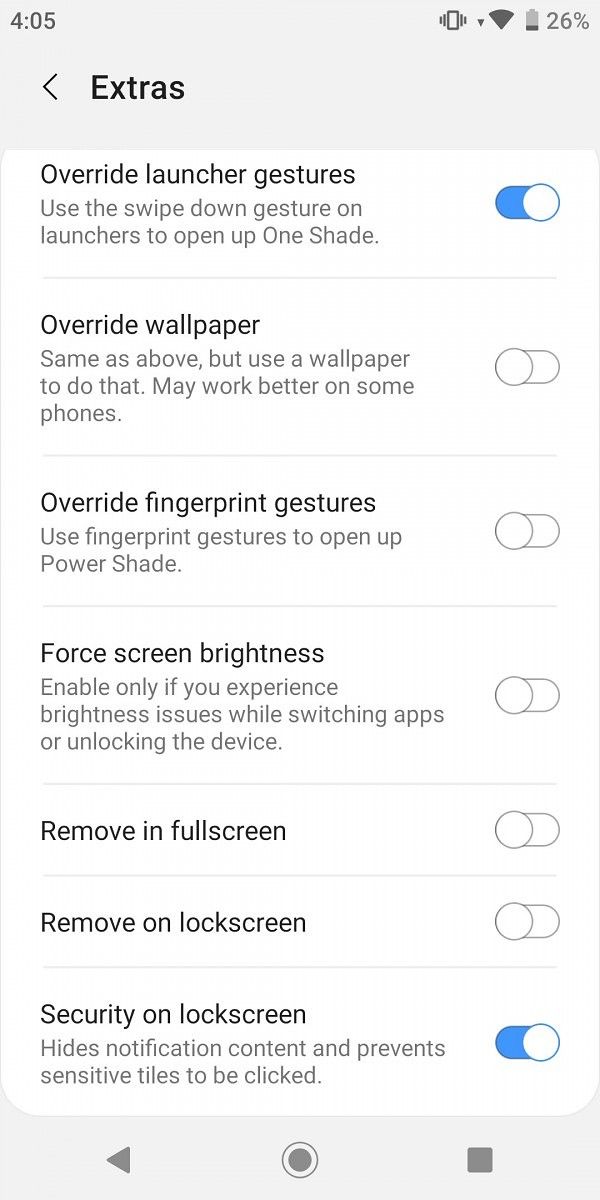
The aforementioned feature list is not exhaustive, according to the developer, as there are more features such as auto-expanding notifications and repositioning of elements where the user wants them to be.

How does One Shade work if it doesn’t require elevated privileges that have to be satisfied either through root or ADB? The answer is that it uses Accessibility Services to achieve its functionality. Accessibility Services are hugely powerful on Android as they can enable innovative experiences, and users wanting to see what kind of experiences they can enable can look through our past coverage. One Shade’s primary source of revenue is ads, but it has premium features as well.

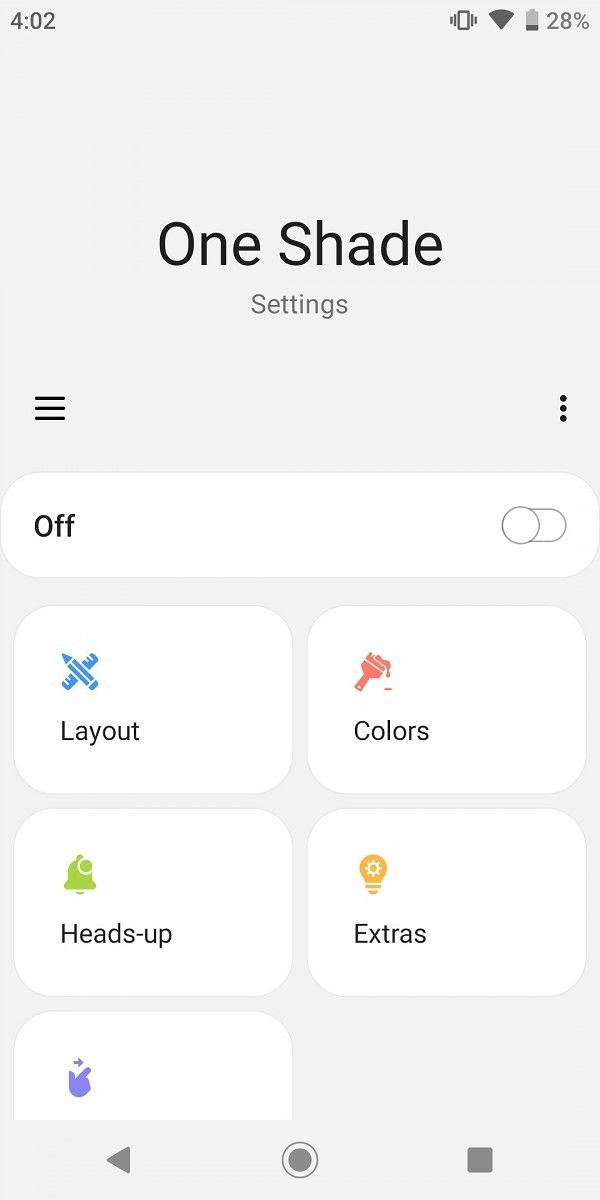
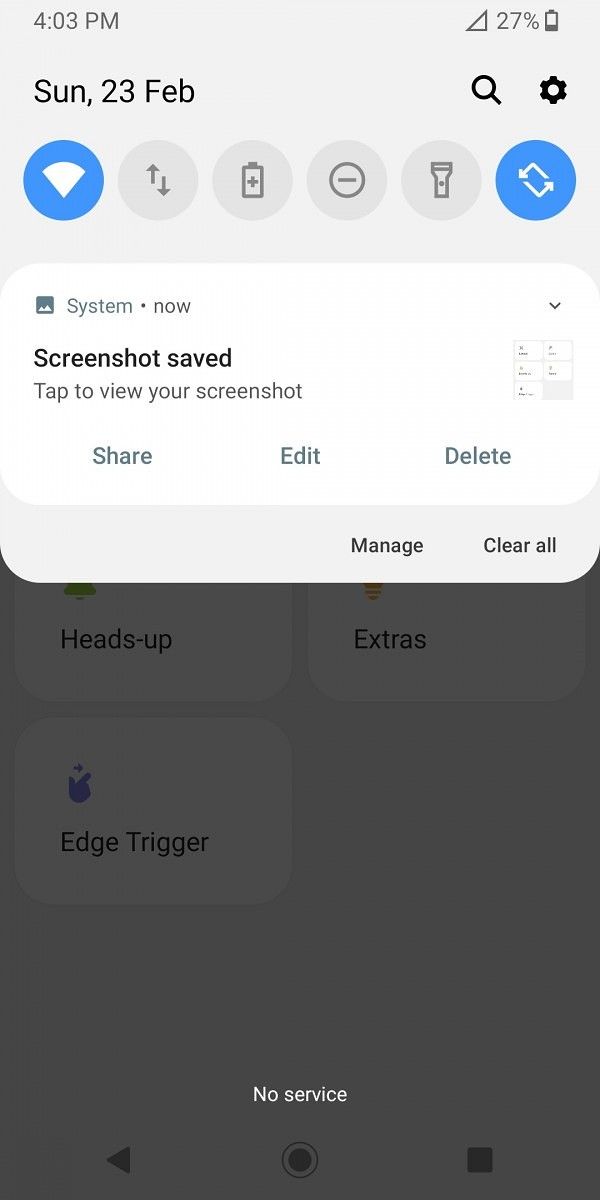
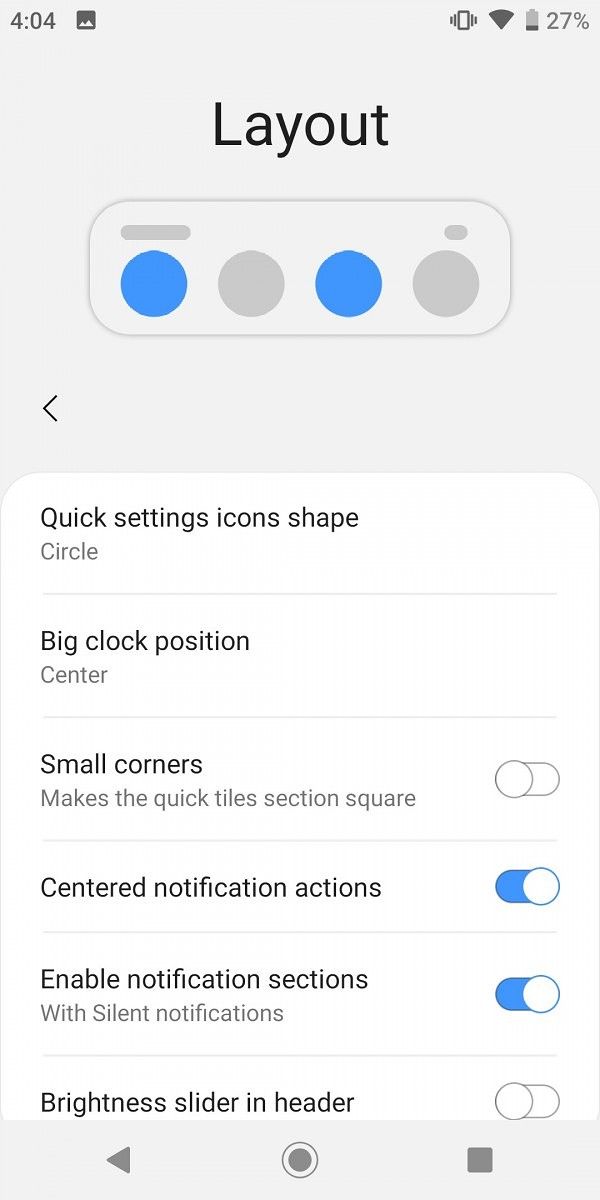
I tried out the app, and it seems to work surprisingly well. The feature set is broad, as you see in the screenshots. The one major negative point is that the developer is using full-page interfering ads that degrade the user experience.

One Shade has an official Telegram group. It can be downloaded from the Play Store below.

One Shade: Custom Notifications and Quick Settings (Free+, Google Play) →

The post One Shade themes your notification panel to be like Samsung’s One UI appeared first on xda-developers.


from xda-developers https://ift.tt/2I05t6B
via IFTTT