LightBlog

vendredi 8 novembre 2019

The evolution of Google Pixel series: from Google Pixel to Google Pixel 4 & Google Pixel 4 XL

It’s not often that we think about the evolution of a brand. Sure, we compare the phones year after year, but we rarely take a step back and examine the long-term growth. Google has been taking a bare minimum approach to upgrading their phones annually, especially with the most recent launch. But how much has the Google Pixel series evolved since the beginning?

Before I get into the evolution of the Pixel series, I want to talk about Google’s philosophy. The Pixel series was never meant to compete on maxed-out specs; it was supposed to be a phone made “The Google Way.” The Pixel phones integrate very closely with Google services and provide easy and fast access to Google’s best software. The Pixel phones are meant to make your life easier by making you interact with your phone less and still get a lot done.

Part of the Pixel philosophy was about doing the most with the least. This is why Pixel phones traditionally don’t have tons of RAM or a handful of cameras. They didn’t get dual cameras until 4 years in. Google was capable of doing a lot without going all out, so they didn’t. This is obvious when you look in-depth at all the changes Google made throughout the Pixel series over the past four years. So let’s do just that.

Pixel and Pixel XL

The original Google Pixel, also known as the OG Pixel, was Google’s first flagship smartphone. This phone had Google’s new Google Assistant. It also had Google’s first real attempt to get into the camera game. At the time, it had the best camera. It also had pretty basic specs for late 2016. The Snapdragon 821, 4GBs of RAM, 32GB or 128GBs of storage, a 3450 mAh battery, a single 12.3 MP rear camera, and a 5.5-inch QHD display. This is, by all means, a very basic 2016 phone.

The average hardware of the Google Pixel was easily forgotten because of Google’s absolutely fantastic software. The phone felt fast and clean. There was no excess bloatware or meaningless changes to the software. Google made changes where needed and did not make excessive changes. The lack of changes along with the new Google Assistant made the Pixel the best phone at the time.

Image from TechSpot

The OG Google Pixel also looked fantastic. It came in three colors, Quite Black, Very Silver, and Really Blue. These three colors were absolutely fantastic and had very accurate names to the colors of the phone. It was the start of Google’s infamous dual-tone design with a glass and aluminum combo on the back. The OG Pixel was one of the best Pixel phones in the series because of how Google essentially came out of nowhere with game-changing camera software.

google pixel

Pixel XDA Forums / Pixel XL XDA Forums

Pixel 2 and Pixel 2 XL

The Pixel 2 and Pixel 2 XL were a pretty big step up. Unlike the OG Pixel, the Pixel 2 and Pixel 2 XL did look pretty different. The Pixel 2 kept some chunky bezels at the top and bottom of the phone while the Pixel 2 XL had slimmer bezels. Both phones had stereo front-facing speakers, the Snapdragon 835, 4GBs of RAM, 64GB or 128GB storage options, a single 12.2MP rear camera, and OLED displays. The smaller Pixel 2 had a 1080p display while the larger Pixel 2 XL got a 1440p display. These specs were, again, nothing crazy, but they were the minimum Google needed to get a great and simple device onto the market.

They kept Google’s approach of making interacting with the phone easier while the phone improves your life without needing to do anything. This came through Google’s new features, Now Playing and Active Edge. Now Playing recognizes music playing around you without using much battery and keeping all the processing on the device. Active Edge made Google Assistant easier to use by just needing a simple squeeze on the sides to activate it.

The design of the Pixel 2 and Pixel 2 XL were also very practical. Google didn’t really go all out on design or features. They kept only a single rear camera in a time where dual cameras were becoming popular. Google also kept their dual tone aluminum and glass back. It came in a total of four different colors between the Pixel 2 and Pixel 2 XL. The Pixel 2 XL came in Black & White, also known as Panda, and Just Black. The Pixel 2 came in Kinda Blue, Just Black, and Clearly White. The Pixel 2 XL was one of my favorite phones of all time.

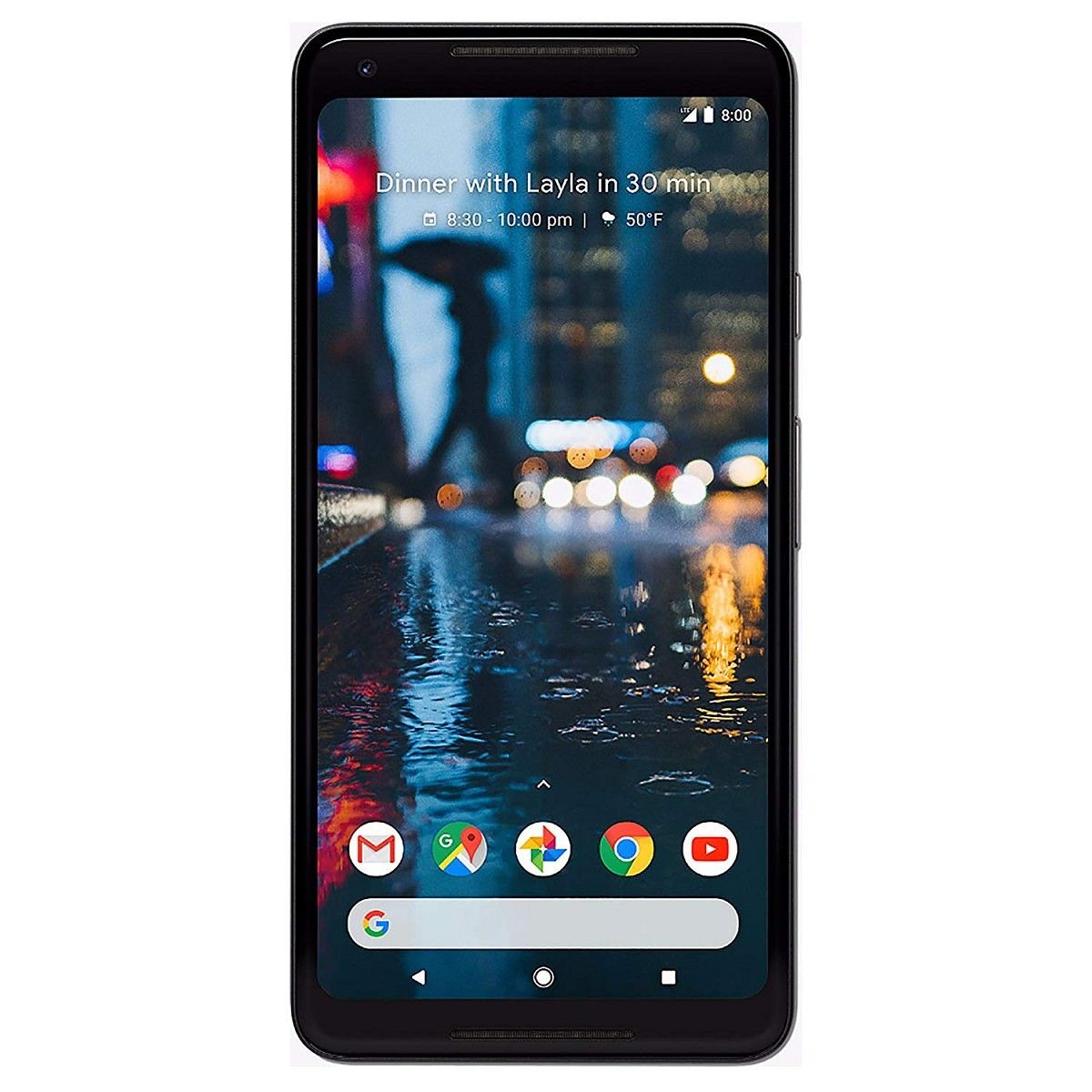
google pixel 2 xl

The Pixel 2 wasn’t perfect, though. There were lots of issues with performance and RAM management a few months after the phone had launched. Google tried to figure some of these out with software updates, and it did help for some. There was also the issue with the Pixel 2 XL display. There was insane blue shift in some units. It was a lottery if you were to get a good or bad display. This was also the first Pixel to drop the headphone jack, which was controversial at the time.

Pixel 2 XDA Forums / Pixel 2 XL XDA Forums

Pixel 3 and Pixel 3 XL

The Pixel 3 and Pixel 3 XL was not the huge upgrade many believe the Pixel line needed. Google kept with their classic approach of bare minimum specs and life-improving software. The Pixel 3 and Pixel 3 XL had very minimal specs for a 2018 flagship. It came with the Snapdragon 845, 4GBs of RAM, 64GB or 128GB storage options, dual front-facing cameras, a single 12.2MP rear camera, and a fully glass back. This was, once again, nothing extreme, but it got the job done.

Besides design, which I will get into later, most of the new features from the Pixel 2 to the Pixel 3 came in the camera. Google added a bunch of new features including Top Shot, Motion Auto Focus, Night Sight, and Super Res Zoom. While it didn’t reinvent the whole camera experience on the Pixel, it made it much better. Night Sight, in particular, was another game-changing camera feature. It drastically improved what you could get out of a smartphone camera in bad lighting conditions. Now, similar modes are present on nearly every flagship phone on the market.

One of the bigger hardware changes and upgrades in the Pixel 3 was the all glass back and wireless charging. This all glass back was, of course, for wireless charging and Google’s own Pixel Stand. This glass back was one of the first glass phones with a frosted glass finish. It was easy to scratch but felt absolutely amazing to hold. The Pixel Stand also helped make wireless charging more useful in your life by essentially turning a Pixel on a Pixel Stand into a Google Home. This, once again, makes the Pixel phone more useful for you and helps bring Google’s services into your life.
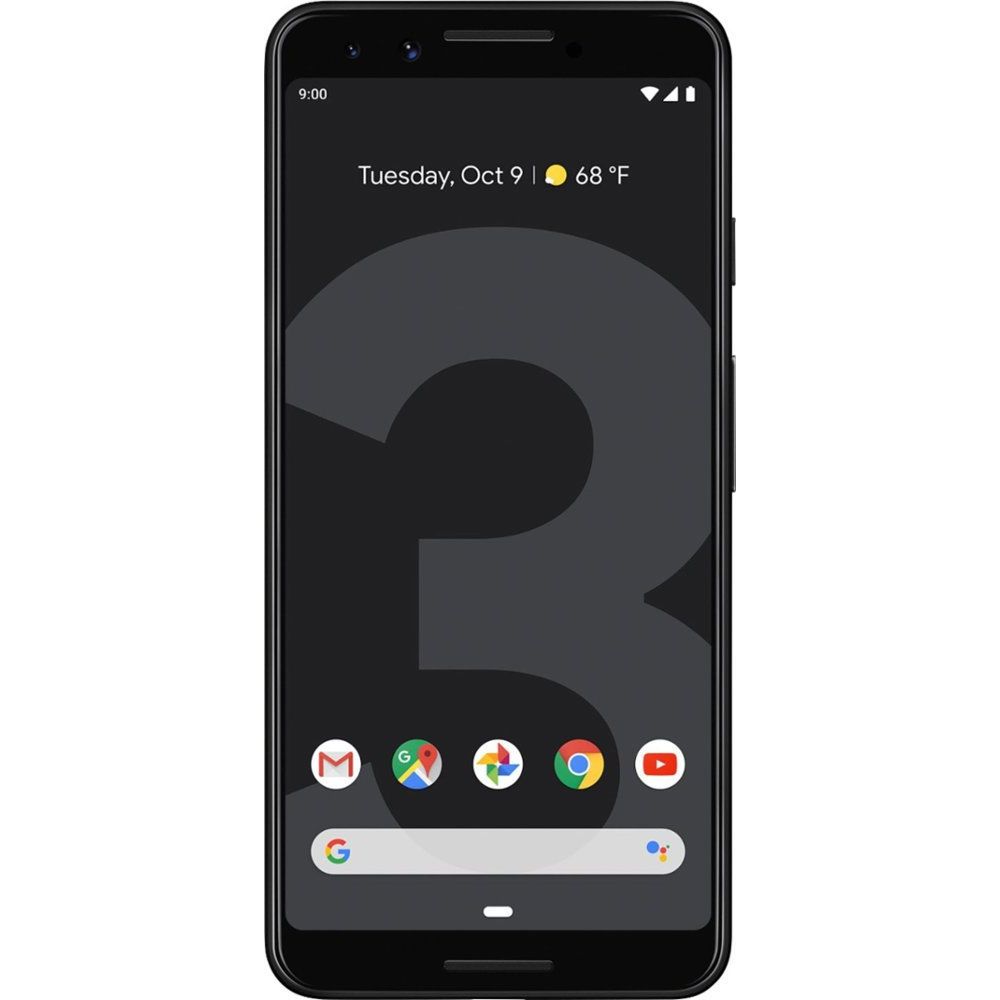
google pixel 3 xl

It might sound great, but there were some issues with the Pixel 3 and Pixel 3 XL. The notch on the Pixel 3 XL was ginormous, which was more of a design flaw than an issue. The actual issues come with the performance and black frosted glass back. The black Pixels would get permanently scratched. The pink and white Pixels would as well, but you couldn’t see it because of the color. The performance issues came from the lack of RAM in the Pixel. My Pixel 3 XL would force stop playing music if I were to take a picture or even simply send a picture through a chat app. Sometimes switching between two apps would even force all background apps to close. It was a real issue with the Pixel 3, but Google did its best at fixing it. Over time Google was able to help the RAM management, but it still isn’t as good as a phone with more RAM.

Pixel 3 XDA Forums / Pixel 3 XL XDA Forums

Pixel 3a and Pixel 3a XL

The Pixel 3a and 3a XL are the first of their kind in the Pixel series. They were meant to be cheap and very good phones for the masses. They launched at $400 and $480 respectably. The interesting part about these devices wasn’t the price or the features you got on the phone, but what you got in comparison to the Pixel 3.

The Pixel 3a came with a Snapdragon 670, 4GBs of RAM, 64GBs of storage, a single front ultra-wide camera, a single rear 12.2MP camera, and 5.6-inch and 6.0-inch FHD+ OLED displays. This is pretty similar to the Pixel 3. In actual usage, it ended up being about the same speed as the Pixel 3 even though the processor wasn’t as good.

The combination of price and features is what made the Pixel 3a so interesting. For half the price, the Pixel 3a had the same features as the Pixel 3. The hardware wasn’t as good as the Pixel 3, sure, but it was also half the price. This was a huge deal and actually became the best selling unlocked phone on Amazon for a while. A lot of reviewers actually considered the Pixel 3a better than the Pixel 3 simply due to value. The Pixel 3a will likely be known as the most successful Pixel.

Pixel 3a XDA Forums / Pixel 3a XL XDA Forums

Pixel 4 and Pixel 4 XL

These past generations have all lead to the newest, latest, and greatest: the Pixel 4. Just a few weeks ago, Google launched the Pixel 4 and Pixel 4 XL. These Pixels are known in the tech community to be a bit of a flop. The reason is, once again, they don’t have insanely large batteries or crazy specs. They are the bare minimum Google thinks it needs to provide you with the features you’ll need to simplify your life.

The Pixel 4 and Pixel 4 XL come with the Snapdragon 855, 6GBs of RAM, 64GB or 128GB storage options, a single wide front camera, two rear cameras, and a 90hz display. The Pixel 4 comes with a 5.8-inch FHD+ display from LG while the Pixel 4 XL comes with a 6.3-inch QHD+ display from Samsung. The Pixel 4 has a 2800 mAh battery while the Pixel 4 XL has a 3700 mAh battery. These battery sizes are actually one of the main reasons not to get the Pixel 4 or Pixel 4 XL. The battery life isn’t really that great. The rest of the specs are not even close to what we are seeing in 2019. This was the first Google phone without a fingerprint scanner and the first Pixel phone with a dual camera. Neither of these are necessarily impressive hardware-wise, but make the Pixel experience better.

google pixel 4

There are really only two features Google has added that anyone will actually notice. Those are Project Soli a.k.a. Motion Sense, the second rear camera, lack of a fingerprint scanner, and the 90hz display. Project Soli is a small radar chip Google uses to make changing songs or unlocking your phone faster. It will recognize when you are about to pick up the phone and start scanning your face for the new Face Unlock feature, making it much faster than competing phones with 3D facial recognition. The 90hz display just makes things extra smooth.

Pixel 4 XDA Forums / Pixel 4 XL XDA Forums

Powerful Software NOT Powerful Hardware

Throughout the development of the Pixels, Google has been focusing on software over hardware. The idea of the Pixel is to get Google’s software into your pocket and make it work for you. The Pixel phones really do that. They have always had the newest and best Google Assistant features first, like Google Duplex or Google Lens. They have the smartest and best cameras while using the same camera sensors as $300 budget phones.

Google has always been able to do more with less, and that is what the Google Pixel is all about. On a spec sheet, you can look through the evolution of the Pixel design or specs or even features, and what you’ll notice is Google has been working on bringing useful software features over hardware. That’s why Google put a thick top bezel in the Pixel 4, they know the trade-off in design is worth it in functionality. Project Soli in the Pixel 4 is working to make your experience better, faster, and more natural without you even knowing it’s there.

The original Pixel came out with average hardware but exceptional software in Google Assistant. The Pixel 2 came out with, once again, average hardware, but the cameras and ease of access to Google Assistant with Active Edge and ambient music recognition with Now Playing made the Pixel 2 one of the smartest phones without you knowing it. With the Pixel 3 Google kept up the trend with average hardware, but outstanding cameras and the ability to turn your phone to a home speaker with the Pixel Stand. With the Pixel 4, Google has gone even further than before. The Pixel 4 will work to help you without you even knowing it’s working.

The evolution of the Google Pixel phones shows the evolution of ambient computing. Google is on the leading edge of software and they don’t need that extreme hardware every other OEM is using. The Pixel series has always been about making your life better and easier without you knowing it.

The evolution of the Pixel isn’t hardware or software, it’s that the phone is working in ways you don’t even recognize to help you. At the first Made by Google event on October 4th, 2016 Google said that we would remember that day as an important day in history because of the products they were launching. Almost four years later, I agree.

The post The evolution of Google Pixel series: from Google Pixel to Google Pixel 4 & Google Pixel 4 XL appeared first on xda-developers.


from xda-developers https://ift.tt/32t0DGK
via IFTTT

The evolution of Google Pixel series: from Google Pixel to Google Pixel 4 & Google Pixel 4 XL

It’s not often that we think about the evolution of a brand. Sure, we compare the phones year after year, but we rarely take a step back and examine the long-term growth. Google has been taking a bare minimum approach to upgrading their phones annually, especially with the most recent launch. But how much has the Google Pixel series evolved since the beginning?

Before I get into the evolution of the Pixel series, I want to talk about Google’s philosophy. The Pixel series was never meant to compete on maxed-out specs; it was supposed to be a phone made “The Google Way.” The Pixel phones integrate very closely with Google services and provide easy and fast access to Google’s best software. The Pixel phones are meant to make your life easier by making you interact with your phone less and still get a lot done.

Part of the Pixel philosophy was about doing the most with the least. This is why Pixel phones traditionally don’t have tons of RAM or a handful of cameras. They didn’t get dual cameras until 4 years in. Google was capable of doing a lot without going all out, so they didn’t. This is obvious when you look in-depth at all the changes Google made throughout the Pixel series over the past four years. So let’s do just that.

Pixel and Pixel XL

The original Google Pixel, also known as the OG Pixel, was Google’s first flagship smartphone. This phone had Google’s new Google Assistant. It also had Google’s first real attempt to get into the camera game. At the time, it had the best camera. It also had pretty basic specs for late 2016. The Snapdragon 821, 4GBs of RAM, 32GB or 128GBs of storage, a 3450 mAh battery, a single 12.3 MP rear camera, and a 5.5-inch QHD display. This is, by all means, a very basic 2016 phone.

The average hardware of the Google Pixel was easily forgotten because of Google’s absolutely fantastic software. The phone felt fast and clean. There was no excess bloatware or meaningless changes to the software. Google made changes where needed and did not make excessive changes. The lack of changes along with the new Google Assistant made the Pixel the best phone at the time.

Image from TechSpot

The OG Google Pixel also looked fantastic. It came in three colors, Quite Black, Very Silver, and Really Blue. These three colors were absolutely fantastic and had very accurate names to the colors of the phone. It was the start of Google’s infamous dual-tone design with a glass and aluminum combo on the back. The OG Pixel was one of the best Pixel phones in the series because of how Google essentially came out of nowhere with game-changing camera software.

google pixel

Pixel XDA Forums / Pixel XL XDA Forums

Pixel 2 and Pixel 2 XL

The Pixel 2 and Pixel 2 XL were a pretty big step up. Unlike the OG Pixel, the Pixel 2 and Pixel 2 XL did look pretty different. The Pixel 2 kept some chunky bezels at the top and bottom of the phone while the Pixel 2 XL had slimmer bezels. Both phones had stereo front-facing speakers, the Snapdragon 835, 4GBs of RAM, 64GB or 128GB storage options, a single 12.2MP rear camera, and OLED displays. The smaller Pixel 2 had a 1080p display while the larger Pixel 2 XL got a 1440p display. These specs were, again, nothing crazy, but they were the minimum Google needed to get a great and simple device onto the market.

They kept Google’s approach of making interacting with the phone easier while the phone improves your life without needing to do anything. This came through Google’s new features, Now Playing and Active Edge. Now Playing recognizes music playing around you without using much battery and keeping all the processing on the device. Active Edge made Google Assistant easier to use by just needing a simple squeeze on the sides to activate it.

The design of the Pixel 2 and Pixel 2 XL were also very practical. Google didn’t really go all out on design or features. They kept only a single rear camera in a time where dual cameras were becoming popular. Google also kept their dual tone aluminum and glass back. It came in a total of four different colors between the Pixel 2 and Pixel 2 XL. The Pixel 2 XL came in Black & White, also known as Panda, and Just Black. The Pixel 2 came in Kinda Blue, Just Black, and Clearly White. The Pixel 2 XL was one of my favorite phones of all time.

google pixel 2 xl

The Pixel 2 wasn’t perfect, though. There were lots of issues with performance and RAM management a few months after the phone had launched. Google tried to figure some of these out with software updates, and it did help for some. There was also the issue with the Pixel 2 XL display. There was insane blue shift in some units. It was a lottery if you were to get a good or bad display. This was also the first Pixel to drop the headphone jack, which was controversial at the time.

Pixel 2 XDA Forums / Pixel 2 XL XDA Forums

Pixel 3 and Pixel 3 XL

The Pixel 3 and Pixel 3 XL was not the huge upgrade many believe the Pixel line needed. Google kept with their classic approach of bare minimum specs and life-improving software. The Pixel 3 and Pixel 3 XL had very minimal specs for a 2018 flagship. It came with the Snapdragon 845, 4GBs of RAM, 64GB or 128GB storage options, dual front-facing cameras, a single 12.2MP rear camera, and a fully glass back. This was, once again, nothing extreme, but it got the job done.

Besides design, which I will get into later, most of the new features from the Pixel 2 to the Pixel 3 came in the camera. Google added a bunch of new features including Top Shot, Motion Auto Focus, Night Sight, and Super Res Zoom. While it didn’t reinvent the whole camera experience on the Pixel, it made it much better. Night Sight, in particular, was another game-changing camera feature. It drastically improved what you could get out of a smartphone camera in bad lighting conditions. Now, similar modes are present on nearly every flagship phone on the market.

One of the bigger hardware changes and upgrades in the Pixel 3 was the all glass back and wireless charging. This all glass back was, of course, for wireless charging and Google’s own Pixel Stand. This glass back was one of the first glass phones with a frosted glass finish. It was easy to scratch but felt absolutely amazing to hold. The Pixel Stand also helped make wireless charging more useful in your life by essentially turning a Pixel on a Pixel Stand into a Google Home. This, once again, makes the Pixel phone more useful for you and helps bring Google’s services into your life.

google pixel 3 xl

It might sound great, but there were some issues with the Pixel 3 and Pixel 3 XL. The notch on the Pixel 3 XL was ginormous, which was more of a design flaw than an issue. The actual issues come with the performance and black frosted glass back. The black Pixels would get permanently scratched. The pink and white Pixels would as well, but you couldn’t see it because of the color. The performance issues came from the lack of RAM in the Pixel. My Pixel 3 XL would force stop playing music if I were to take a picture or even simply send a picture through a chat app. Sometimes switching between two apps would even force all background apps to close. It was a real issue with the Pixel 3, but Google did its best at fixing it. Over time Google was able to help the RAM management, but it still isn’t as good as a phone with more RAM.

Pixel 3 XDA Forums / Pixel 3 XL XDA Forums

Pixel 3a and Pixel 3a XL

The Pixel 3a and 3a XL are the first of their kind in the Pixel series. They were meant to be cheap and very good phones for the masses. They launched at $400 and $480 respectably. The interesting part about these devices wasn’t the price or the features you got on the phone, but what you got in comparison to the Pixel 3.

The Pixel 3a came with a Snapdragon 670, 4GBs of RAM, 64GBs of storage, a single front ultra-wide camera, a single rear 12.2MP camera, and 5.6-inch and 6.0-inch FHD+ OLED displays. This is pretty similar to the Pixel 3. In actual usage, it ended up being about the same speed as the Pixel 3 even though the processor wasn’t as good.

The combination of price and features is what made the Pixel 3a so interesting. For half the price, the Pixel 3a had the same features as the Pixel 3. The hardware wasn’t as good as the Pixel 3, sure, but it was also half the price. This was a huge deal and actually became the best selling unlocked phone on Amazon for a while. A lot of reviewers actually considered the Pixel 3a better than the Pixel 3 simply due to value. The Pixel 3a will likely be known as the most successful Pixel.

Pixel 3a XDA Forums / Pixel 3a XL XDA Forums

Pixel 4 and Pixel 4 XL

These past generations have all lead to the newest, latest, and greatest: the Pixel 4. Just a few weeks ago, Google launched the Pixel 4 and Pixel 4 XL. These Pixels are known in the tech community to be a bit of a flop. The reason is, once again, they don’t have insanely large batteries or crazy specs. They are the bare minimum Google thinks it needs to provide you with the features you’ll need to simplify your life.

The Pixel 4 and Pixel 4 XL come with the Snapdragon 855, 6GBs of RAM, 64GB or 128GB storage options, a single wide front camera, two rear cameras, and a 90hz display. The Pixel 4 comes with a 5.8-inch FHD+ display from LG while the Pixel 4 XL comes with a 6.3-inch QHD+ display from Samsung. The Pixel 4 has a 2800 mAh battery while the Pixel 4 XL has a 3700 mAh battery. These battery sizes are actually one of the main reasons not to get the Pixel 4 or Pixel 4 XL. The battery life isn’t really that great. The rest of the specs are not even close to what we are seeing in 2019. This was the first Google phone without a fingerprint scanner and the first Pixel phone with a dual camera. Neither of these are necessarily impressive hardware-wise, but make the Pixel experience better.

google pixel 4

There are really only two features Google has added that anyone will actually notice. Those are Project Soli a.k.a. Motion Sense, the second rear camera, lack of a fingerprint scanner, and the 90hz display. Project Soli is a small radar chip Google uses to make changing songs or unlocking your phone faster. It will recognize when you are about to pick up the phone and start scanning your face for the new Face Unlock feature, making it much faster than competing phones with 3D facial recognition. The 90hz display just makes things extra smooth.

Pixel 4 XDA Forums / Pixel 4 XL XDA Forums

Powerful Software NOT Powerful Hardware

Throughout the development of the Pixels, Google has been focusing on software over hardware. The idea of the Pixel is to get Google’s software into your pocket and make it work for you. The Pixel phones really do that. They have always had the newest and best Google Assistant features first, like Google Duplex or Google Lens. They have the smartest and best cameras while using the same camera sensors as $300 budget phones.

Google has always been able to do more with less, and that is what the Google Pixel is all about. On a spec sheet, you can look through the evolution of the Pixel design or specs or even features, and what you’ll notice is Google has been working on bringing useful software features over hardware. That’s why Google put a thick top bezel in the Pixel 4, they know the trade-off in design is worth it in functionality. Project Soli in the Pixel 4 is working to make your experience better, faster, and more natural without you even knowing it’s there.

The original Pixel came out with average hardware but exceptional software in Google Assistant. The Pixel 2 came out with, once again, average hardware, but the cameras and ease of access to Google Assistant with Active Edge and ambient music recognition with Now Playing made the Pixel 2 one of the smartest phones without you knowing it. With the Pixel 3 Google kept up the trend with average hardware, but outstanding cameras and the ability to turn your phone to a home speaker with the Pixel Stand. With the Pixel 4, Google has gone even further than before. The Pixel 4 will work to help you without you even knowing it’s working.

The evolution of the Google Pixel phones shows the evolution of ambient computing. Google is on the leading edge of software and they don’t need that extreme hardware every other OEM is using. The Pixel series has always been about making your life better and easier without you knowing it.

The evolution of the Pixel isn’t hardware or software, it’s that the phone is working in ways you don’t even recognize to help you. At the first Made by Google event on October 4th, 2016 Google said that we would remember that day as an important day in history because of the products they were launching. Almost four years later, I agree.

The post The evolution of Google Pixel series: from Google Pixel to Google Pixel 4 & Google Pixel 4 XL appeared first on xda-developers.


from xda-developers https://ift.tt/32t0DGK
via IFTTT
Developers: It’s super easy to bypass Android’s hidden API restrictions

Flashback to over a year ago, and we’re all excited about seeing what’s to come in the Android P betas. Users are looking forward to new features, and developers are looking forward to some new tools to make their apps better. Unfortunately for some of those developers, the first Android P beta came with a bit of a Nasty Surprise: hidden API restrictions. Before I dive into what exactly that means, let me explain a bit about its context.

What’s This All About?

Android app developers don’t have to start from scratch when they make an app. Google provides tools to make app development easier and less repetitive. One of these tools is the Android SDK. The SDK is essentially a reference to all the functions developers can safely use in their apps. These functions come standard on all variants of Android that Google approves. The SDK isn’t exhaustive, though. There are quite a few “hidden” parts of Android’s framework that aren’t part of the SDK.

These “hidden” parts can be incredibly useful for more hacky or low-level stuff. For instance, my Widget Drawer app makes use of a non-SDK function to detect when a user launches an app from a widget so the drawer can automatically close. You might be thinking: “Why not just make these non-SDK functions part of the SDK?” Well, the problem is that their operation isn’t fully predictable. Google can’t make sure every single part of the framework works on every single device it approves, so more important methods are selected to be verified. Google doesn’t guarantee that the rest of the framework will stay consistent. Manufacturers can change or completely remove these hidden functions. Even in different versions of AOSP, you never know if a hidden function will still exist or work how it used to.

If you’re wondering why I’ve been using the word “hidden,” it’s because these functions aren’t even part of the SDK. Normally, if you try to use a hidden method or class in an app, it’ll fail to compile. Using them requires reflection or a modified SDK.

With Android P, Google decided that just hiding them wasn’t enough. When the first beta was released, it was announced that most (not all) hidden functions were no longer available for use to app developers. The first beta would warn you when your app used a blacklisted function. The next betas simply crashed your app. At least for me, this blacklist was pretty annoying. Not only did it break quite a bit of Navigation Gestures, but since hidden functions are blacklisted by default (Google has to manually whitelist some per-release), I had a lot of trouble getting Widget Drawer to work.

Now, there were a few ways to work around the blacklist. The first was to simply keep your app targeting API 27 (Android 8.1), since the blacklist only applied to apps targeting the latest API. Unfortunately, with Google’s minimum API requirements for publishing on the Play Store, it would only be possible to target API 27 for so long. As of November 1, 2019, all app updates to the Play Store must target API 28 or later.

The second workaround is actually something Google built into Android. It’s possible to run an ADB command to disable the blacklist entirely. That’s great for personal use and testing, but I can tell you firsthand that trying to get end-users to set up and run ADB is a nightmare.

So where does that leave us? We can’t target API 27 anymore if we want to upload to the Play Store, and the ADB method just isn’t viable. That doesn’t mean we’re out of options, though.

The Hidden API “Fix”

The hidden API blacklist only applies to non-whitelisted user applications. System applications, applications signed with the platform signature, and applications specified in a configuration file are all exempt from the blacklist. Funnily enough, the Google Play Services suite are all specified in that configuration file. I guess Google is better than the rest of us.

Anyway, let’s keep talking about the blacklist. The part we’re interested in today is that system applications are exempt. That means, for instance, that the System UI app can use all the hidden functions it wants since it’s on the system partition. Obviously, we can’t just push an app to the system partition. That needs root, a good file manager, knowledge of permissions…. It would be easier to use ADB. That’s not the only way we can be a system app, though, at least as far as the hidden API blacklist is concerned.

Cast your mind back to seven paragraphs ago when I mentioned reflection. If you don’t know what reflection is, I recommend reading this page, but here’s a quick summary. In Java, reflection is a way to access normally inaccessible classes, methods, and fields. It’s an incredibly powerful tool. Like I said in that paragraph, reflection used to be a way to access non-SDK functions. The API blacklist blocks the use of reflection, but it doesn’t block the use of double-reflection.

Now, here’s where it gets a little weird. Normally, if you wanted to call a hidden method, you’d do something like this (this is in Kotlin, but Java is similar):

val someHiddenClass = Class.forName("android.some.hidden.Class")
val someHiddenMethod = someHiddenClass.getMethod("someHiddenMethod", String::class.java)

someHiddenMethod.invoke(null, "some important string")

Thanks to the API blacklist, though, you’d just get a ClassNotFoundException. However, if you reflect twice, it works fine:

val forName = Class::class.java.getMethod("forName", String::class.java)
val getMethod = Class::class.java.getMethod("getMethod", String::class.java, arrayOf<Class<*>>()::class.java)
val someHiddenClass = forName.invoke(null, "android.some.hidden.Class") as Class<*>
val someHiddenMethod = getMethod.invoke(someHiddenClass, "someHiddenMethod", String::class.java)

someHiddenMethod.invoke(null, "some important string")

Weird right? Well, yes, but also no. The API blacklist tracks who’s calling a function. If the source isn’t exempt, it crashes. In the first example, the source is the app. However, in the second example, the source is the system itself. Instead of using reflection to get what we want directly, we’re using it to tell the system to get what we want. Since the source of the call to the hidden function is the system, the blacklist doesn’t affect us anymore.

So we’re done. We’ve got a way to bypass the API blacklist now. It’s a little clunky, but we could write a wrapper function so we don’t have to double-reflect every time. It’s not great, but it’s better than nothing. But actually, we’re not done. There’s a better way to do this that’ll let us use normal reflection or a modified SDK, like in the good old days.

Since the blacklist’s enforcement is evaluated per-process (which is the same as per-app in most cases), there might be some way for the system to record if the app in question is exempt or not. Luckily, there is, and it’s accessible to us. Using that newfound double-reflection hack, we’ve got a one-time-use code block:

val forName = Class::class.java.getDeclaredMethod("forName", String::class.java)
val getDeclaredMethod = Class::class.java.getDeclaredMethod("getDeclaredMethod", String::class.java, arrayOf<Class<*>>()::class.java)

val vmRuntimeClass = forName.invoke(null, "dalvik.system.VMRuntime") as Class<*>
val getRuntime = getDeclaredMethod.invoke(vmRuntimeClass, "getRuntime", null) as Method
val setHiddenApiExemptions = getDeclaredMethod.invoke(vmRuntimeClass, "setHiddenApiExemptions", arrayOf(arrayOf()::class.java)) as Method

val vmRuntime = getRuntime.invoke(null)

setHiddenApiExemptions.invoke(vmRuntime, arrayOf("L"))

Okay, so technically, this isn’t telling the system that our app is exempt from the API blacklist. There’s actually another ADB command you can run to specify functions that shouldn’t be blacklisted. That’s what we’re taking advantage of above. The code basically overrides whatever the system thinks is exempt for our app. Passing “L” at the end means all methods are exempt. If you want to exempt specific methods, use the Smali syntax: Landroid/some/hidden/Class;Landroid/some/other/hidden/Class;.

Now we’re actually done. Make a custom Application class, put that code in the onCreate() method, and bam, no more restrictions.


Thanks to XDA Recognized Developer TopJohnWu, who originally pointed this workaround out to me. Here’s a bit more about how it works, although it’s in Chinese. I also wrote about this on Stack Overflow, with an example in JNI as well.

The post Developers: It’s super easy to bypass Android’s hidden API restrictions appeared first on xda-developers.


from xda-developers https://ift.tt/32qai0J
via IFTTT

Developers: It’s super easy to bypass Android’s hidden API restrictions

Flashback to over a year ago, and we’re all excited about seeing what’s to come in the Android P betas. Users are looking forward to new features, and developers are looking forward to some new tools to make their apps better. Unfortunately for some of those developers, the first Android P beta came with a bit of a Nasty Surprise: hidden API restrictions. Before I dive into what exactly that means, let me explain a bit about its context.

What’s This All About?

Android app developers don’t have to start from scratch when they make an app. Google provides tools to make app development easier and less repetitive. One of these tools is the Android SDK. The SDK is essentially a reference to all the functions developers can safely use in their apps. These functions come standard on all variants of Android that Google approves. The SDK isn’t exhaustive, though. There are quite a few “hidden” parts of Android’s framework that aren’t part of the SDK.

These “hidden” parts can be incredibly useful for more hacky or low-level stuff. For instance, my Widget Drawer app makes use of a non-SDK function to detect when a user launches an app from a widget so the drawer can automatically close. You might be thinking: “Why not just make these non-SDK functions part of the SDK?” Well, the problem is that their operation isn’t fully predictable. Google can’t make sure every single part of the framework works on every single device it approves, so more important methods are selected to be verified. Google doesn’t guarantee that the rest of the framework will stay consistent. Manufacturers can change or completely remove these hidden functions. Even in different versions of AOSP, you never know if a hidden function will still exist or work how it used to.

If you’re wondering why I’ve been using the word “hidden,” it’s because these functions aren’t even part of the SDK. Normally, if you try to use a hidden method or class in an app, it’ll fail to compile. Using them requires reflection or a modified SDK.

With Android P, Google decided that just hiding them wasn’t enough. When the first beta was released, it was announced that most (not all) hidden functions were no longer available for use to app developers. The first beta would warn you when your app used a blacklisted function. The next betas simply crashed your app. At least for me, this blacklist was pretty annoying. Not only did it break quite a bit of Navigation Gestures, but since hidden functions are blacklisted by default (Google has to manually whitelist some per-release), I had a lot of trouble getting Widget Drawer to work.

Now, there were a few ways to work around the blacklist. The first was to simply keep your app targeting API 27 (Android 8.1), since the blacklist only applied to apps targeting the latest API. Unfortunately, with Google’s minimum API requirements for publishing on the Play Store, it would only be possible to target API 27 for so long. As of November 1, 2019, all app updates to the Play Store must target API 28 or later.

The second workaround is actually something Google built into Android. It’s possible to run an ADB command to disable the blacklist entirely. That’s great for personal use and testing, but I can tell you firsthand that trying to get end-users to set up and run ADB is a nightmare.

So where does that leave us? We can’t target API 27 anymore if we want to upload to the Play Store, and the ADB method just isn’t viable. That doesn’t mean we’re out of options, though.

The Hidden API “Fix”

The hidden API blacklist only applies to non-whitelisted user applications. System applications, applications signed with the platform signature, and applications specified in a configuration file are all exempt from the blacklist. Funnily enough, the Google Play Services suite are all specified in that configuration file. I guess Google is better than the rest of us.

Anyway, let’s keep talking about the blacklist. The part we’re interested in today is that system applications are exempt. That means, for instance, that the System UI app can use all the hidden functions it wants since it’s on the system partition. Obviously, we can’t just push an app to the system partition. That needs root, a good file manager, knowledge of permissions…. It would be easier to use ADB. That’s not the only way we can be a system app, though, at least as far as the hidden API blacklist is concerned.

Cast your mind back to seven paragraphs ago when I mentioned reflection. If you don’t know what reflection is, I recommend reading this page, but here’s a quick summary. In Java, reflection is a way to access normally inaccessible classes, methods, and fields. It’s an incredibly powerful tool. Like I said in that paragraph, reflection used to be a way to access non-SDK functions. The API blacklist blocks the use of reflection, but it doesn’t block the use of double-reflection.

Now, here’s where it gets a little weird. Normally, if you wanted to call a hidden method, you’d do something like this (this is in Kotlin, but Java is similar):

val someHiddenClass = Class.forName("android.some.hidden.Class")
val someHiddenMethod = someHiddenClass.getMethod("someHiddenMethod", String::class.java)

someHiddenMethod.invoke(null, "some important string")

Thanks to the API blacklist, though, you’d just get a ClassNotFoundException. However, if you reflect twice, it works fine:

val forName = Class::class.java.getMethod("forName", String::class.java)
val getMethod = Class::class.java.getMethod("getMethod", String::class.java, arrayOf<Class<*>>()::class.java)
val someHiddenClass = forName.invoke(null, "android.some.hidden.Class") as Class<*>
val someHiddenMethod = getMethod.invoke(someHiddenClass, "someHiddenMethod", String::class.java)

someHiddenMethod.invoke(null, "some important string")

Weird right? Well, yes, but also no. The API blacklist tracks who’s calling a function. If the source isn’t exempt, it crashes. In the first example, the source is the app. However, in the second example, the source is the system itself. Instead of using reflection to get what we want directly, we’re using it to tell the system to get what we want. Since the source of the call to the hidden function is the system, the blacklist doesn’t affect us anymore.

So we’re done. We’ve got a way to bypass the API blacklist now. It’s a little clunky, but we could write a wrapper function so we don’t have to double-reflect every time. It’s not great, but it’s better than nothing. But actually, we’re not done. There’s a better way to do this that’ll let us use normal reflection or a modified SDK, like in the good old days.

Since the blacklist’s enforcement is evaluated per-process (which is the same as per-app in most cases), there might be some way for the system to record if the app in question is exempt or not. Luckily, there is, and it’s accessible to us. Using that newfound double-reflection hack, we’ve got a one-time-use code block:

val forName = Class::class.java.getDeclaredMethod("forName", String::class.java)
val getDeclaredMethod = Class::class.java.getDeclaredMethod("getDeclaredMethod", String::class.java, arrayOf<Class<*>>()::class.java)

val vmRuntimeClass = forName.invoke(null, "dalvik.system.VMRuntime") as Class<*>
val getRuntime = getDeclaredMethod.invoke(vmRuntimeClass, "getRuntime", null) as Method
val setHiddenApiExemptions = getDeclaredMethod.invoke(vmRuntimeClass, "setHiddenApiExemptions", arrayOf(arrayOf()::class.java)) as Method

val vmRuntime = getRuntime.invoke(null)

setHiddenApiExemptions.invoke(vmRuntime, arrayOf("L"))

Okay, so technically, this isn’t telling the system that our app is exempt from the API blacklist. There’s actually another ADB command you can run to specify functions that shouldn’t be blacklisted. That’s what we’re taking advantage of above. The code basically overrides whatever the system thinks is exempt for our app. Passing “L” at the end means all methods are exempt. If you want to exempt specific methods, use the Smali syntax: Landroid/some/hidden/Class;Landroid/some/other/hidden/Class;.

Now we’re actually done. Make a custom Application class, put that code in the onCreate() method, and bam, no more restrictions.


Thanks to XDA Recognized Developer TopJohnWu, who originally pointed this workaround out to me. Here’s a bit more about how it works, although it’s in Chinese. I also wrote about this on Stack Overflow, with an example in JNI as well.

The post Developers: It’s super easy to bypass Android’s hidden API restrictions appeared first on xda-developers.


from xda-developers https://ift.tt/32qai0J
via IFTTT

Honor 9X Full Day Battery Test

The Honor 9X packs a seriously large battery considering the low budget price of the phone. The 4000mAh battery keeps the phone running effortlessly throughout a day’s worth of usage. The ultra efficient Kirin 9X chipset keeps the phone running fast with minimum battery drain. In this article, we are going to look at the usage of the phone over the course of a day and see how it does.

Honor 9X Specs
Display 6,59″ 1080 x 2340p (391 ppi)
Chipset HiSilicon Kirin 710F
RAM 6GB
Storage 128GB
Main Camera 48MP/8MP (Ultrawide)/2MP (Depth Sensor)
Selfie Camera 16MP Motorized Pop-up
Battery 4,000mAh
Operating System Android 9.1.0 EMUI 9.1.0

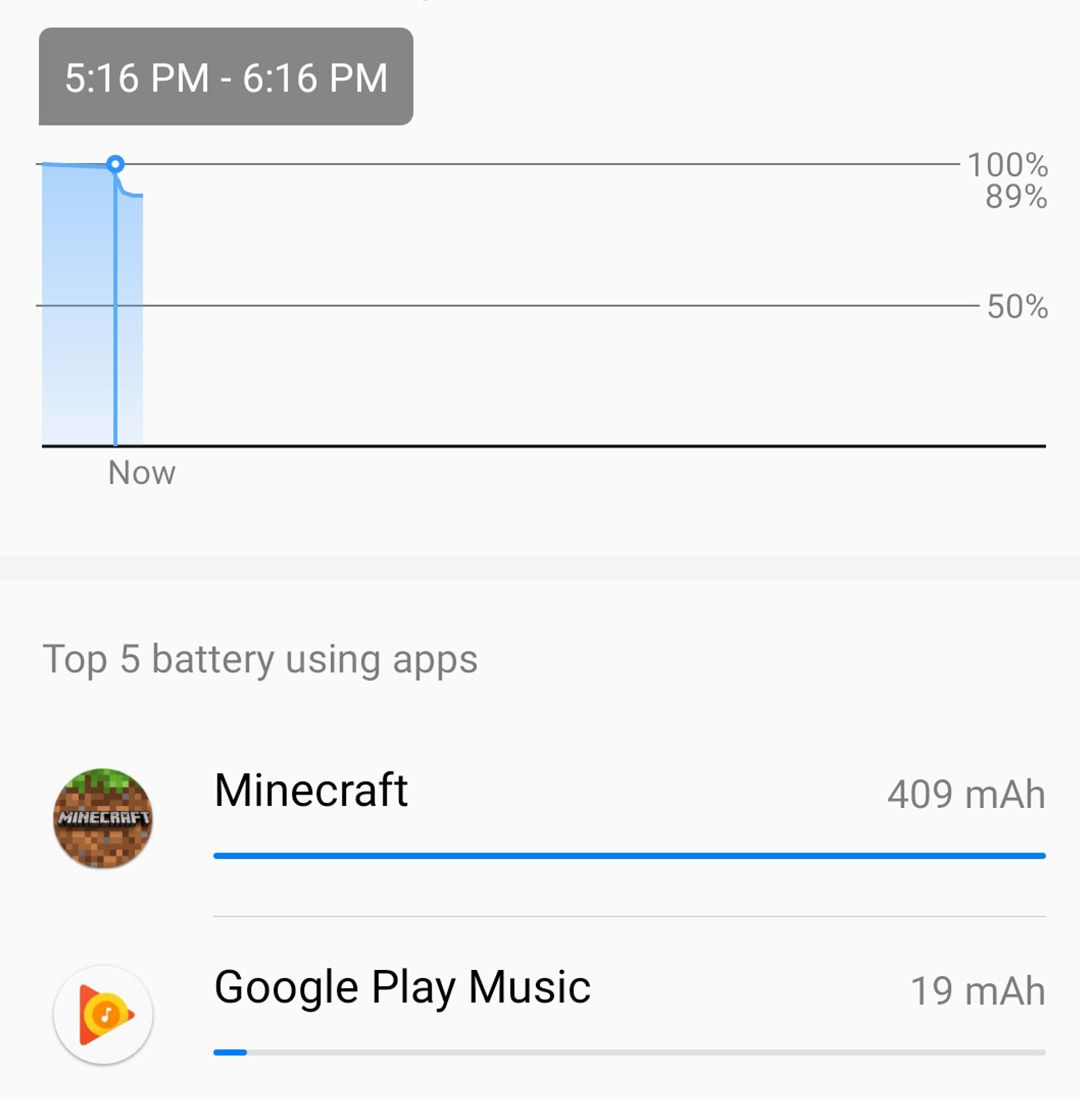
An Hour of Minecraft 9%

The first hour of use on my Honor 9X was spent playing some Minecraft. When gaming, I like to use the max settings on whatever game I’m playing, to get the best visual experience. In Minecraft, I set the render distance up to 11 chunks and all the other graphics settings on high. With most budget phones, Minecraft can seriously stress their hardware to it’s limits. With the Honor 9X I played a solid hour of Minecraft with no heat issues, and no performance dips. The game was as smooth of a gaming experience as you can have on Android.

Minecraft of the Honor9X

To help the phone in its gaming performance, I like to set the phone to Performance Mode in the battery menu. This mode prioritizes performance over battery conservation. With performance mode enabled, and the screen brightness set to 50%, I ended up using 9% in an hour of gameplay.

Battery Usage Data After One Hour of Minecraft


An Hour of Music 3%

For me, an hour of music a day is really overkill. In reality I’ll probably listen to a few tracks while I’m headed out for lunch, just to find out that Popeye’s is once again sold out of their chicken sandwich. But just to be thorough in my testing, I’ll assume an average user will stream one hour of music on their Honor 9X. For this test, we will use Google Play Music to stream, and have the screen off. Streaming music is the best time to enable the Power Saver Option, since this isn’t a graphics intensive task and wont affect the music playback in any way.

Battery Usage Data After One Hour of Music

After an hour of streaming songs on Google Play Music, the Honor 9X only used 3% of its battery. This means that even if you’re low on battery, you can still get hours of music time out of your Honor 9X. Long car rides is the most logical time to toggle on Power Save Option and just let your music play. This battery saving feature from EMUI is very effective.


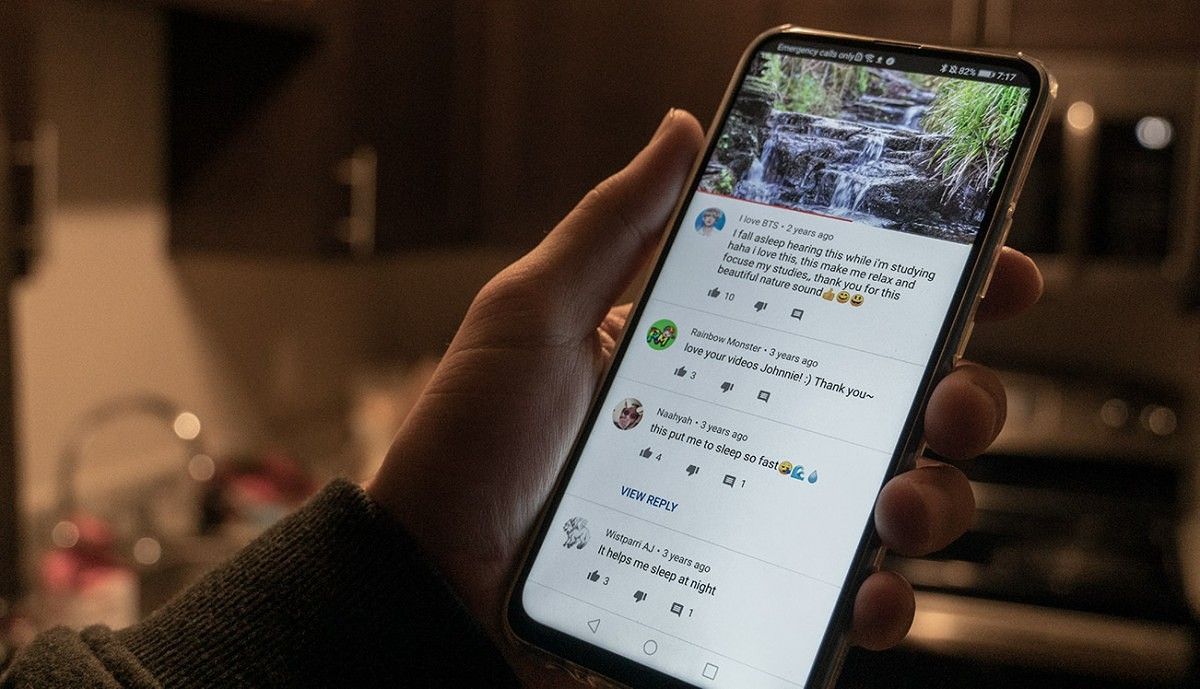
An Hour of YouTube 11%

YouTube on the Honor 9X

Aside from some intensive 3D gaming, streaming video is usually most stress you’ll put on your smartphone battery. For the video streaming test, I’ll play a one hour long YouTube video with the screen at 70% brightness. I will not have Power Save Option or Performance Mode on.

Battery Usage Data After One Hour of YouTube

After an hour of streaming a YouTube video, I was able to get the battery down to 78% capacity. The video played in full-screen, only being interrupted by a few advertisements. In the hour of YouTube I only lost 11% battery in total. You should be able to comfortably watch several movies throughout your day, or binge a handful of episode of a show before needing to recharge.


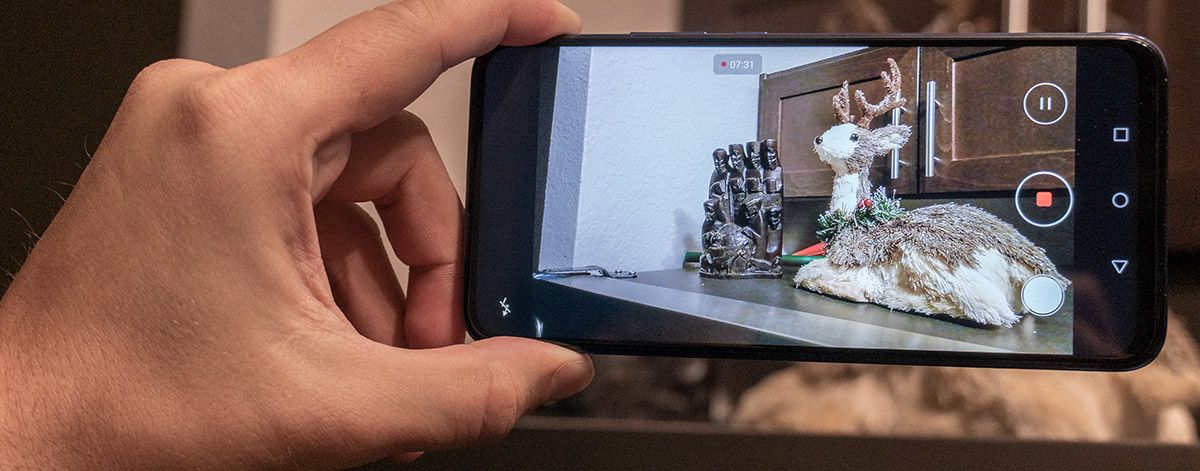
Ten Minutes of Filming and 100 48MP Photos 7%

For this next test I’ll take a look at camera usage. I filmed 10 minutes of footage at 1080p resolution and 60FPS. These are the max video settings supported by the Honor 9X. Next, I took 100 photos with the 48MP sensor.

Fun Fact: 100 photos at 48MP takes up 674MB

Filming on the Honor 9X

Ten minutes of filming is probably way more than you’d use on an average day, but it’s important to know how much battery this will use if you’re going to be using your Honor 9X to document a vacation, or shoot some videos for the internet. After filming for 10 minutes and shooting 100 photos at 48MP, I managed to kill about 7% of the battery over the course of 14 minutes.

Battery Usage Data After 10 Minutes of Filming and 100 Photos


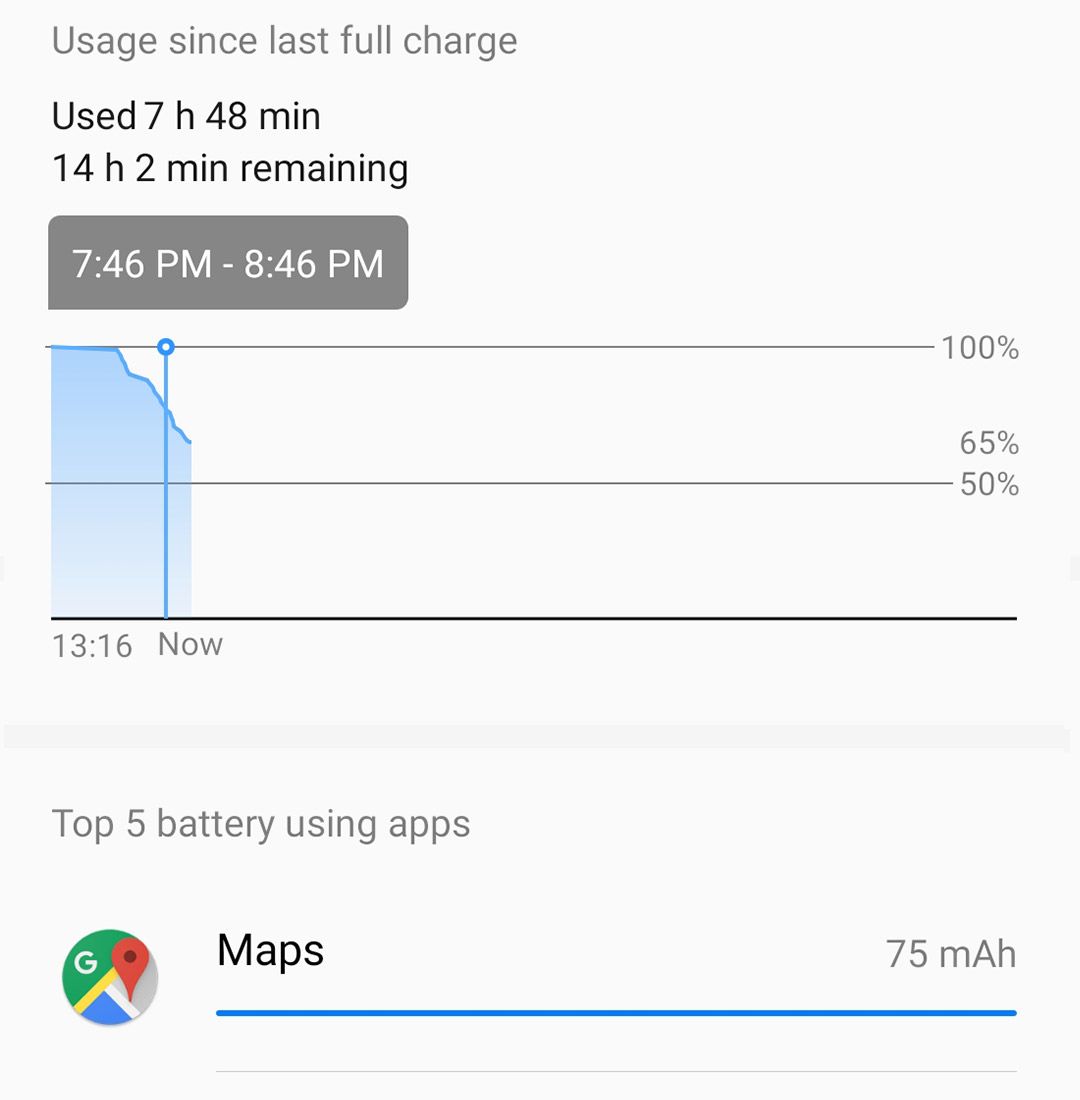
An Hour of GPS 6%

GPS on Android phones is probably way more efficient than most people think. If you’ve got GPS running and have your screen off when you’re not looking at it, GPS will barely touch your battery over the course of an hour. For this test, I left my screen on at 25% brightness and no battery save features were used. I took my phone out for a one hour ride on my electric scooter (which makes me look very cool btw) in the freezing cold temperatures. The app I used for GPS navigation was Google Maps.

Battery Usage Data After 1 Hour of GPS

After a full hour of usage, I drained another 6% from the battery on the Honor 9X.

Eight Hours of Sleep 6%

Alright it’s bedtime. Nothing too significant will be done to prepare the Honor 9X for the night. The display will be off and the phone will be set to silent to test the standby drain.

Battery Usage Data After 8 Hours of Standby Time

In the morning, the battery had dropped to 59% while losing 6% overall during the night. With 59% we have a whole second day of use ahead of us before needing to recharge.

The Honor 9X has a very impressive battery life. You’ll easily be able to get through an entire day on one charge, and most people will be able to go through two. See what others are saying about the Honor 9X in the community forums.

Honor 9X forums
We thank Honor for sponsoring this post. Our sponsors help us pay for the many costs associated with running XDA, including server costs, full time developers, news writers, and much more. While you might see sponsored content (which will always be labeled as such) alongside Portal content, the Portal team is in no way responsible for these posts. Sponsored content, advertising and XDA Depot are managed by a separate team entirely. XDA will never compromise its journalistic integrity by accepting money to write favorably about a company, or alter our opinions or views in any way. Our opinion cannot be bought.

The post Honor 9X Full Day Battery Test appeared first on xda-developers.


from xda-developers https://ift.tt/2K29vfY
via IFTTT

Honor 9X Full Day Battery Test

The Honor 9X packs a seriously large battery considering the low budget price of the phone. The 4000mAh battery keeps the phone running effortlessly throughout a day’s worth of usage. The ultra efficient Kirin 9X chipset keeps the phone running fast with minimum battery drain. In this article, we are going to look at the usage of the phone over the course of a day and see how it does.

Honor 9X Specs
Display 6,59″ 1080 x 2340p (391 ppi)
Chipset HiSilicon Kirin 710F
RAM 6GB
Storage 128GB
Main Camera 48MP/8MP (Ultrawide)/2MP (Depth Sensor)
Selfie Camera 16MP Motorized Pop-up
Battery 4,000mAh
Operating System Android 9.1.0 EMUI 9.1.0

An Hour of Minecraft 9%

The first hour of use on my Honor 9X was spent playing some Minecraft. When gaming, I like to use the max settings on whatever game I’m playing, to get the best visual experience. In Minecraft, I set the render distance up to 11 chunks and all the other graphics settings on high. With most budget phones, Minecraft can seriously stress their hardware to it’s limits. With the Honor 9X I played a solid hour of Minecraft with no heat issues, and no performance dips. The game was as smooth of a gaming experience as you can have on Android.

Minecraft of the Honor9X

To help the phone in its gaming performance, I like to set the phone to Performance Mode in the battery menu. This mode prioritizes performance over battery conservation. With performance mode enabled, and the screen brightness set to 50%, I ended up using 9% in an hour of gameplay.

Battery Usage Data After One Hour of Minecraft


An Hour of Music 3%

For me, an hour of music a day is really overkill. In reality I’ll probably listen to a few tracks while I’m headed out for lunch, just to find out that Popeye’s is once again sold out of their chicken sandwich. But just to be thorough in my testing, I’ll assume an average user will stream one hour of music on their Honor 9X. For this test, we will use Google Play Music to stream, and have the screen off. Streaming music is the best time to enable the Power Saver Option, since this isn’t a graphics intensive task and wont affect the music playback in any way.

Battery Usage Data After One Hour of Music

After an hour of streaming songs on Google Play Music, the Honor 9X only used 3% of its battery. This means that even if you’re low on battery, you can still get hours of music time out of your Honor 9X. Long car rides is the most logical time to toggle on Power Save Option and just let your music play. This battery saving feature from EMUI is very effective.


An Hour of YouTube 11%

YouTube on the Honor 9X

Aside from some intensive 3D gaming, streaming video is usually most stress you’ll put on your smartphone battery. For the video streaming test, I’ll play a one hour long YouTube video with the screen at 70% brightness. I will not have Power Save Option or Performance Mode on.

Battery Usage Data After One Hour of YouTube

After an hour of streaming a YouTube video, I was able to get the battery down to 78% capacity. The video played in full-screen, only being interrupted by a few advertisements. In the hour of YouTube I only lost 11% battery in total. You should be able to comfortably watch several movies throughout your day, or binge a handful of episode of a show before needing to recharge.


Ten Minutes of Filming and 100 48MP Photos 7%

For this next test I’ll take a look at camera usage. I filmed 10 minutes of footage at 1080p resolution and 60FPS. These are the max video settings supported by the Honor 9X. Next, I took 100 photos with the 48MP sensor.

Fun Fact: 100 photos at 48MP takes up 674MB

Filming on the Honor 9X

Ten minutes of filming is probably way more than you’d use on an average day, but it’s important to know how much battery this will use if you’re going to be using your Honor 9X to document a vacation, or shoot some videos for the internet. After filming for 10 minutes and shooting 100 photos at 48MP, I managed to kill about 7% of the battery over the course of 14 minutes.

Battery Usage Data After 10 Minutes of Filming and 100 Photos


An Hour of GPS 6%

GPS on Android phones is probably way more efficient than most people think. If you’ve got GPS running and have your screen off when you’re not looking at it, GPS will barely touch your battery over the course of an hour. For this test, I left my screen on at 25% brightness and no battery save features were used. I took my phone out for a one hour ride on my electric scooter (which makes me look very cool btw) in the freezing cold temperatures. The app I used for GPS navigation was Google Maps.

Battery Usage Data After 1 Hour of GPS

After a full hour of usage, I drained another 6% from the battery on the Honor 9X.

Eight Hours of Sleep 6%

Alright it’s bedtime. Nothing too significant will be done to prepare the Honor 9X for the night. The display will be off and the phone will be set to silent to test the standby drain.

Battery Usage Data After 8 Hours of Standby Time

In the morning, the battery had dropped to 59% while losing 6% overall during the night. With 59% we have a whole second day of use ahead of us before needing to recharge.

The Honor 9X has a very impressive battery life. You’ll easily be able to get through an entire day on one charge, and most people will be able to go through two. See what others are saying about the Honor 9X in the community forums.

Honor 9X forums
We thank Honor for sponsoring this post. Our sponsors help us pay for the many costs associated with running XDA, including server costs, full time developers, news writers, and much more. While you might see sponsored content (which will always be labeled as such) alongside Portal content, the Portal team is in no way responsible for these posts. Sponsored content, advertising and XDA Depot are managed by a separate team entirely. XDA will never compromise its journalistic integrity by accepting money to write favorably about a company, or alter our opinions or views in any way. Our opinion cannot be bought.

The post Honor 9X Full Day Battery Test appeared first on xda-developers.


from xda-developers https://ift.tt/2K29vfY
via IFTTT

Samsung adds 3D face unlock on the Galaxy S10 5G with One UI 2.0

When Samsung announced the Samsung Galaxy S10 5G, they didn’t make a big deal out of the TOF (Time-of-Flight) cameras included in the phone. This was because even though they could be used for a lot of cool features, Samsung didn’t really invest in it on the software side. With One UI 2.0, Samsung is finally getting around to it by adding 3D facial recognition. They had the hardware, now they have the software.

This comes from Twitter user @TEQHNIKACROSS  who realized that Samsung had enabled the TOF camera for face unlock after installing the latest One UI beta on his Korean Galaxy S10 5G. While this won’t change the face unlock experience a lot, it does make it more secure. Before this update, the phone would use the front-facing camera only for face unlock. This is by no means secure. While it was fast and accurate, it still left the phone open to unlocking by using a photo of the owner. The Galaxy S10 5G should no longer have this issue.

While the software doesn’t say it specifically has it, TEQHNIKACROSS actually posted a picture of the 3D scanner working. While a normal camera uses light-sensitive diodes on the sensor to absorb light, a TOF sensor both sends out an IR blast and collects the light and depth data based on that blast. The red beam you see below is that IR blast being sent out of the Galaxy S10 5G by the TOF camera.

3D facial recognition is by no means new. Apple has long had it on the iPhone, for example. There have even been a few Android phones with 3D facial recognition before Samsung enabled it on the Galaxy S10 5G. The Huawei Mate 30 Pro and LG G8 ThinQ both use TOF sensors on the front for secure facial recognition, while the Huawei Mate 20 Pro and Pixel 4 use a more Apple-like approach with their sensors.

Samsung Galaxy S10 5G XDA Forums

If you have a Galaxy S10 5G and want this update, you’ll need to wait for One UI 2.0. The S10 5G is currently available in Korea for the One UI beta and could expand to other regions soon. If you have an S10 series phone running the One UI 2.0 beta, One UI 2.0 beta 3 is rolling out to devices right now.

The post Samsung adds 3D face unlock on the Galaxy S10 5G with One UI 2.0 appeared first on xda-developers.


from xda-developers https://ift.tt/2rsojOJ
via IFTTT